
AI Video Prompt Generator: Turn Videos Into Prompts
Turn a reference clip into a written starting point for your next AI video. Describe its subject, motion, camera work, and lighting, then refine the prompt around your own creative direction.
Video to Prompt
Generated prompt
Your generated prompt will appear here.
Turn The Video You Like Into Words You Can Use
From Visual Reference To Creative Direction
A memorable clip is more than its subject. The camera moves, the light changes, and small gestures shape the scene. Pixomi's AI Video Prompt Generator helps translate a video reference into a detailed prompt you can review and adapt. Start with footage, identify the visual qualities you want to keep, and build a clearer brief for your next generation without describing every moment from scratch.
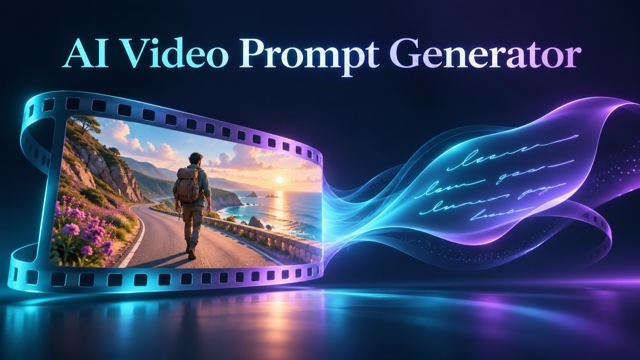
How To Turn A Video Into A Prompt
Move from a reference clip to a usable draft in three steps. Choose a clear source, guide the analysis, and review the resulting text before using it for a new video.

Upload Your Video
Choose a clip that clearly shows the scene or movement you want to describe. A focused reference makes it easier to judge the result. Check the upload requirements shown in the tool, then add your video as the starting point for analysis.

Generate Your Prompt
Add extra instructions if you want the prompt to emphasize a particular detail, such as camera movement or product presentation. Run the analysis, then read the result alongside your reference. Look for a clear subject, visible action, and a coherent scene description.

Review, Copy, And Create
Edit the wording to match your own concept, removing details you do not need. Copy or download the prompt to keep a reusable draft, or continue through the generator action. Review the destination tool's settings before starting a separate video generation.
Build A Video Brief From What You See
Use the reference as a source of concrete visual direction. The most useful prompt explains what happens, how the shot is framed, and which details matter to the scene you want to create.
Describe The Subject And Its Movement
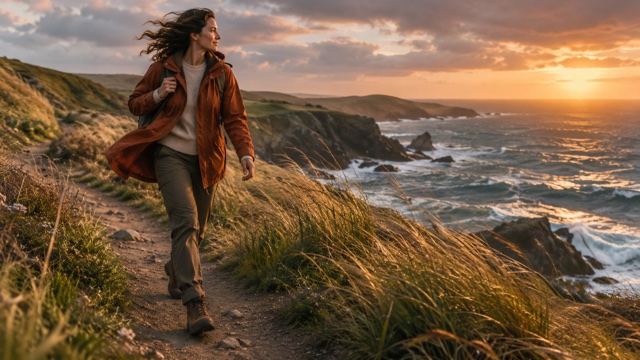
A useful video prompt connects a recognizable subject with a specific action. Instead of stopping at a person in a street, describe the person walking toward the camera, pausing, or turning. Use the generated draft to check that the main action is understandable and its sequence makes sense. You can then replace the character or location while keeping the movement that first caught your attention.

Put Camera Direction Into Plain Language
Camera direction can change the feeling of a scene even when the subject stays the same. Review the prompt for framing, viewpoint, and movement, such as a close shot or a gradual approach. Keep the camera description separate from the subject's action so the instructions stay readable. This gives you a more useful starting point than broad requests for a cinematic video with no clear shot direction.

Carry Lighting And Atmosphere Into Your Brief
A reference may appeal to you because of soft window light, strong shadows, muted colors, or a glowing evening background. Use the video to prompt workflow to put those visible qualities into words. Keep the details that support your intended mood, then remove incidental objects or colors that belong only to the original clip. The result becomes a creative brief you can adapt to your own setting.
Refine The Draft Before You Generate
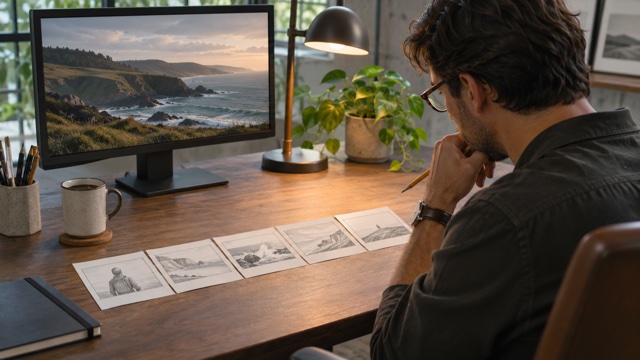
The first prompt is a starting point for decisions. Add extra instructions to focus the analysis, then review the wording for details that matter to your project. Replace an irrelevant subject, simplify competing actions, or make the ending clearer. Copy or download the revised text so you can compare later versions. A deliberate review helps keep your next experiment tied to a specific visual idea.
Make Video References Useful For Your Work
Different projects need different details from the same clip. Use the written prompt to turn a visual reference into a focused discussion, a creative experiment, or a brief that someone else can follow.

Social Video Creators
When a short clip catches your attention, identify the movement or framing that makes it interesting. Turn that reference into a prompt, then adapt the subject and setting to your own content. This gives you a concrete direction for testing an opening shot or visual transition without relying on a vague request to recreate the same vibe.

Product Marketing Teams
Use product footage to discuss how an object is introduced, framed, or revealed. A written prompt helps separate the presentation idea from the original product. Replace the object and background in your brief, then check that the proposed movement suits your own item. The team can review the creative direction before investing in further video experiments.

Filmmakers And Storyboard Artists
Bring a reference shot into a planning conversation by putting its visible action and camera direction into words. Refine the draft into a shot description that supports your story, rather than preserving every detail of the source. This is useful when comparing possible approaches to a scene or explaining a visual idea to a collaborator.

Creative Educators And Learners
Practice describing moving images with a concrete reference beside you. Compare the generated prompt with the clip and ask which details are clear, missing, or unnecessary. Rewrite one part, such as the camera direction, while keeping the rest stable. The exercise builds a more precise vocabulary for discussing motion, composition, and lighting in creative work.
What A Clearer Prompt Can Help You Do
These fictional examples illustrate how different creators might evaluate the workflow. They are sample perspectives, not verified customer testimonials, and focus on the value of turning visual references into editable creative briefs.
I like having a written starting point for a shot I want to explore. It helps me explain the movement I care about before changing the subject to fit my own content.
The useful part is separating a presentation idea from the product in the reference. A clear draft gives our team something specific to discuss before we decide what to test.
Putting camera movement into words makes a reference easier to discuss. I can revise the shot description around my story instead of asking collaborators to interpret a clip on their own.
A prompt gives me a compact way to organize the subject, action, and setting. Reviewing it against the reference helps me decide which details belong in the next storyboard.
I would use this as a description exercise with students. Comparing the text with the footage creates a practical conversation about what is visible and how to communicate it clearly.
Being able to keep a prompt draft is useful when exploring variations. I can change one instruction, keep the rest consistent, and make the creative differences easier to track.




AI Video Prompt Generator FAQ
Understand what this video to prompt workflow produces, how to choose a useful reference, and how to prepare the text for your next creative step.
It turns an uploaded video reference into a written prompt for a new creative brief. The page is configured for video input and visual analysis, with extra instructions available to guide your focus. Review the resulting description of the scene, motion, and visual style before adapting it to your own project.
The immediate output is prompt text. You can copy or download that text, or use the generator action to continue toward video creation. Producing a finished clip is a separate step with its own model, settings, and generation requirements. Check those options in the destination tool before submitting your prompt.
Choose footage where the subject, action, and camera movement you care about are easy to see. A focused scene is easier to describe and review than a reference with many unrelated cuts. Follow the file requirements displayed by the uploader, and select a clip that matches the visual idea you want to develop.
Use extra instructions to explain your focus, such as the camera approach, lighting, or a product reveal. After analysis, remove unrelated details and make the main action explicit. Keep the subject, camera movement, and setting consistent with one another. A focused brief is easier to revise than several competing ideas combined into one prompt.
Treat the prompt as an interpretation of visible details, not a recovery of the original creator's instructions. A video model may interpret the same wording differently, and its settings also affect the result. Use the draft to capture the qualities you want to explore, then refine your wording after reviewing each new generation.
Yes. The page provides copy and download actions so you can keep the text and revise it for another concept. Change the subject, location, or visual mood while preserving the parts you find useful. Before using it in a different generator, check that tool's input requirements and adapt the instructions to its available controls.
Turn Your Next Video Reference Into A Clear Prompt
Bring a clip with a scene, movement, or mood you want to explore. Use the AI Video Prompt Generator to create a written starting point, refine it around your own idea, and keep the result ready for your next video experiment.
