Gemini Live: How to Use Google’s Real-Time AI Assistant in 2026

Gemini Live turns Google’s Gemini app into a conversational assistant that can listen, respond, view a phone camera or shared screen, and work with connected apps. This guide explains how it works, how to start using it, its most useful real-world applications, and the important limitations users should know.
Typing works well for writing or analysis, but it is inconvenient when your hands are busy, you are looking at an unfamiliar object, or you need help inside an app. Gemini Live is designed for those moments. It lets you speak with Google’s AI assistant continuously and, on supported mobile devices, share your camera or screen.
Since launch, camera and screen sharing have become free on Android and iOS. Later updates added visual guidance, more natural speech, connected-app actions, and richer on-screen information. In 2026, Google also began integrating Live into the main Gemini chat so users can move between typing and talking without losing context.
This guide explains how Gemini Live works, how to use it, and what changed in 2026.
What Is Gemini Live?
Gemini Live is the real-time conversational mode in the Gemini app. Instead of sending one voice prompt and waiting, you can interrupt, ask follow-up questions, change direction, or request a simpler explanation during the discussion.
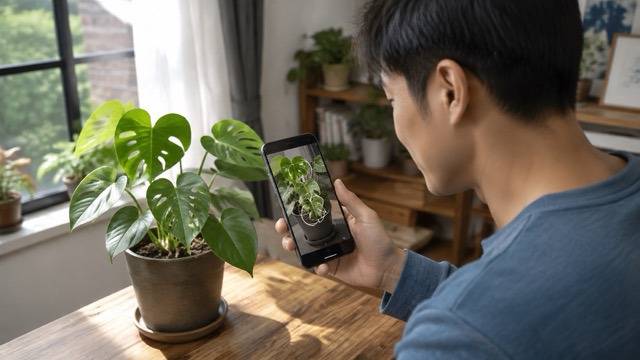
Live is more than a voice interface. Its camera mode can interpret the scene in front of your phone, while screen sharing gives the assistant visual context from the app or page you are viewing. This removes the need to describe every detail manually.
Here is how it differs from standard chat:
| Feature | Standard Gemini Chat | Gemini Live |
|---|---|---|
| Main input | Text, files, and individual voice prompts | Continuous voice, camera, and shared screen |
| Conversation style | Message-by-message | Natural and interruptible |
| Best for | Writing, structured analysis, and saved responses | Learning aloud, troubleshooting, and hands-free help |
| Visual context | Uploaded images or files | Live camera view or current phone screen |
| Connected help | Varies by app and settings | Can use supported connected apps |
What Is New in Gemini Live in 2026?
The main 2026 change is that Live is becoming part of the main Gemini conversation. Users can switch between speaking and typing while retaining context—useful when an exact name, number, or instruction is easier to type.
Google also moved Live to newer models. A March 2026 update said Gemini 3.1 conversations respond faster and retain twice as much context. At Google I/O 2026, Google described a smarter, faster experience that handles background noise better and is less likely to cut off a long spoken thought.
Live can now display real-time maps and weather cards during a conversation. With eligible connected apps enabled, it can help with email, product comparisons, and schedules. Google also announced a workflow that turns camera context into new image ideas with Nano Banana.
 These features roll out progressively. Available controls depend on your device, account, language, region, app version, and settings.
How to Use Gemini Live on Android or iPhone
Starting a basic conversation takes only a few steps:
- Install or update the Gemini mobile app on your Android device, iPhone, or iPad.
- Open the app and sign in with an eligible Google Account.
- Tap the Live icon near the prompt box.
- Allow microphone access when requested.
- Start speaking naturally. Ask follow-up questions or interrupt if you want to redirect the answer.
- Tap the stop or end control when you finish.
On Android, the Gemini app generally requires Android 9 or later and at least 2 GB of RAM. Android Go is not supported. Availability on both Android and iOS can still vary by country, language, age, account, and device.
How to Use the Gemini Live Camera
Open Live, tap the camera button, point it at the relevant object or scene, and ask a specific question. For example:

- “Which cable connects this monitor to my laptop?”
- “Show me which leaves on this plant look unhealthy.”
- “How could I organize this shelf more efficiently?”
Move slowly and keep the object well lit. If the answer is too general, say, “Focus on the label in the lower-left corner.” On devices with visual guidance, Gemini may highlight an item on the screen.
How to Share Your Screen with Gemini Live
Tap the screen-sharing control and follow the system prompt. Navigate to the app or page where you need help, then ask Gemini to explain a setting, compare products, review a chart, or guide you through a menu.

Before sharing, close private conversations and remove passwords, payment details, identification numbers, health records, or other sensitive information from view. Stop sharing as soon as the visual context is no longer needed.
Five Useful Ways to Use Gemini Live
1. Learn Through Conversation
Ask Gemini Live to explain a difficult topic, then interrupt when something is unclear. Request an analogy, simpler version, or short quiz without rebuilding the prompt. This works well for language practice and interview preparation.
2. Troubleshoot What Your Camera Sees
Showing a device, cable, or control panel is often faster than describing it. Ask Gemini to identify visible parts and suggest a step-by-step check. For safety-critical decisions, confirm the advice with an authoritative source or qualified professional.
3. Get Help Inside an App
Screen sharing can turn “Where is the export option?” into a visually grounded question. State the intended result, show the interface, and ask for one step at a time.
4. Compare Items While Shopping
Show products through the camera or share a comparison page. Give clear criteria such as budget, size, and compatibility. Verify the current price, warranty, and specifications on the seller’s official page.
5. Work With Connected Google Apps
When supported apps are connected, a conversation can move from planning to action. You might create a calendar item, collect ingredients in Keep, review email context, or view Maps information. Review details before allowing actions involving messages, bookings, or purchases.
Tips for Better Gemini Live Conversations
Begin with the goal. “Help me choose the correct adapter for this laptop and monitor” is clearer than “What is this?” Add constraints such as budget, skill level, or deadline.
When sharing visuals, direct attention explicitly. Ask Gemini to read a label, compare two areas, or explain the next control. For longer tasks, request one step at a time. If the discussion drifts, restate the goal and last completed step.
Most importantly, treat Gemini Live as an assistant rather than an authority. It can misunderstand speech, overlook a visual detail, or produce inaccurate information. Verify important facts, and never use an AI response as a substitute for professional medical, legal, financial, or safety advice.
Gemini Live Privacy and Limitations
Camera, microphone, screen sharing, location, and connected apps can expose more context than a text prompt. Google provides controls for Gemini Apps Activity and connected apps. Depending on your settings, the activity interface may identify saved audio, video frames, or screen-sharing content.

Work and school accounts may not receive every feature. If a Live control is missing, update the app, check permissions, confirm account eligibility, and review Google’s availability page.
Gemini Live FAQ
Is Gemini Live free?
Yes. Google made Gemini Live camera and screen sharing available for free to Android and iOS users. Paid plans may still provide higher limits, earlier access, or additional Gemini features that are not part of the basic Live experience.
Does Gemini Live work on iPhone?
Yes. Gemini Live is available through the Gemini app on eligible iPhones and iPads. Feature availability can depend on the account, device, country, language, and rollout status.
Can Gemini Live see my screen?
Only when you actively start screen sharing and grant permission. Stop sharing before opening sensitive information that is unrelated to your question.
Is Gemini Live the same as Google Assistant?
No. Gemini Live focuses on open-ended, multimodal AI conversations. Gemini can also perform selected assistant-style actions through supported apps, but availability and behavior are not identical to the older Google Assistant experience.
Is Gemini Live accurate?
It can be helpful, but it is not guaranteed to be correct. Voice recognition, visual interpretation, and generated answers can all contain errors. Double-check any important instruction or factual claim.
A More Natural Way to Ask for Help
Gemini Live is most valuable when typing would interrupt the task. It lets you talk through a problem, show the relevant object or interface, and refine an answer without rebuilding context. The 2026 updates connect that experience with the main chat, richer visuals, newer models, and supported Google apps.
That conversational workflow can also be a useful starting point for creative projects. After talking through an idea, creators who want to turn it into a finished image or video can continue the process with Pixomi AI, which brings AI image generation, editing, video creation, and visual canvas workflows into one creative platform.
Begin with a low-risk task: ask it to explain something on your screen, compare two visible items, or rehearse a presentation. Give it a clear goal, share only the context it needs, and verify the result before acting. Used carefully, Gemini Live can bridge an AI conversation and the real situation in front of you.