Google Pics Explained: What Google’s New AI Image Tool Can Do
Learn what Google Pics is, how Google’s new AI image tool works, and how to use it to generate, edit, and refine images. This guide also covers its key features, Workspace integration, differences from Google Photos and Gemini, common use cases, and current access requirements.
Google has spent the past few years bringing generative AI into Search, Gemini, Docs, Slides, and other everyday products. Now, it is giving image creation and editing a dedicated space of its own.
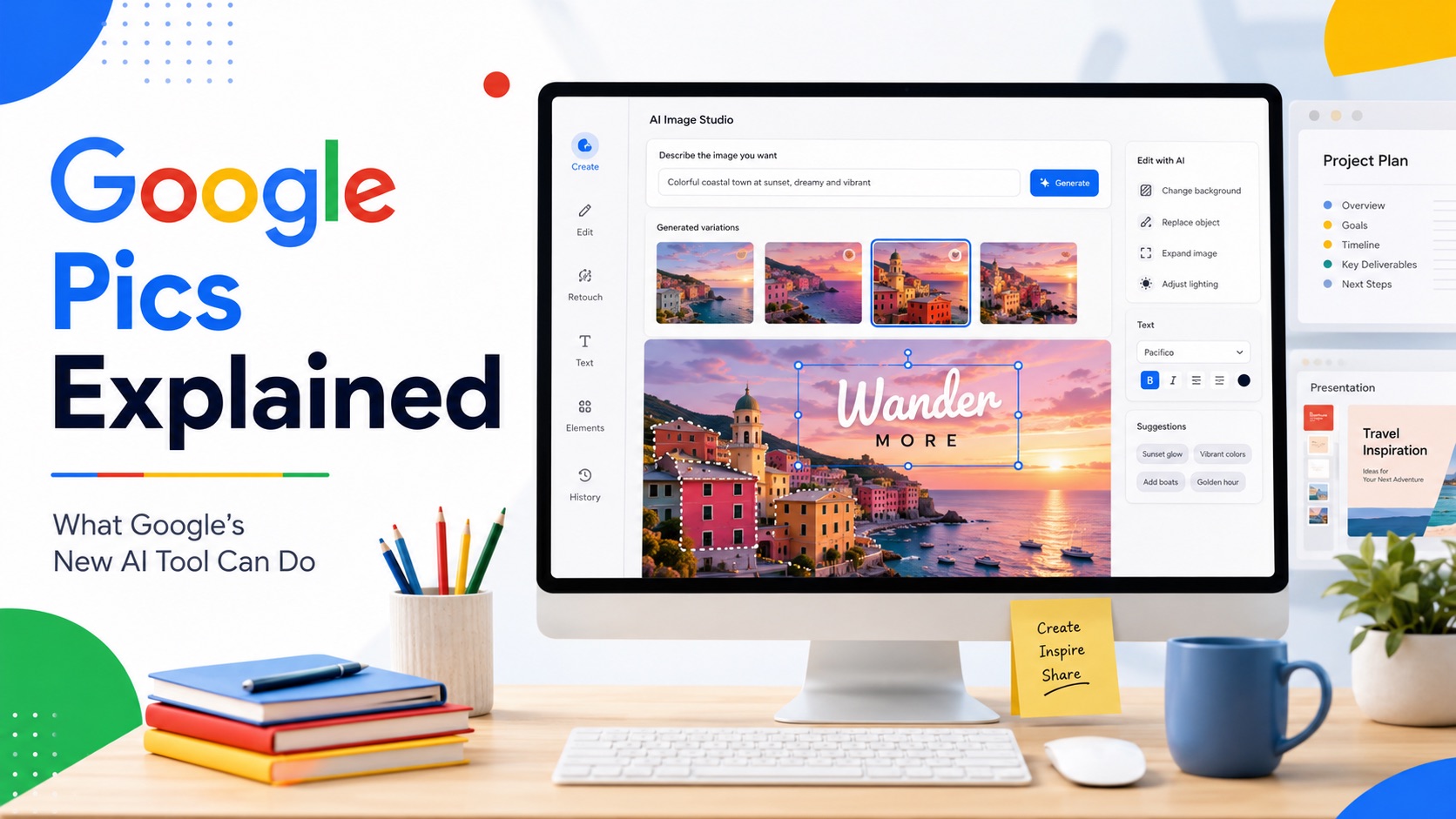
Google Pics is Google's new AI-powered image creation and editing tool for Google Workspace. Instead of focusing only on generating a picture from a text prompt, Pics is designed around a broader creative workflow: generate an image, refine it, edit individual elements, change text, reuse visual references, and collaborate on the result.
Google officially introduced the broader rollout of Pics on September 1, 2026. The product is powered by Gemini and Google's Nano Banana image generation and editing technology.
That immediately puts Google Pics into an increasingly crowded market of AI image tools. But its most interesting features are not simply about generating another attractive picture. Google is trying to make AI image creation feel like a normal part of working in Docs, Slides, Drive, and other Workspace environments.
So what exactly is Google Pics, what can it do, and how do you use it?
What Is Google Pics?
Google Pics is an AI image generator and editor that lets users create and modify visual content using natural-language prompts.
You can start from a blank canvas and describe the image you want, or bring in an existing image and tell Pics what should change. Existing images can also be used as style or element references for new generations.
The underlying experience is powered by Gemini and Google's Nano Banana image technology.
That makes Pics different from a traditional photo editor where you need to manually select tools, masks, layers, brushes, and adjustment settings. Instead, many editing actions can begin with an instruction written in ordinary language.
For example, you might ask it to:
- create a promotional poster for a weekend event;
- replace the background of a product photo;
- add an object to an existing scene;
- remove an unwanted object;
- change text inside a graphic;
- translate text while preserving the surrounding design;
- use the style of another image as a reference;
- or generate several variations of the same idea.
Google Pics is also intended to work as both a standalone product and part of the wider Google Workspace ecosystem.
How Is Google Pics Different From a Basic AI Image Generator?
At first glance, Pics may sound like another text-to-image generator. Type a prompt, receive an image, and download it.
That is only part of the product.
Google is placing much more emphasis on what happens after the first generation.
Traditional AI image generators often encourage a cycle of prompting and regenerating. If one small element is wrong, users may have to rewrite the prompt and create the entire image again, hoping the next result fixes the problem without changing something else.
Google Pics introduces more targeted editing controls.
Instead of replacing the whole image, you can work on particular objects or areas. You can also use existing images as references and continue refining a selected generation.
The workflow therefore looks more like:
Generate → Select → Edit → Refine → Reuse
rather than simply:
Prompt → Generate → Download
That distinction is important for anyone using AI images for practical work rather than one-off experimentation.
Key Features of Google Pics
Google Pics combines several image-generation and editing features within the same workspace.
1. Generate Images From Text Prompts
The most familiar feature is text-to-image generation.
You describe what you want in the prompt bar, and Pics generates multiple visual interpretations of the request.
A prompt could be as simple as:
Create a cheerful illustration of a neighborhood bakery preparing for its morning opening.
Or it can include more detailed instructions about the composition, lighting, visual style, colors, objects, and intended use.
For example:
Create a clean editorial illustration of a neighborhood bakery opening in the morning. Use warm natural light, soft colors, realistic details, and leave open space on the left for a headline.
Pics presents generated options so you can choose the version that comes closest to what you had in mind before continuing to refine it.
2. Upload and Edit an Existing Image
You do not have to generate everything from scratch.
Google Pics can also work with images you already have. According to Google's current documentation, users can bring images into the canvas from their computer, Google Drive, or Google Photos.
Supported uploads include common image formats such as JPG and PNG, along with BMP and TIFF.
Once the image is on the canvas, you can use prompts to describe the changes you want.
For example:
Replace the plain wall behind the chair with a warm cream-colored interior.
Or:
Remove the cup on the table but keep the table, lighting, and everything else unchanged.
This makes Pics useful when the original image is already close to what you need and only a few details require modification.
3. Edit Individual Objects
One of the more distinctive Google Pics features is object-level editing.
Pics can isolate elements inside an image so that you can modify a specific object without intentionally rebuilding the entire composition.
Imagine you have an interior photo that works perfectly except for the rug.
Instead of generating the room again, you could select the relevant area and request a different rug. The rest of the image can remain largely intact.
This type of editing is especially useful for product mockups, social graphics, promotional images, interior concepts, and other visuals where preserving the original composition matters.
4. Make Targeted Changes to Specific Areas
Not every part of an image will be automatically recognized as a separate object.
Google Pics also supports targeted editing of selected areas. You can identify the part of the image you want to change and describe the intended modification.
This brings generative AI closer to a conventional image-editing workflow while reducing the amount of manual work involved.
Instead of learning a series of specialist editing tools, the instruction might simply be:
Add a small ceramic vase with white flowers in this empty corner.
The selected region gives the AI more context about where the requested change should happen.
5. Edit and Translate Text Inside Images
AI-generated text has historically been one of the weak points of image generators.
Google Pics is designed to make text inside an image more editable.
Google says users can modify or translate text directly within an image while keeping the surrounding design intact. This can be particularly useful for posters, announcements, social graphics, educational materials, menus, and marketing assets.
For example, a team could create one promotional visual and then adapt the wording for another language instead of rebuilding the entire design.
This also gives Pics a more practical role than an AI generator intended primarily for artwork.
6. Use Images as Style or Element References
Prompt writing is not always the best way to explain a visual idea.
Sometimes you already have an image that shows exactly the style, color palette, or design direction you want.
Google Pics lets users add existing images as references for new generations.
A reference image can help communicate visual information that would otherwise require a long prompt.
For example, you might upload an existing brand graphic and ask Pics to use its blue color in the background of a new image.
Style references can also help when creating a group of visuals that should feel related rather than completely independent.
7. Generate Multiple Versions
Google Pics can create several interpretations from the same prompt.
This is useful because image generation is rarely a one-shot process. Two generations created from the same instruction can differ substantially in composition, details, framing, and overall mood.
Instead of trying to perfect every word before generating, users can compare several options, choose the strongest result, and refine that version.
It creates a more iterative creative process.
How to Use Google Pics
If your account currently has access, the basic Google Pics workflow is relatively straightforward.
Step 1: Open Google Pics
Start by using the official Google entry to open Google Pics on a desktop browser.
Google currently lists recent versions of Chrome and Firefox as supported browsers, as well as Microsoft Edge on Windows. Other browsers may work, although Google notes that some features may not be available.
Step 2: Start With a Prompt or Existing Image
Decide whether you want to create something new or edit something you already have.
For a new image, enter a description in the prompt bar.
For an existing image, add the file from your computer, Drive, or Google Photos.
You can also add reference images when you want the output to borrow a certain style or visual element.
Step 3: Review the Generated Versions
If you create an image from a prompt, Pics provides generated alternatives.
Look at the overall composition first rather than focusing on tiny details. Choose the image that gets closest to the layout, subject, and visual direction you want.
Smaller problems can often be addressed during editing.
Step 4: Refine the Image
Once you select a version, continue editing it.
You might change the entire image with another prompt, work on an individual element, modify a selected region, or adjust text.
For example:
Keep the composition the same but make the background warmer.
Then follow it with another targeted instruction:
Change the yellow chair to olive green.
This approach is often more controllable than trying to describe every detail in one extremely long initial prompt.
Step 5: Review Before Using the Result
Check important details before publishing or sharing an AI-generated image.
Look carefully at text, logos, people, hands, product details, background objects, and anything else that needs to remain accurate.
AI image tools have become much better at following instructions, but generated output should still be reviewed before it is used publicly.
Google Pics and Google Workspace
The connection to Google Workspace may eventually become one of the biggest advantages of Pics.
Many people already create documents, presentations, reports, lessons, proposals, and marketing materials inside Google's productivity tools.
Without an integrated image workflow, creating a custom visual can involve several steps:
- Open an external image generator.
- Generate the image.
- Download the file.
- Upload it to a presentation or document.
- Notice something that needs changing.
- Return to the image generator.
- Edit or regenerate the image.
- Download and upload it again.
Google wants Pics to reduce that back-and-forth.
According to Google, Pics integration is beginning with Docs and Slides, while Drive integration is also being rolled out.
That means a presentation creator, for example, could increasingly create or modify visual assets closer to where those assets are actually being used.
The value here is less about a single AI feature and more about shortening the overall workflow.
Google Pics vs. Google Photos: What's the Difference?
The names make these two Google products easy to confuse, but they serve very different purposes.
Google Photos is primarily designed to store, organize, search, share, and manage personal photos and videos.
Google Pics is designed to create and edit visual content with generative AI.
Google Pics can even import an image from Google Photos, which shows that the products are intended to complement rather than replace each other.
A simple way to remember the distinction is:
Google Photos manages the images you already have. Google Pics helps you create and transform visual content.
Google Pics vs. Image Generation in Gemini
There is another obvious question: if Gemini can already generate images with Nano Banana, why does Google need a separate product?
The answer appears to be workflow and control.
Gemini is a general-purpose AI assistant. Image generation is one capability among many, alongside writing, research, coding, analysis, and other tasks.
Google Pics is centered specifically on visual creation.
Its canvas, reference-image workflow, object editing, in-image text tools, multiple generations, collaboration features, and Workspace integrations make image creation the main experience rather than one feature inside a larger chatbot.
Someone who only needs to generate a quick image may be perfectly comfortable using Gemini.
Someone who wants to continue adjusting a graphic, change selected objects, reuse references, collaborate with others, and place the result into Workspace documents may find a dedicated environment more useful.
What Can You Create With Google Pics?
Google itself highlights use cases such as posters, social media graphics, digital illustrations, and other custom visual content.
In practice, the combination of generation and editing opens the door to many everyday uses.
You could use Google Pics for:
- social media posts;
- event announcements;
- presentation graphics;
- blog illustrations;
- educational materials;
- promotional graphics;
- simple product mockups;
- concept images;
- posters;
- multilingual graphics;
- branded visual concepts;
- internal company materials;
- or customized images for Docs and Slides.
The most useful applications may not necessarily be highly artistic.
For many users, being able to quickly fix an existing graphic or create a customized visual for a presentation could be more valuable than generating elaborate AI artwork.
Who Is Google Pics For?
Google Pics could appeal to several groups of users.
Content Creators
Bloggers, social media creators, newsletter writers, and small publishers frequently need custom graphics but may not need a full professional design suite for every image.
Pics provides a way to generate an initial idea and keep refining it in one environment.
Marketing Teams
Marketing work often involves creating variations.
One image may need different copy, backgrounds, languages, products, or promotional details.
Object editing, text modification, and reference images could make that type of repetitive adaptation faster.
Students and Educators
Visual explanations can improve presentations, teaching materials, reports, and classroom resources.
Being connected to the wider Google Workspace environment makes Pics especially relevant to users who already work in Docs and Slides.
Small Businesses
A small business might need a poster today, a social media graphic tomorrow, and a simple promotional image next week.
A prompt-based editor lowers the barrier for people who do not regularly use professional image-editing software.
Existing Google Workspace Users
Perhaps the most obvious audience is anyone already spending much of the day inside Google's productivity ecosystem.
For these users, convenience may be as important as raw image quality.
Who Can Access Google Pics?
Google announced on September 1, 2026 that Google Pics was rolling out over the following weeks to Google AI Pro and Ultra subscribers and most Google Workspace business customers.
Google's current Help Center also states that the feature requires an eligible Google Workspace or Google AI plan and is currently supported on desktop.
Because the product is still rolling out, availability can vary by account, organization, plan, language, and region.
If someone else can open Google Pics but you cannot yet see it on your account, that does not necessarily mean there is a problem with your browser or Google account. Your access may simply not have reached the same stage of the rollout.
Is Google Pics Worth Paying Attention To?
Google Pics enters a market where users already have plenty of options for AI image generation.
Its advantage therefore cannot simply be that it creates images from prompts.
What makes the product more interesting is Google's attempt to connect generation, editing, collaboration, and productivity into one continuous workflow.
Object-level editing reduces the need to regenerate an entire image. Reference images make visual direction easier to communicate. In-image text editing makes generated graphics more practical. Workspace integrations reduce the need to move files repeatedly between separate tools.
None of these ideas exists completely in isolation elsewhere.
The difference is that Google has the ability to put them directly in front of a huge population of Docs, Slides, Drive, Gemini, and Workspace users.
That could make AI image editing less of a specialist activity and more of an everyday productivity feature.
Final Thoughts
Google Pics represents a broader shift in AI image tools.
The first generation of popular AI image products was largely about one question: how impressive an image can a model generate from a prompt?
The next stage is increasingly about control.
Users want to keep the parts of an image they like, change only what is wrong, reuse reference material, edit text, create variations, and continue working without constantly starting over.
Google Pics is clearly designed around that direction.
Powered by Gemini and Nano Banana, it combines image generation with targeted editing, reference images, editable text, multiple generations, collaboration, and Google Workspace integration.
The product is still in the early stages of its broader rollout, so access and features may continue to evolve. But for anyone already using Google's productivity ecosystem — or simply interested in where practical AI image editing is heading — Google Pics is worth watching.
If your account already has access, you can try Google Pics and explore the generation and editing workflow for yourself.