
Add, replace, remove, repair, or extend image details with a prompt while preserving the surrounding scene.
More AI Image Generators
Explore our collection of specialized AI image generators designed for different creative needs and styles


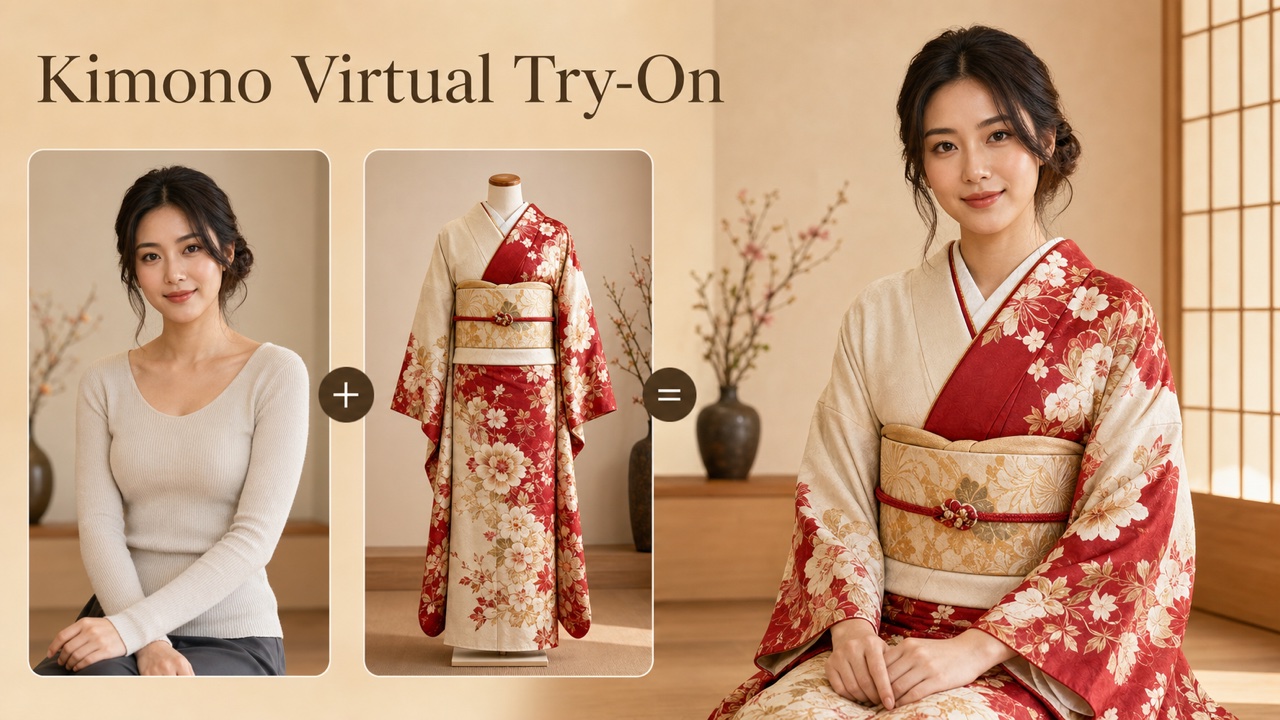
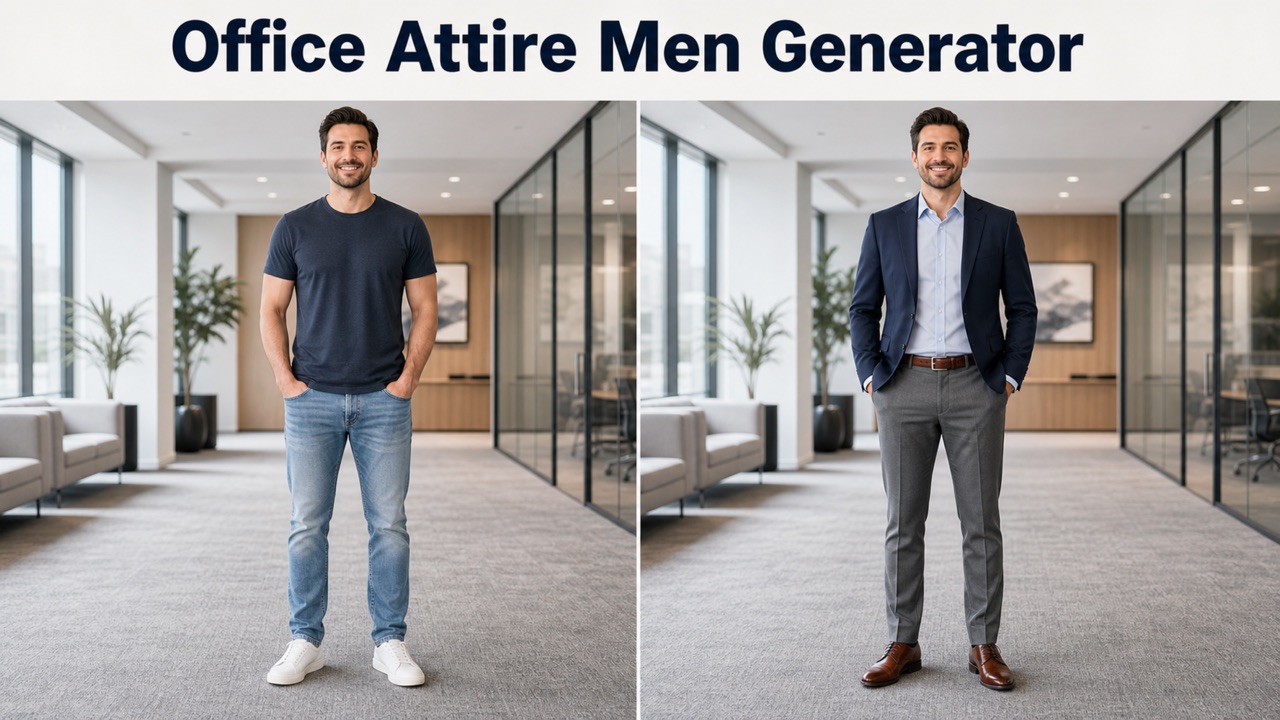
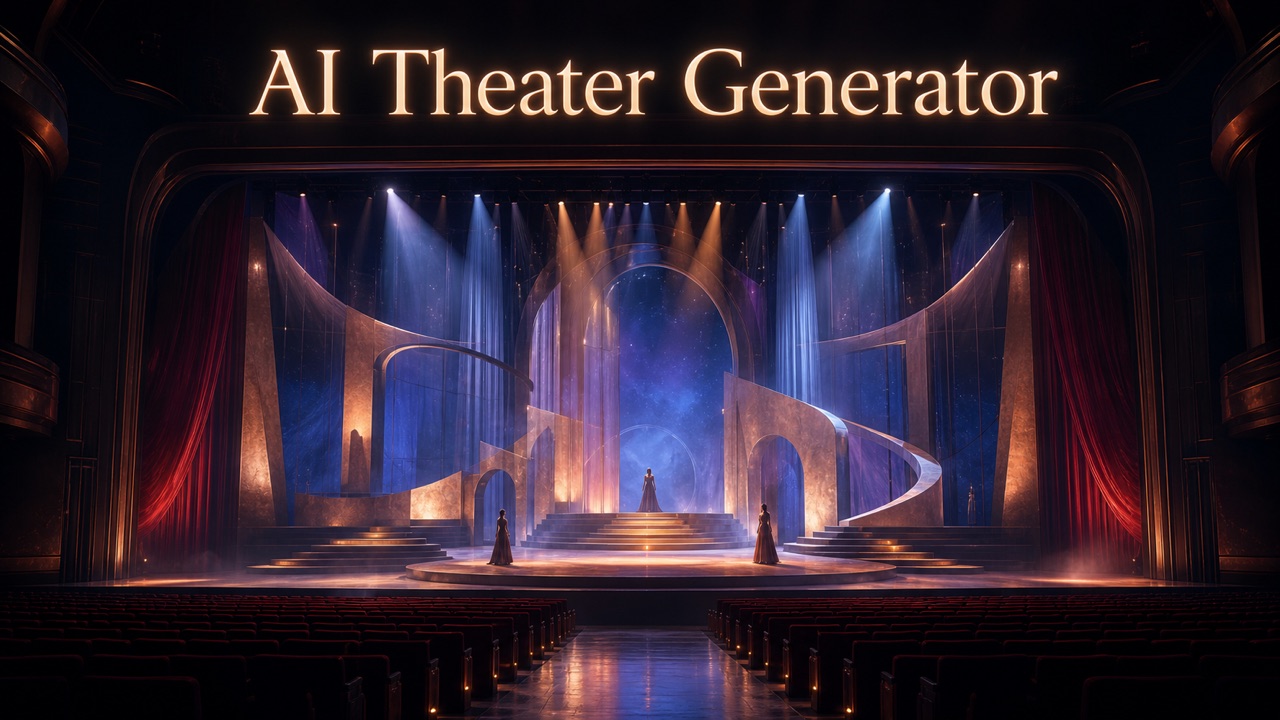
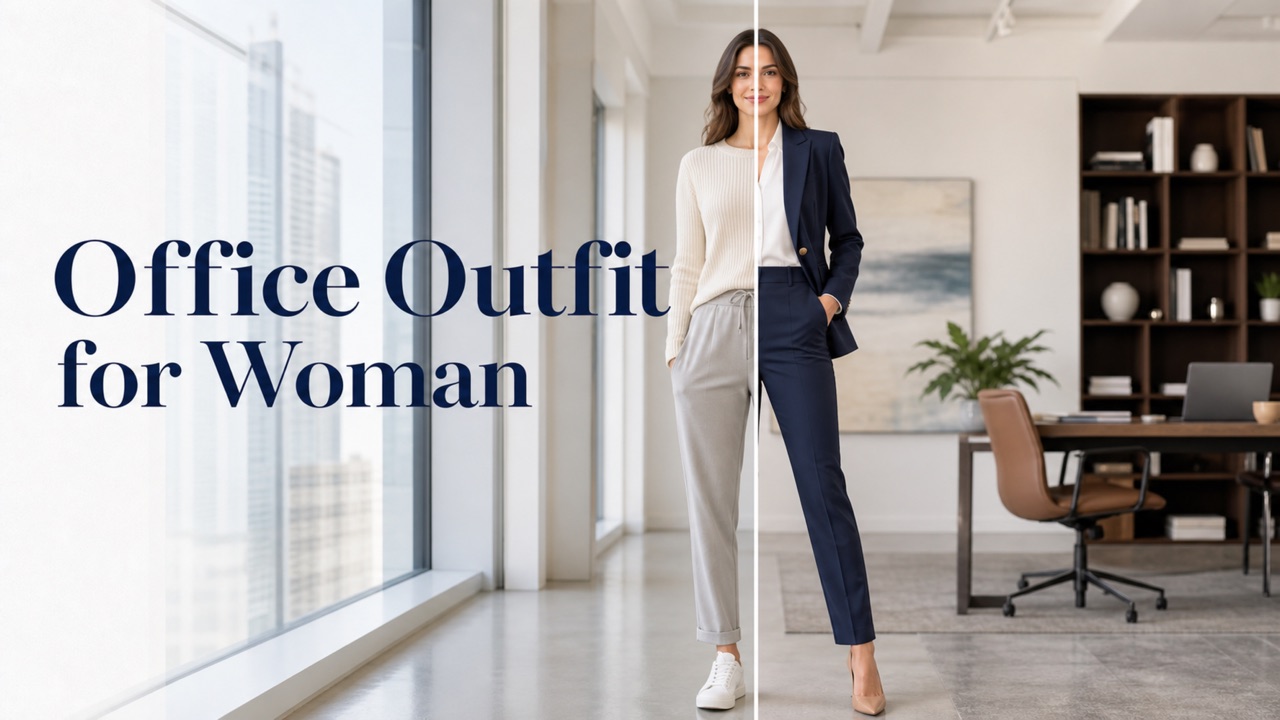

AI Generative Fill for Fast, Natural Image Edits
Use AI Generative Fill to upload a photo, describe the change, and reshape selected details without rebuilding the entire scene.
AI Generative Fill helps you add, replace, remove, or rebuild visual content while keeping the surrounding image coherent. Use generative fill online to explore a precise idea, compare a few prompt directions, and finish an edit without a complicated desktop workflow.
How to Use AI Generative Fill
Move from an existing photo to a focused edit in three clear steps. AI Generative Fill combines your uploaded image with written direction, while generative fill online keeps the process accessible. Use AI Generative Fill to define both the change and the protected details.

Upload the Image You Want to Edit
Choose a clear source image with enough surrounding context for the requested change. AI Generative Fill uses the subject, lighting, perspective, texture, and background as clues. For better generative fill online results, give AI Generative Fill an image where the intended area is not heavily blurred, cropped, or hidden. Decide what must remain untouched, especially faces, products, logos, architecture, and important composition lines.

Describe the Exact Change
Write what should be added, replaced, removed, repaired, or extended. Tell AI Generative Fill where the change belongs and how it should match the scene. Include size, position, material, light direction, camera angle, and mood. AI Generative Fill works better when a generative fill online prompt separates preservation rules from the requested edit, so the change and protected details stay clear.

Generate, Compare, and Refine
Create a result, inspect edges and visual consistency, then revise one instruction at a time. AI Generative Fill may interpret the same prompt differently, so compare subject shape, shadows, reflections, scale, and texture. AI Generative Fill becomes more controlled in generative fill online when you add a focused correction such as “keep the original face unchanged” or “match the warm light from the left.”
Best AI Image Tools for Creative Projects
Explore creative tools for image, learn tips and tricks, and see how AI can be your assistant in turning concepts into finished projects.
Direct Every AI Generative Fill Edit with a Clear Goal
AI Generative Fill is most useful when the requested change is specific and the protected parts of the image are equally clear. The following workflows show how generative fill online can support practical image decisions instead of applying a generic effect.
Add an Object That Belongs in the Scene
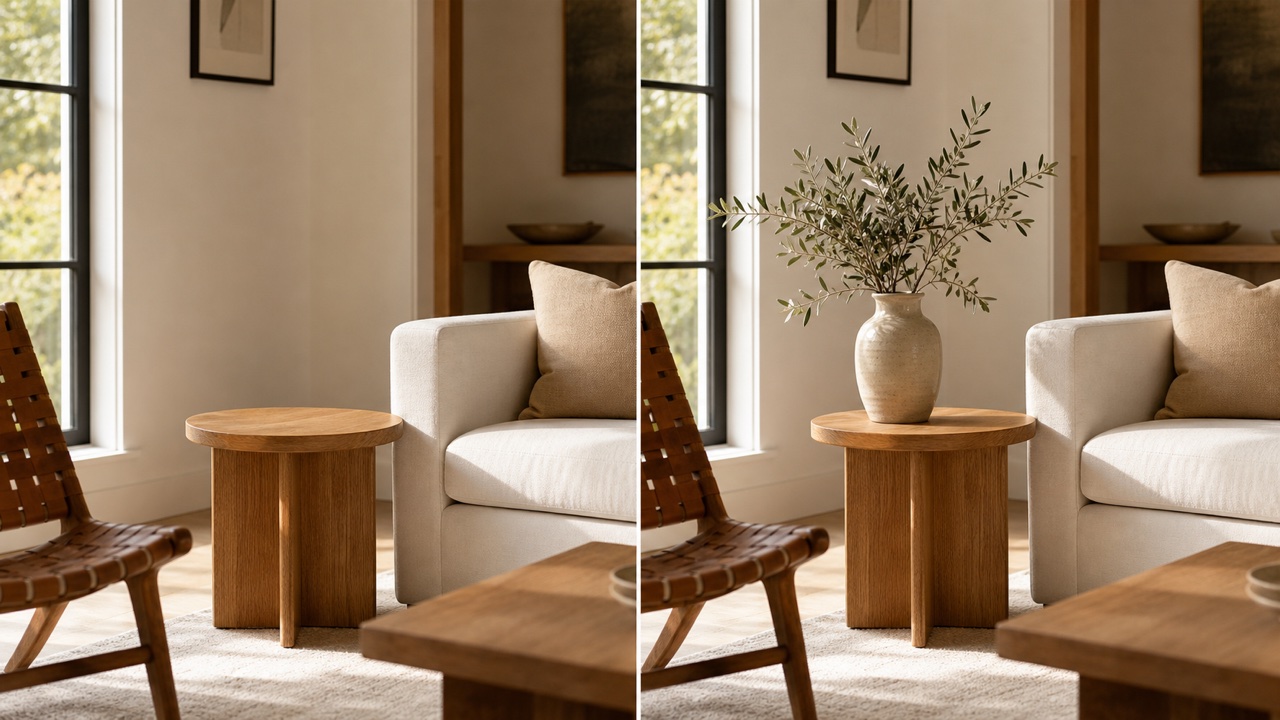
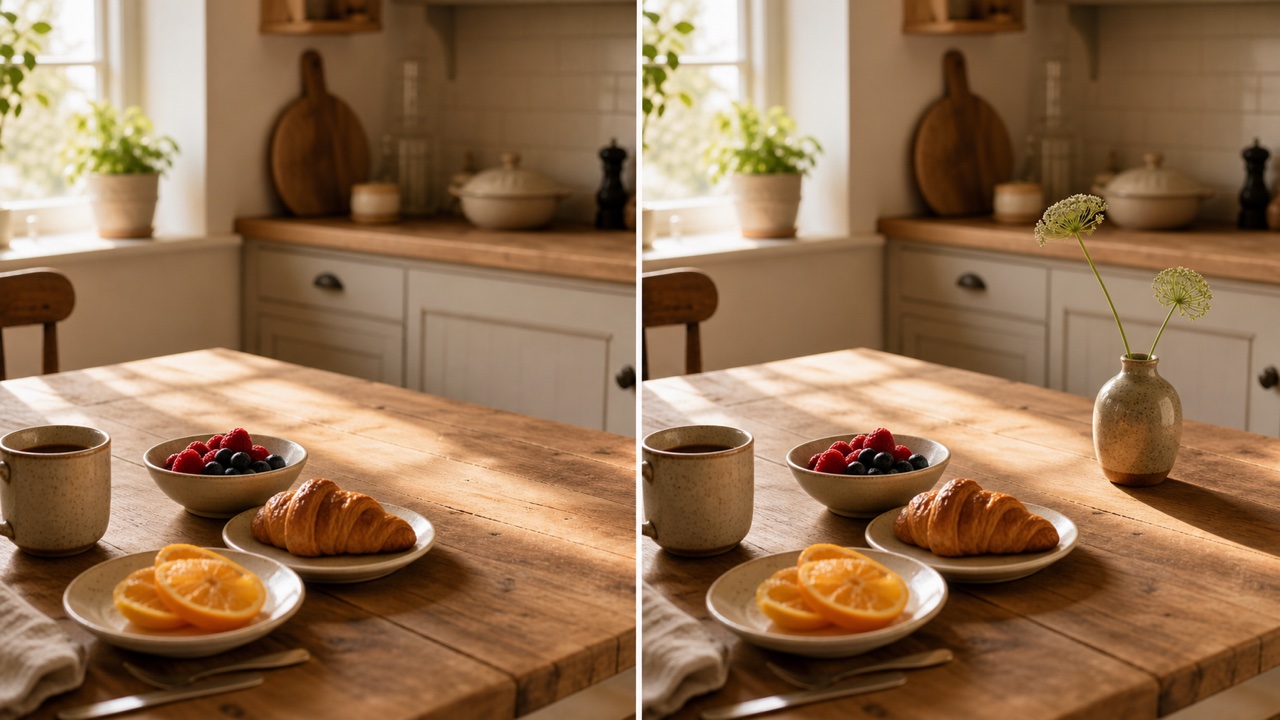
Place a new prop, decoration, plant, accessory, cloud, food item, or piece of furniture into an existing composition. AI Generative Fill can use nearby surfaces, depth cues, and illumination to propose connected content. Tell AI Generative Fill the object's location, scale, viewing angle, material, and relationship to nearby subjects. For generative fill online, prompts such as “add a small ceramic vase on the right side of the wooden table, matching the morning window light” help AI Generative Fill understand the scene. Protect the original people and major objects by naming them. AI Generative Fill then has a narrower task: introduce the new element while preserving the chosen photo. Review contact shadows and overlapping edges before accepting the AI Generative Fill edit.
Replace a Distracting Element with a Better Choice
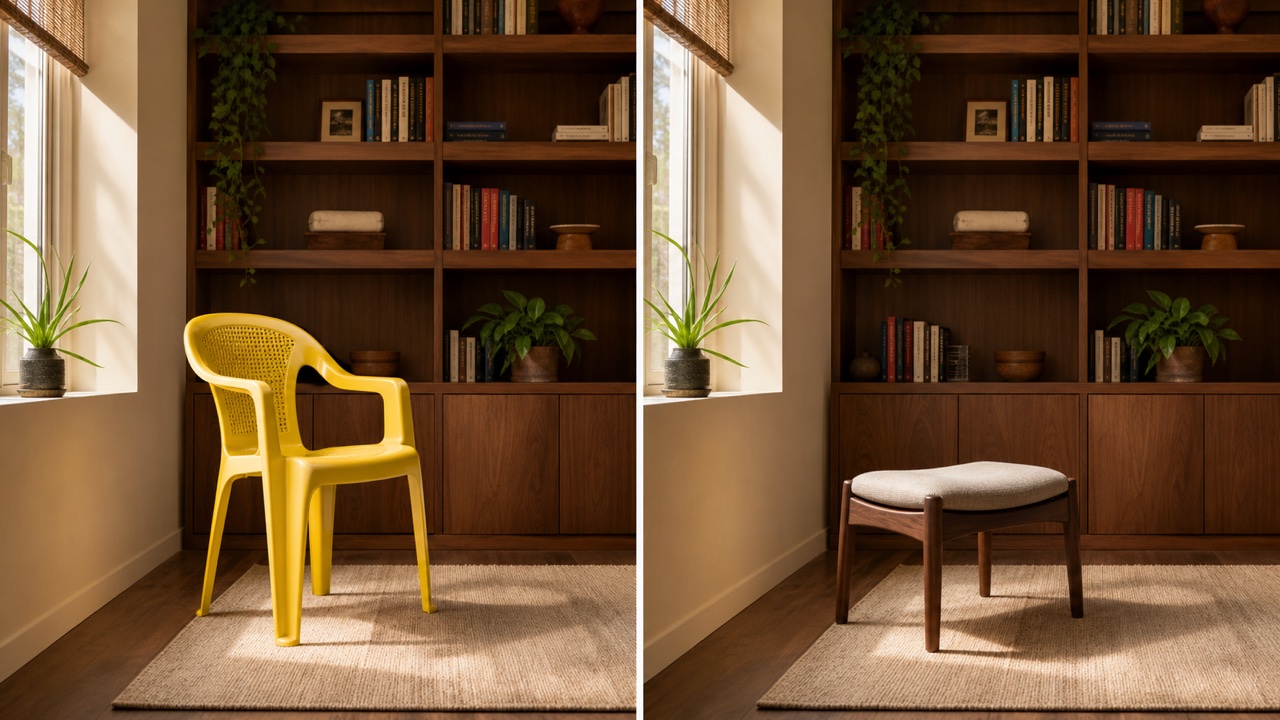
Swap an unwanted sign, prop, background detail, garment feature, or product accessory without redesigning the image. AI Generative Fill works from your instruction and the surrounding scene, helping you explore an alternative before a detailed production pass. State both the element being replaced and the replacement. Ask AI Generative Fill to preserve identity, pose, camera position, and unrelated objects. AI Generative Fill responds to a controlled generative fill online prompt such as replacing a plastic chair with a low walnut stool while keeping the room layout and side light unchanged. This boundary helps AI Generative Fill avoid turning a local correction into a broad restyle. Compare proportions, perspective, reflected color, and occlusion. If one quality drifts, tell AI Generative Fill to refine that relationship instead of rewriting the entire prompt.
Rebuild Missing or Unwanted Areas
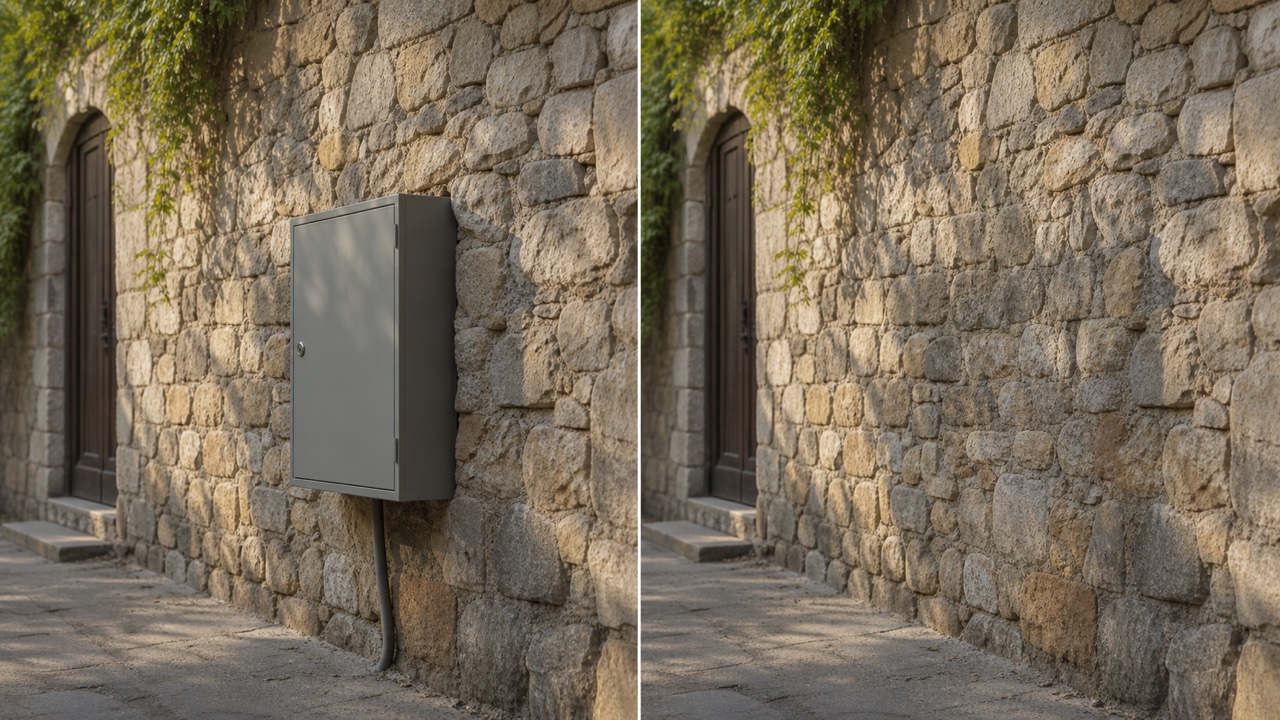
Remove a small distraction or reconstruct an incomplete background, surface, texture, or edge. AI Generative Fill can infer plausible visual information from nearby pixels and the prompt. AI Generative Fill performs better in generative fill online when you describe the clean result instead of dwelling on the unwanted object. For example, request an uninterrupted stone wall with matching mortar lines and light falloff. AI Generative Fill needs enough surrounding evidence to continue patterns, so tight crops may require more attempts. Tell AI Generative Fill which structural lines must connect and whether natural irregularity should remain. Examine repeated textures, straight edges, fingers, facial features, and text. An AI Generative Fill result from generative fill online is creative content, so important details deserve review.
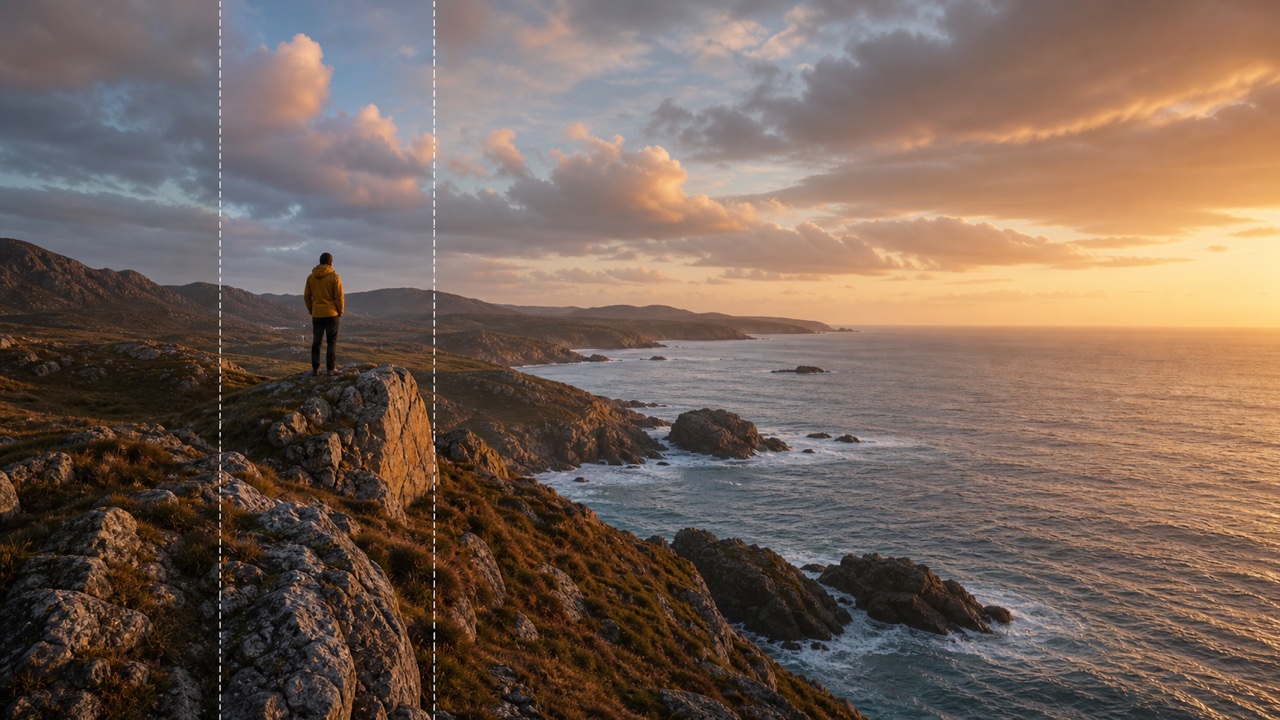
Extend the Story Beyond the Original Frame
Imagine more environment around a cropped portrait, product photo, landscape, room, or illustration. AI Generative Fill can propose a wider continuation that follows the horizon, perspective, palette, and lighting. Explain what should appear in the new space and what should remain quiet. In a generative fill online workflow, AI Generative Fill can create room for a headline, complete a cut-off setting, or test a wider composition. Ask AI Generative Fill to continue anchors such as the floor plane, wall panels, coastline, shelf, or sky gradient. Name features that should not multiply, including people, products, hands, or openings. AI Generative Fill responds more predictably when the extension has a purpose. Review every AI Generative Fill extension for symmetry, repeated objects, scale changes, and edge continuity.
What You Can Create with AI Generative Fill
From quick personal corrections to structured creative exploration, AI Generative Fill helps different users test a visual change before committing to a longer editing workflow. Generative fill online makes those experiments easier to begin from any suitable source image.

Product and Marketing Variations
Explore alternative props, surfaces, settings, seasonal details, and supporting objects around an existing product image. AI Generative Fill can help a marketer compare directions while keeping the core item central. Ask AI Generative Fill to preserve product shape, label, color, camera angle, and reflections, then describe only the surrounding change. AI Generative Fill can follow a generative fill online prompt that tests a neutral desk, warm backdrop, botanical accent, or holiday detail. Do not treat a generated variation as automatically accurate; inspect packaging text, logos, proportions, claims, and legal details. Use AI Generative Fill for ideation, then complete brand-critical corrections through the review and production process your project requires. Generative fill online helps teams discuss concrete options instead of vague mood descriptions.

Social Posts and Creator Visuals
Add atmosphere, remove a distraction, create breathing room for layout, or try a supporting object. AI Generative Fill lets creators reshape a photo around the intended story without discarding the original moment. Tell AI Generative Fill which face, pose, outfit, and location cues must stay intact. AI Generative Fill in a generative fill online workflow can add soft clouds, replace a cluttered corner with a clean wall, or continue a background. Keep the edit relevant instead of filling every empty area. AI Generative Fill often works best when one idea guides the change. Check hands, faces, text, and recognizable places, and ensure generated details do not suggest an event or endorsement that never happened. Generative fill online supports composition, while truthful publishing choices remain with the creator.

Interior and Event Concepting
Visualize a different chair, lamp, floral arrangement, backdrop, table setting, display object, or decorative accent inside a real space. AI Generative Fill can turn a written idea into a visual concept for collaborators. Give AI Generative Fill the approximate dimensions, placement, material, style, and light behavior. An AI Generative Fill result from generative fill online can clarify visual balance, but it is not a measurement, construction drawing, inventory promise, or safety plan. Use AI Generative Fill to explore mood and composition, then verify fit, cost, access, fire codes, load limits, and materials through qualified planning. Let AI Generative Fill support the early conversation. Generative fill online does not replace the technical decisions needed to build the actual space.

Portrait, Travel, and Personal Photo Cleanup
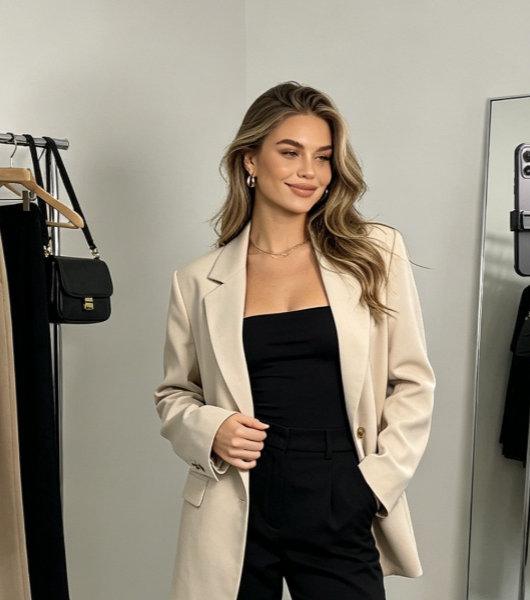
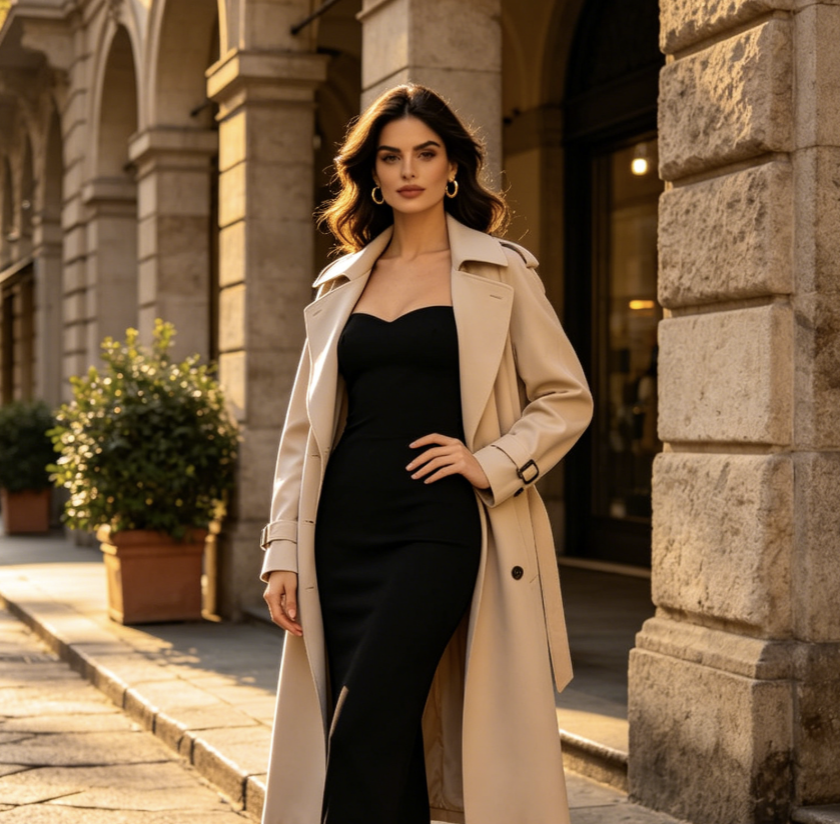
Remove a small background distraction, rebuild a cropped edge, add a missing detail, or test a subtle replacement in a favorite image. AI Generative Fill can preserve the emotional center while changing a limited area. Instruct AI Generative Fill to keep identity, expression, body position, clothing, camera angle, and meaningful objects unchanged. For generative fill online, give AI Generative Fill the desired background or replacement in plain language and avoid unnecessary style instructions. A simple change is easier to judge than several simultaneous edits. Review faces, hands, jewelry, landmarks, signs, and culturally important elements. AI Generative Fill can create plausible content that was not in the original scene, so use AI Generative Fill and generative fill online thoughtfully when authenticity matters.
Focused Edits for Real Creative Workflows
These fictional examples illustrate how AI Generative Fill can support different editing decisions. Each user keeps the requested change narrow, reviews the result, and treats generative fill online as a practical creative aid.
I needed more space beside a portrait for an event headline, but a simple crop felt cramped. AI Generative Fill helped me continue the studio wall and floor while keeping the person untouched. I used generative fill online to compare a clean extension with a subtle plant shadow, then chose the quieter result. Clear preservation instructions saved time because every AI Generative Fill revision stayed focused on the empty side of the composition.
A product concept had the right camera angle but the supporting prop felt too casual. I asked AI Generative Fill to replace it with a small walnut tray and match the existing reflections. The generative fill online versions made the tradeoff visible to the team before we planned another shoot. I still checked the product label and edges carefully, but the comparison gave our art director a useful starting point.
I wanted to show a client how a floral installation might balance the entrance without pretending it was a finished plan. AI Generative Fill let me place a restrained arrangement into the reference photo and adjust its scale. Generative fill online made the early conversation faster, while measurements, access, and safety stayed in our real planning documents. That separation between visual idea and technical decision worked well for us.
My travel photo had a distracting sign near the edge, but I did not want the landscape restyled. I told AI Generative Fill to rebuild only the stone wall behind it and preserve the afternoon light. The AI Generative Fill result from generative fill online needed one refinement for the mortar pattern, then it blended naturally. I appreciated stating exactly what should change and what should remain part of the memory.


AI Generative Fill FAQ
Practical answers about image inputs, prompts, edits, output review, and responsible use.
AI Generative Fill is an image-editing workflow that creates new visual content for a requested area or change while considering the surrounding scene. It can add, replace, remove, repair, or extend content from a written prompt. Results are generated interpretations, so inspect important details before use.
State the exact change, its location, scale, material, perspective, and lighting, then name what must remain unchanged. AI Generative Fill responds better to concrete relationships than to long lists of quality words. Revise one mismatch at a time after reviewing the first result.
Yes. Describe the object, where it belongs, and how it should interact with nearby surfaces, light, and subjects. AI Generative Fill can propose an addition or replacement that follows the scene. Check shadows, overlap, reflections, proportions, and protected details closely.
Yes. Ask for the background, texture, horizon, wall, floor, or environmental detail that should continue beyond the existing area. AI Generative Fill uses surrounding context and prompt direction to propose the extension. Repeated patterns and structural lines may need refinement.
Not automatically. Tell AI Generative Fill which faces, products, poses, colors, text, landmarks, and composition lines must be preserved. Keep the requested change narrow and review every generation. If the subject drifts, repeat the preservation rules and simplify other instructions.
Usage depends on the current Pixomi terms, the selected model, your source image rights, and the content you generate. Review those requirements before commercial use. AI Generative Fill does not verify trademarks, likeness permissions, product accuracy, or third-party rights for you.
Make the Image Change You Actually Imagined
Upload a suitable photo, describe the exact change, and let AI Generative Fill propose a coherent addition, replacement, repair, or extension. Open generative fill online, protect the details that matter, and refine your next visual idea with clear prompt direction.
