
AI Image Prompt Generator
Turn a reference image into a descriptive prompt you can refine and reuse. Capture the subject, composition, lighting, and visual style, then copy your prompt, download it, or take it into an image generator.
Image to Prompt
Generated prompt
Your generated prompt will appear here.
Turn Visual Inspiration Into A Clear Image Prompt
Describe The Details That Shape Your Next Image
A reference can show exactly the mood you want, even when you cannot find the words. Pixomi's AI image prompt generator helps turn that visual starting point into text. Upload an image, review the generated description, and adapt it for your next creative direction. Keep the details that matter, replace those that do not, and build a prompt you can work with.
How To Generate A Prompt From An Image
Start with one clear reference, explain what matters to your project, and review the result before using it. These three steps turn visual inspiration into an editable creative brief.

Upload Your Reference Image
Choose an image with a clear subject and a visual direction you want to explore. A portrait, product photo, illustration, or scene can provide a starting point. Prefer a reference where the composition, colors, and lighting are easy to distinguish.

Generate And Review Your Prompt
Add an extra instruction if you want the description to emphasize particular details, such as background, materials, or mood. Generate the prompt, then compare its wording with your reference. Correct details that were missed and remove anything you do not need.

Copy, Download, And Create
Copy the finished text, download it for your project notes, or use the generator handoff to continue creating. Adjust the prompt for your chosen image model and intended format. After generating an image, refine one detail at a time to guide another version.
Give Your Reference A Useful Written Structure
Strong prompts explain what should appear and how it should look. Use the generated text as a first draft, then shape its subject, scene, and visual treatment around your own goal.
Describe The Subject And Scene
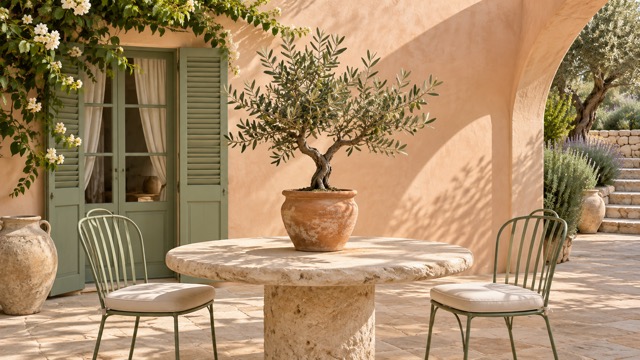
Move beyond a vague label such as portrait or product shot. A useful description identifies the main subject, its position, the surrounding objects, and the setting. Review these details against your reference before reusing the prompt. For a new concept, keep the scene structure and replace the subject deliberately, so the description supports your idea instead of carrying over unrelated details from the original image.

Put Composition And Lighting Into Words
Framing and light can matter as much as the subject itself. Look for language that describes a close view or wide scene, the placement of the focal point, and the direction or softness of the light. Refine that wording to match your intended result. A clear description of a side-lit object against a simple background is more useful than several competing mood words.
Separate Visual Style From Image Content
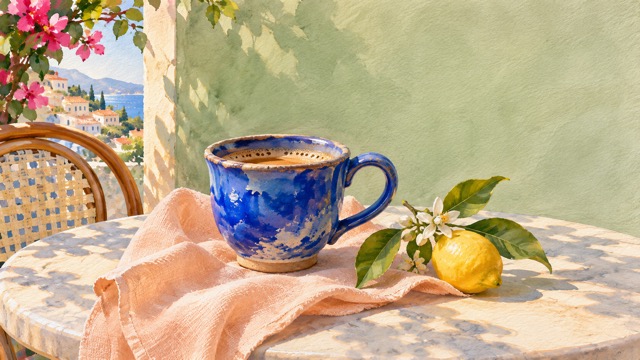
Use the description to distinguish what is shown from how it is represented. A ceramic cup can appear in a studio photograph, a watercolor illustration, or a stylized poster. Keep the subject stable while editing the medium, palette, texture, and atmosphere. This gives you a practical way to explore different treatments without rewriting the entire scene or losing the essential idea behind your reference.

Keep A Prompt You Can Edit And Reuse
The generated text is a starting point for iteration. Copy or download it, then keep a version with your project notes. Add constraints that matter to the final image, such as a plain background or space for a headline, and remove conflicting instructions. Reusing a clear description can help you organize a series of related concepts, although each model and generation may interpret the wording differently.
Image Prompts For Everyday Creative Work
Use references to make your intentions easier to explain. The same workflow can support a personal experiment, a client concept, or a visual brief, with the final prompt tailored to the task.

Product And Ecommerce Concepts
For ecommerce designers planning a product scene, start from a reference that shows the lighting, surface, or camera angle you like. Adapt the generated description to your own product and brand palette. The result is a clearer prompt for exploring campaign concepts, with product shape, labels, and other essential details still checked against your actual materials.

Social Media Visual Planning
Social media creators can use a reference to describe the mood and composition of a planned post. Keep the palette or framing, then change the subject to fit your story. Specify empty space if you plan to add text later. A reusable prompt draft makes it easier to document the visual direction across related content ideas.

Illustration And Character Exploration
Illustrators can turn a visual reference into a written starting point for costumes, environments, color relationships, and atmosphere. Separate the traits you want to retain from details you want to change. This helps you explore alternate concepts more deliberately and communicate a direction, while reviewing each generated result for character details and overall consistency.

Photography And Design Briefs
Photographers and designers can use the prompt as supporting text for a mood board or concept discussion. Refine descriptions of framing, background, and lighting so collaborators understand the visual intention. Treat inferred camera details as suggestions rather than verified settings, and add the practical requirements of the shoot or layout before sharing the brief.
What A Useful Prompt Brings To A Project
These fictional examples illustrate how different creators might evaluate a reference-to-prompt workflow. They are sample perspectives, not verified customer reviews.
Having the scene described in words gives me a clearer place to start. I can keep the lighting idea and replace the subject details before developing a product concept.
I like working from a reference and then checking the description against my brief. It makes me think about the framing and color choices before I generate another image.
Separating the subject from the visual style is useful for my concept work. I can rewrite the medium and atmosphere without losing the scene I wanted to explore.
A written prompt gives our creative discussion something specific to review. I can point to the background, mood, or focal point instead of relying on a vague description.
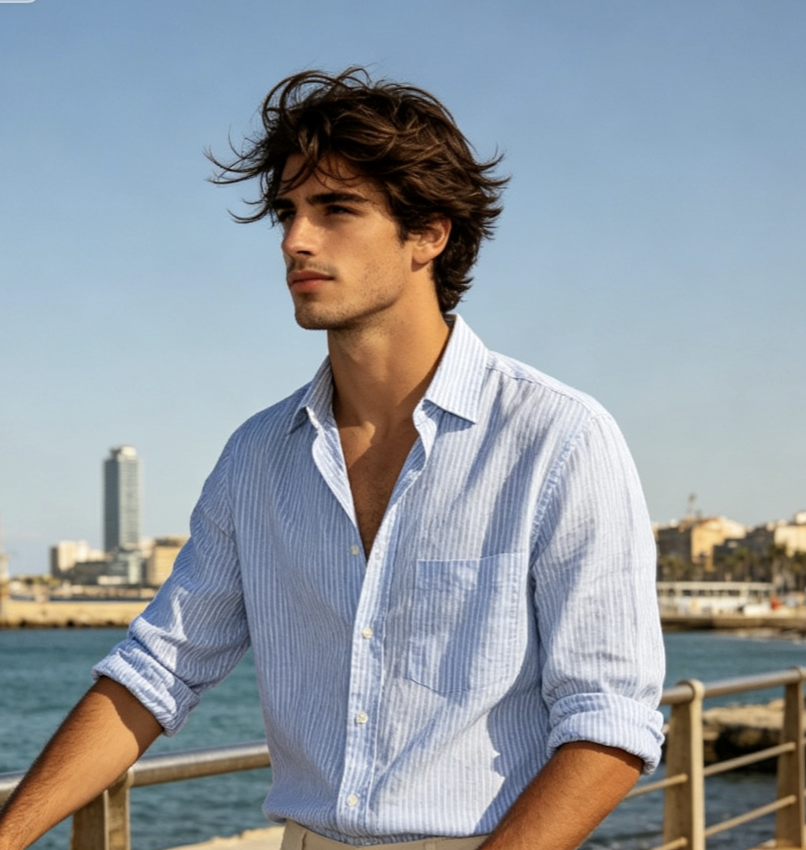
The useful part is seeing the visual choices expressed as text. I still check the details myself, but it gives me a starting point for describing a portrait.
Keeping a prompt with my project notes makes the direction easier to revisit. I can see which instructions I changed and decide what to test in the next concept.

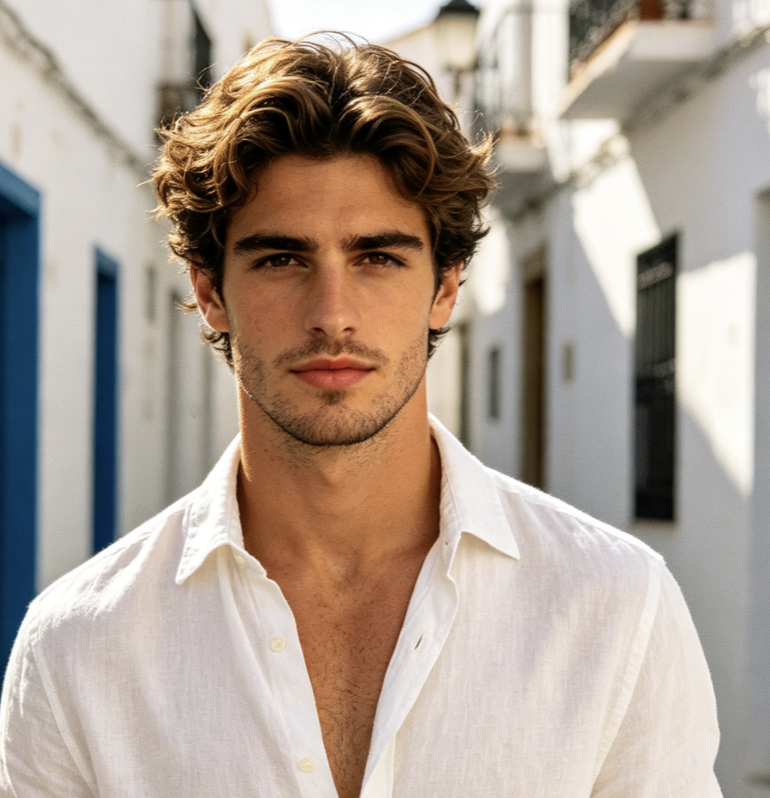
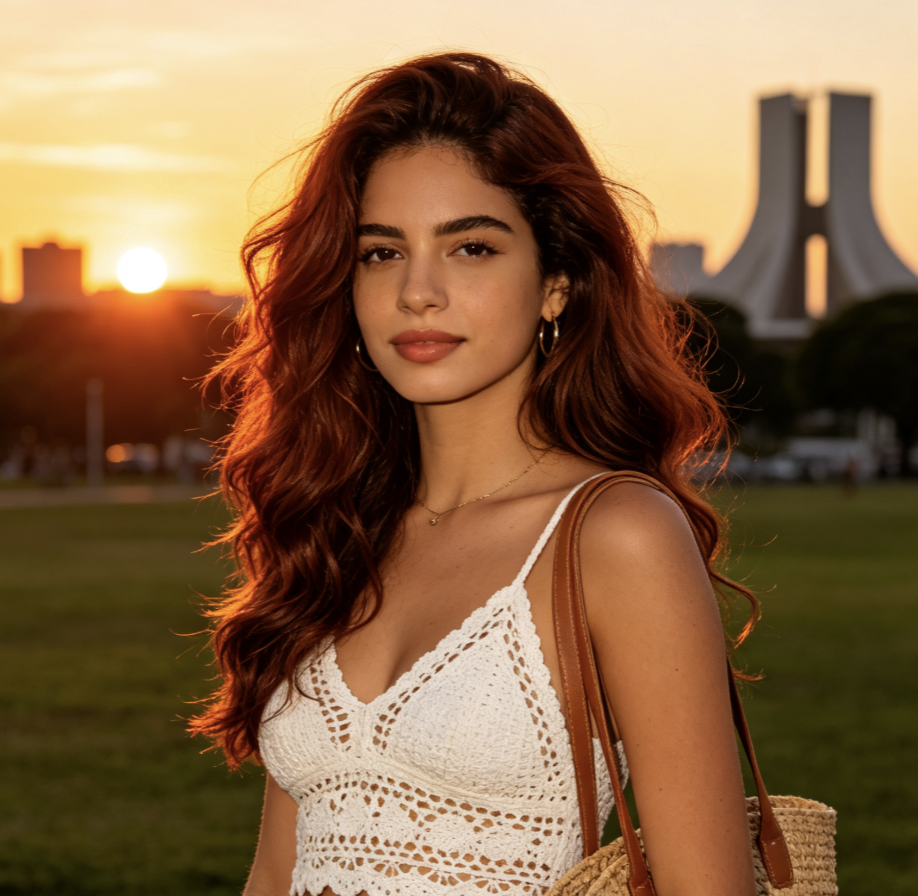
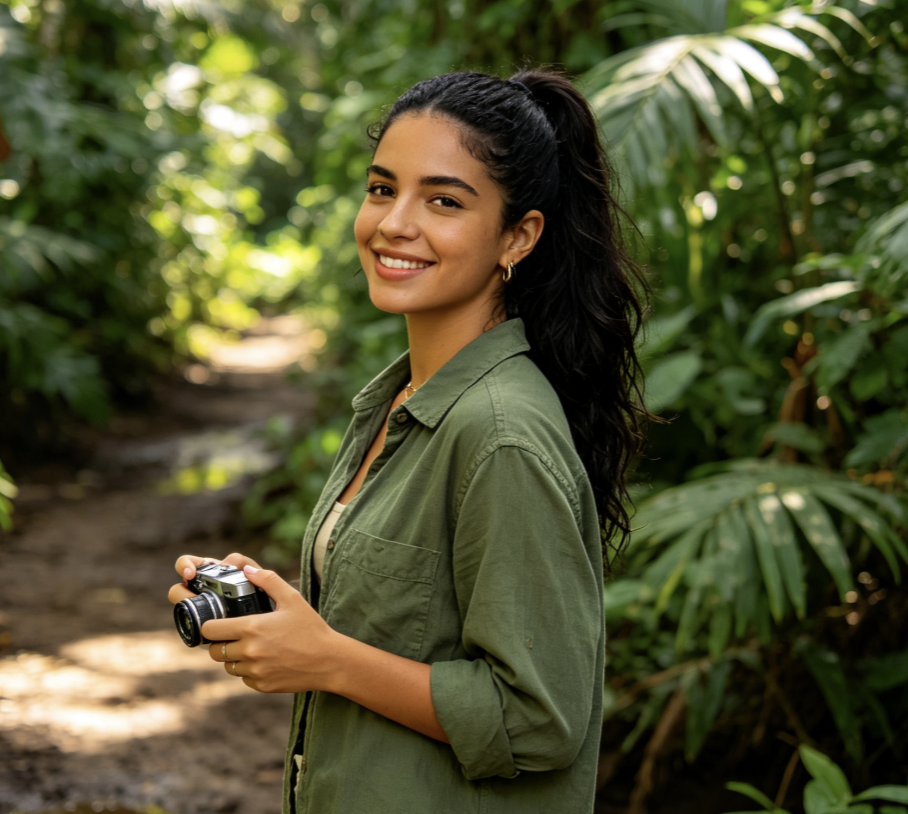

AI Image Prompt Generator FAQs
Get clear on the input, the output, and how to make a generated description useful for your next image. Start with these common questions before building your first prompt.
This page turns an uploaded reference image into a written prompt. It helps describe visible elements such as the subject, setting, composition, lighting, and style. You can review the result and use it as a starting point for another image or a creative brief, rather than writing every detail from scratch.
This page is configured for image input, so begin with a reference image. The extra instruction field lets you add direction about what the prompt should emphasize. If your starting point is only a written idea, use a text-to-prompt workflow instead; adding instructions here does not replace the image reference.
No. A visual description cannot establish the exact wording, model settings, or editing steps used to make an image. Treat the output as a new interpretation of what is visible. Check the details against the reference, and adapt the wording to the image you want to create next.
You can copy or download the generated text and adapt it for your preferred image generator. This page also has a generator handoff action. Review model-specific syntax and settings before generating: the same wording can produce different results across models, and a descriptive prompt does not guarantee an exact match.
Choose a clear reference and use the extra instruction field to identify your priority, such as lighting or composition. Review the resulting text for incorrect details and conflicting directions. Keep the main subject clear, specify the changes you want, and refine one major element at a time when testing results.
The immediate output of this tool is text. Creating an image is a separate step after you review the prompt and continue to an image generator. Check the selected generator's model, settings, and displayed credit requirements before submitting that generation, since prompt creation and image generation are different actions.
Turn Your Next Reference Into A Working Prompt
Start with an image that captures the direction you have in mind. Generate a description, refine the details that matter, and keep the text for your next creative experiment. Give your image idea a clearer starting point with a prompt you can review and reuse.
