
More AI Image Generators
Explore our collection of specialized AI image generators designed for different creative needs and styles


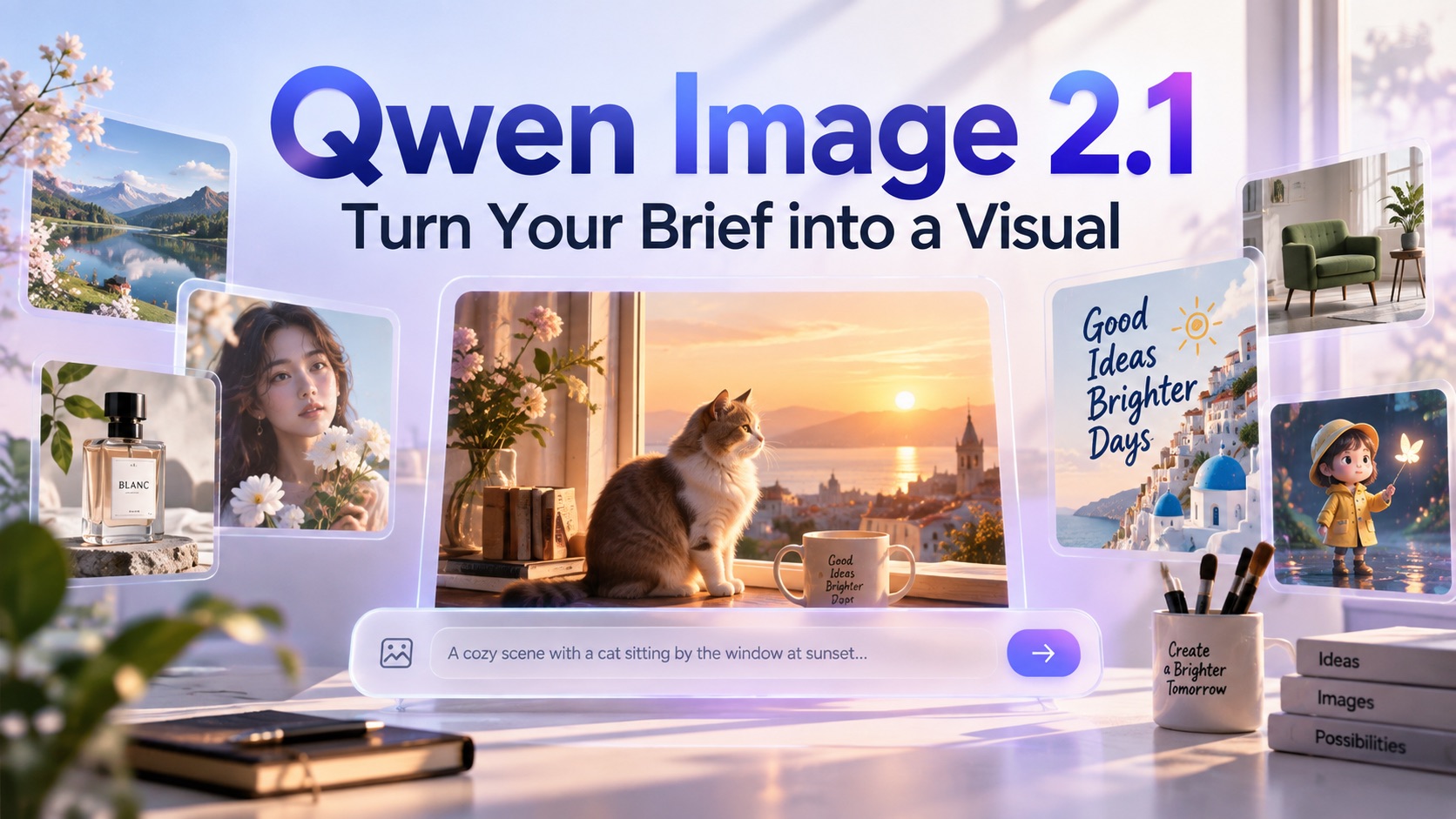
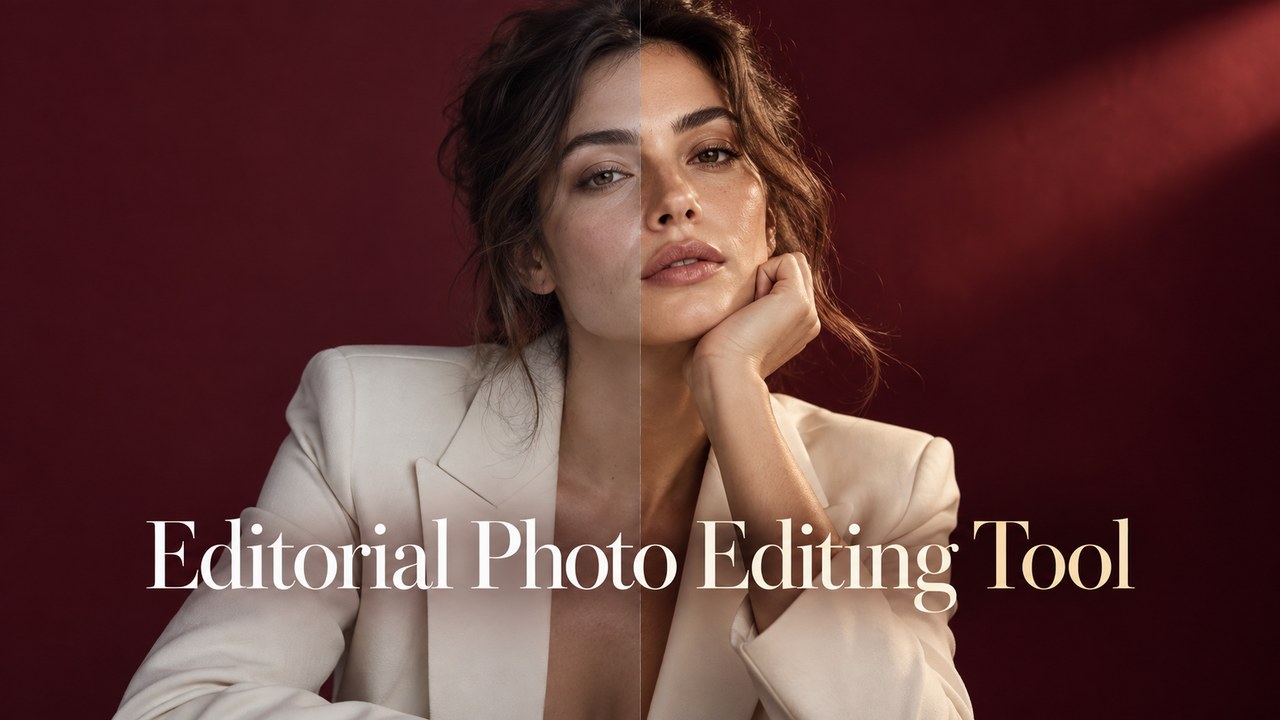
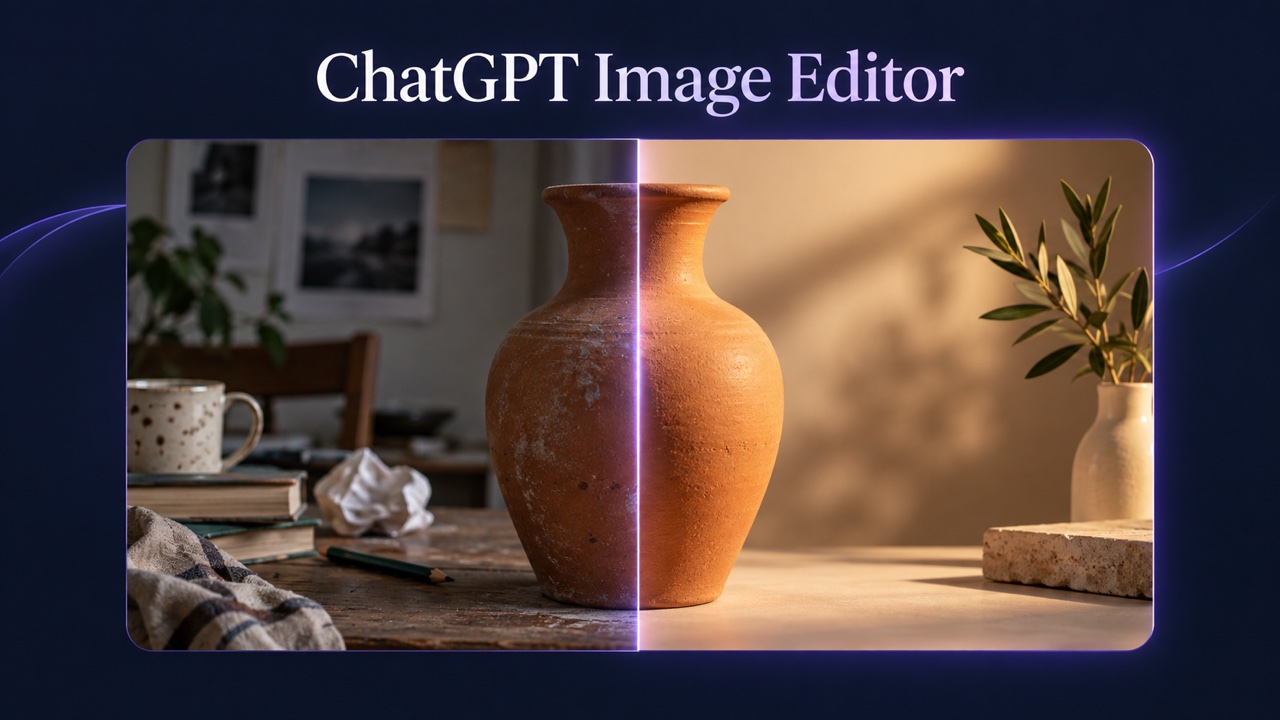

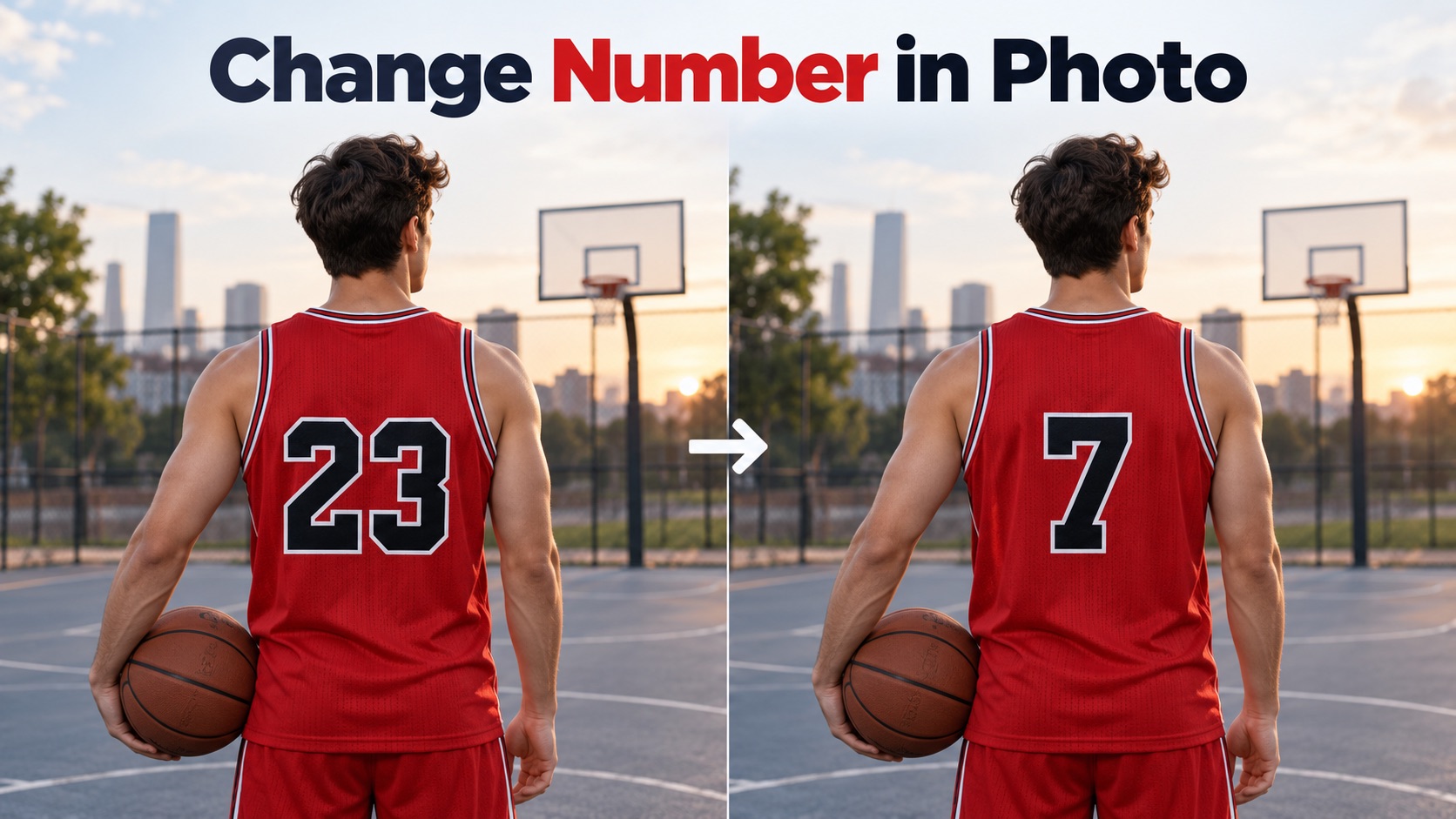
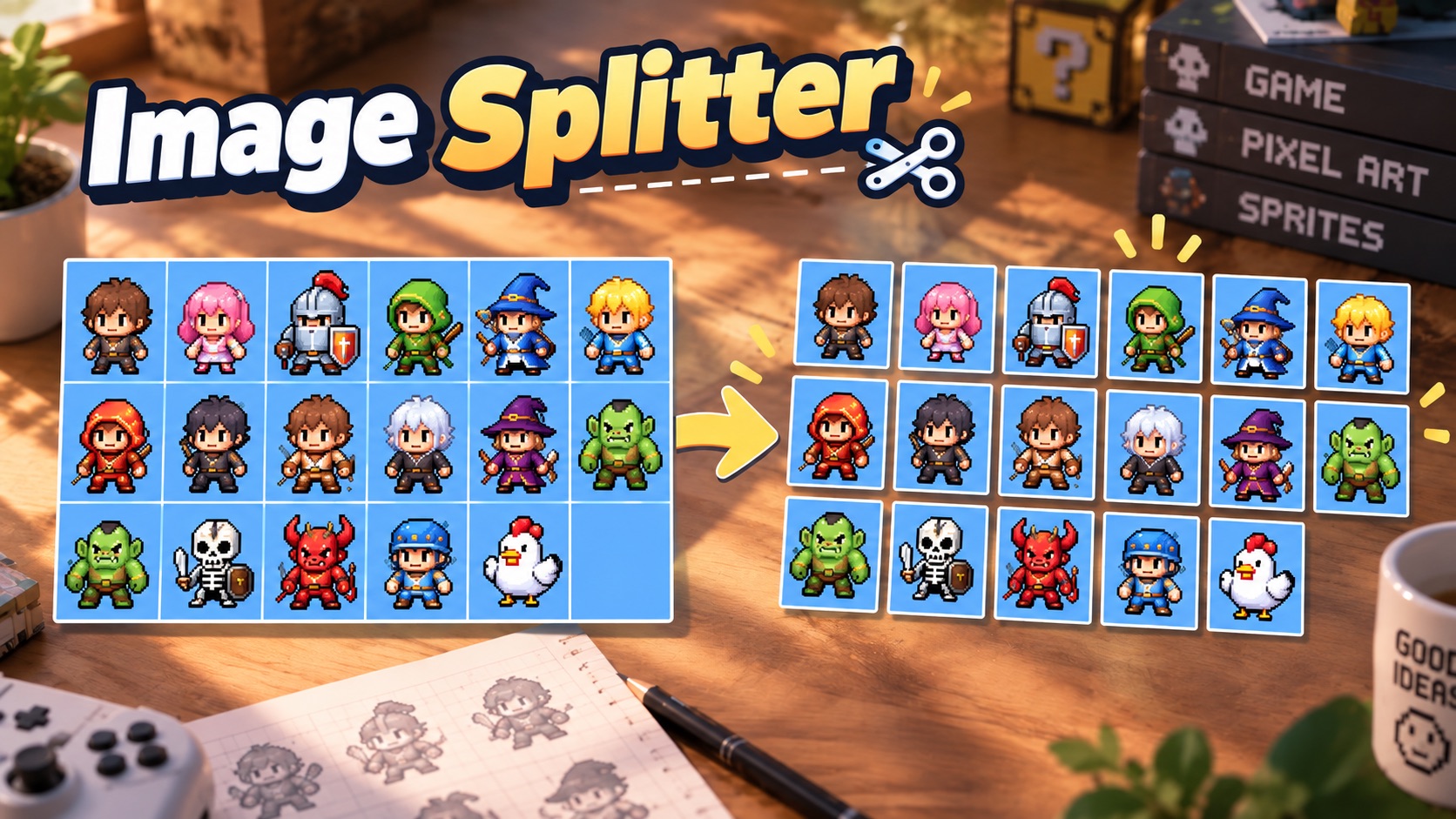






Qwen 2.1 Turbo — Create Images and Edit with Words
Explore Qwen-Image-2.1-Turbo for Image Generation and Editing
Turn ideas into visuals with Qwen 2.1 Turbo. Describe a product scene, explore a campaign concept, or start with an image and explain what should change. Qwen-Image-2.1-Turbo combines generation and editing with a recommended eight-step denoising schedule. Spend less effort explaining complex edits and more attention on your creative direction. Compare variations, refine your prompts, and review each result before using it.

How to Work with Qwen 2.1 Turbo
Start Qwen 2.1 Turbo with a clear brief. Choose a new image or an edit, then describe your subject, setting, and visual priorities. Qwen-Image-2.1-Turbo supports both workflows, but available controls vary by platform. Check your service before planning around specific export sizes or editing options.

1. Describe the Image You Want
Tell Qwen 2.1 Turbo your subject, composition, lighting, and style. For example, request a ceramic mug on a wooden table in soft window light. Give Qwen-Image-2.1-Turbo clear visual priorities rather than vague instructions.

2. Generate or Describe an Edit
Submit a prompt to create an image, or upload a permitted reference and describe your edit. Ask Qwen 2.1 Turbo to change the background or materials, specifying what Qwen-Image-2.1-Turbo should retain.

3. Review, Refine, and Export
Check your Qwen 2.1 Turbo output for details, lettering, and reference accuracy. Refine one requirement at a time. Before exporting from a Qwen-Image-2.1-Turbo service, confirm its available formats, resolution, and usage terms.
Best AI Image Tools for Creative Projects
Explore creative tools for image, learn tips and tricks, and see how AI can be your assistant in turning concepts into finished projects.






Why Explore Qwen 2.1 Turbo?
Create from text, edit an image, and refine your visual brief with Qwen 2.1 Turbo. Qwen-Image-2.1-Turbo combines these workflows with an accelerated configuration, not a guarantee of flawless results. Evaluate relevant examples and the features your chosen service provides.

Create Images from Text
Describe your subject, setting, materials, and lighting to create with Qwen 2.1 Turbo. Qwen-Image-2.1-Turbo turns your brief into a visual starting point without an existing photograph. Compare framing and lighting variations, then check each Qwen 2.1 Turbo output for unwanted objects, incorrect details, and missed requirements.

Edit Images with Words
Tell Qwen 2.1 Turbo what should change and what should remain. Use a permitted image to adjust backgrounds, materials, or style. Qwen-Image-2.1-Turbo also supports sketch transformation. Review the complete Qwen 2.1 Turbo result: surrounding details may change, and clear instructions do not guarantee exact preservation.

Explore Eight-Step Generation
Qwen 2.1 Turbo uses eight recommended denoising steps, not eight seconds. The official Diffusers workflow automatically loads the Qwen-Image-2.1-Turbo sampling schedule. Hardware, image dimensions, and service load affect turnaround. Compare equivalent briefs to evaluate Qwen 2.1 Turbo speed instead of assuming a fixed delivery time.

Inspect Full-Size Details
Inspect Qwen 2.1 Turbo beyond a preview. Official examples include 2048 by 2048 editing output, but Qwen-Image-2.1-Turbo export options vary by service. Check textures, faces, edges, and lettering at full size. Review Qwen 2.1 Turbo results for product accuracy and brand consistency before publication.
Creative Uses for Qwen 2.1 Turbo
Give Qwen 2.1 Turbo a specific visual problem to solve. These suggested workflows connect a brief to a practical deliverable; they are not measured customer outcomes. Use Qwen-Image-2.1-Turbo to explore concepts, then review each asset before approving it for publication.

Product Scene Concepts
Give Qwen 2.1 Turbo a product reference and describe a setting, such as skincare on a stone shelf or a mug in a kitchen. Explore the direction with Qwen-Image-2.1-Turbo before developing campaign assets. Compare labels, proportions, and materials with your reference. Qwen 2.1 Turbo images should not imply features the real product lacks.
Social and Campaign Visuals
Build Qwen 2.1 Turbo compositions around your message. Specify the subject, palette, and space for a headline. Ask Qwen-Image-2.1-Turbo for an uncluttered seasonal scene, then compare alternatives for clarity. Check the final crop, contrast, and text placement. Qwen 2.1 Turbo campaign effectiveness still requires testing, not assumptions based on visual detail.
Sketch Development
Explore a sketch with Qwen 2.1 Turbo by changing materials, lighting, or surroundings. Identify essential structures and details that can be reinterpreted. Qwen-Image-2.1-Turbo provides an image-based editing workflow for these experiments. Treat Qwen 2.1 Turbo outputs as creative proposals, not construction specifications. Share the reference alongside each variation for clearer feedback.
Editorial and Educational Images
Use Qwen 2.1 Turbo to illustrate one clear idea with a simple scene and visual hierarchy. Explore the direction through Qwen-Image-2.1-Turbo, then independently verify technical, historical, or scientific details. Qwen 2.1 Turbo imagery is not documentary evidence. Check embedded text and add final labels separately when exact wording matters.
Qwen 2.1 Turbo Creator Workflow Examples
These Qwen 2.1 Turbo examples use fictional names and illustrative roles, not real customer endorsements. They suggest workflows to test, not verified results. Replace names, roles, and text with approved customer details before presenting this section as testimonials.
Qwen-Image-2.1-Turbo example: Test Qwen 2.1 Turbo with three lighting directions. Keep composition requirements consistent, compare the results, and identify which instructions produce useful changes.
Try Qwen 2.1 Turbo with a background-change request on a permitted product photo. Check the original label, silhouette, and materials before using the result in a listing.
Qwen-Image-2.1-Turbo example: Explore Qwen 2.1 Turbo social visuals with headline space. Review the mobile crop and add copy separately when precise typography matters.
Give Qwen 2.1 Turbo a sketch and material description. Check essential structures and treat the result as visual inspiration, not a manufacturing specification.
Qwen-Image-2.1-Turbo example: Test Qwen 2.1 Turbo with an explanatory scene. Verify facts independently, avoid implying documentary evidence, and save the prompt for revisions.





Qwen 2.1 Turbo FAQ
Understand Qwen 2.1 Turbo before choosing a service. These answers distinguish model capabilities from platform-specific pricing, exports, privacy, and licensing.
Qwen 2.1 Turbo refers here to Qwen-Image-2.1-Turbo, the image generation and editing checkpoint announced on October 9, 2026. Its official name includes Image, distinguishing it from the separate qwen-turbo text model. Check the exact identifier when choosing a download, API, or hosted tool.
Yes. Qwen 2.1 Turbo supports text-to-image generation and image-conditioned editing, including edits based on an input sketch. A hosted Qwen-Image-2.1-Turbo service may expose only some workflows. Check upload support, accepted file formats, and available controls before preparing your reference images.
Eight steps does not mean eight seconds. Qwen 2.1 Turbo uses a recommended eight-step denoising schedule, with each step representing a computation stage. Hardware, resolution, queues, and software affect elapsed time. Test your service rather than treating the step count as a guaranteed generation time.
Qwen 2.1 Turbo pricing depends on the service, including credits and subscriptions. The official repository identifies a Qwen Research License Agreement; downloadable weights should not be assumed to allow unrestricted commercial use. Review the model license and service terms, including output rights, before commercial deployment or client delivery.
Give Qwen 2.1 Turbo a subject, composition, lighting, materials, and essential constraints. For edits, explain what should change and remain. Avoid conflicting instructions. Review the largest mismatch, refine that requirement first, and save useful prompts as consistent starting points for future variations.
The official project provides a Turbo API through Alibaba Cloud Model Studio and a Diffusers example for running the checkpoint. Not every hosted service offers both routes. Check availability, licensing, hardware, and setup requirements. Before uploading sensitive images, review the provider's privacy and retention policies.
Create Your Next Visual with Qwen 2.1 Turbo
Start with a clear brief. Use Qwen 2.1 Turbo to explore a composition or edit an existing image. Refine the details, then check accuracy and usage terms before approval. Give Qwen-Image-2.1-Turbo a purposeful prompt and build on the results that work.
