
Direct Every Shot WithPixVerse V6 AI Video Generator
Turn text or images into cinematic clips with motion, sound, and purposeful camera language
Create focused short videos with PixVerse V6 from a written scene or an uploaded image. Describe action, atmosphere, camera movement, and sound in one prompt, then generate a clip that feels planned rather than randomly animated. Explore PixVerse V6 free online for story ideas, social concepts, product scenes, and visual experiments.
More AI Video Generators
Explore our collection of specialized AI video generators designed for different creative needs and styles

Create Cinematic AI Videos With PixVerse V6
Move beyond basic motion by describing how the scene should unfold, how the camera should behave, and what the audience should hear.
PixVerse V6 brings scene direction into a simple online workflow. Start from text when you need an original visual, or upload an image when composition and character appearance already matter. The model can interpret motion, camera movement, focal choices, ambience, effects, music, and dialogue from the prompt. This makes PixVerse V6 useful for creators who want a clip to communicate an idea, not merely move. People searching for free PixVerse V6 can use this page to explore the workflow, test prompt directions, and learn how stronger scene planning improves results.
How to Use PixVerse V6
The workflow stays focused on four decisions: choose the right input, direct the scene, set the essential clip options, and refine the result. You can try free PixVerse V6 without turning the process into a complicated editing project.

Choose Text or Image
Open Text to Video to build a scene from words, or select Image / Transition to begin with a visual reference. PixVerse V6 works well when you choose the input that already contains the strongest part of your idea. Use text for open-ended invention and an image when framing, styling, or subject appearance should guide the result.

Describe Motion, Camera, and Sound
Write one clear prompt covering the subject, action, setting, camera behavior, and audio. With PixVerse V6, directions such as a slow push-in, tracking movement, shallow depth of field, rain ambience, or spoken dialogue can shape the finished scene. Keep actions compatible with the short clip length instead of packing several unrelated events into one request.

Set the Clip Options That Matter
Choose a video length that fits the action and switch audio on when sound supports the idea. Select a suitable frame for the publishing destination, then decide whether you need one result or several variations. PixVerse V6 free online testing is most useful when each version changes one creative decision, such as camera motion, pacing, or atmosphere.

Generate, Review, and Refine
Generate the clip and review subject stability, movement, timing, camera direction, and sound together. When PixVerse V6 misses the intended moment, simplify the action or make the camera instruction more specific. Refine the prompt rather than changing everything at once. A controlled second attempt usually teaches you more than a completely different prompt.
Best AI Video Tools for Creative Projects
Explore creative tools for video, learn tips and tricks, and see how AI can be your assistant in turning concepts into finished projects.


Creative Advantages of PixVerse V6
PixVerse V6 is most useful when direction matters. Its practical value comes from combining visual generation, image guidance, prompt-level cinematography, synchronized audio, and transitions inside one creation path. These strengths help creators make short clips with a clearer purpose and a more intentional viewing experience.
Direct the Camera Through Natural Language
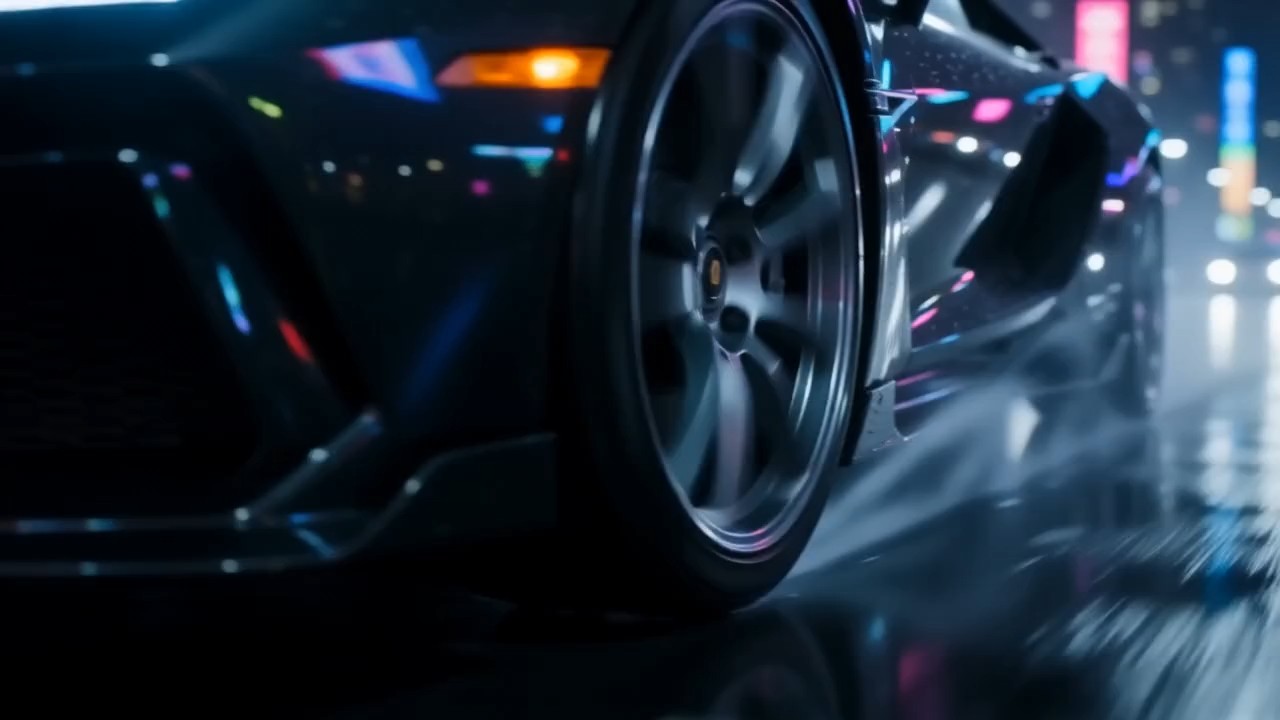
PixVerse V6 gives prompts a practical filmmaking role. Instead of describing only a person and location, you can indicate how the viewer should experience the moment. Ask for a push, pull, pan, tilt, tracking shot, or follow shot. Add focal length, aperture, depth of field, vignetting, chromatic aberration, or lens distortion when those choices serve the story. This control helps a product reveal feel deliberate, a suspense scene hold tension, or a portrait feel intimate. PixVerse V6 free online is especially valuable for comparing the same scene with different camera intentions before choosing a final direction.
Generate Visuals and Audio as One Scene
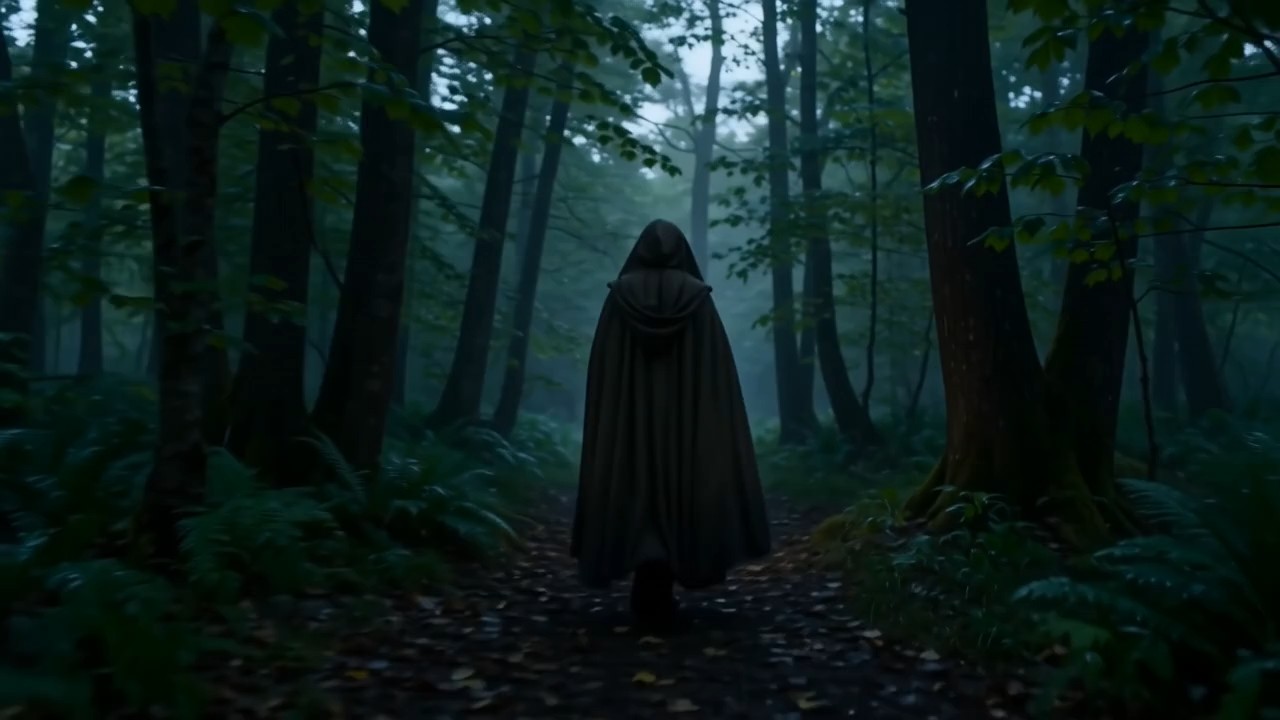
Sound often determines whether a short clip feels complete. PixVerse V6 can create video and audio together from the same prompt, including ambience, sound effects, background music, and dialogue. That means footsteps can match a hallway scene, rain can support a night exterior, or a spoken line can belong to the action rather than being added as an afterthought. For stronger results, describe only the sounds the audience should actually notice. People exploring free PixVerse V6 can test how a specific audio cue changes tone, pacing, and emotional clarity without building a separate sound workflow first.
Turn Still Images Into Directed Motion
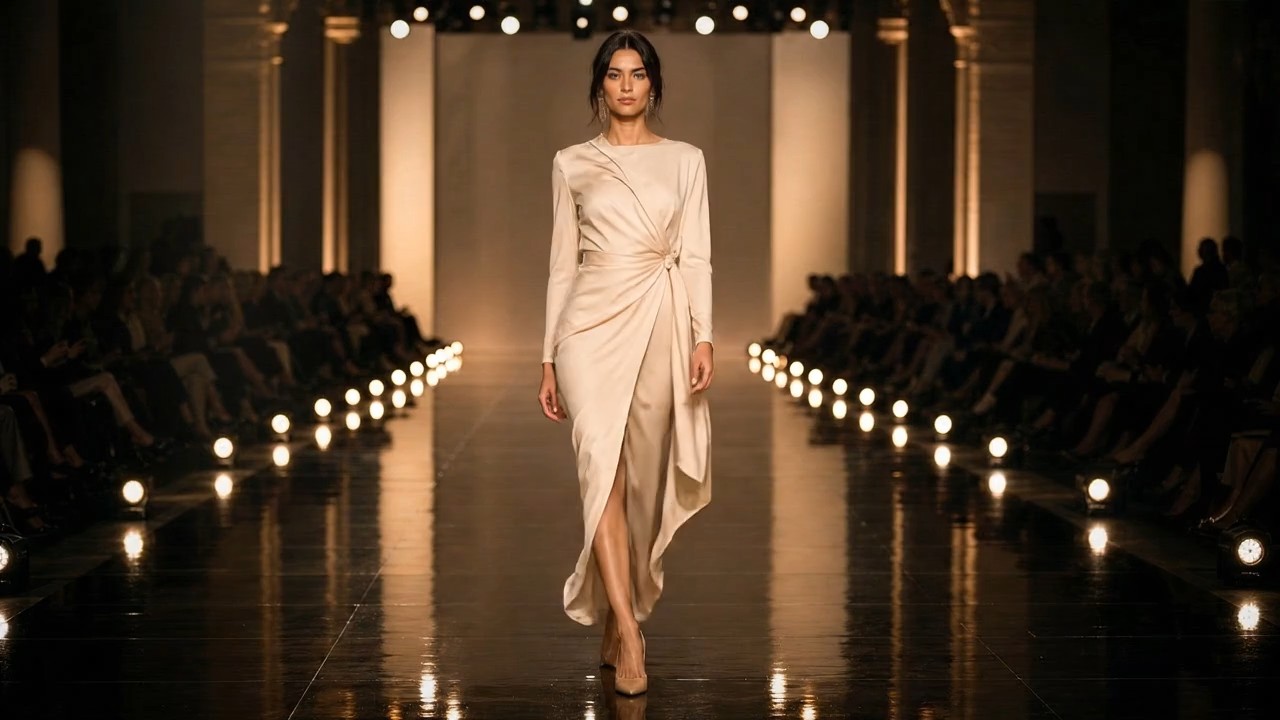
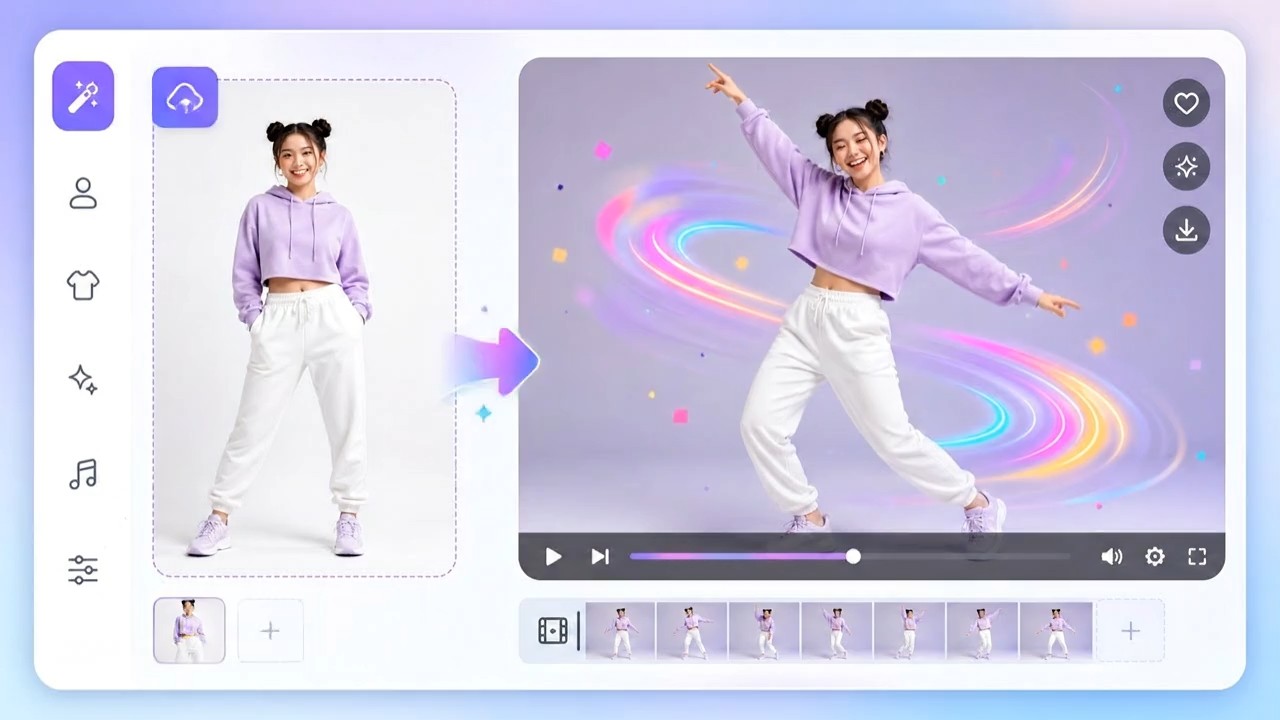
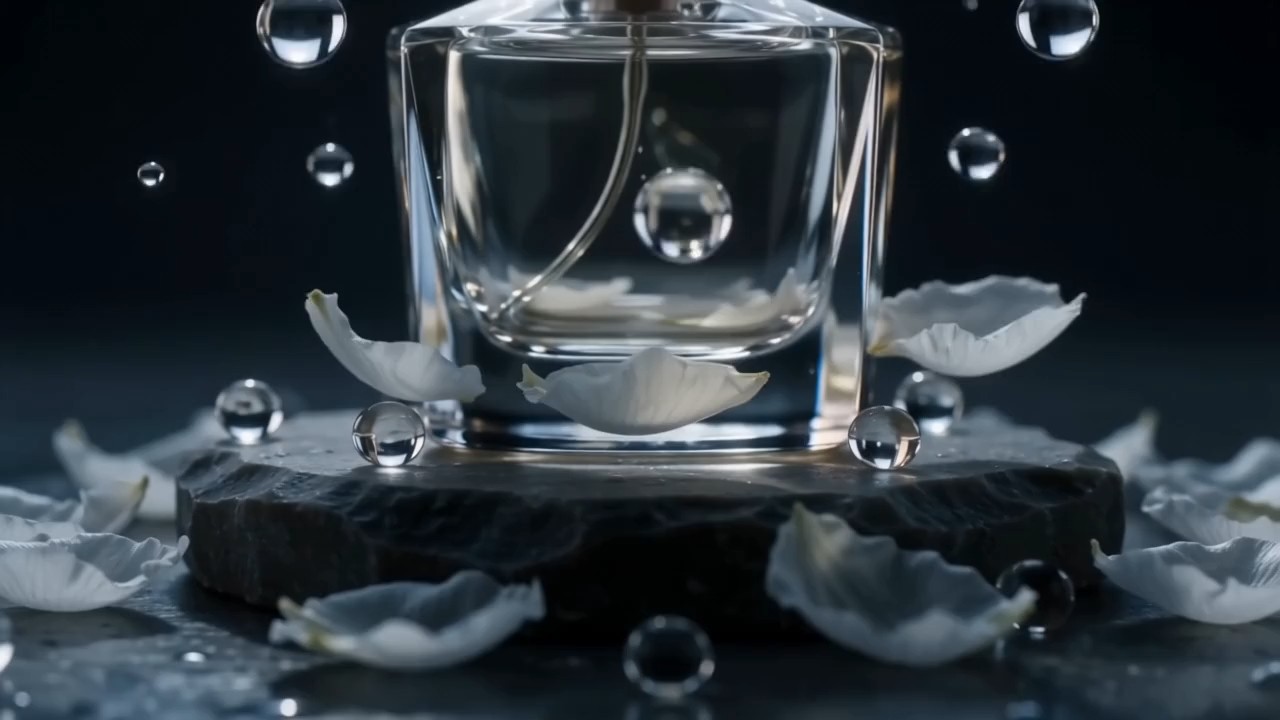
Image-led generation gives PixVerse V6 a visual starting point before motion begins. Upload a still when the subject, art direction, layout, or product appearance already looks right, then use the prompt to explain what should move and what should remain stable. You might animate fabric in a fashion shot, create a slow orbit around an object, add environmental movement to concept art, or guide a character through one simple action. PixVerse V6 free online helps creators evaluate motion ideas while preserving more of the original composition than a text-only restart would provide.
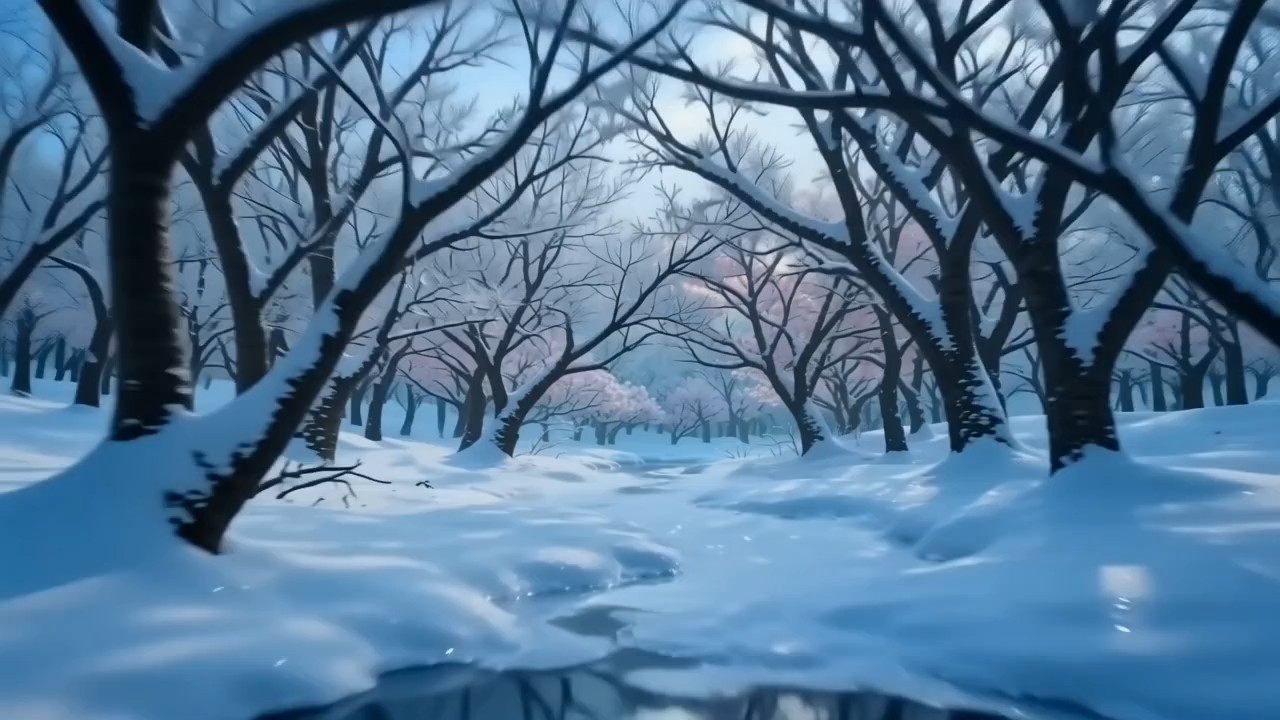
Build Connected Moments With Image Transitions
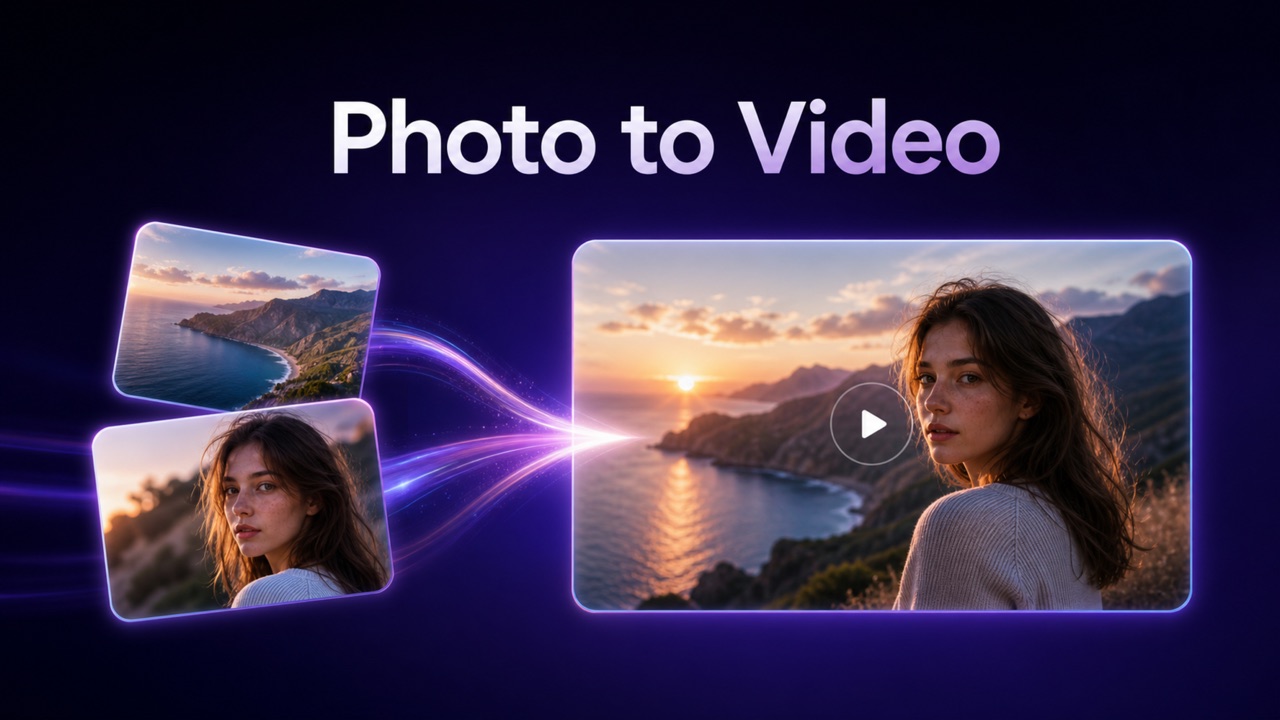
A transition is more useful when it communicates change rather than applying a decorative effect. PixVerse V6 can connect visual states so a scene moves from one moment, composition, or look toward another. This is useful for before-and-after reveals, product transformations, seasonal changes, character entrances, location shifts, and visual storytelling built around contrast. Describe the path between the images, not only the endpoints. With free PixVerse V6 exploration, you can compare a subtle cinematic transition against a faster dramatic transformation and choose the version that supports the message.
What Can You Create With PixVerse V6?
PixVerse V6 fits projects where a short clip needs a clear visual idea, controlled movement, and an intentional atmosphere. Use it to test concepts, animate existing artwork, present products, build narrative beats, or connect two visual states without starting with a traditional production setup.
Product Reveals and Demonstrations
Use PixVerse V6 to introduce a product through a controlled orbit, push-in, material close-up, or staged reveal. Image input can anchor the product appearance while the prompt directs movement, lighting changes, atmosphere, and sound. Online exploration gives small teams a quick way to test how a product story could feel before arranging a larger shoot.
Short Narrative Scenes
Build a concise story beat around one readable action, such as a character noticing a clue, entering a room, or reacting to an off-screen sound. PixVerse V6 can combine camera movement and layered audio to establish tension or emotion. Try free PixVerse V6 with a simple beginning, change, and final image instead of forcing an entire plot into seconds.
Social Video Concepts
Create scroll-stopping openings, atmospheric loops, transformation ideas, and visual hooks for short-form channels. PixVerse V6 lets you test whether a concept works through movement and sound before committing to a full campaign. PixVerse V6 free online is helpful for exploring several hooks while keeping the core subject, offer, or message consistent.

Music and Mood Visuals
Use PixVerse V6 for visualizers, lyric backgrounds, ambient scenes, and mood-led clips where pacing and atmosphere matter more than complex action. Camera drift, environmental motion, lighting, and generated sound can work together around one emotional direction. Free PixVerse V6 testing helps musicians and editors compare styles before developing a longer visual sequence.

Concept Art in Motion
Upload illustration, anime, 3D, clay, comic, cyberpunk, or photorealistic artwork and describe how the scene should come alive. PixVerse V6 can help directors, designers, and game teams communicate motion, camera language, and atmosphere from a still concept. PixVerse V6 free online turns early artwork into a more expressive reference for pitches and creative reviews.

Campaign Transition Videos
Connect two campaign visuals through a meaningful transformation, such as packaging changing, a room being redesigned, or a character moving between seasonal looks. PixVerse V6 makes the transition itself part of the story. Start with free PixVerse V6 to test whether a smooth, surreal, or energetic change best matches the campaign tone.
What Creators Say About PixVerse V6
These creator perspectives show how PixVerse V6 can support product storytelling, narrative experiments, illustrated campaigns, and transformation concepts.
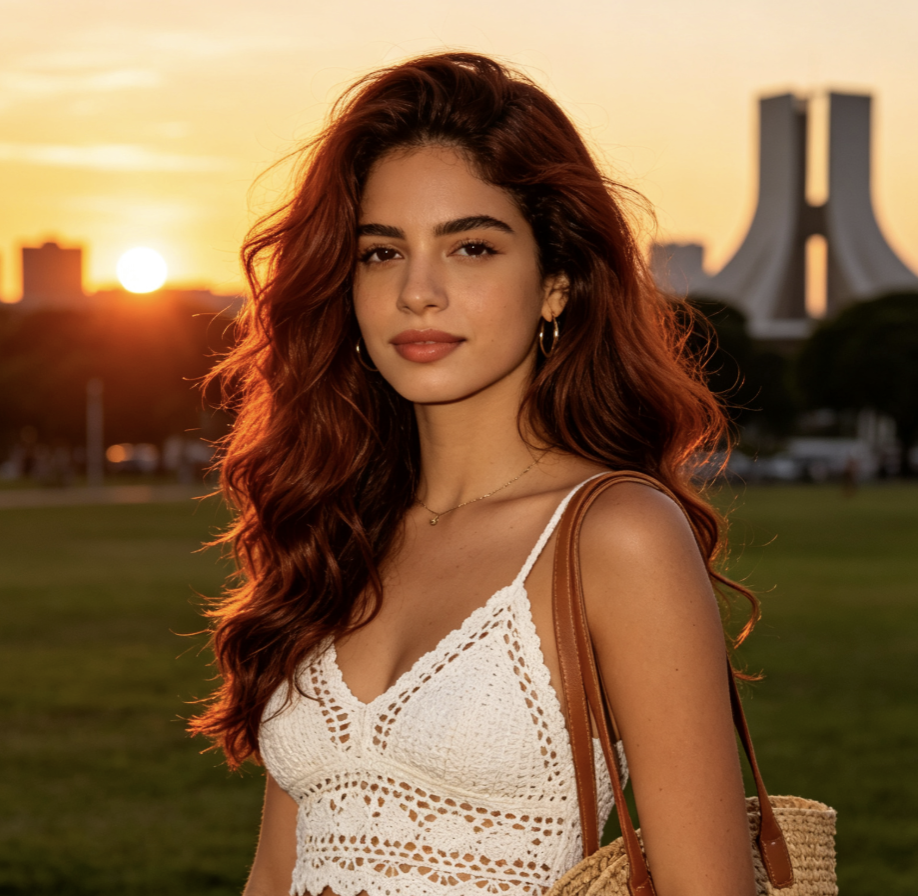
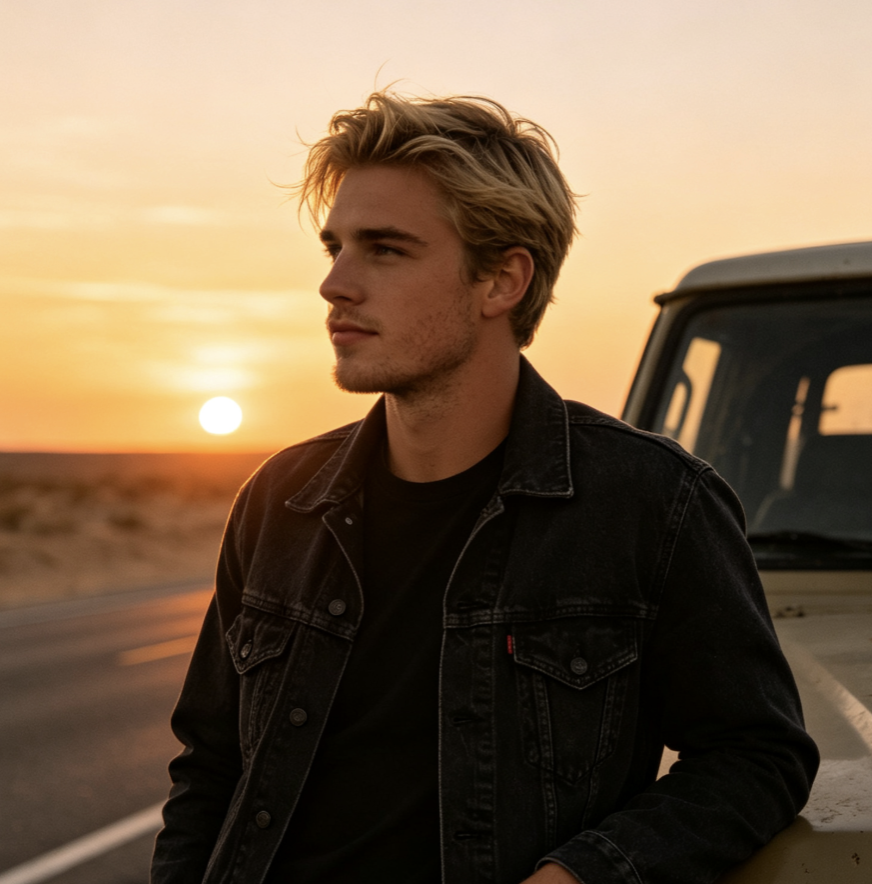
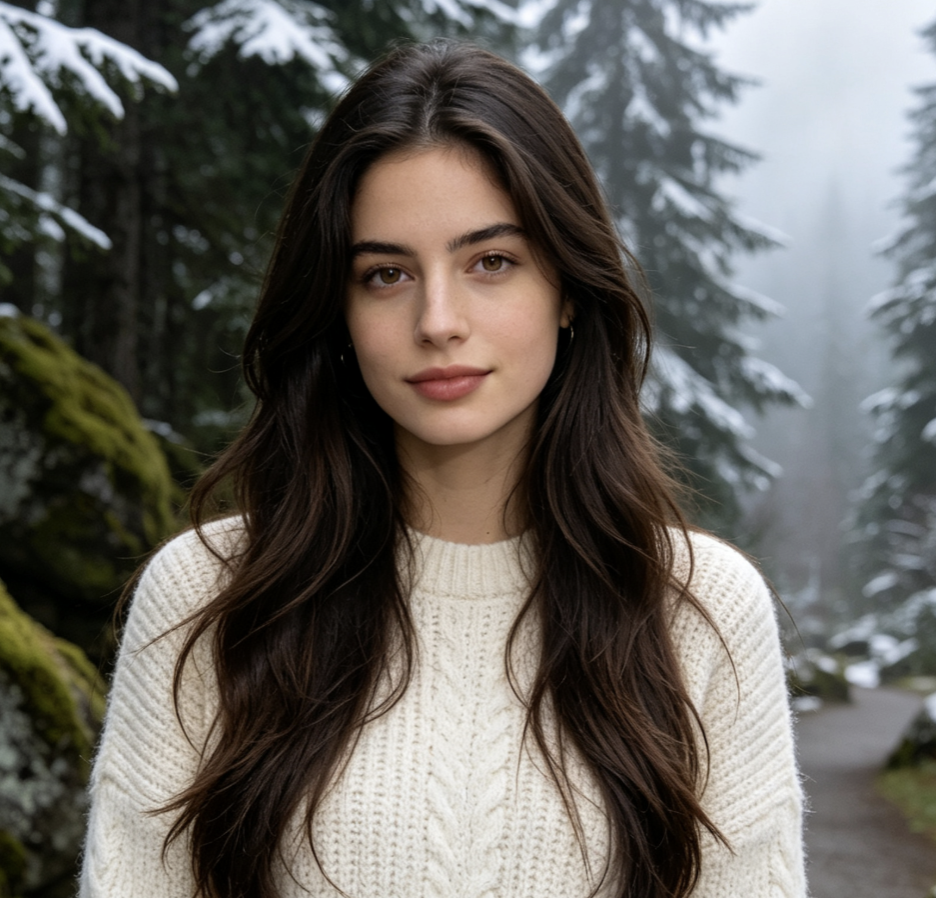
I used PixVerse V6 to turn a polished product still into three different reveal concepts. The camera instructions were the biggest advantage because I could compare a slow orbit, a close push-in, and a more energetic tracking move without rebuilding the scene. Online exploration gave me enough room to find the direction I wanted before presenting the concept to the wider campaign team.
For a suspense teaser, I needed the sound and picture to feel like one moment. PixVerse V6 handled the low room tone, distant footsteps, and a restrained camera move from the same prompt. That made the first draft much easier to judge. Trying free PixVerse V6 helped me understand that specific audio directions work better than asking for a generic cinematic soundtrack.
My favorite use of PixVerse V6 is animating campaign illustrations without losing the original composition. I describe one main subject motion, a small environmental detail, and a camera instruction. The results are much more focused than prompts that ask for everything at once. PixVerse V6 free online became a practical way for our team to evaluate motion ideas during early creative reviews.
I tested PixVerse V6 for a before-and-after interior concept. Rather than using a generic dissolve, I described how materials, lighting, and furniture should transform across the frame. The transition communicated the design idea clearly enough for a client pitch. Free PixVerse V6 exploration was useful because I could compare a subtle version with a faster, more dramatic change.

Frequently Asked Questions About PixVerse V6
Use these answers to plan clearer prompts, choose the right input, and get more useful results from PixVerse V6.
PixVerse V6 is an AI video model for text-to-video, image-to-video, and image transition creation. It can interpret motion, camera direction, visual style, and optional audio from prompts.
Describe the subject, one main action, the environment, camera behavior, and important sounds. PixVerse V6 usually responds better to a coherent shot plan than a list of unrelated events.
Yes. PixVerse V6 can generate background music, ambience, sound effects, and dialogue with the video when audio is enabled. Mention the specific sounds that matter to the scene.
Use image input when you already have the desired subject, composition, or art direction. Use text input when you want PixVerse V6 to invent the visual scene from the prompt.
PixVerse V6 supports prompt-based camera movement and lens language, including pans, tilts, tracking, follow shots, focal choices, aperture, depth of field, and selected lens effects.
Choose a frame that matches the publishing destination and a duration that fits one clear action. During PixVerse V6 free online testing, keep the first version simple and refine after reviewing movement and timing.
Turn Your Next Scene Into Motion With PixVerse V6
Start with a scene you can explain clearly. Choose text or an image, direct the action and camera, add meaningful sound, and let PixVerse V6 turn the plan into a short video. Whether you are testing a product reveal, narrative beat, social hook, or visual transition, free PixVerse V6 gives you a direct path from creative intention to moving imagery.
