
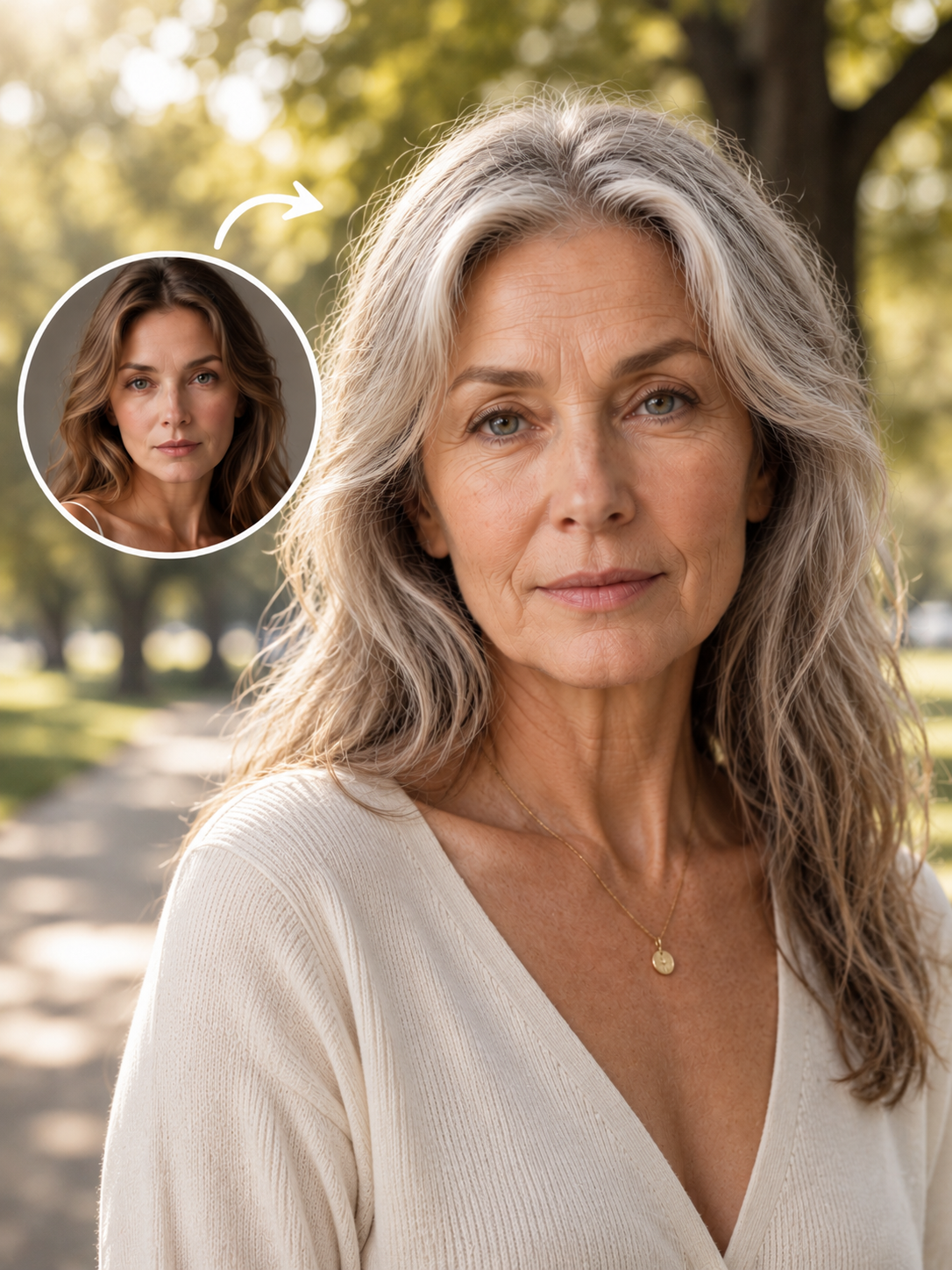
Upload a portrait photo and use AI technology to preview realistic and natural aging effects
More AI Image Generators
Explore our collection of specialized AI image generators designed for different creative needs and styles


Best AI Aging Filter Online - Professional Age Transformation Photo Creator
See How You'll Look Decades from Now — Powered by the AI Aging Filter in Pixomi AI
Discover what the future holds for your face with the AI Aging Filter available in Pixomi AI. This age transformation feature uses cutting-edge deep learning to render strikingly realistic aged portraits from clear portrait photos. Upload once, and let Pixomi AI generate studio-quality aging results in seconds.
How to Use AI Aging Filter Online?
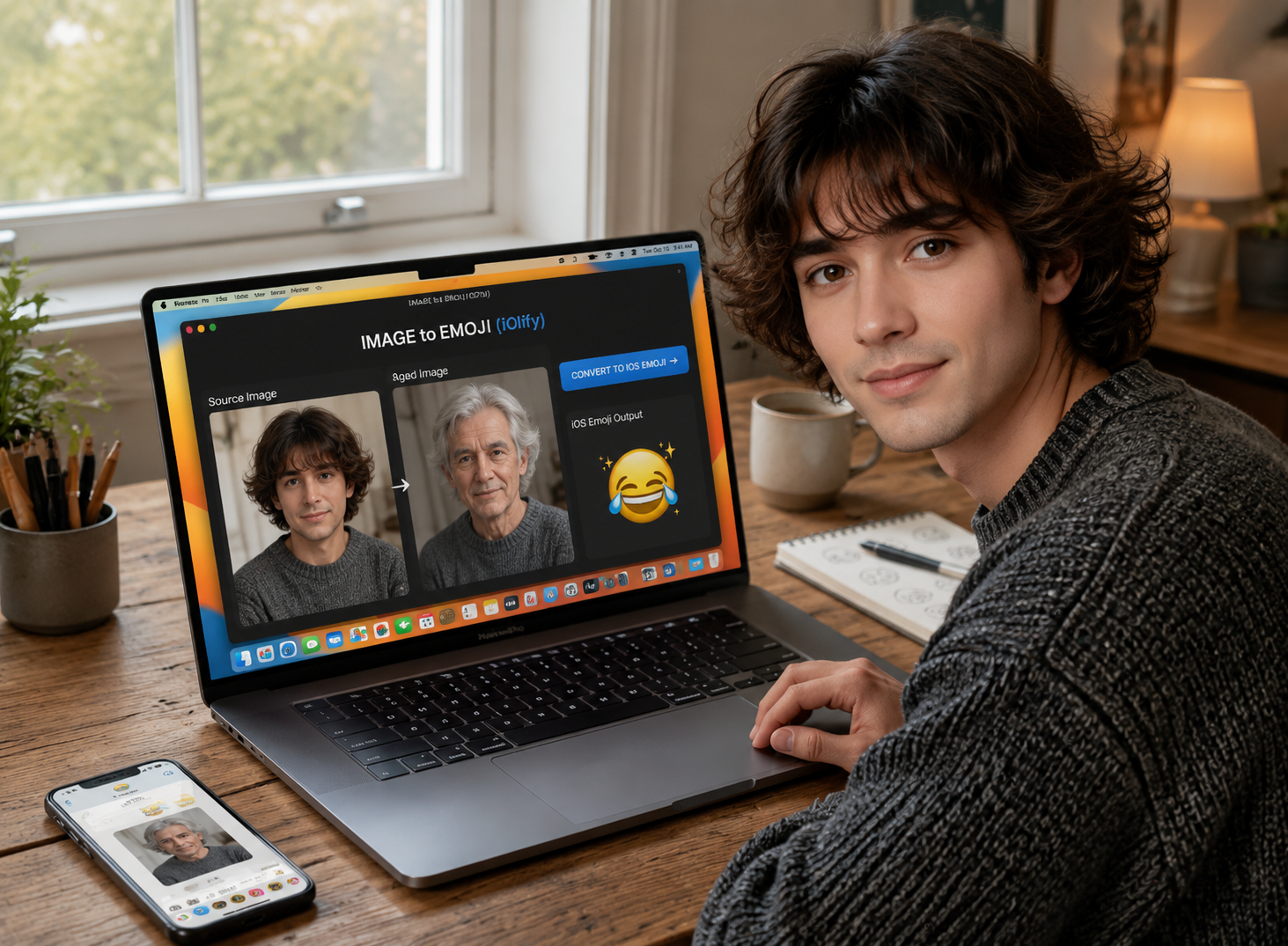
Transform one clear portrait into a realistic aged image in three simple steps.
Upload a Portrait Photo
Upload one clear, well-lit portrait photo of a real person. A front-facing selfie, headshot, or upper-body portrait with a clearly visible face works best.
Generate the Aged Portrait
Click Generate and let the AI Aging Filter automatically analyze the face and create a realistic aged portrait. No prompt, age selection, or manual adjustment is required.
Download and Share
Preview the final aged portrait, download the high-resolution image, and use it in family albums, videos, social media posts, or creative portrait projects.
Best AI Image Tools for Creative Projects
Explore creative tools for image, learn tips and tricks, and see how AI can be your assistant in turning concepts into finished projects.
What Makes the AI Aging Filter in Pixomi AI Stand Out
Explore the powerful capabilities of the AI Aging Filter available in Pixomi AI. From instant processing to fully automatic age transformation, see why creators and professionals use this feature for professional-grade results without manual configuration.
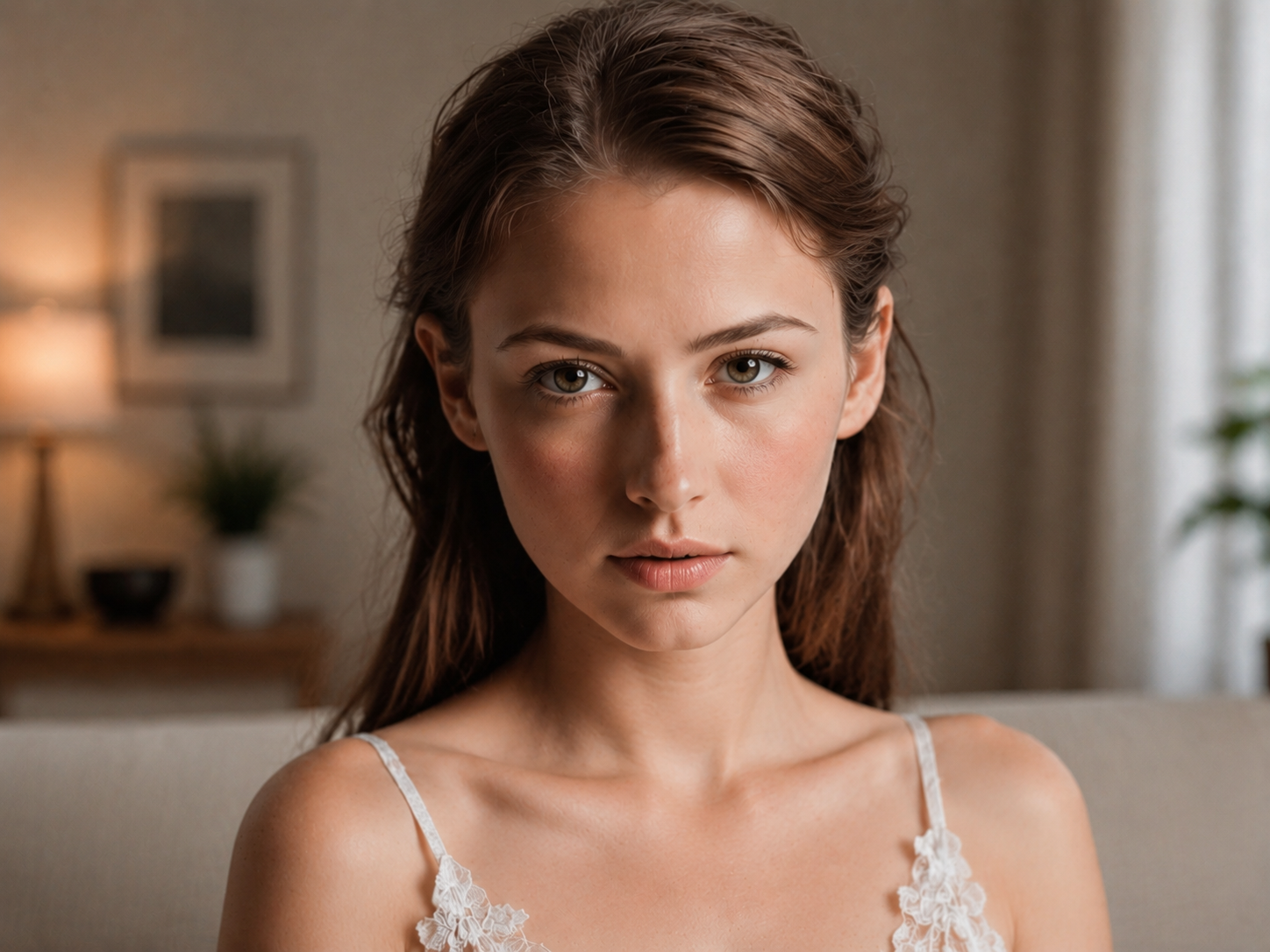
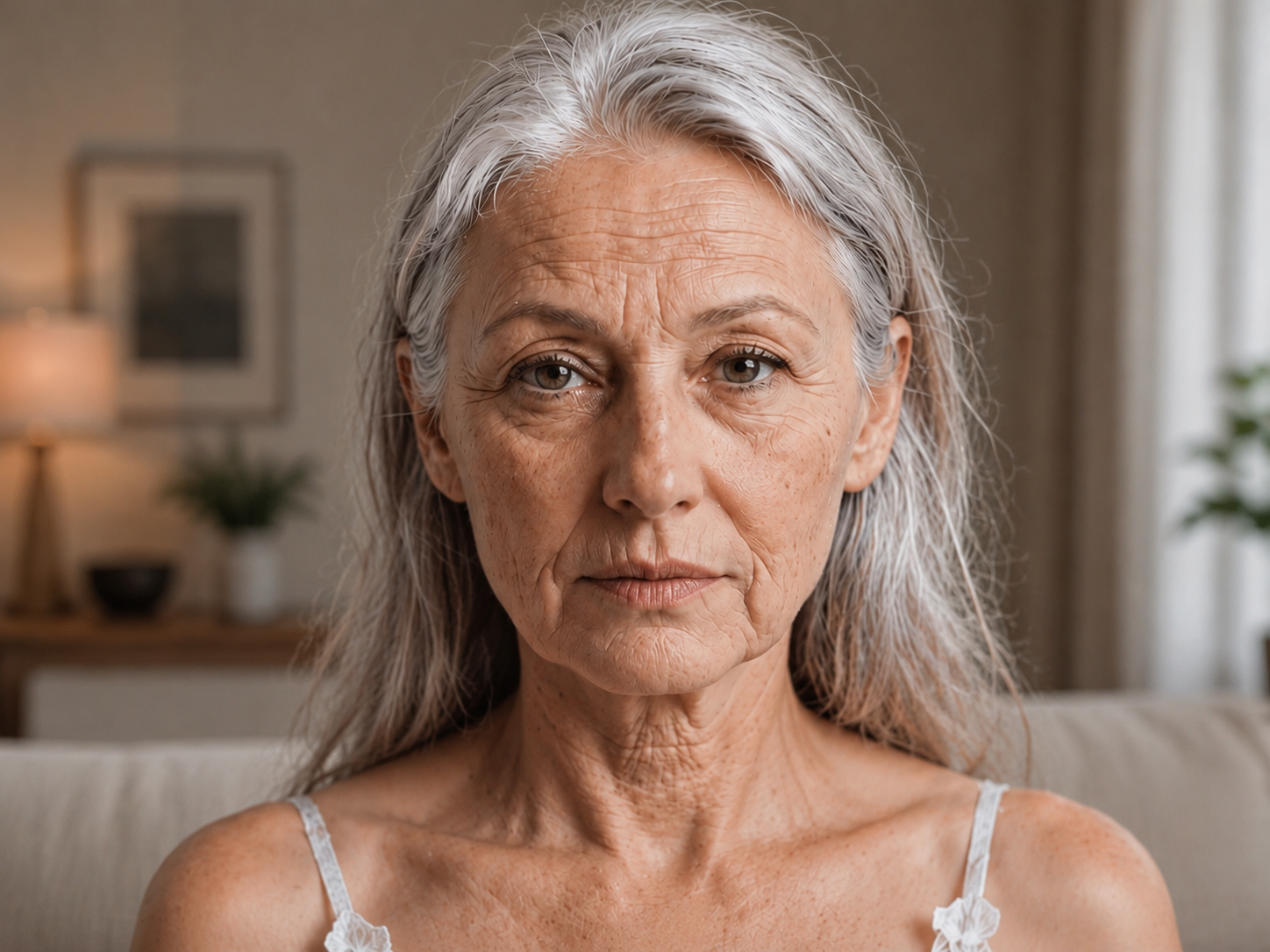
AI Aging Filter: Instantly Transform Portrait Photos into Realistic Aged Portraits
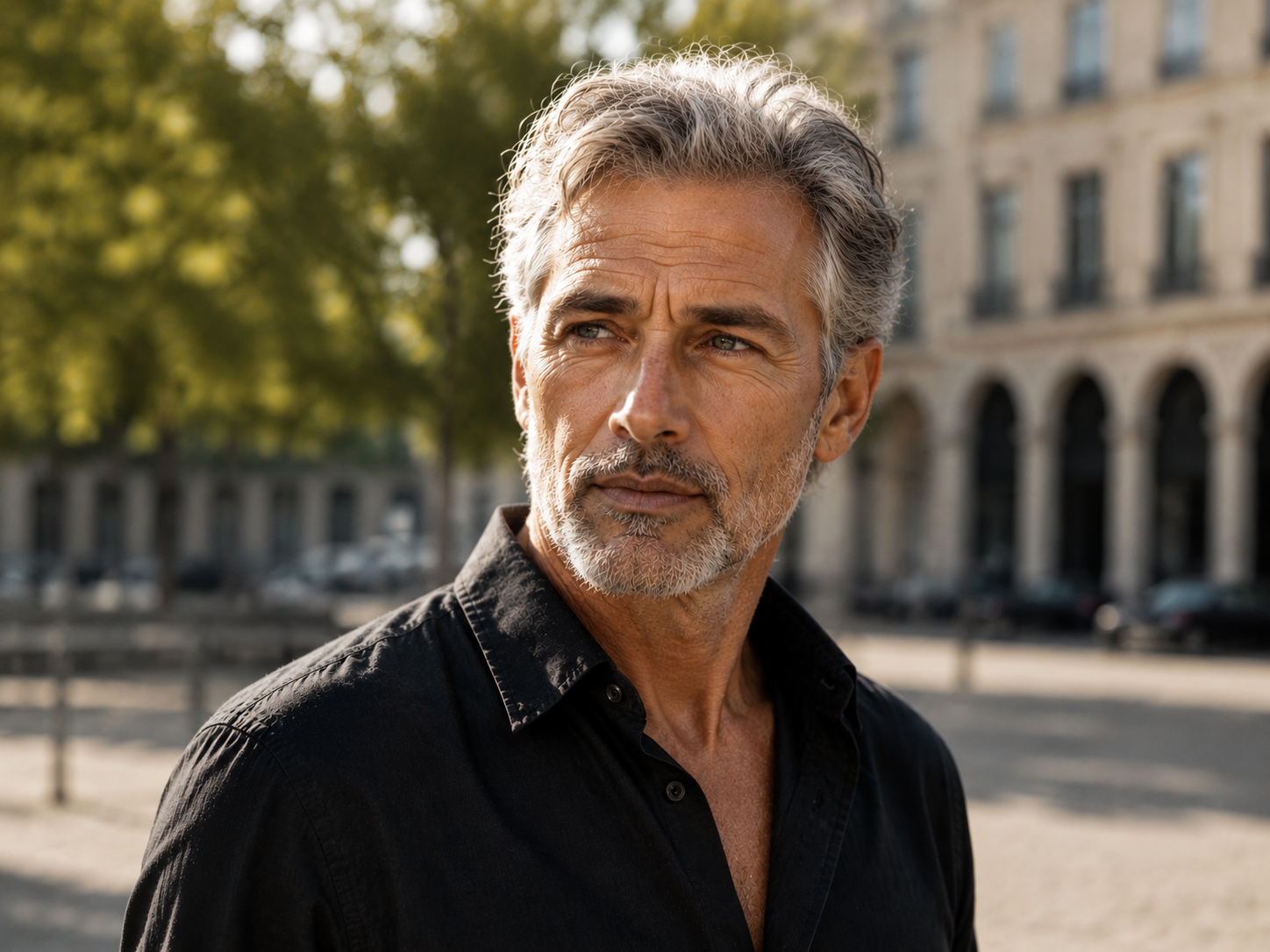
The AI Aging Filter feature in Pixomi AI provides powerful age transformation for portrait photos. Simply upload a clear portrait and watch the person evolve into a convincingly aged portrait — complete with natural wrinkles, skin texture changes, and realistic facial aging. The feature processes every detail with precision, ensuring results that feel authentic and true to life.
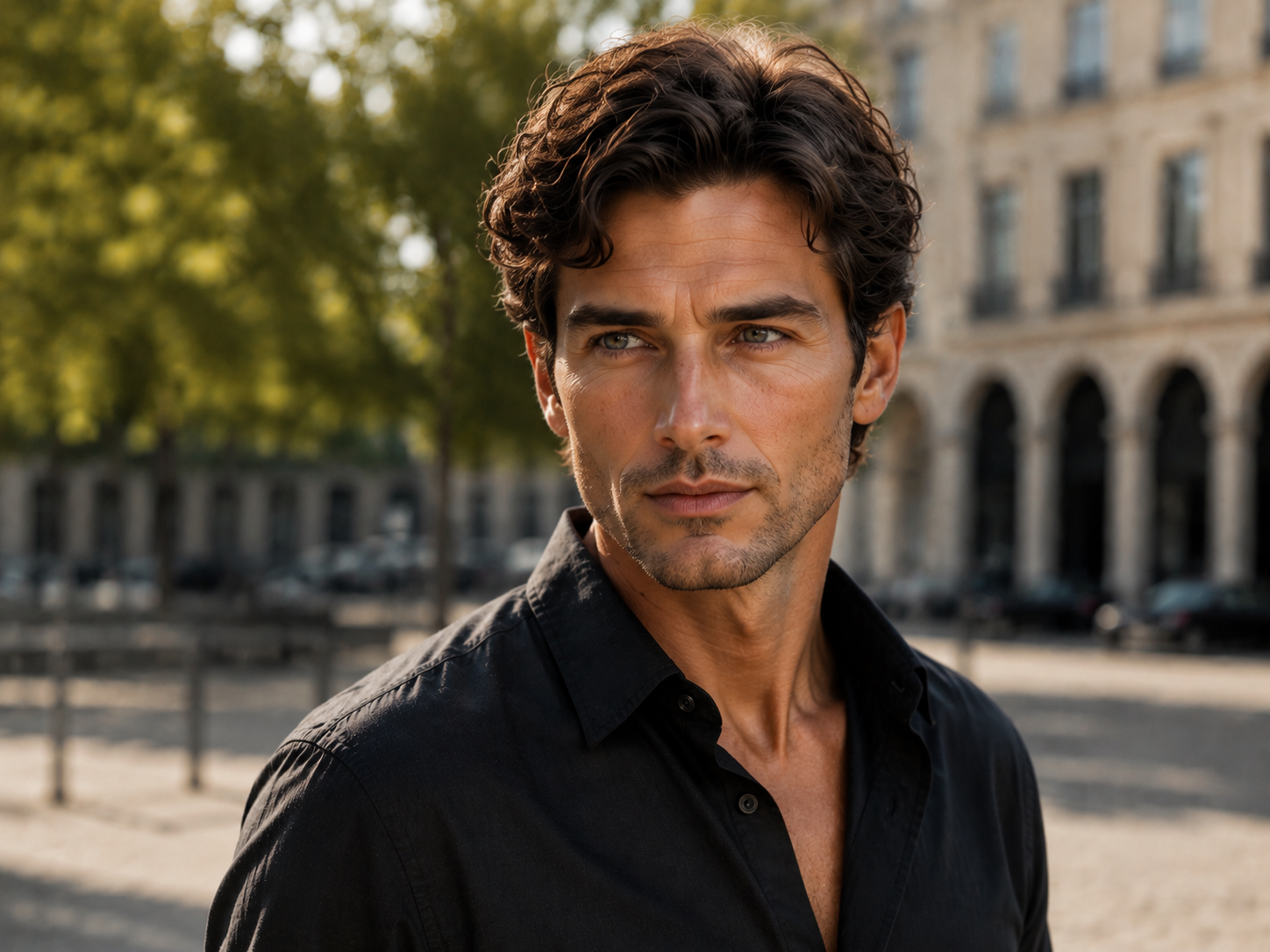
AI Aging Filter Signature Portrait Style
The AI Aging Filter available in Pixomi AI goes beyond simple wrinkle overlays. It automatically captures the subtle shifts in facial structure, skin tone, and lighting that define natural aging — delivering portraits that feel like genuine glimpses into the future. The feature preserves your unique facial characteristics while naturally reflecting the passage of time.
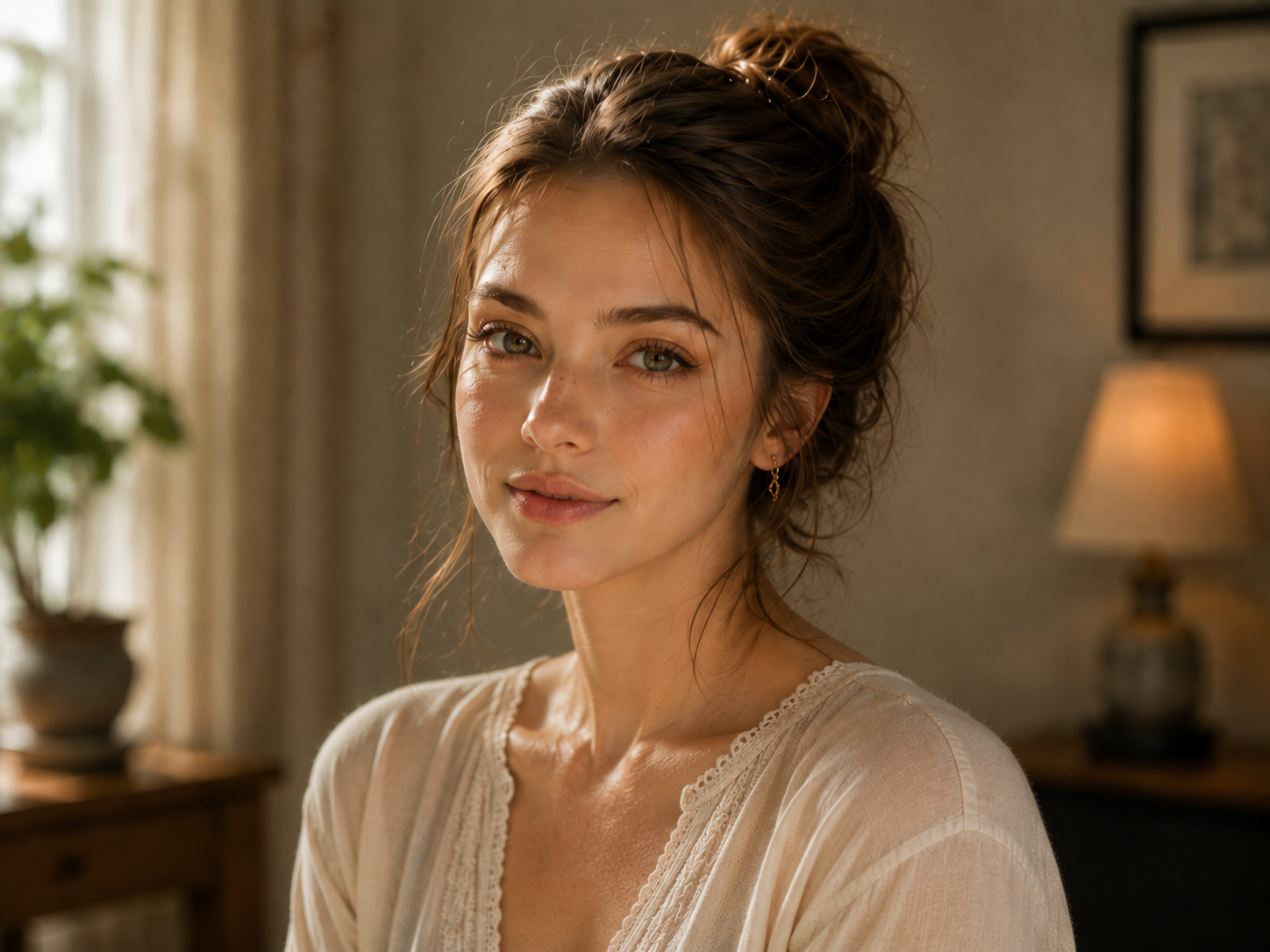
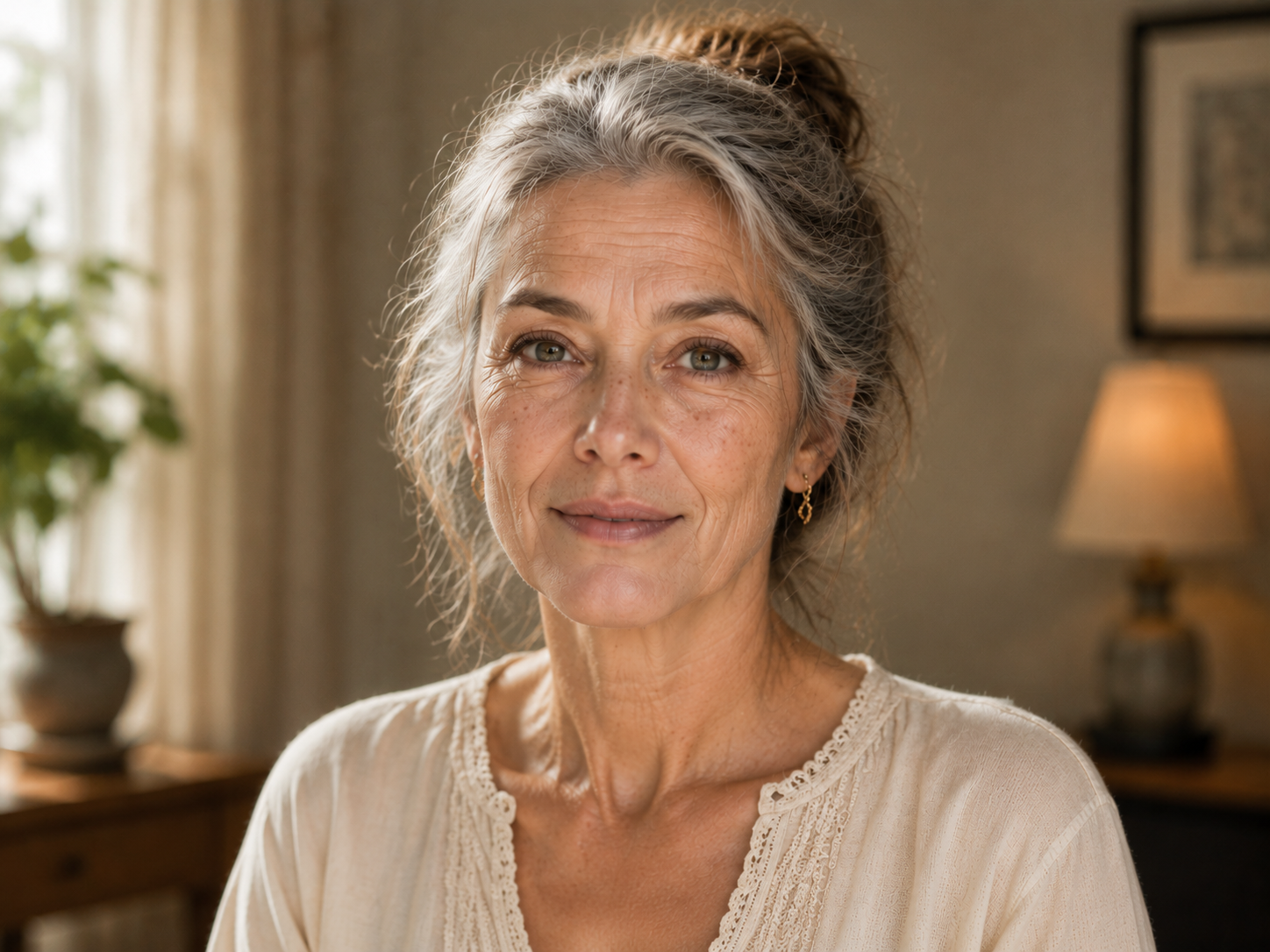
AI Aging Filter Automatic Age Transformation
Pixomi AI includes a fully automatic AI Aging Filter that makes age transformation effortless. Simply upload a clear portrait photo of a person and the feature analyzes facial structure, skin texture, and lighting to create a naturally aged portrait—no age selection or manual adjustments required. Every result is generated with balanced details and visual coherence while preserving the person's recognizable features.
Why Use the AI Aging Filter in Pixomi AI
The AI Aging Filter feature in Pixomi AI combines advanced technology with an intuitive workflow to deliver professional-quality age transformation photos — fast, accurate, and built for creators.

AI Aging Filter Core Generation: Instant Photo-to-Age Transformation
Pixomi AI includes a powerful AI Aging Filter feature built for accuracy and realism. Upload a clear portrait photo of a person and the feature automatically analyzes facial structure, skin tone, and lighting to produce a convincingly aged result. No target age or aging level needs to be selected—the AI creates a natural transformation with stunning detail.

AI Aging Filter Smart Processing: Fully Automatic Results
The AI Aging Filter feature in Pixomi AI handles the entire transformation automatically. Its intelligent processing balances aging details, skin texture, color, and lighting to create a coherent, realistic portrait from a single upload. There are no aging-level controls or style settings to configure—just one-click generation designed for consistent, professional-looking results.

AI Aging Filter Detail Enhancement: Clear, Realistic Portraits
The AI Aging Filter feature in Pixomi AI automatically enhances facial details, skin texture, and overall image clarity as part of the generation process. It handles the transformation and visual refinement in one step, producing a polished aged portrait without requiring manual editing or adjustment tools.

AI Aging Filter Workflow: Asset Management & Sharing
Keep your projects organized with Pixomi's intuitive asset library. Every photo processed through the AI Aging Filter is saved and easy to access, reuse, or build upon. Share directly to social platforms or export for professional use. The AI aging filter workflow is designed to be fast, flexible, and built around how creators actually work.
What Users Say About Our AI Aging Filter Free
See how a YouTube channel operator, a family memory album creator, and a portrait photographer use the AI Aging Filter in Pixomi AI for video content, meaningful family keepsakes, and creative client portraits.
I run a YouTube channel focused on visual experiments and future-themed content. The AI Aging Filter in Pixomi AI lets me turn a clear portrait into an aged version with one click, so I can create engaging thumbnails and video segments without spending hours editing. The results keep the person's recognizable features and look natural on screen.
I enjoy making family keepsakes, from memory albums to birthday slideshows and family time capsules. For our latest project, I used the AI Aging Filter in Pixomi AI to create photos showing what my children and I might look like years from now. The results still looked like us, which made the images fun, personal, and meaningful for the whole family.
Some of my portrait clients ask for creative images that imagine how they may look later in life. The AI Aging Filter in Pixomi AI gives me a quick way to create that future-style portrait from a clear photo. The facial details remain recognizable, so I can include the result in themed portrait collections without making it feel artificial or overdone.


Frequently Asked Questions About AI Aging Filter Free
Here are the most common questions about how our AI Aging Filter Free works, what the AI aging feature can do, and how to use the final images.
AI Aging Filter is an image transformation feature in Pixomi AI that turns a portrait photo of a real person into a realistic aged version. It adds visual signs of aging, such as wrinkles, mature skin texture, and subtle changes to facial structure, while preserving the person's recognizable features. It is useful for exploring a future appearance, creating family keepsakes, or producing age-transformation content.
Upload one clear portrait photo of a real person and click Generate. The AI Aging Filter automatically analyzes the face, including its structure, skin texture, expression, and lighting, before applying natural-looking aging details. The entire transformation is completed automatically, so you do not need to write a prompt, select a target age, or edit the result manually.
The AI Aging Filter can transform a clear human portrait into a convincing older version with natural wrinkles, mature skin texture, and subtle facial changes. It is designed to keep key features—such as the eyes, face shape, and expression—recognizable so the result still looks like the same person. The feature supports real human portraits only; pets, objects, illustrations, anime characters, and game characters are not supported.
Upload one clear, well-lit photo of a real person with the face fully visible. Front-facing selfies, headshots, and upper-body portraits usually work best, especially when the image has natural facial details and a simple background. Avoid sunglasses, masks, hair covering the face, extreme camera angles, heavy filters, motion blur, poor lighting, and crowded backgrounds, as these may reduce the accuracy of the result.
No. You only need to upload one portrait photo and start the generation. The AI Aging Filter determines the aging effect automatically, so there is no text prompt, target-age selection, aging-strength control, or manual editing step to configure. If you want a different result, you can generate the image again using a clearer or better-lit portrait.
After generation, preview the aged portrait to make sure the face and details look natural, then download the high-resolution result. You can add it to family memory albums, birthday slideshows, family time capsules, future-themed videos, social media posts, or creative portrait projects. For the most meaningful result, pair the generated image with the original portrait to show the before-and-after transformation.
See Your Future Self with AI Aging Filter
Upload one clear portrait and let Pixomi AI create a realistic aged version in seconds. No prompts, age settings, or manual editing—just a simple way to create future-inspired portraits for family albums, videos, and creative projects.
