
Upload an image and use AI to make soft, blurry, or low-contrast text easier to read while preserving the surrounding picture.
More AI Image Generators
Explore our collection of specialized AI image generators designed for different creative needs and styles




Image Text Enhencer for Clearer Words in Any Image
Recover clearer signs, labels, screenshots, documents, and product text with a fast AI-assisted workflow.
Image Text Enhencer improves hard-to-read text already inside a picture while keeping the surrounding image natural. Upload one file, describe the problem, and let Image Text Enhencer produce a cleaner, more legible result.
How to Use Image Text Enhencer
Image Text Enhencer turns a difficult cleanup task into three simple steps. You stay in control of the source image, the target text area, and the enhancement strength.

Upload Your Image
Choose a screenshot, scan, sign, menu, product label, presentation, or photo containing text that looks soft or unclear. Image Text Enhencer accepts one source image so the editing goal stays focused.

Describe What Needs Clarity
Tell Image Text Enhencer where the text appears and what makes it difficult to read. Mention blur, low contrast, glare, compression, small lettering, or uneven lighting for more targeted processing.

Generate and Review
Run Image Text Enhencer, compare the result with the original, and check spelling, letter shapes, spacing, and nearby details. Download the improved image when the text looks clearer and faithful.
Best AI Image Tools for Creative Projects
Explore creative tools for image, learn tips and tricks, and see how AI can be your assistant in turning concepts into finished projects.
Make Existing Image Text Easier to Read
Image Text Enhencer focuses on the text already present in your picture. It helps recover visual clarity without turning a useful source image into a completely different scene.
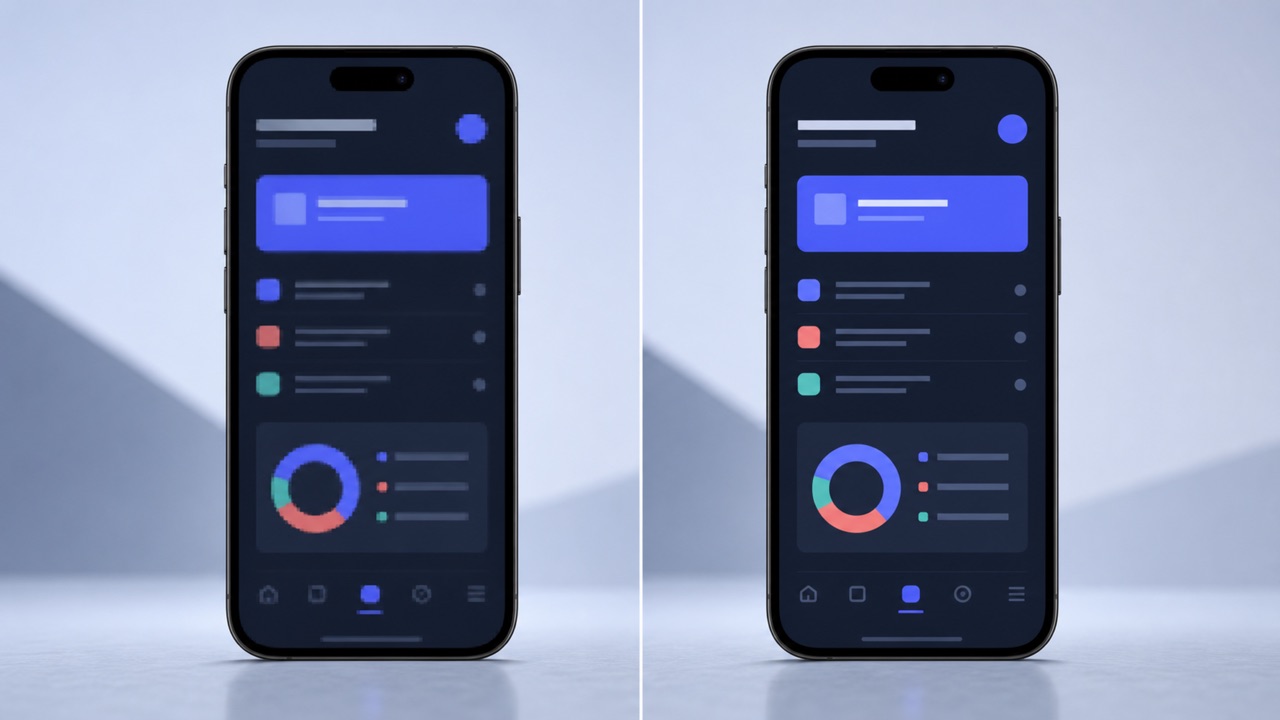
Sharpen Soft and Blurry Lettering
Motion, focus problems, resizing, and heavy compression can soften the edges that define letters. Image Text Enhencer analyzes the surrounding pixels and rebuilds stronger visual boundaries so words are easier to recognize. Use Image Text Enhencer on photographed notices, presentation screenshots, archival scans, receipts, labels, and other everyday sources where the wording exists but lacks crispness. The result aims to keep the original content and layout intact while improving local definition. Image Text Enhencer is especially useful when a full redesign would take too long or when you need a cleaner reference image for review, sharing, or documentation.
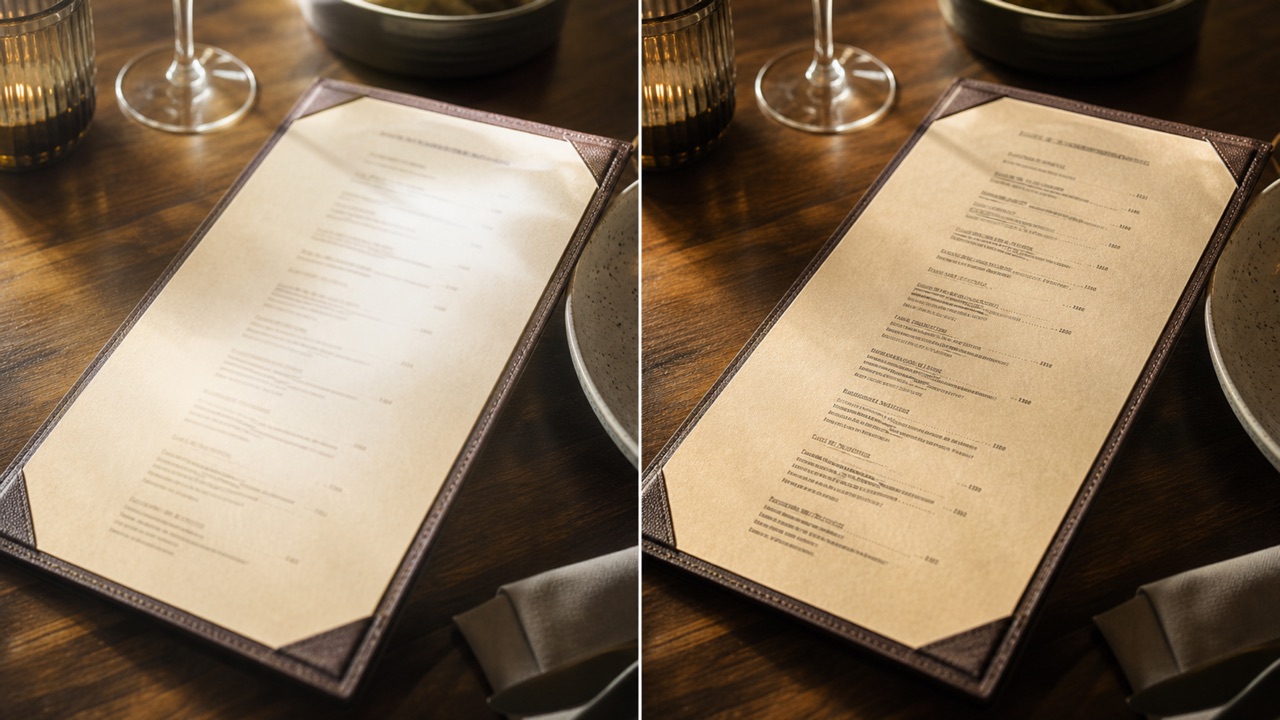
Improve Contrast Without Flattening the Photo
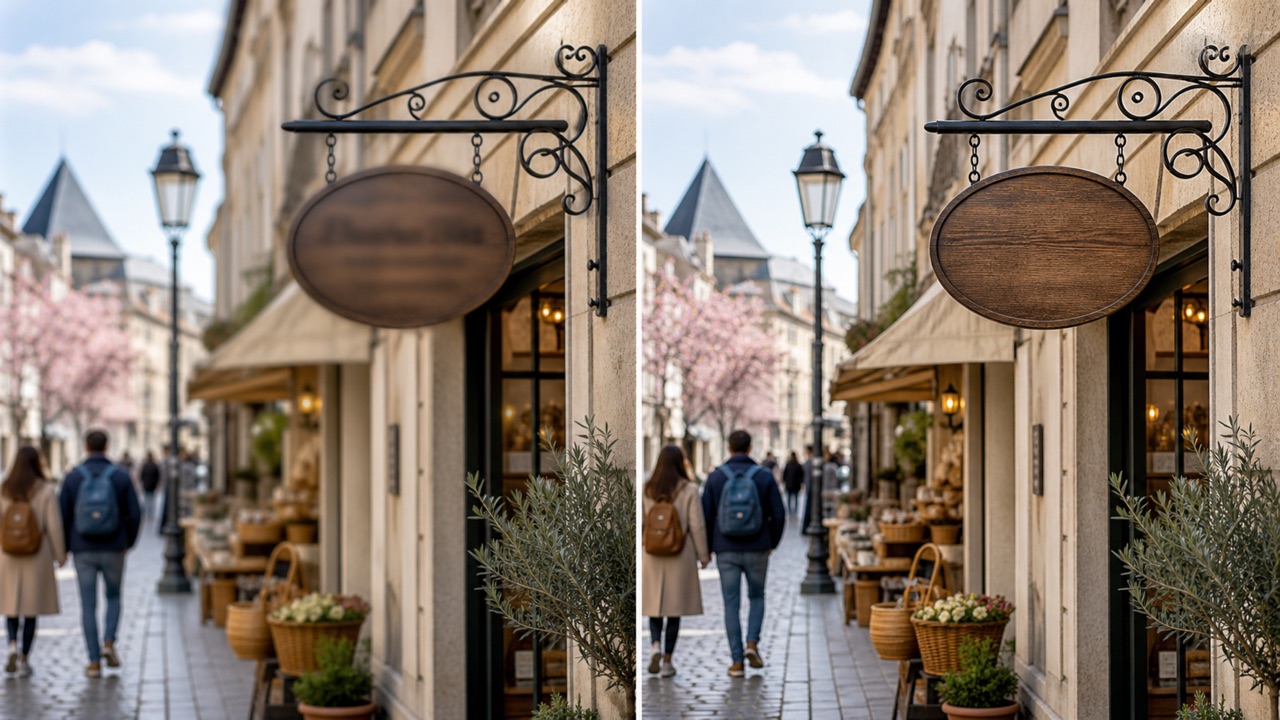
Text may disappear into a similar background color, sit under uneven light, or lose definition after repeated exports. Image Text Enhencer can strengthen the separation between characters and their immediate background while preserving the broader mood of the image. Direct Image Text Enhencer to a menu price, street sign, package label, slide heading, or interface element, and describe the contrast issue in plain language. Image Text Enhencer balances readability with visual continuity, helping the corrected area feel like part of the source rather than a pasted-on replacement. Review the final letterforms closely whenever the source is extremely faint.
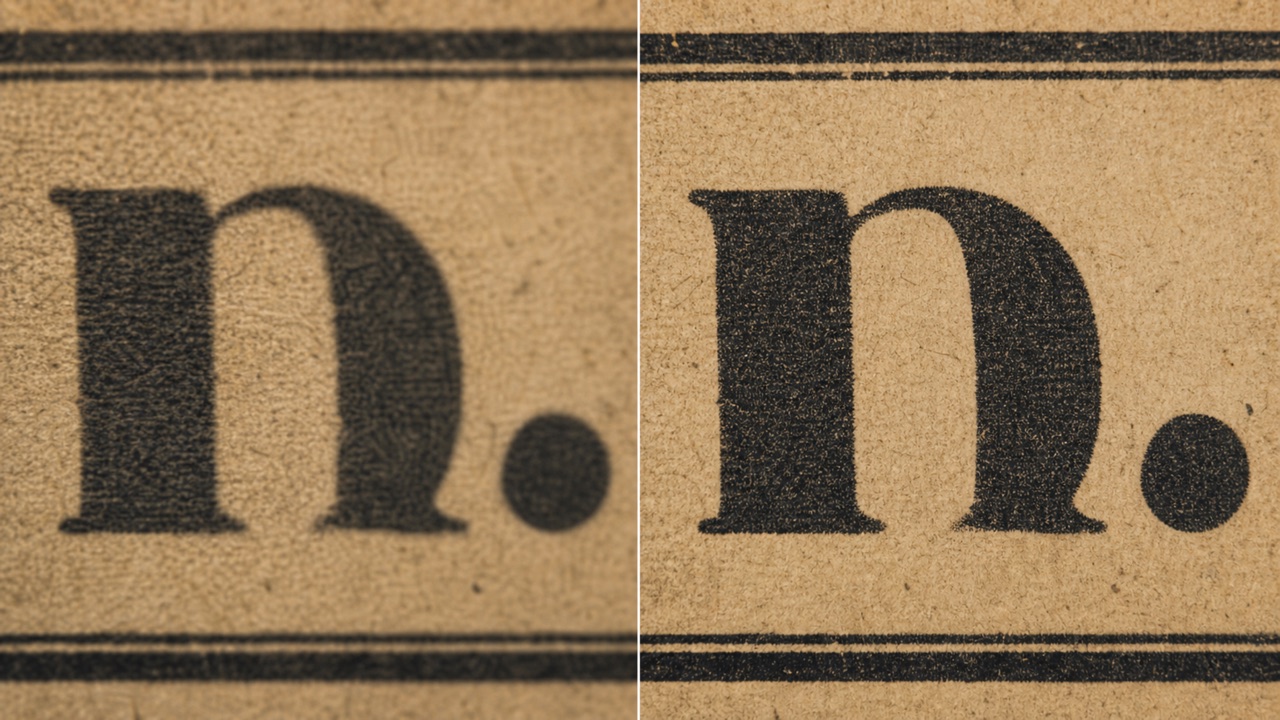
Clean Up Scans, Screenshots, and Compressed Images
Old scans, messaging-app images, and copied screenshots often collect noise, ringing, blocks, and jagged edges. Image Text Enhencer reduces these distractions around text so the words gain a cleaner silhouette. With Image Text Enhencer, you can target a specific paragraph, title, label, or number instead of applying an aggressive global filter. Image Text Enhencer is designed for practical visual improvement, not forensic recovery, so the clearest source file will always produce the strongest result. When accuracy matters, compare every important name, figure, date, and symbol with the original before relying on the enhanced image.
Where Image Text Enhencer Helps
From quick personal fixes to everyday creative and professional tasks, Image Text Enhencer gives users a straightforward way to improve text visibility inside images.

Documents and Study Materials
Use Image Text Enhencer for photographed notes, scanned handouts, research references, presentation slides, and whiteboard captures. Image Text Enhencer can make headings, annotations, and printed passages more comfortable to inspect while keeping the page structure recognizable.

Product Labels and Packaging
Small ingredients, instructions, model numbers, and package copy can become difficult to see in marketplace or inventory photos. Image Text Enhencer improves their visual definition so teams can review a clearer asset. Image Text Enhencer should support visual inspection, while the physical product remains the authority for safety-critical information.

Signs, Menus, and Travel Photos
Use Image Text Enhencer on photographed storefronts, directional signs, museum labels, timetables, and menus affected by distance, glare, or camera shake. Image Text Enhencer can make the captured wording more visible without removing the context that makes the photo useful.

Screenshots and Social Graphics
Resize cycles and platform compression can make interface labels, subtitles, posters, and social graphics look muddy. Image Text Enhencer cleans the text region for a more polished image. Use Image Text Enhencer before sharing, presenting, archiving, or repurposing the graphic.
Why People Choose Image Text Enhencer
These fictional example testimonials illustrate how Image Text Enhencer can fit different image-cleanup workflows.
I use Image Text Enhencer on photographed workshop notes before adding them to our resource library. Image Text Enhencer gives the small headings cleaner edges and saves me from rebuilding every page by hand.
Our older product-reference photos often contain soft model numbers. Image Text Enhencer makes those areas easier to review while preserving the package photo. Image Text Enhencer has become a useful first cleanup step for our catalog team.
I photograph signs and exhibition labels while traveling, but lighting is rarely perfect. Image Text Enhencer helps bring back local contrast, and Image Text Enhencer keeps enough of the original atmosphere for my visual journals.
Compressed client screenshots can look rough in a presentation. Image Text Enhencer gives interface labels and chart notes a clearer appearance. I like that Image Text Enhencer lets me describe the exact area instead of applying one harsh filter everywhere.
For community archive previews, Image Text Enhencer helps me prepare more readable scans without losing the look of the source. Image Text Enhencer is convenient for visual access copies, though I always retain the original master file.
Image Text Enhencer helps clean up menu boards and window signs in location photos for mood boards. Image Text Enhencer improves readability quickly, and the simple upload-and-prompt flow works well when I am moving between projects.





Image Text Enhencer FAQ
Learn what Image Text Enhencer can improve, how to write a useful prompt, and when to verify the result against the source.
Image Text Enhencer improves the visible clarity of text already contained in an image. It can sharpen soft letter edges, strengthen local contrast, and reduce distracting compression or scan artifacts while trying to preserve the original wording and surrounding picture.
Tell Image Text Enhencer where the target text appears, what makes it difficult to read, and how strong the cleanup should be. For example, mention the small label in the lower corner, light glare over a menu heading, or blocky compression around screenshot text.
No tool can reliably restore information that is absent from the source. Image Text Enhencer works best when some character structure remains visible. If the source is severely blurred, blocked, or tiny, treat the output as an interpretation and never assume uncertain letters are accurate.
Image Text Enhencer is prompted to preserve the surrounding subject, layout, colors, lighting, and background. Generative editing can still introduce differences, so compare the full result with the original and keep your source file unchanged.
Use the highest-resolution original you have. Image Text Enhencer performs best on images where letters are visible but softened by mild blur, low contrast, uneven lighting, resizing, scanning, or compression. A tight crop may help when the target text occupies a very small area.
Yes. Always compare important names, prices, dates, measurements, addresses, legal terms, safety details, and serial numbers with the original or another authoritative source. Image Text Enhencer improves visual readability; it does not certify factual or character-level accuracy.
Make Hard-to-Read Image Text Clearer
Upload one image, point out the difficult text, and use Image Text Enhencer to create a cleaner result for review, sharing, study, design, or everyday reference.
