
More AI Image Generators
Explore our collection of specialized AI image generators designed for different creative needs and styles













AI Censor Remover for Clean, Natural Image Repair
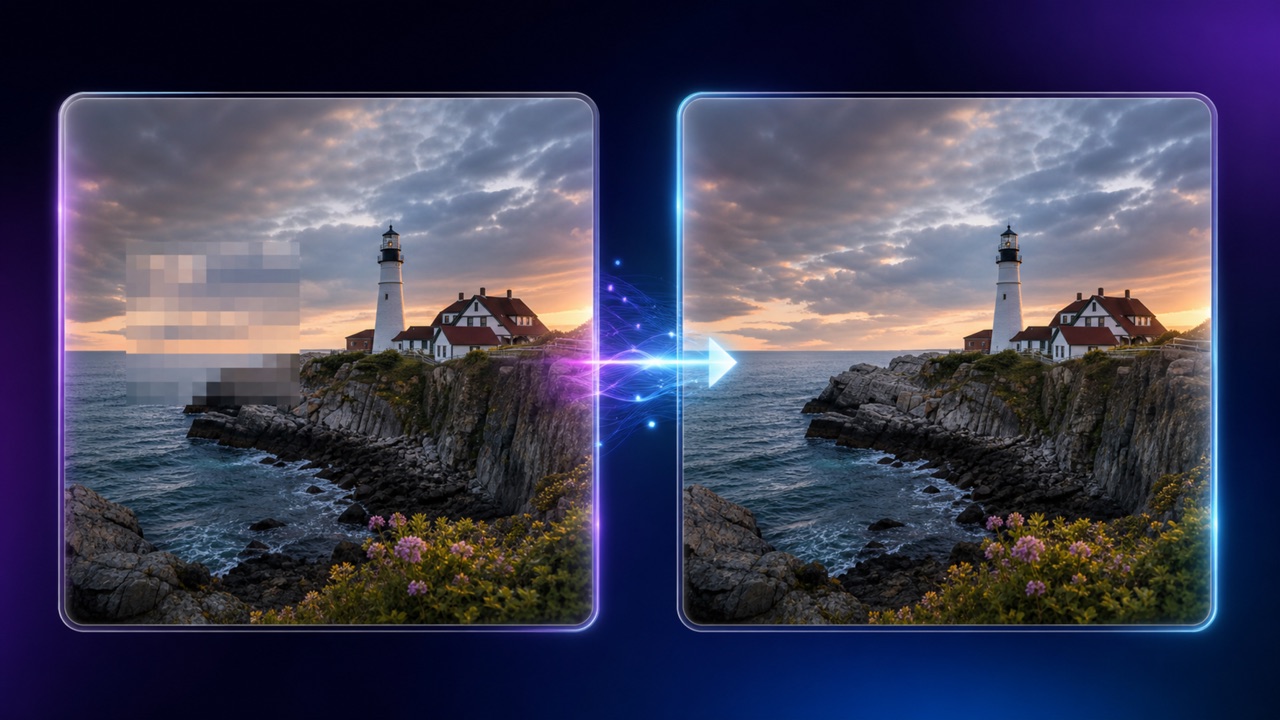
Remove unwanted censor blocks, blur, and pixelation from images with guided AI reconstruction.
Upload an image and let AI Censor Remover rebuild obscured areas with context-aware detail. It offers a simple online workflow for restoring authorized photos while keeping the surrounding composition clear and visually consistent. Our advanced model ensures seamless blending and natural textures without requiring complex software.
How to Use AI Censor Remover
This tool turns a technical restoration task into three clear steps. Upload, describe, and generate while keeping every edit under your control.

Upload an Authorized Image
Choose a photo you own or have permission to edit. The editor accepts the image as a visual reference, while your prompt identifies which censored region needs careful reconstruction.

Describe the Intended Repair
Explain the censored area, nearby textures, and the result you expect. The AI uses those instructions to guide reconstruction, so specific context helps produce a more coherent edit.

Generate and Review
Choose an image size and generate the edit. The system creates a plausible visual reconstruction rather than recovering hidden source data. Review the result, refine your prompt, and run the tool again if needed.
Best AI Image Tools for Creative Projects
Explore creative tools for image, learn tips and tricks, and see how AI can be your assistant in turning concepts into finished projects.

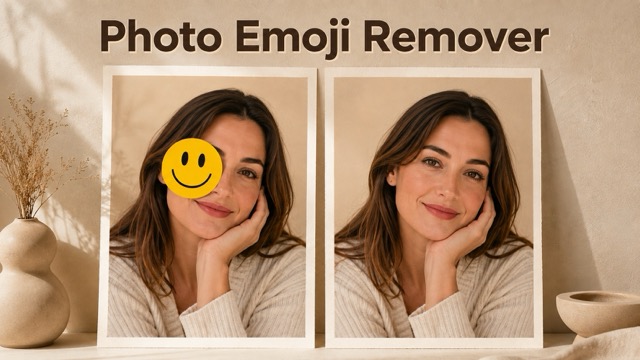





What AI Censor Remover Can Do
AI Censor Remover helps rebuild visually obstructed image regions, preserve nearby detail, and produce editable alternatives through a prompt-guided workflow.
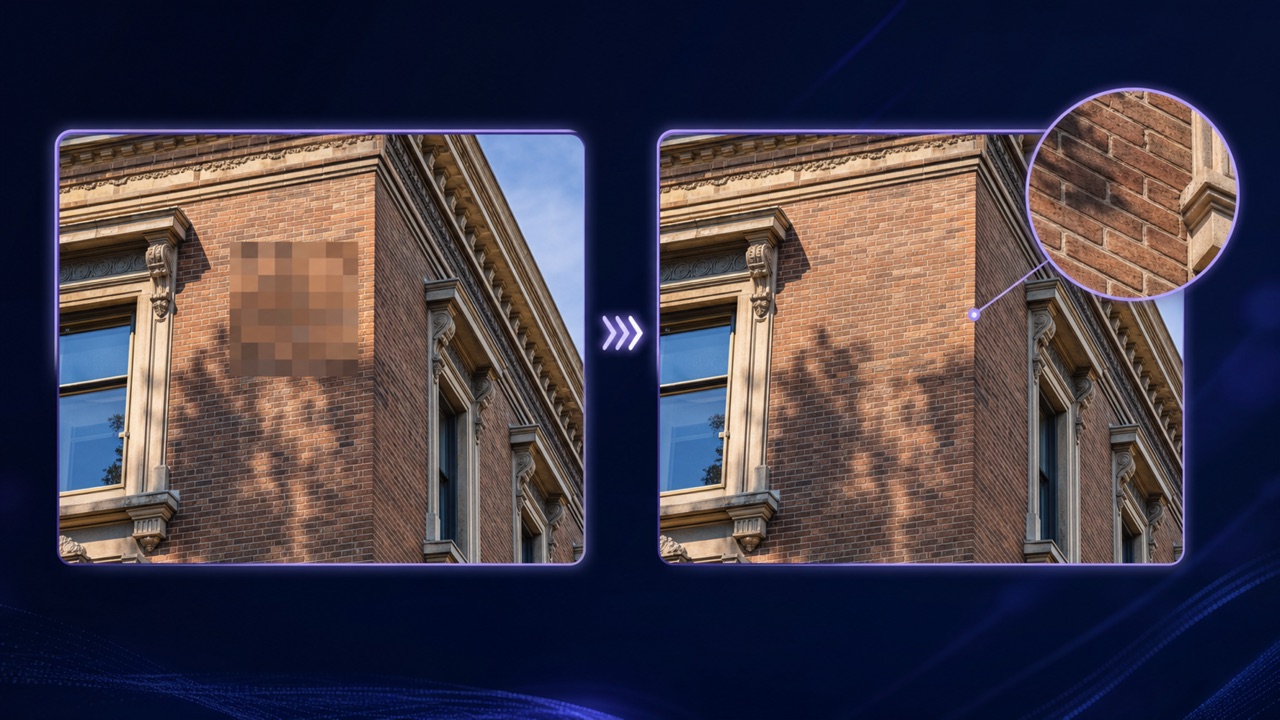
Reconstruct Obscured Areas with Context
AI Censor Remover examines visible colors, edges, lighting, perspective, and nearby patterns before generating replacement detail. Instead of simply smearing pixels, it aims to continue the visual logic around a blocked or blurred region. This makes the tool useful for repairing distracting censorship in authorized archival images, creative drafts, and personal photos. Because the original hidden pixels cannot truly be recovered, the result is a plausible AI interpretation that should always be reviewed.

Guide the Edit with a Precise Prompt
AI Censor Remover combines the uploaded image with written guidance. Tell the tool where the censor appears, what kind of background or object should continue through the area, and which surrounding details must remain unchanged. Clear instructions help the AI preserve composition and avoid unrelated changes. You can also describe texture, color, lighting, or edge continuity, then compare several outputs to choose the most convincing result.
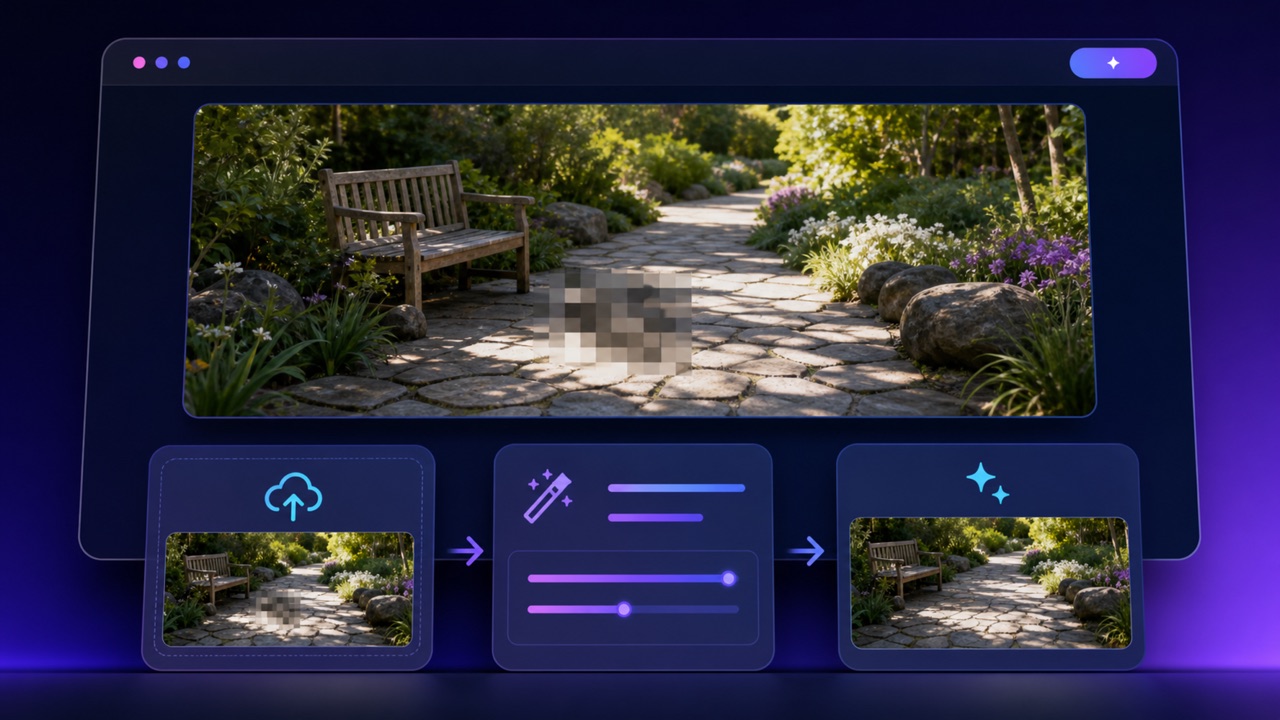
Finish Repairs without Complex Software
AI Censor Remover runs in a straightforward online generator, so you do not need advanced retouching tools or manual clone-stamp work. It lets you upload one image, enter instructions, choose a size, and generate a revised version in one place. For difficult edits, use it iteratively: begin with a narrow repair, inspect boundaries, then adjust the prompt. The workflow is designed for efficient creative restoration, not forensic recovery.
Practical AI Censor Remover Use Cases
AI Censor Remover supports authorized restoration, design cleanup, and context-aware background repair. Use the software responsibly and never to violate consent, privacy, copyright, or applicable law.

Restore Personal Photo Copies
Use AI Censor Remover on personal images you are authorized to edit when an added block, blur, or pixelated patch distracts from the scene. It can rebuild a visually compatible area for a cleaner keepsake, while the result remains an estimate rather than recovered truth.

Repair Licensed Archive Images
Researchers, editors, and archivists can use AI Censor Remover on appropriately licensed material to create visual reconstructions for presentation or exploration. The tool can reduce an intrusive censor mark while preserving the broader framing, and any generated reconstruction should be labeled when accuracy matters.

Clean Creative Mockups
Designers can run AI Censor Remover on their own concept art, composites, or mockups after temporary censor graphics have interrupted the layout. It can regenerate the covered area, helping teams evaluate a cleaner composition before completing a final licensed asset.

Rebuild Background Detail
When censorship covers scenery, texture, signage, clothing, or another non-sensitive element, the model can infer a continuation from visible surroundings. It works best when the prompt identifies the background structure and asks the model to preserve subjects outside the selected repair area.
Why Creators Choose AI Censor Remover
People use AI Censor Remover to explore responsible reconstructions without heavy editing software. These fictional scenarios illustrate common AI Censor Remover workflows; results vary by image and prompt.
AI Censor Remover gave me a fast way to clean an authorized family-photo copy without learning a complicated retouching suite. I appreciated being able to describe the wallpaper pattern and preserve the people around the repaired area.
For a licensed exhibition mockup, AI Censor Remover created several plausible reconstructions of a blocked background. It did not pretend to recover original evidence, but it produced clear visual options that helped our team discuss the composition.
The prompt-based workflow made AI Censor Remover easy to direct. I specified the texture, lighting, and edge details, then the tool generated an edit that blended much better than a quick manual patch.
AI Censor Remover helped repair a censor block in one of my own game-art drafts. After one refined prompt, AI Censor Remover continued the background shapes convincingly and saved time during concept review.
I used AI Censor Remover for an authorized educational graphic where a pixelated patch obscured a harmless object. AI Censor Remover rebuilt the area quickly, and the reminder to treat the output as a reconstruction was genuinely useful.
AI Censor Remover fits neatly into my restoration workflow because I can test multiple interpretations before choosing one. AI Censor Remover kept the surrounding color palette consistent and gave me a practical starting point for final review.






AI Censor Remover FAQ
Learn how AI Censor Remover reconstructs censored regions, what its outputs mean, and how to use AI Censor Remover responsibly.
AI Censor Remover is an online image-editing workflow that generates plausible replacement detail for an area covered by blur, pixelation, or a censor block. AI Censor Remover uses visible context and your prompt; it does not retrieve the original hidden pixels.
No. AI Censor Remover creates an AI-generated interpretation based on surrounding content and written guidance. AI Censor Remover cannot reveal or verify data that is no longer visible, so do not treat its output as factual, forensic, or evidentiary recovery.
Use a clear source image, identify the censored location, describe expected textures or objects, and list everything that should remain unchanged. AI Censor Remover often works better with focused instructions and small iterative refinements.
You can open AI Censor Remover online and start the available generation workflow without installing professional editing software. Availability, credits, output sizes, and processing limits may depend on the current Pixomi service options shown in the generator.
Use AI Censor Remover only for images you own or have clear permission to modify. Do not use AI Censor Remover to invade privacy, defeat consent, create harmful intimate content, misrepresent evidence, or violate copyright and applicable law.
AI Censor Remover is intended to focus on the described censored region while preserving surrounding composition. Generative models can still alter nearby details, so compare the output with your source and refine the prompt when preservation is important.
Repair an Authorized Image with AI Censor Remover
Upload your image, describe the obstructed area, and let AI Censor Remover generate a context-aware reconstruction in a few guided steps. Unlock a straightforward, secure editing process that brings professional-level visual restoration right to your browser.
