
More AI Video Generators
Explore our collection of specialized AI video generators designed for different creative needs and styles






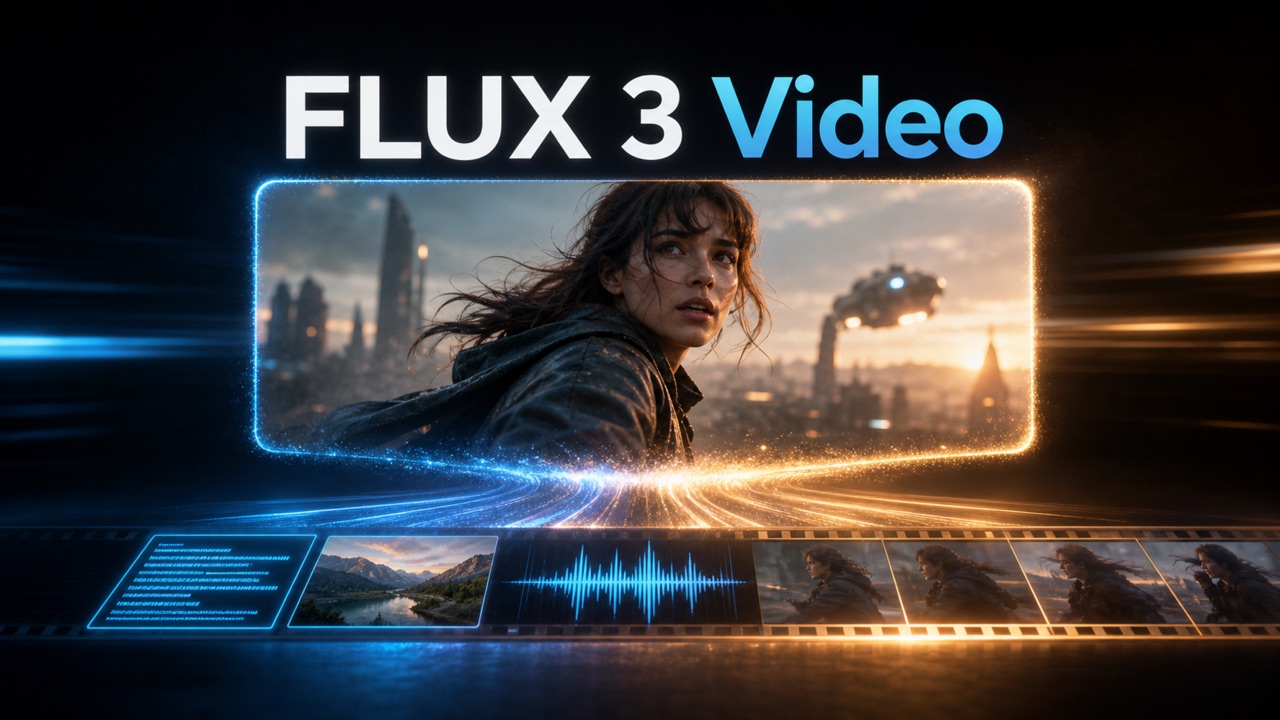
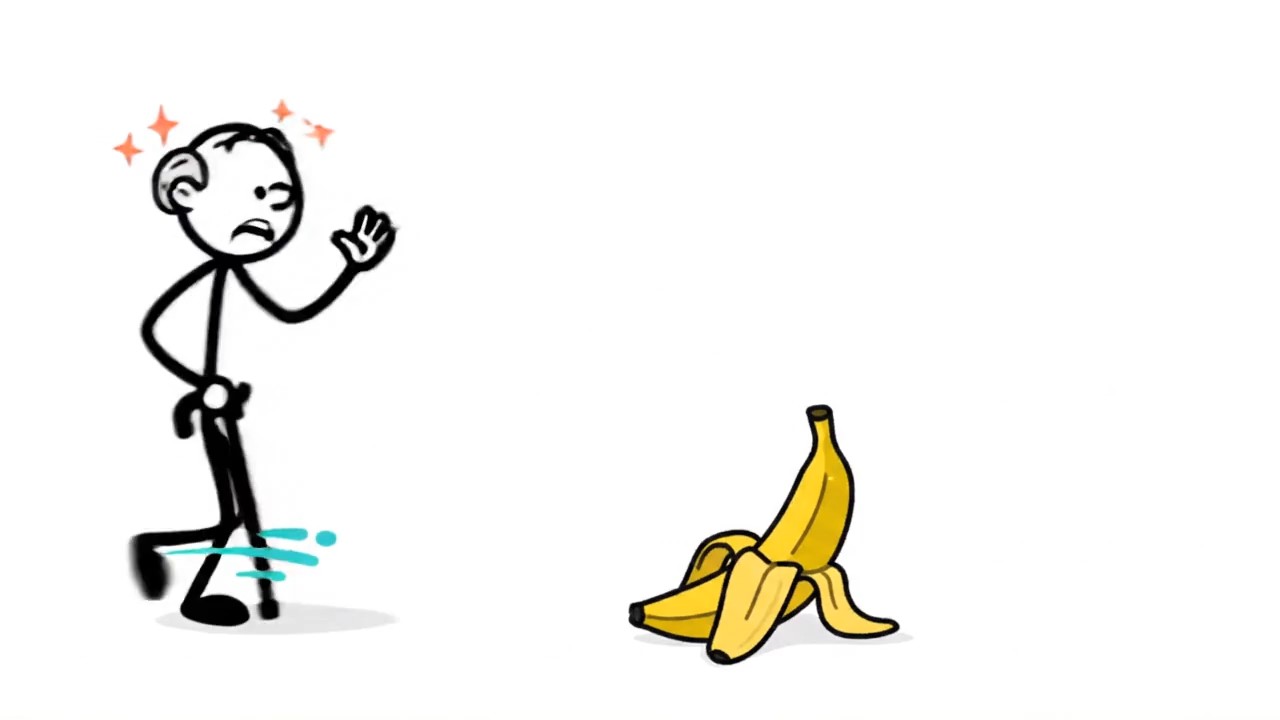
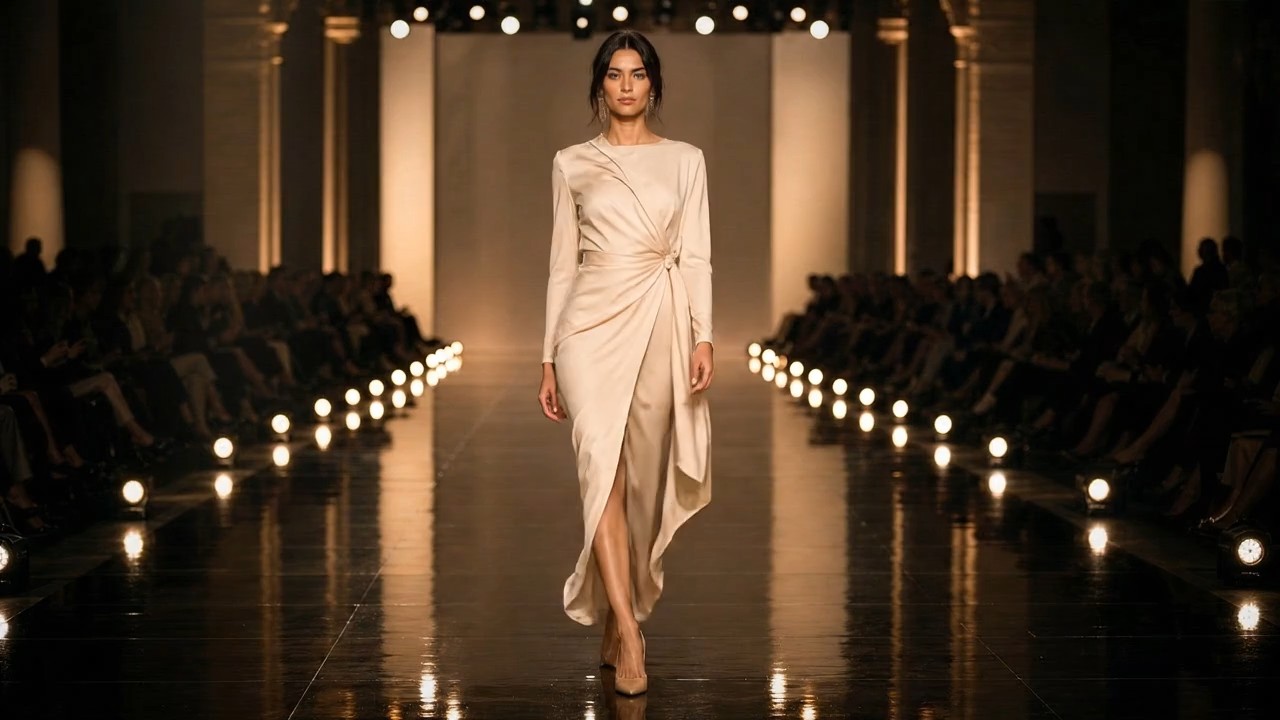
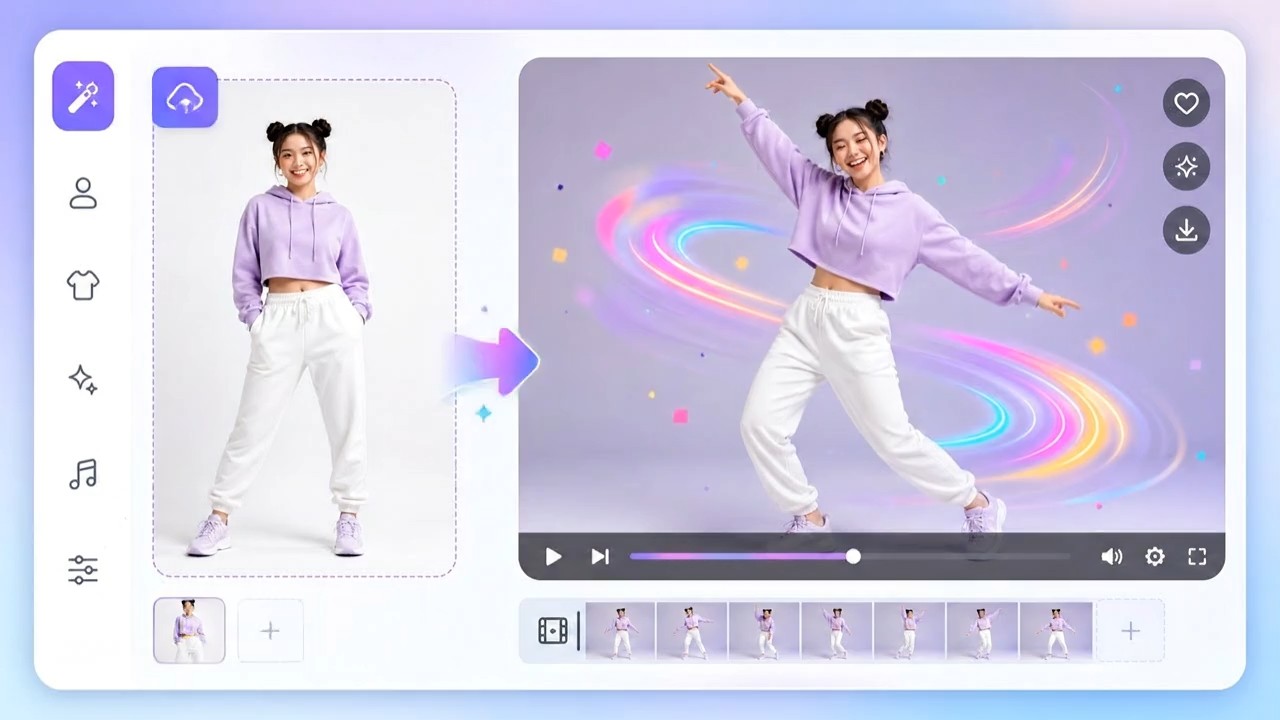
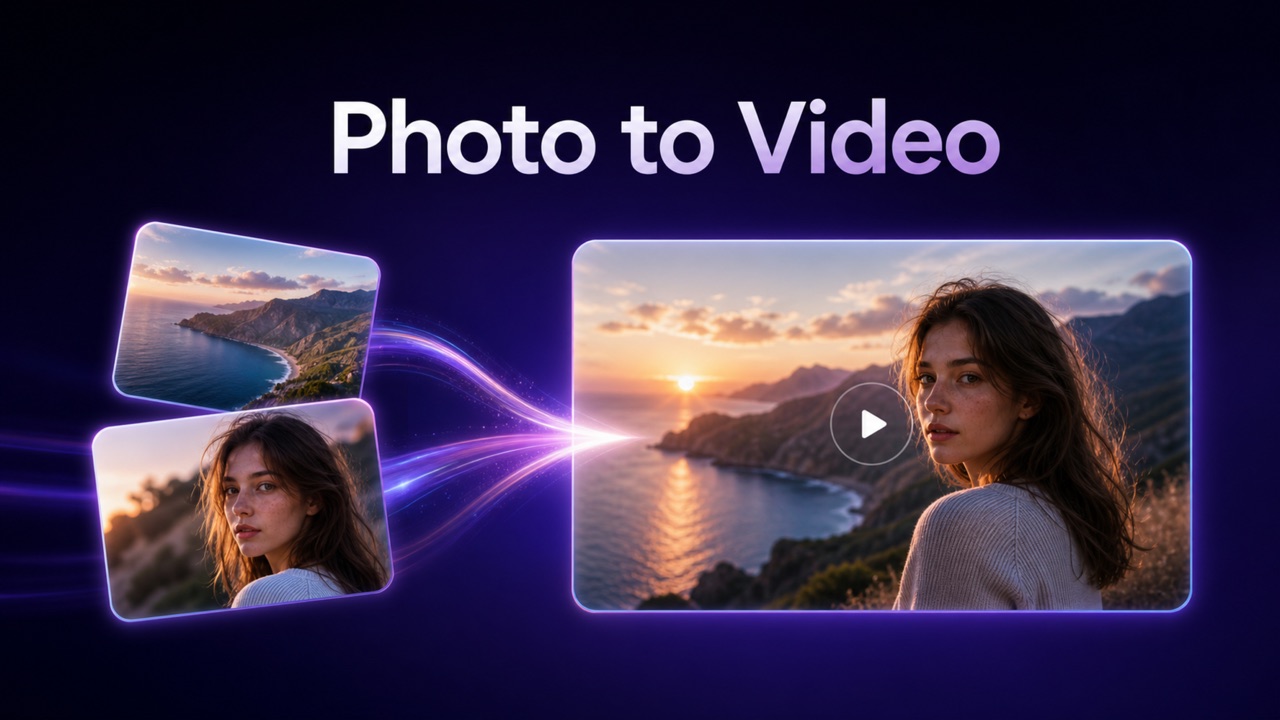
Create Cinematic Stories With Vidu Q4
Turn Images And References Into Videos With Sound
Vidu Q4 brings your images into motion with expressive scenes, synchronized audio, and output up to 4K. Start with one picture or combine references, then direct the action, camera, and dialogue in a short creative brief.
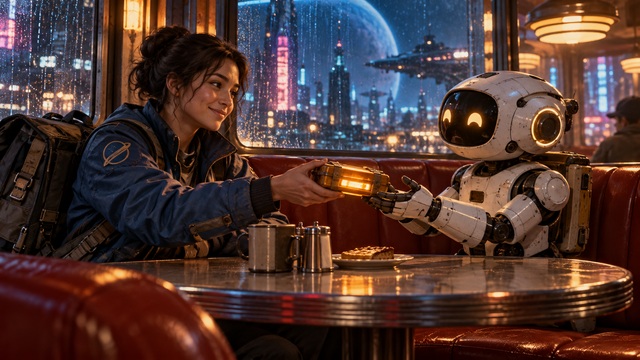
How To Use Vidu Q4 AI Video Generator
Build a clear visual brief before you generate. Vidu Q4 supports image to video for one starting frame and reference to video for a scene guided by several assets. Decide what should move, what should stay recognizable, and how the clip should end. A focused instruction gives your first attempt a useful direction.

Choose Your Starting Mode With Vidu Q4
Begin with image to video when a finished photograph or illustration already contains the composition you want. Use reference to video when separate images describe a character, a product, and a setting. Vidu Q4 needs visual input, so prepare a clear picture instead of relying on text alone. Remove distracting crops, choose a readable subject, and keep important details visible. For a first experiment, try a simple product scene or a short character interaction before building a more ambitious sequence.

Add Images And Voice References With Vidu Q4
Upload the material that explains your scene. Vidu Q4 reference to video accepts up to 15 image references and optionally up to three audio references. Assign each asset a purpose in your brief so the intended relationships are clear. For image to video, use a single strong starting frame with enough space for the planned movement. Clean source material makes it easier to judge the result. Avoid contradictory costumes or lighting unless that contrast belongs to the story you want to tell.

Describe Motion And Sound With Vidu Q4
Tell Vidu Q4 what happens first, what changes, and where the camera finishes. In image to video, describe the movement you want added to the still. In reference to video, explain who appears together and how they interact. Keep spoken lines short enough for the selected duration, and separate the speaker from surrounding action in plain language. Mention atmosphere or sound effects when they matter. A slow camera push and a single deliberate gesture often communicate more clearly than several competing actions.

Generate And Refine Your Clip With Vidu Q4
Choose available duration, resolution, and audio settings, then review the result from Vidu Q4 Preview. Check the opening frame, subject appearance, motion, and ending before changing several settings at once. Revisit image to video if the original composition should remain the anchor; use reference to video if you need more visual guidance. Refine one instruction at a time so you can see what helped. Review dialogue timing and small product details before including a clip in a larger edit.
Best AI Video Tools for Creative Projects
Explore creative tools for video, learn tips and tricks, and see how AI can be your assistant in turning concepts into finished projects.


Direct The Details With Vidu Q4
Vidu Q4 AI Video Generator connects visual guidance with movement, sound, and short-form storytelling. Choose image to video for an existing composition or reference to video for a scene assembled from several sources. These original concept images illustrate possible creative directions; they are not verified model outputs or performance comparisons.
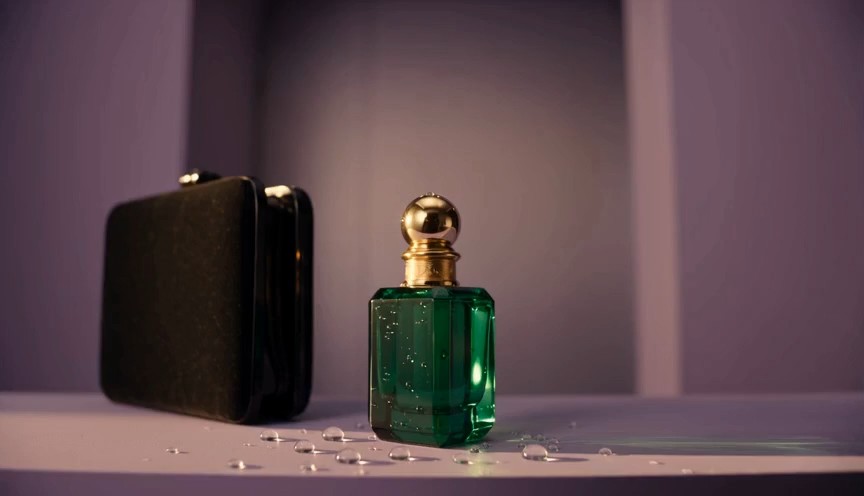
Bring One Image Into Motion With Vidu Q4
A carefully composed still can become the foundation for an engaging product reveal, animated illustration, or cinematic portrait. Vidu Q4 image to video uses one image as the starting frame, giving you a practical way to develop motion around an existing visual idea. Describe a restrained camera move, the subject action, and the atmosphere instead of rewriting every visible detail. For the perfume concept shown here, a brief could ask for a gentle camera arc as a ribbon of water passes behind the bottle. Keep the bottle upright and the action easy to follow. The image to video workflow is especially useful when framing and lighting already work. Vidu Q4 Preview supports clips from 3 to 16 seconds, with selectable output resolutions up to 4K. Try a short draft before committing to a more detailed version. If the scene needs separate character or environment references, reference to video provides another starting point. Vidu Q4 lets you explore the same idea with a different visual brief while you retain creative control over the story.
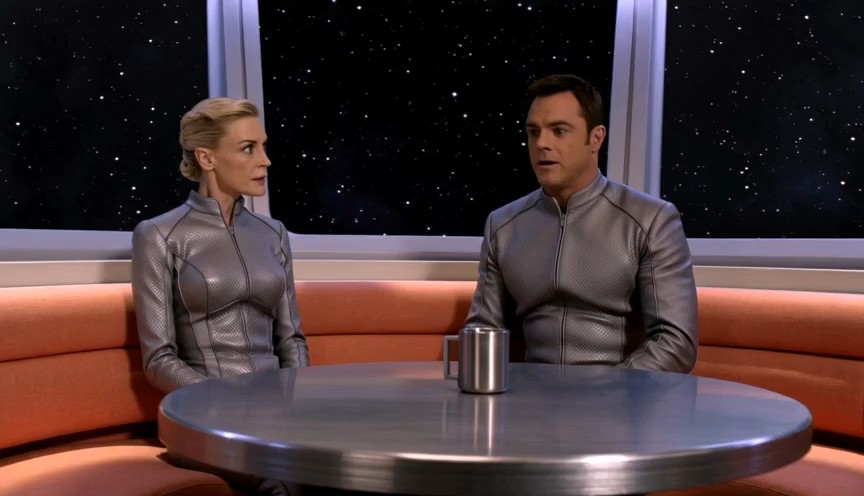
Build A Shared Scene With Vidu Q4 References
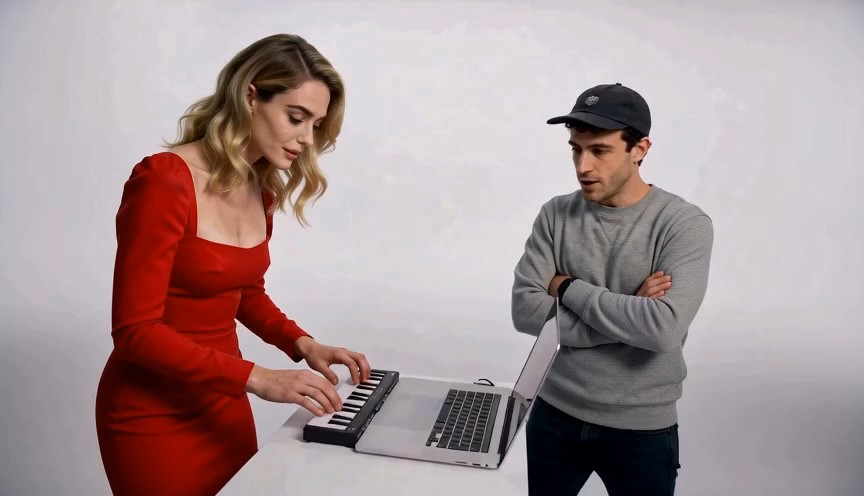
Different source images can describe different parts of one story. Vidu Q4 reference to video brings those inputs into a shared scene, with support for up to 15 image references and three optional voice references. Use a clear character image, a scene reference, and a concise description of the interaction. For a dialogue concept, explain where each character sits, who begins speaking, and how the listener responds. Vidu Q4 can generate audio with the picture, including dialogue and sound effects, so the sound direction belongs in your creative brief. Reference to video is useful for exploring a recurring cast or an established visual style, although every result still deserves review. Keep clothing cues and character descriptions consistent between attempts. Start with a short exchange before asking for more elaborate performances. If one finished frame already contains both people, image to video may be the simpler choice. Vidu Q4 Preview gives you two image-guided routes, allowing the source material to determine the workflow rather than forcing every idea into the same starting format.
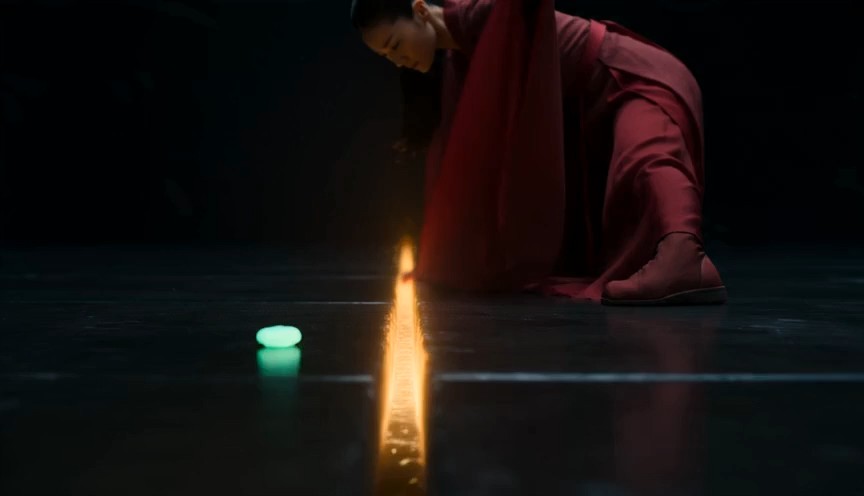
Shape Cinematic Action And Sound With Vidu Q4
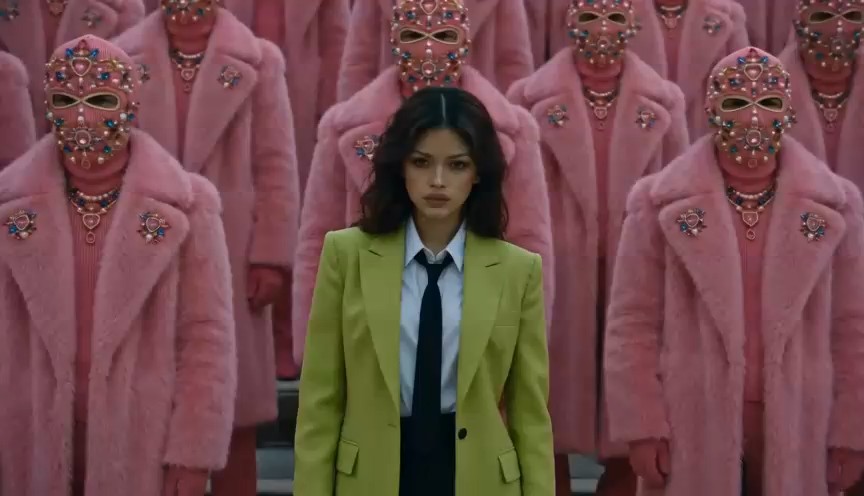
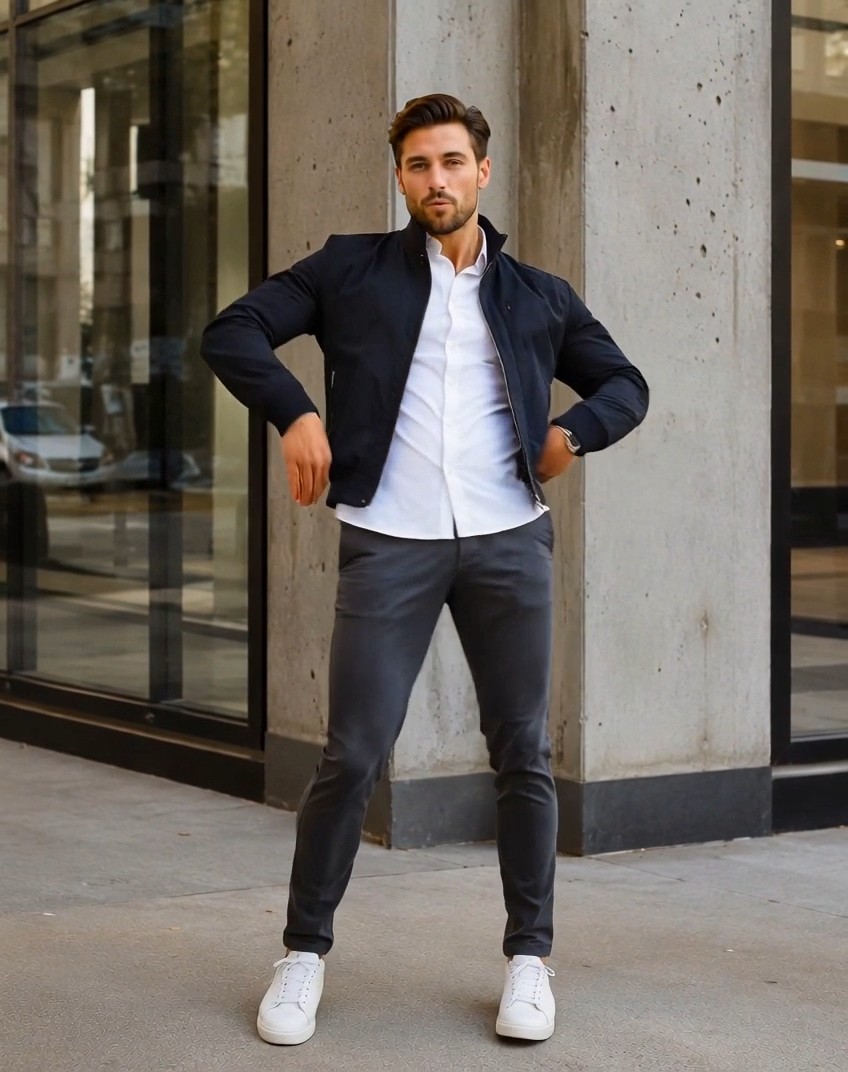
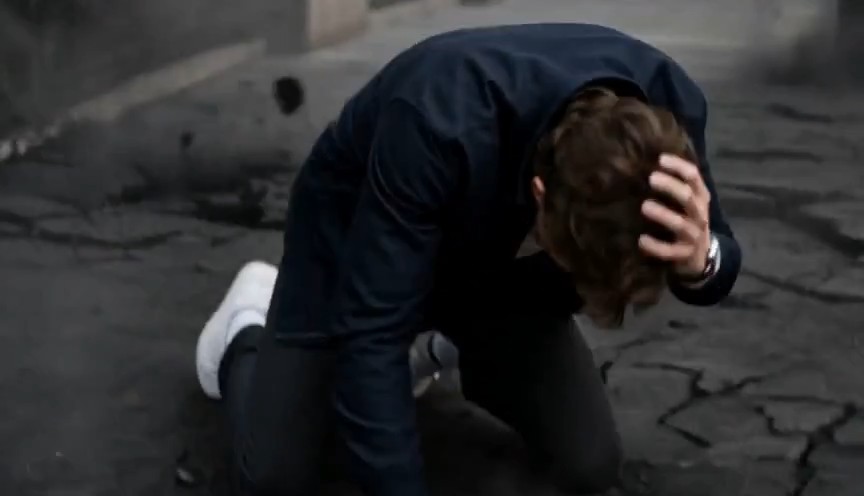
Movement feels purposeful when the camera supports the action. Vidu Q4 combines audio-visual generation with automatic camera switching, while the official model presentation emphasizes dynamic motion and cinematic effects. Write the action as a progression: a performer settles into a stance, fabric sweeps across the frame, and the camera follows toward a clear final pose. Avoid asking for several unrelated events inside a short clip. Vidu Q4 image to video can extend a strong action frame; reference to video can introduce additional visual guidance for the performer or the scene. Choose the mode that matches your available assets. Resolution options reach 4K, but crisp delivery also depends on the source image and the generated result. Inspect hands, fast movement, fabric, and transitions before exporting a final edit. With Vidu Q4 AI Video Generator, a clear brief and a controlled revision process help you explore distinctive shots. Use reference to video for continuity planning and image to video for a composition-led experiment, then compare the versions against your creative goal.
What Can You Create With Vidu Q4?
Match the scene to a real communication goal. Vidu Q4 can help develop short narrative, product, social, and animation concepts. Image to video starts with a composed visual, while reference to video helps when the idea depends on several visual assets. Plan each clip as one useful part of your wider creative project.

Short Character Stories With Vidu Q4
Introduce a character, establish a relationship, or test a single dramatic beat. Vidu Q4 reference to video gives a small cast shared visual direction, while optional voice references can guide the intended sound. Write a compact exchange with a clear reaction and a readable ending. Keep a reference sheet for recurring appearances, and review every new clip for continuity before combining scenes into a longer story.

Product And Campaign Concepts With Vidu Q4
Explore a product reveal, material detail, or atmospheric advertising shot. Vidu Q4 image to video can begin with an approved product composition and add a controlled movement around it. Keep logos and important details legible in the source, then inspect them in the result. Build a few distinct concepts to compare mood and pacing before choosing which direction deserves additional creative development.

Social Video Openings With Vidu Q4
Create an opening moment that communicates quickly: a surprising gesture, an expressive reaction, or an object moving into view. Vidu Q4 helps you develop a short visual idea without planning a full sequence at once. Image to video works well for an existing campaign image; reference to video adds flexibility when the opening needs a different character and location. Leave room for captions in your later edit.

Illustrated Worlds And Animation With Vidu Q4
Give an original illustration a sense of performance and atmosphere. Vidu Q4 can use visual references to guide a scene, making reference to video useful for a character design paired with a setting. Describe a simple movement and a camera direction that suits the artwork. Preserve your source files, compare the generated interpretation with the intended style, and use image to video when one illustration already tells the complete visual story.
Creative Perspectives On Vidu Q4
These fictional names and sample evaluations illustrate creative priorities. They are not verified customer endorsements or reports of measured results.
Vidu Q4 appeals to me because I can begin with the look of a scene and then think about its performance. I value a workflow that makes the starting image, camera direction, and final emotional beat feel connected.
I like the creative possibilities of image to video for a tightly composed product shot. Vidu Q4 gives me a useful framework for exploring movement while keeping the product concept at the center of the brief.
Reference to video feels relevant to the way I develop characters and environments separately. Vidu Q4 interests me as a way to bring those decisions together, with a clear scene idea and a review of the resulting details.
I appreciate being able to plan a brief visual moment rather than an entire film. Vidu Q4 fits the kind of exploration where an opening gesture, a distinct atmosphere, and a clean ending all matter to the edit.


Vidu Q4 Questions And Answers
Understand the two workflows, available settings, and source requirements before your next creation. Vidu Q4 Preview is the model version described here. The answers below help you choose suitable inputs and plan a focused short clip.
Vidu Q4 is an AI video model from ShengShu Technology that creates short videos from visual input and creative instructions. It supports image to video with one starting picture and reference to video with multiple visual references. Optional audio generation can include dialogue and effects. The currently documented version is Vidu Q4 Preview. Use it to explore a product moment, character interaction, or cinematic shot, then review the result against your brief before including it in a finished project.
Image to video begins with one image that acts as the opening frame. Reference to video uses reference assets to guide the subjects and the wider scene. Choose Vidu Q4 image to video when your source already has the right composition. Choose reference to video when a character, setting, or style needs separate guidance. Neither approach guarantees every detail, so keep the prompt focused and check appearance, movement, and scene logic after generation.
Vidu Q4 supports one starting image in image mode. In reference mode, the official documentation allows 1 to 15 image references and up to three optional audio references. Each reference audio file should be an MP3 lasting 3 to 12 seconds. Give each source a clear role in the scene and avoid supplying conflicting character designs. You do not need to fill every available reference slot; use the material that makes your intended result easier to understand.
The current Vidu Q4 API documentation lists 3 to 16 seconds for both generation routes. Available resolutions include 540p, 720p, 1080p, 2K, and 4K. Image mode follows the source image ratio, while reference mode offers several supported aspect ratios. Start with the settings available in the generation form and choose a duration that fits the action. A short scene with one understandable event is often easier to refine than a crowded sequence.
Yes. Vidu Q4 supports synchronized audio-visual output, including dialogue and sound effects. Reference mode can also use optional voice references to guide a character sound. State who speaks, the intended words, and relevant background atmosphere in your prompt. Keep the exchange manageable for the clip duration. After generation, listen to the audio and review lip movement and speaker assignment together. Sound and visual direction should support the same scene rather than compete for attention.
Vidu Q4 currently documents image-guided and reference-guided generation, so prepare at least one image. The image mode interface uses one starting frame; the documented Q4 inputs do not include a separate ending-frame control. Describe the intended ending in your prompt without treating it as an exact frame constraint. For reliable iteration, change one creative instruction at a time and keep the source material consistent. Review cost and available settings in the form before submitting each generation.
Start Your Next Scene With Vidu Q4
Bring a clear image, choose a focused action, and turn the idea into a short creative experiment. Vidu Q4 offers image to video and reference to video workflows for visual storytelling with optional synchronized sound. Pick the route that matches your source material, describe the scene, and start creating your next clip.
