
Seedance 2.5 FlashPut Your Next Scene in Motion
Turn text and references into video with sound
Create short videos with Seedance 2.5 Flash, an accelerated model for frequent creative work.

More AI Video Generators
Explore our collection of specialized AI video generators designed for different creative needs and styles
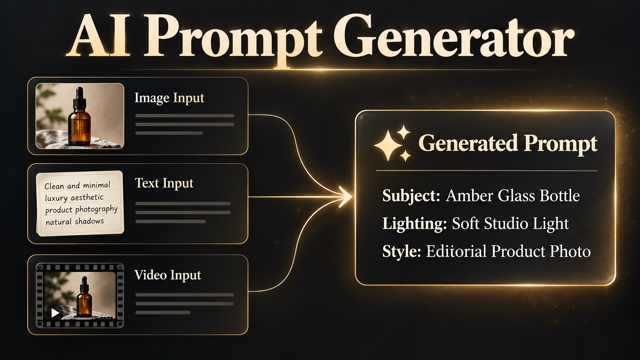
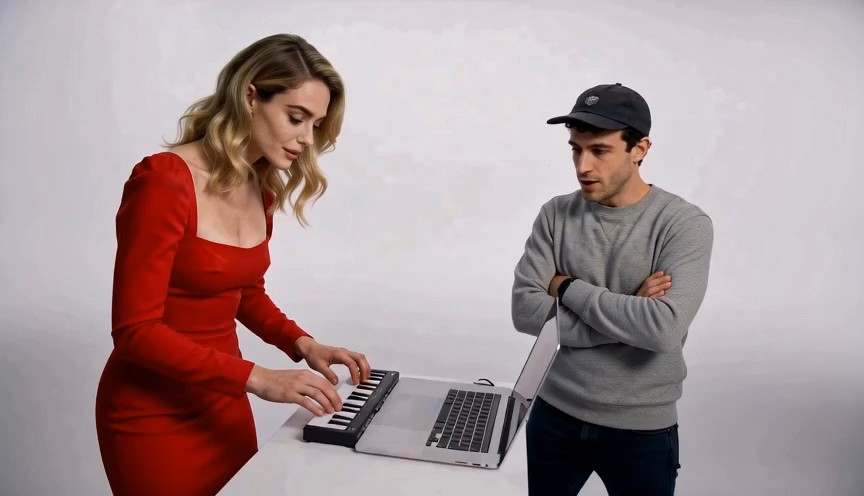
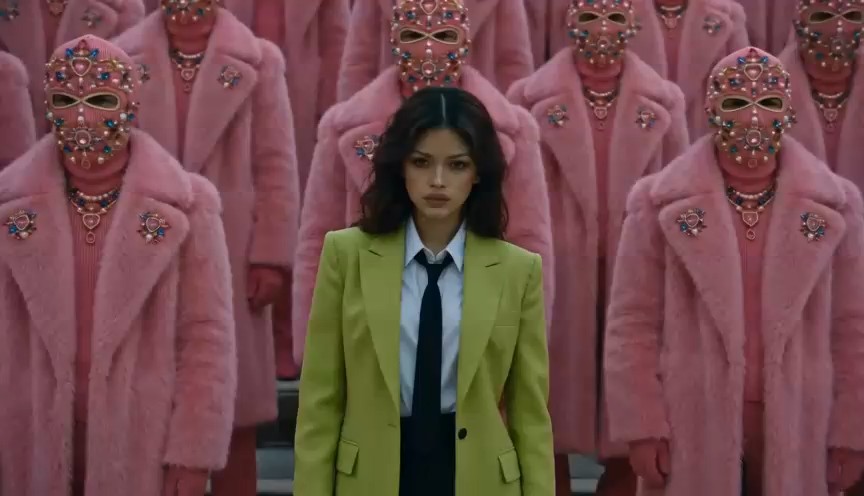
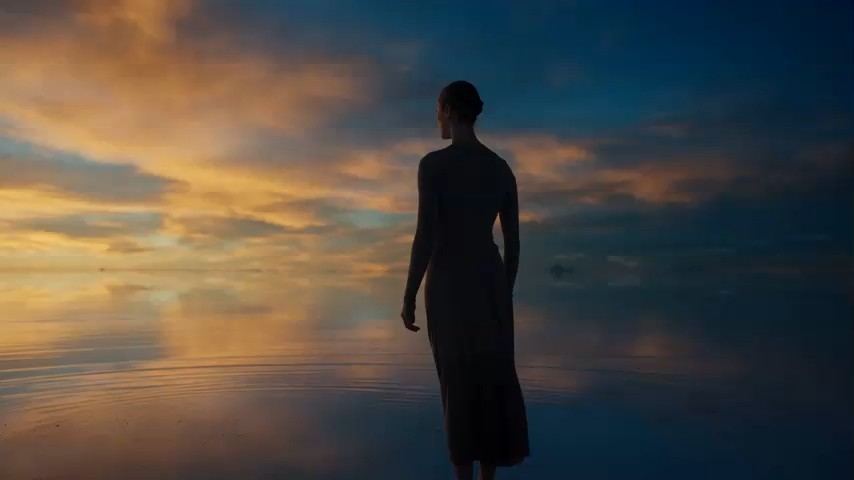

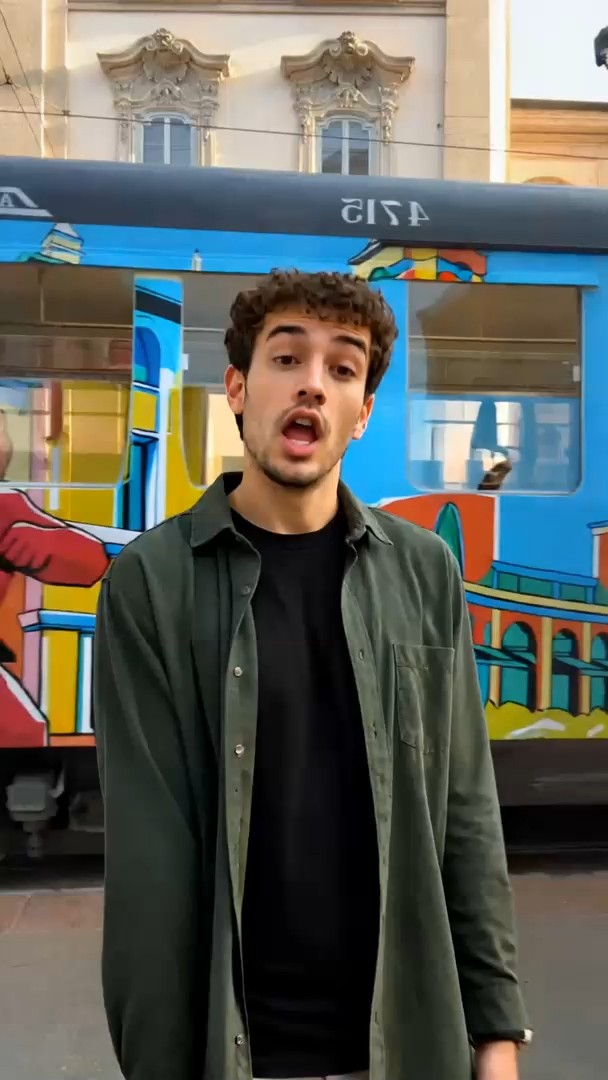


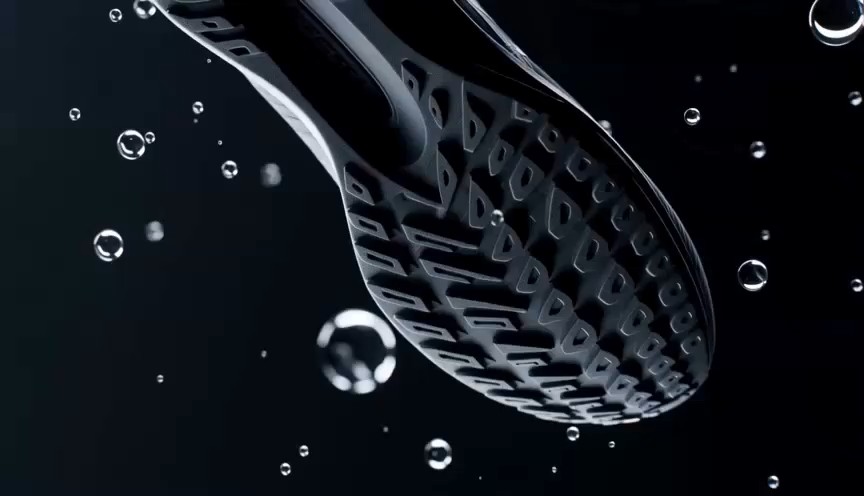
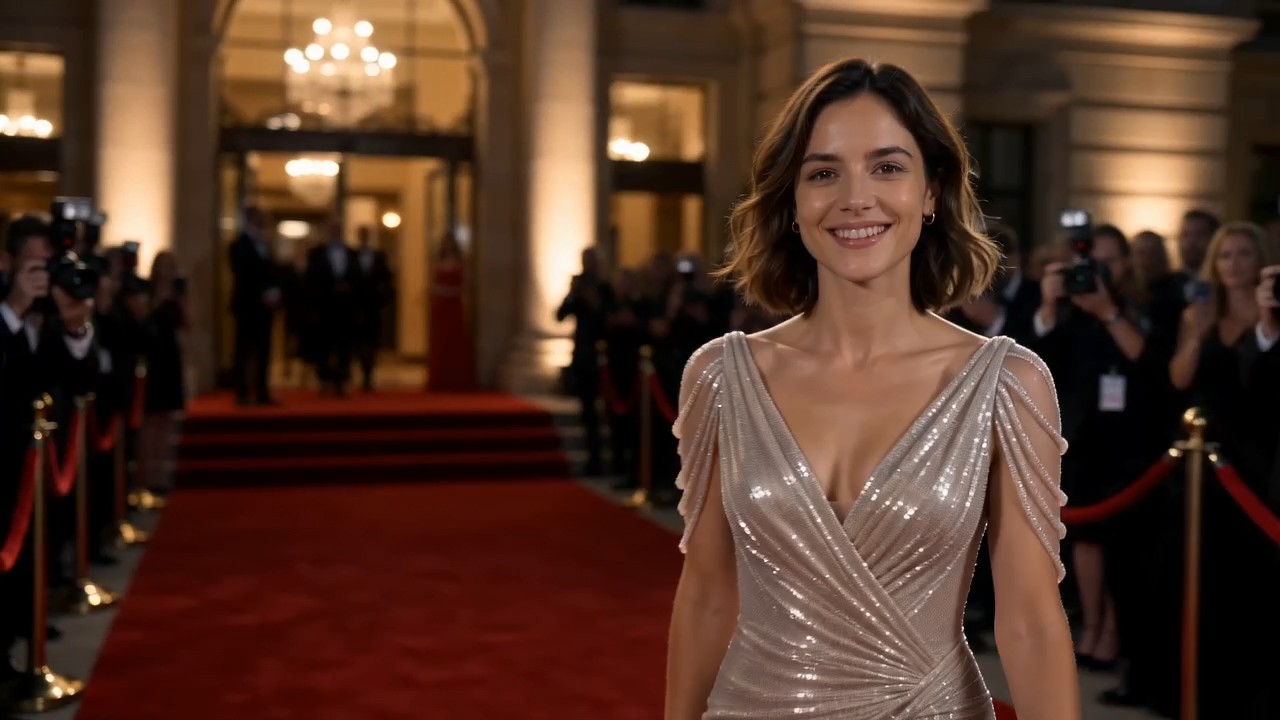
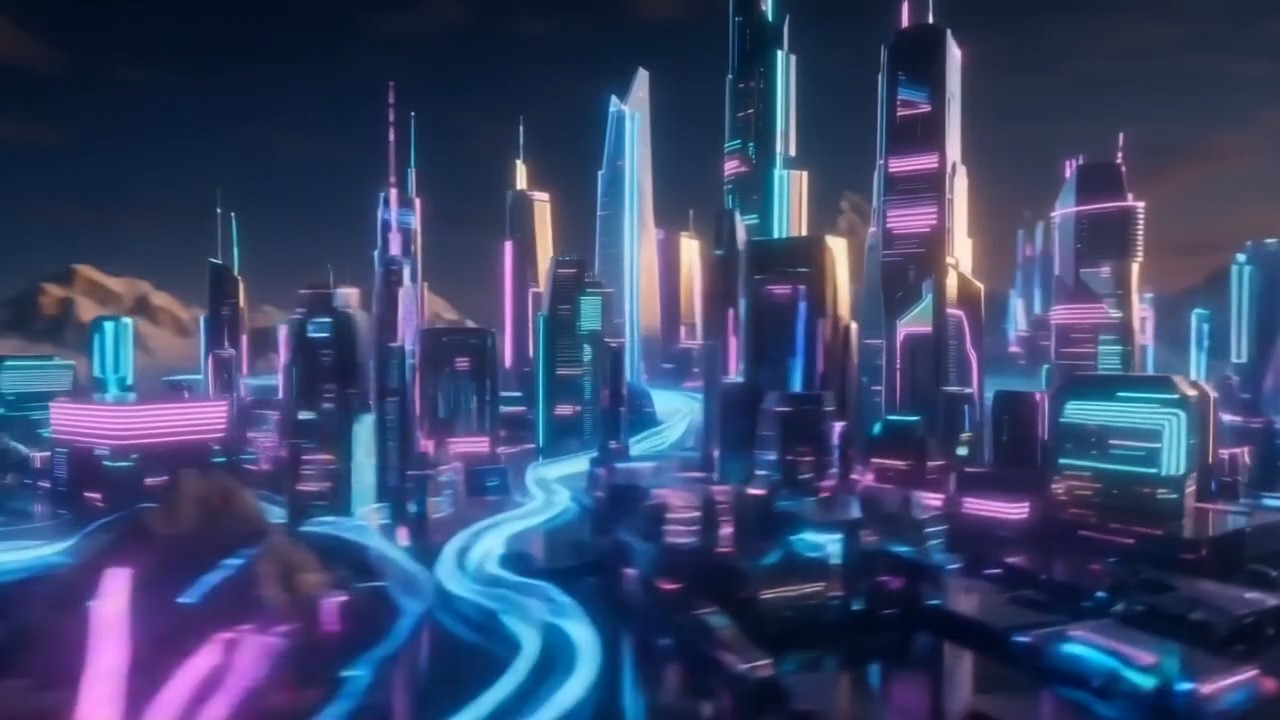

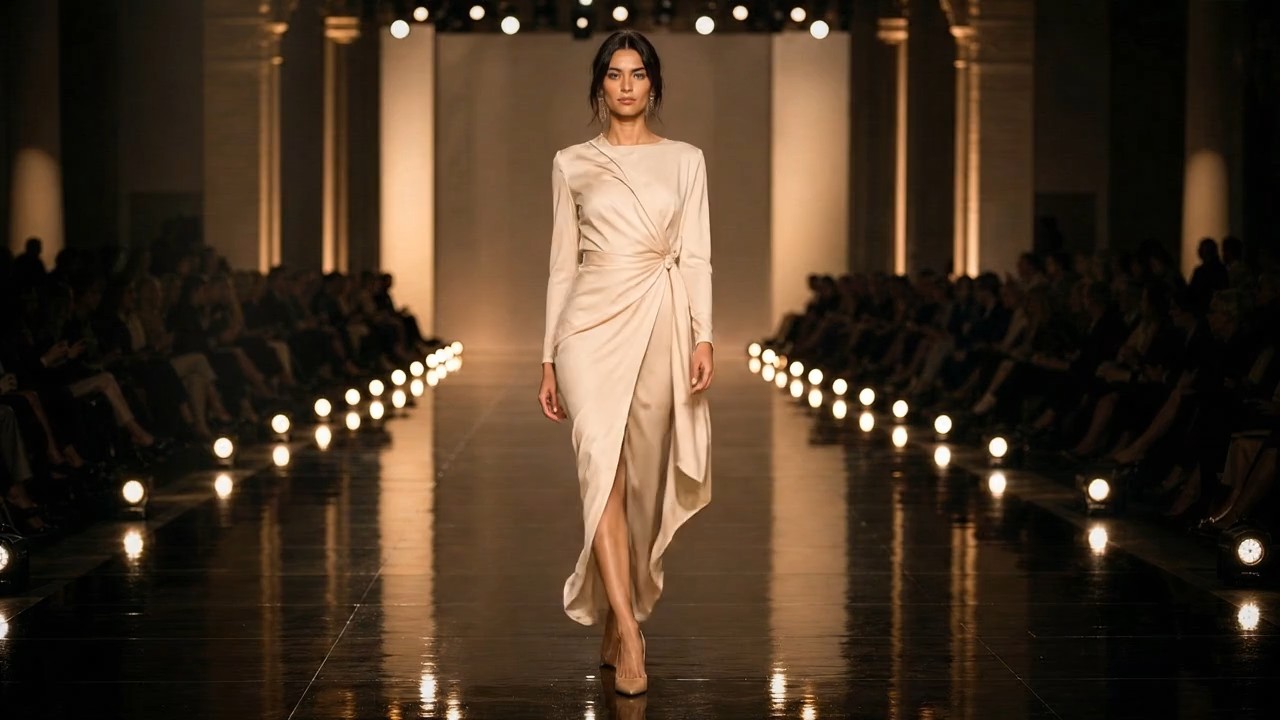
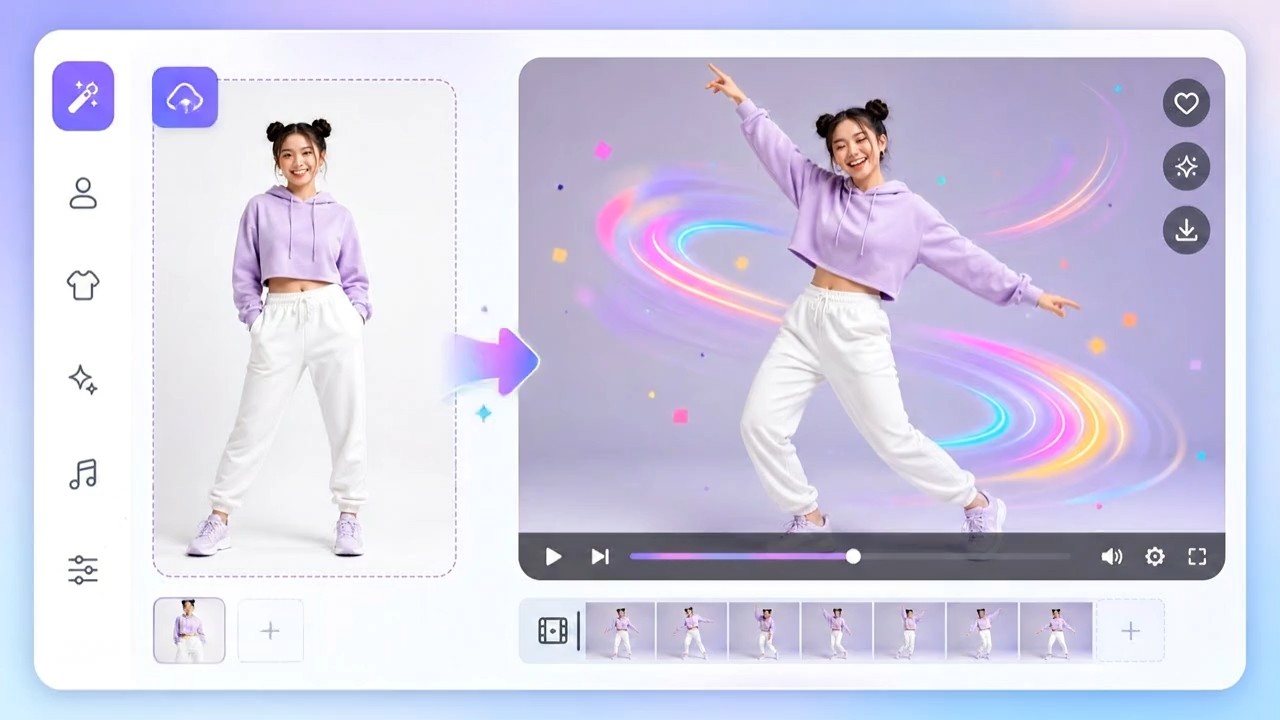
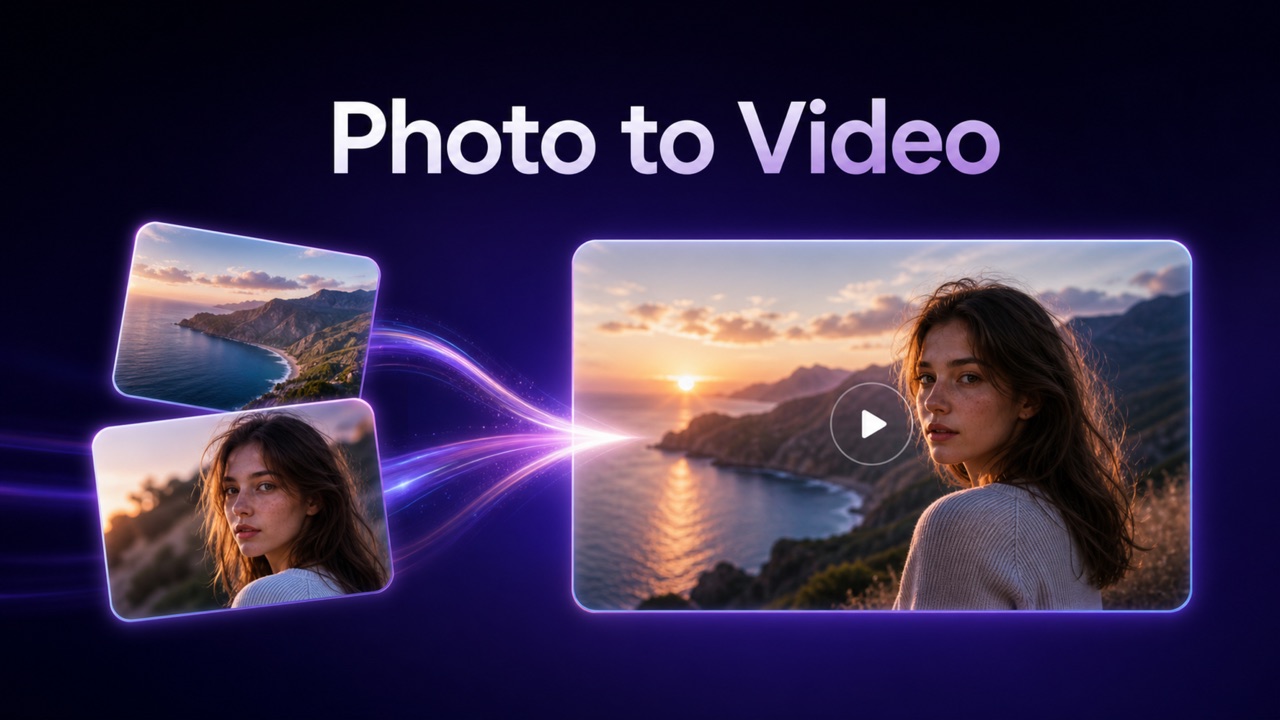
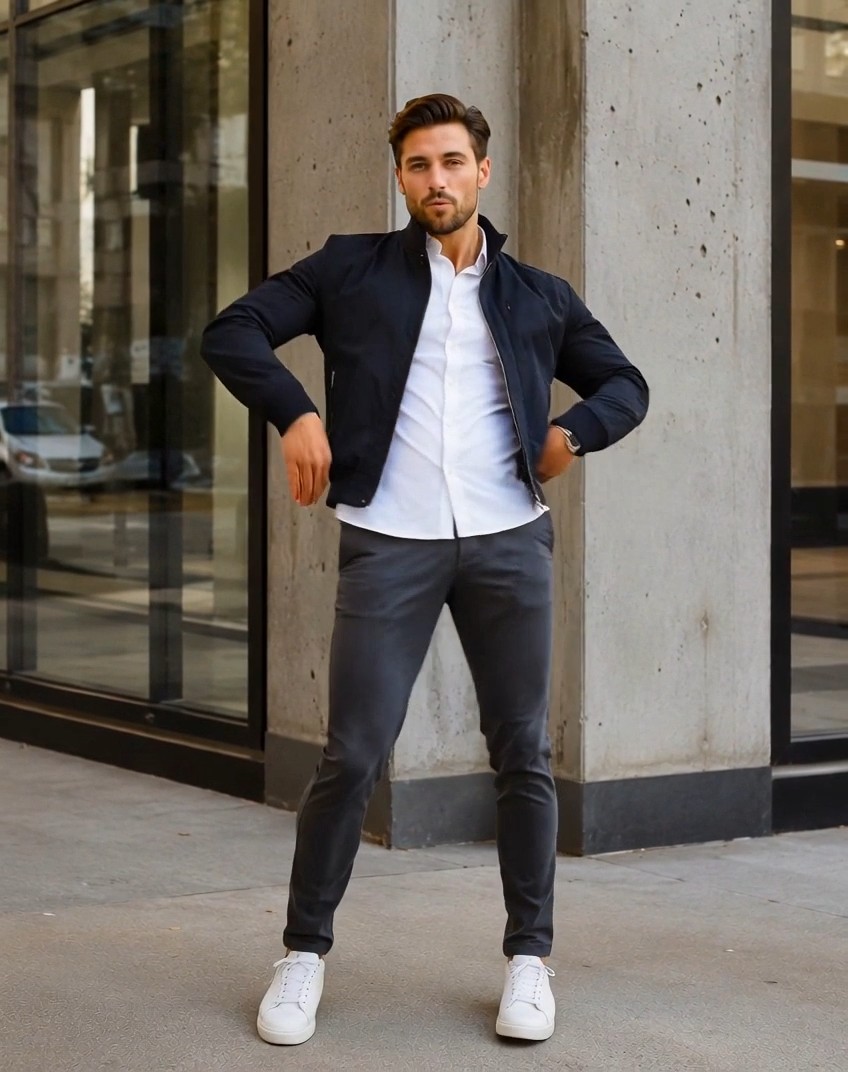
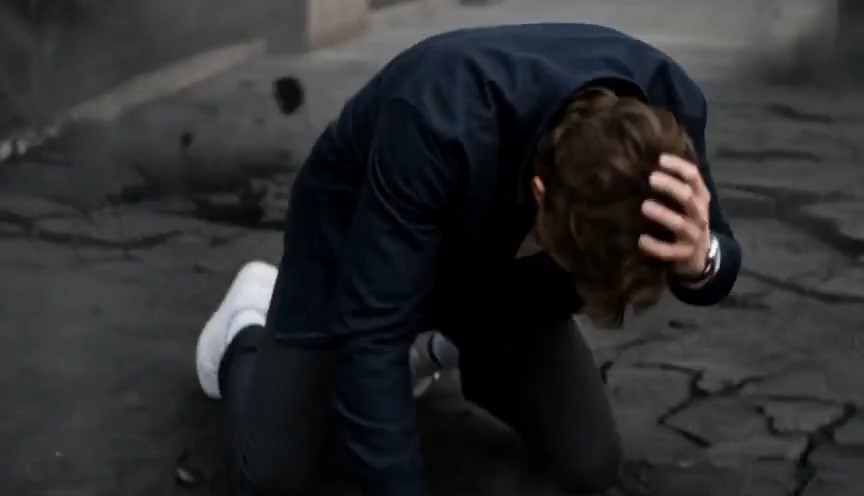
Seedance 2.5 Flash AI Video Generator
Turn a written idea into a moving scene with Seedance 2.5 Flash, animate a still image, or guide the action and sound with references.
Seedance 2.5 Flash is designed for faster video creation at 480p and 720p. Explore product reveals, story scenes, and camera movements with text and references, then build on the direction that works for your project.
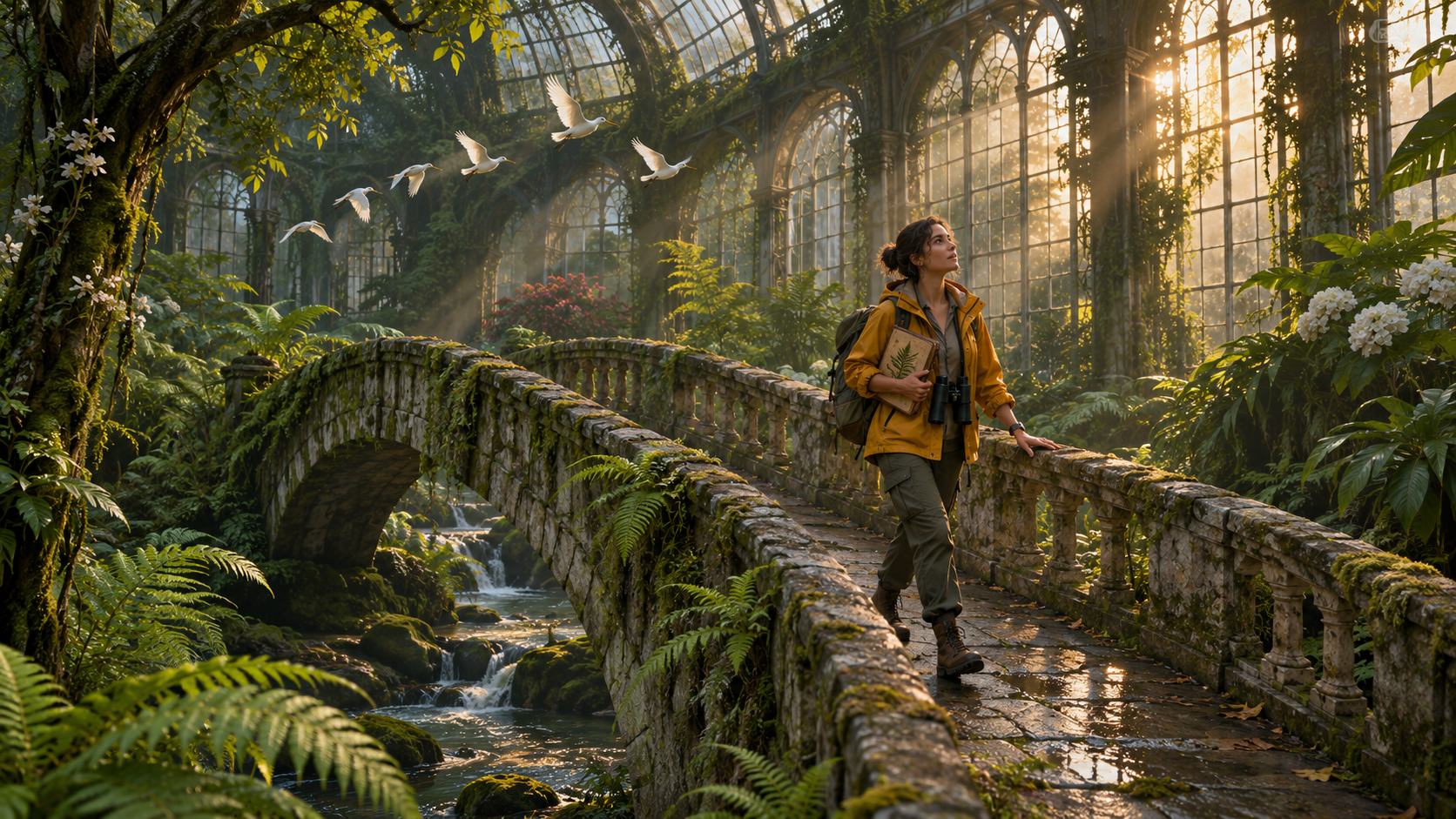
How to Create with Seedance 2.5 Flash
Start with a scene you can describe in a few sentences. Seedance 2.5 Flash gives you several ways to guide the result, from a text prompt to references that establish the look, action, or sound.

Write Your Seedance 2.5 Flash Prompt
Start your Seedance 2.5 Flash prompt with a subject, a setting, and a clear action. A baker opening an oven tells the model more than a request for a beautiful food video. Add the camera position and lighting, then explain how the shot should end. Keep decorative details secondary so the main movement remains easy to recognize when you review the result.

Choose Your References
Add references to Seedance 2.5 Flash when appearance or movement is difficult to describe. A product image can show its shape and material; a video can guide the camera or action. Explain what each asset should contribute. Choose a Seedance 2.5 Flash reference mode and check its supported inputs, then set the output options available for that task before you submit the request.

Review and Refine the Take
Watch your Seedance 2.5 Flash result once for the story and again for the details. Check whether the subject completes the action, whether the camera reveals it clearly, and whether the sound matches the scene. Change one part of the prompt at a time when possible. Save the Seedance 2.5 Flash prompt and its reference choices together so the next attempt addresses a specific weakness in the previous take.
Best AI Video Tools for Creative Projects
Explore creative tools for video, learn tips and tricks, and see how AI can be your assistant in turning concepts into finished projects.




Create, Animate, and Edit with Seedance 2.5 Flash
Start a new scene or build on footage you already have. Seedance 2.5 Flash supports text prompts, image animation, multimodal references, editing, and extension, giving you different ways to bring a video idea to life.
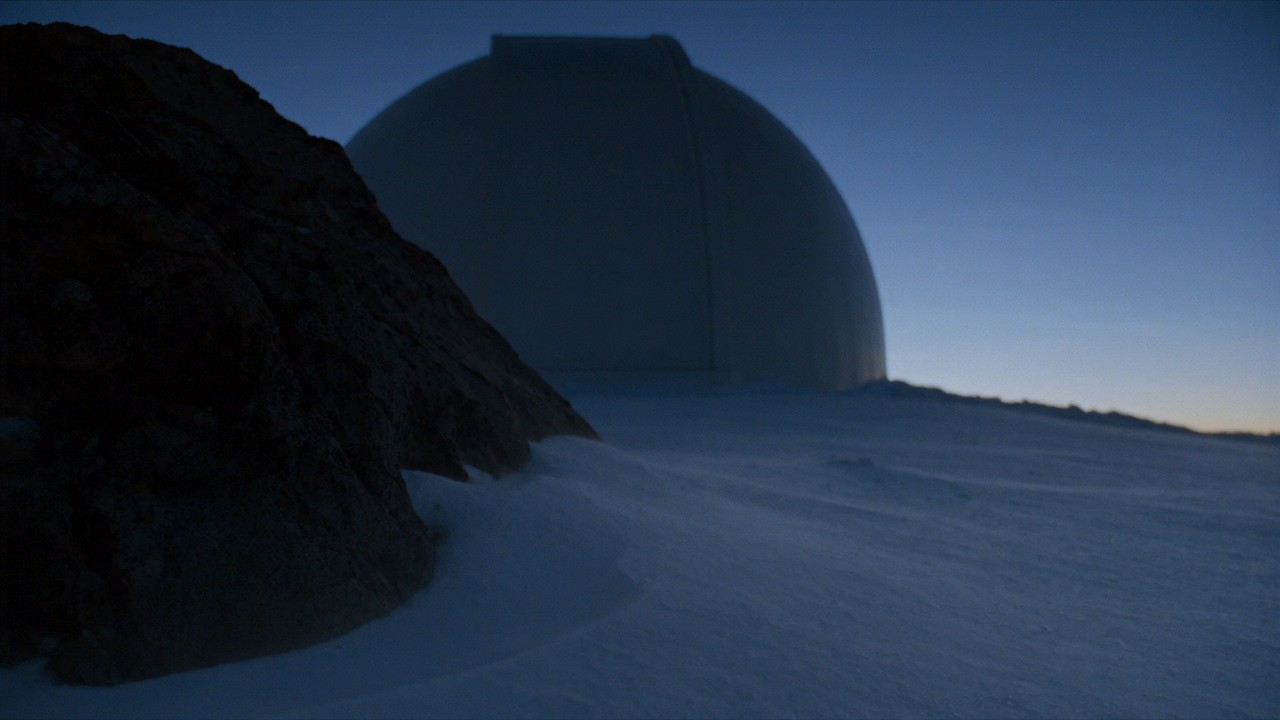
Create Video from Text with Seedance 2.5 Flash
Describe the scene you want to see, including what happens and how the camera captures it. Seedance 2.5 Flash supports text-to-video generation, so you can start without a reference image. An observatory opening on a snowy ridge, for example, gives the shot a clear reveal. Specify the dome movement and camera rise, then refine the timing if the first take moves past the reveal too quickly.
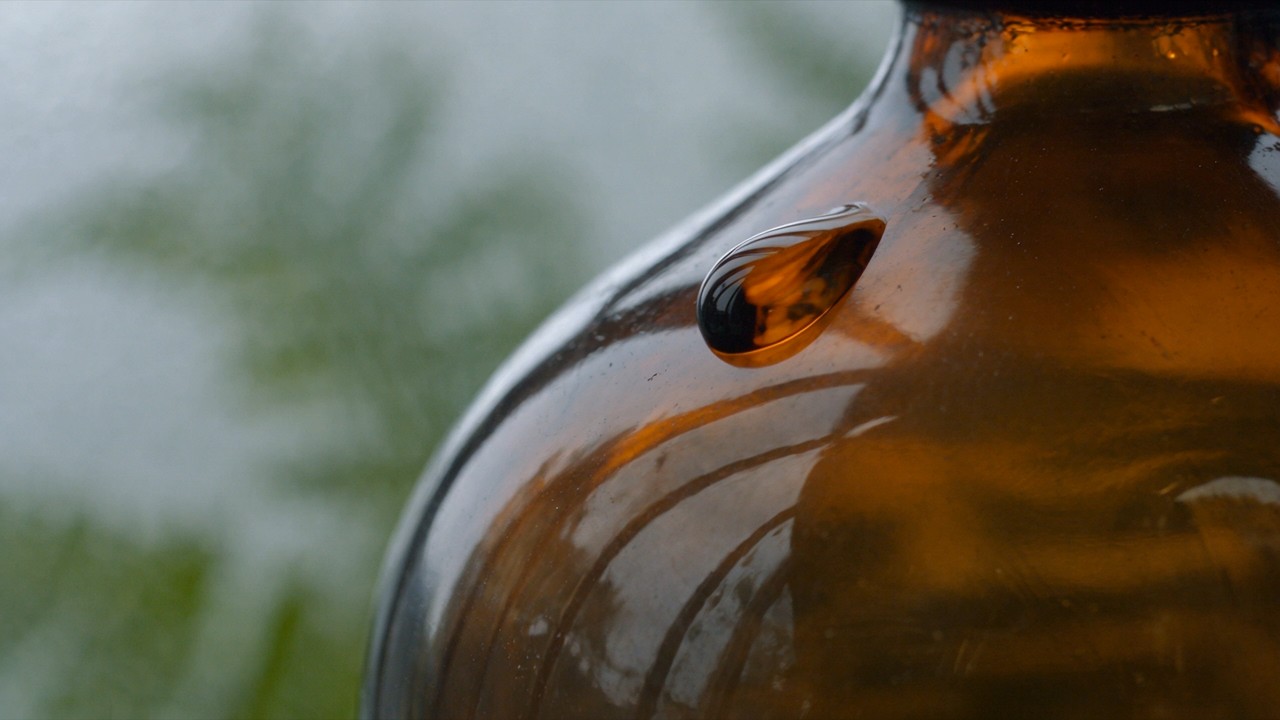
Animate a Still Image with Seedance 2.5 Flash
Give a product photo or scene image a sense of movement with Seedance 2.5 Flash. Use an image as the first frame and describe what happens next: droplets sliding down a glass bottle, a curtain lifting, or a camera moving closer to a textured surface. Keep the request focused on the movement you need, and check that important shapes and details remain recognizable throughout the clip.
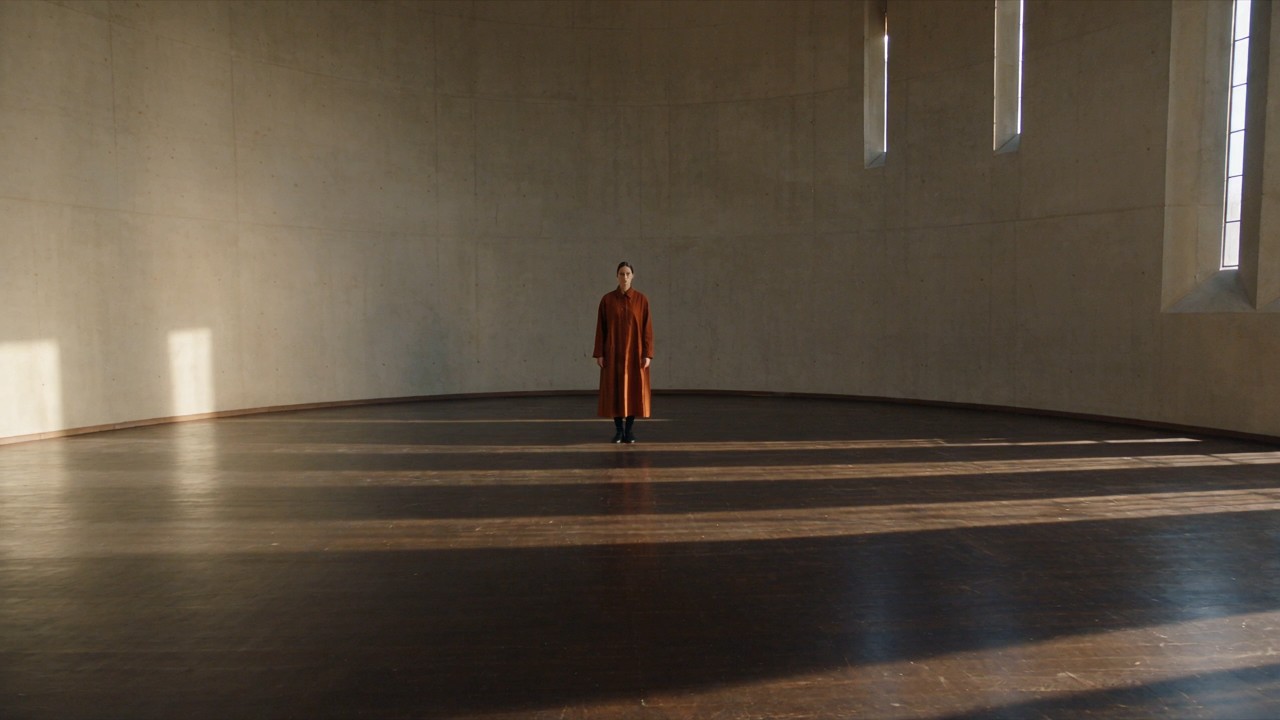
Guide Seedance 2.5 Flash with Multimodal References
Guide Seedance 2.5 Flash with images, video, and audio when a prompt alone leaves too much open to interpretation. A clothing reference can show a fabric pattern, a video can demonstrate a camera move, and audio can guide the sound. Assign each asset a clear role and use inputs supported by your chosen provider. This gives you a more specific brief to work from as you explore different takes.
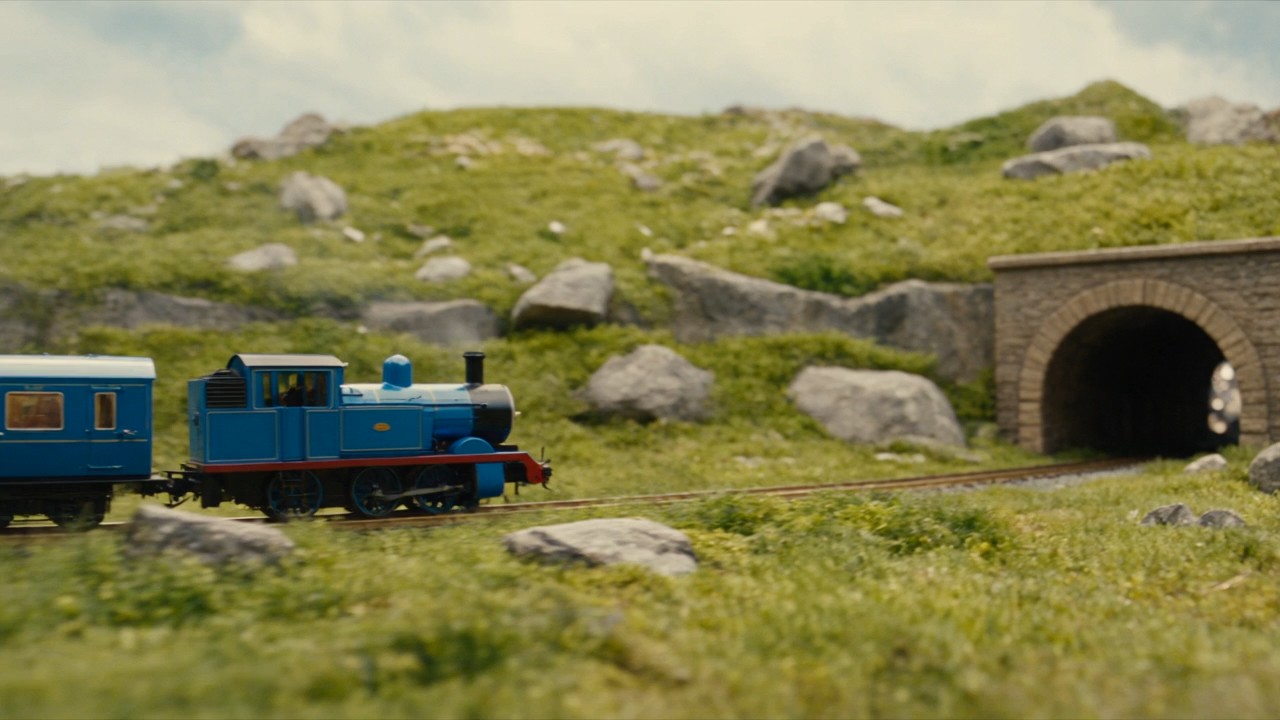
Edit and Extend Video with Seedance 2.5 Flash
Build on a clip you already have with Seedance 2.5 Flash. Request a targeted video edit to change an element in the scene, or use extension to continue the action. A miniature train entering a tunnel might emerge into a glowing cavern in the next beat. Describe the change or continuation clearly, then check that the subject, lighting, and movement still connect with the original footage.
Where Seedance 2.5 Flash Fits Your Work
Use Seedance 2.5 Flash when seeing an idea in motion will help you make the next creative decision. These practical starting points focus on understandable actions, deliberate framing, and footage you can assess against a brief.

Seedance 2.5 Flash for Product Motion
Explore a product reveal with Seedance 2.5 Flash before choosing a look for your campaign. Try a ceramic lamp switching on at dusk, with the camera close enough to show the texture of the shade. Keep the object easy to identify and let the change in light carry the shot. Check that the shape, surface, and intended function remain clear throughout the movement before selecting a direction.

Tell Short Stories with Seedance 2.5 Flash
Give Seedance 2.5 Flash a small story with a visible turning point. A traveler reaches an empty platform just as a distant light appears in the fog. The scene needs a readable opening, an action, and an ending that changes what the viewer expects. Plan each additional shot around its role in the story, then check that the sequence makes sense when assembled.

Campaign Visual Exploration
Use Seedance 2.5 Flash to explore a campaign setting before choosing the accompanying copy and graphics. A reusable bottle beside a mountain stream suggests a different story from the same bottle on a city desk. Keep the product brief consistent while changing the environment. Compare the resulting moods with your audience in mind, then add your campaign messaging in your usual editing workflow after selecting the footage.

Camera Moves and Scene Blocking
A camera instruction can sound convincing on paper and still hide the action on screen. With Seedance 2.5 Flash, explore whether a low tracking view, a slow push-in, or a wide establishing shot makes the scene easier to understand. Keep the subject and action consistent across attempts. Judge what the viewer notices first and whether the framing supports the moment you wanted to emphasize.
Creator Perspectives on Seedance 2.5 Flash
From product reveals to short narrative scenes, different projects call for different creative decisions. Explore perspectives on shaping a brief, choosing references, and finding a visual direction with Seedance 2.5 Flash.
For product videos, I care about whether the movement helps people notice the object. A slow camera move or a change in lighting can be enough. Seedance 2.5 Flash interests me as a way to explore those choices with a product reference. I’d keep the composition simple and compare Seedance 2.5 Flash takes based on how clearly the product comes across.
Most of my story ideas begin with one moment: someone arriving, a door opening, or something appearing in the distance. Seedance 2.5 Flash gives that kind of brief a video generation option. I’d start with a single action and a clear camera position, then decide whether the shot communicates the mood before developing the rest of the sequence around it.
When planning a campaign, I want to see how the same subject feels in different settings. A quiet studio and a busy street tell very different stories. With Seedance 2.5 Flash, I’d use a consistent product reference and change the environment between versions. That would give the team something concrete to discuss before we settle on the overall visual direction.
Camera movement should make a scene easier to follow. I’m interested in using Seedance 2.5 Flash to explore whether a tracking shot, a push-in, or a wider view best supports an action. I’d keep the subject and setting consistent between attempts and focus on what the viewer notices first. The most useful direction would be the one that makes the moment clear.
I’m drawn to small movements that reveal a material: paper unfolding, fabric settling, or light moving across glass. Seedance 2.5 Flash supports image-led video creation, which fits the way I think about those scenes. I’d give Seedance 2.5 Flash a clear starting image and one movement to explore, then choose a take based on the shape, texture, and timing of the result.
For an explainer, I want the visual to communicate an idea before the narration spells it out. A lantern reaching a fork in a path is a useful example. I’d approach Seedance 2.5 Flash with that simple action, leave room for the viewer to notice the choice, and add the explanation afterward so I can control the wording and pacing in the edit.



FAQs About Seedance 2.5 Flash
Find practical answers about Seedance 2.5 Flash inputs, output settings, sound, and model choice. These six questions cover the main capabilities and task-specific limits to consider when planning a scene or working with existing footage.
Seedance 2.5 Flash is an accelerated video generation model in ByteDance’s Seedance family. It supports text-to-video, image-to-video, multimodal reference generation, video editing, and extension. It is designed for frequent creative work, such as exploring a product reveal or trying a camera move. Choose Seedance 2.5 Flash when its output settings suit your project, and review the resulting footage before using it in a finished edit.
For new video generation, BytePlus lists Seedance 2.5 Flash outputs from 4 to 30 seconds at 480p or 720p. Native 1080p and 4K output are not listed for Flash. Settings also depend on the task: video editing follows the source clip’s timing rather than a freely chosen duration. Before using Seedance 2.5 Flash, check that your app offers the resolution and controls your project needs.
In Omni Reference mode, Seedance 2.5 Flash accepts up to 10 images, 5 video clips, and 5 audio clips. First-frame and first-and-last-frame modes use one and two images respectively. File size and duration limits also apply. Before adding portrait references to Seedance 2.5 Flash, check your provider’s supported process, since input requirements can differ between platforms. Give each reference a clear role in the scene.
Yes. Dreamina describes Seedance 2.5 Flash generation with synchronized audio, and the model family supports audio references. Specify useful sound cues, such as footsteps on stone, a passing train, or quiet room tone, alongside the visual action. Review the Seedance 2.5 Flash clip with headphones when sound matters to the brief. Listen for timing and continuity, and check that the soundtrack supports what is actually visible in the shot.
Seedance 2.5 Flash is positioned for faster generation and frequent iteration at 480p or 720p. Standard Seedance 2.5 offers higher-resolution output and larger reference limits. Seedance 2.5 Flash does not support Draft mode, the standard model’s linked preview-to-final workflow. To develop a Seedance 2.5 Flash concept with the standard model, start a new generation using the relevant prompt and references. The new take may differ, so review it against your brief.
Yes. Seedance 2.5 Flash supports video editing and extension. For editing through BytePlus ModelArk, the output follows the source video’s aspect ratio and approximately its duration; you cannot freely set a new length. Extension continues the action while retaining the source aspect ratio. With either Seedance 2.5 Flash workflow, describe the requested change clearly and check the result for continuity in the subject, lighting, and movement.
Create Your Next Video with Seedance 2.5 Flash
Choose a scene you want to bring to life, then give Seedance 2.5 Flash the action, references, and camera direction to work with. Start with one clear idea and develop the take that fits your project.
