
MAGI-2 AI Video Generator:Meet the MAGI-2 Video Model
Native audio-video generation from Sand.ai
MAGI-2 is Sand.ai's 480B flagship video model. It creates up to 30 seconds of 1080p, 25 fps video with native audio, and it accepts image, video, and audio references for stronger creative control over every scene.

More AI Video Generators
Explore our collection of specialized AI video generators designed for different creative needs and styles

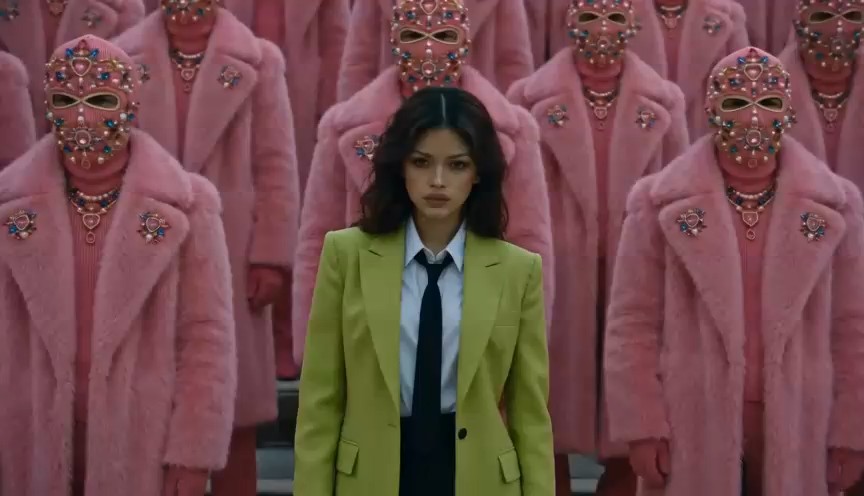
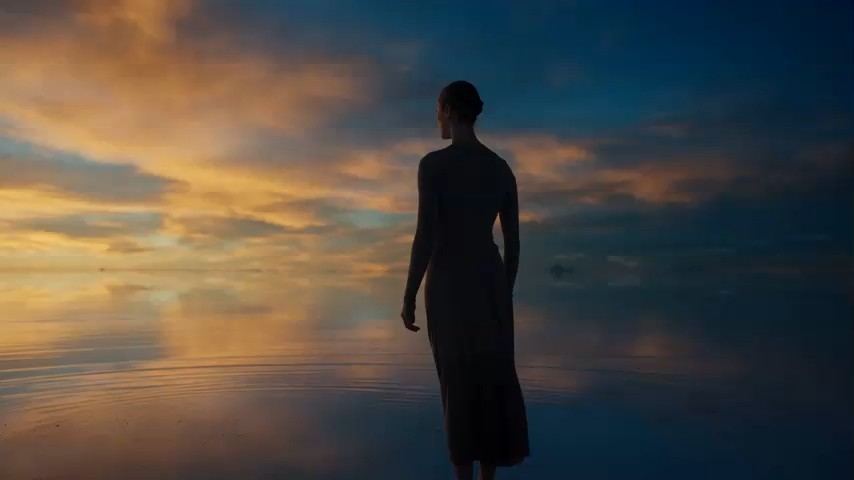
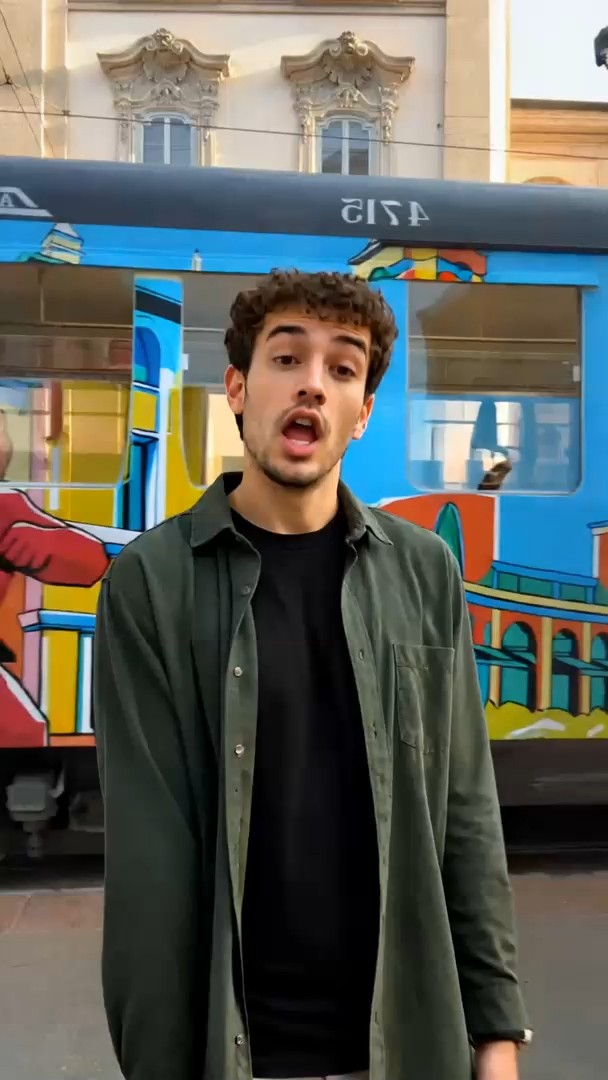

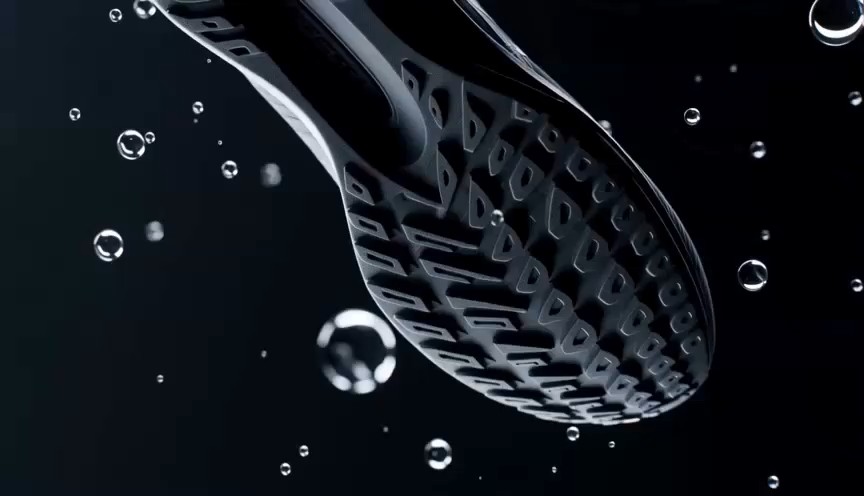
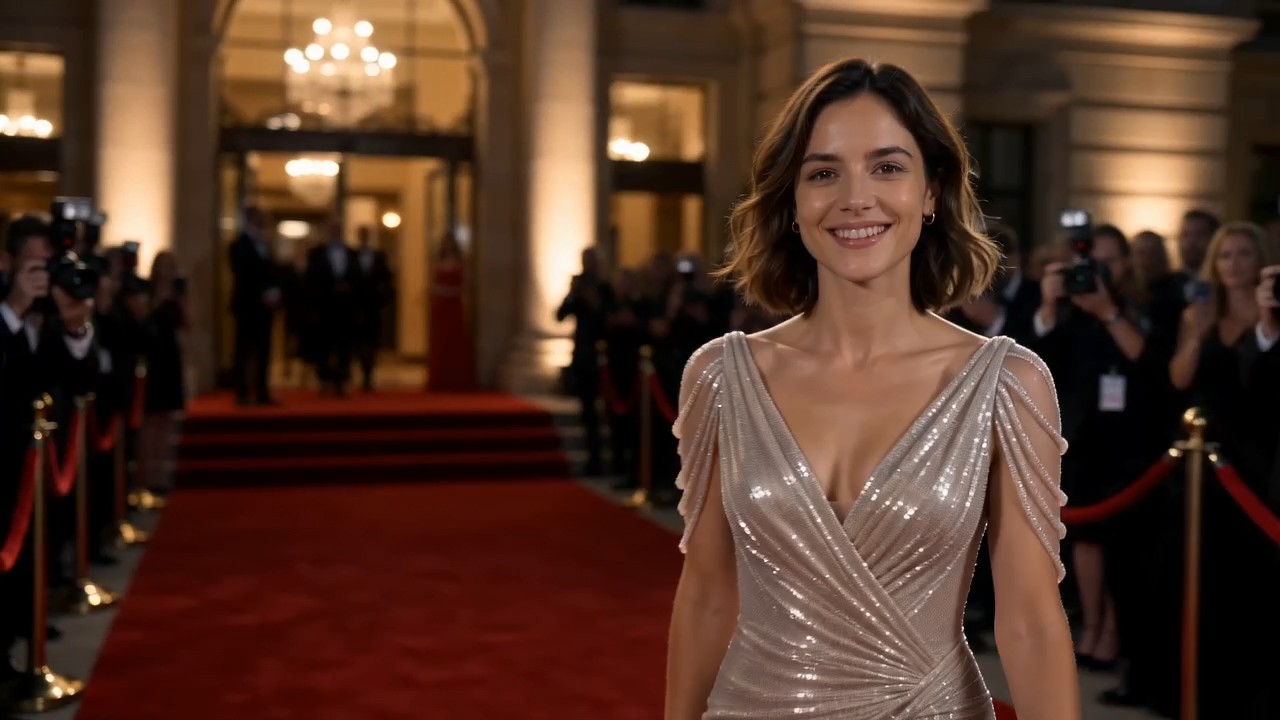
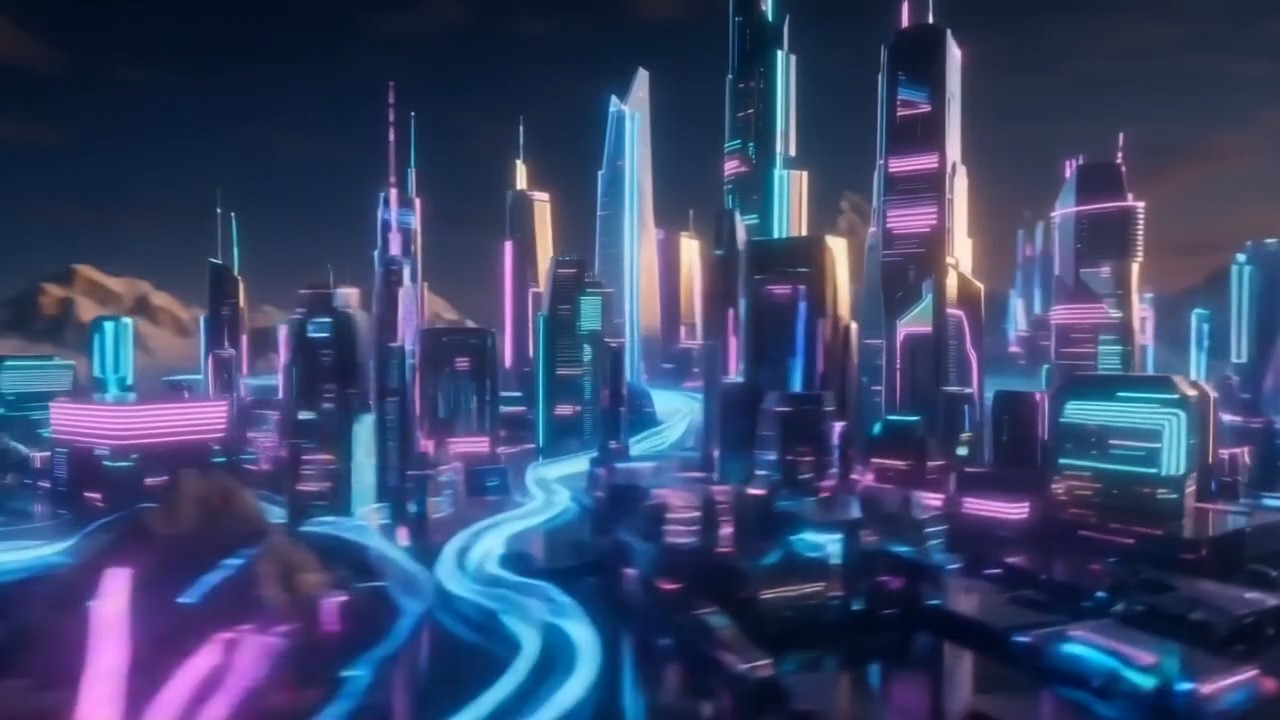
MAGI-2 Video Model for Native Audio-Video Generation
Discover the 480B video model from Sand.ai that generates picture and sound together, with up to 30 seconds of 1080p output and flexible reference control.
MAGI-2 brings dialogue, ambient sound, and motion into one generation pass. Read how the model works, what its references and timeline controls allow, and where its limits still lie before you plan a project.
How to Create with MAGI-2
Working with MAGI-2 starts with a clear picture of the scene. Describe the action, the sound, and the camera, then add references where words fall short and refine the result with timeline and editing controls.

Describe the Scene and Its Sound
Start your MAGI-2 prompt with a subject, a setting, and one clear action. Because MAGI-2 generates audio in the same pass as the picture, add the sounds you expect, such as footsteps, room tone, music, or spoken dialogue. A 30-second ceiling leaves room for a developing scene, so describe a beginning, a middle, and an end. Short, concrete details tend to read better than a long list of adjectives.

Add References and Timeline Notes
Bring in references when appearance is hard to put into words. MAGI-2 supports omni-reference input across images, video, and audio, with up to 20 items in a native request. Use images to lock a character or place, and say what each video or audio file should contribute. Mark where shots should change. Fewer, better-chosen references usually give cleaner results than a crowded folder.

Review, Edit, and Refine
Check the first MAGI-2 result for continuity, timing, and sound. If a cut lands early or a detail drifts, adjust the prompt or the timeline notes and generate again. MAGI-2 also supports targeted edits on existing video, so a promising clip can be improved without starting over. Keep the takes that serve your story. Save notes on what changed between takes, so the next attempt starts from evidence rather than memory.
Best AI Video Tools for Creative Projects
Explore creative tools for video, learn tips and tricks, and see how AI can be your assistant in turning concepts into finished projects.



Create, Reference, and Edit with MAGI-2
MAGI-2 combines sound, long scenes, references, and editing in one model. These four capabilities show what the model is built to handle and how each one can shape the next video you plan.
Native Audio-Video Generation with MAGI-2
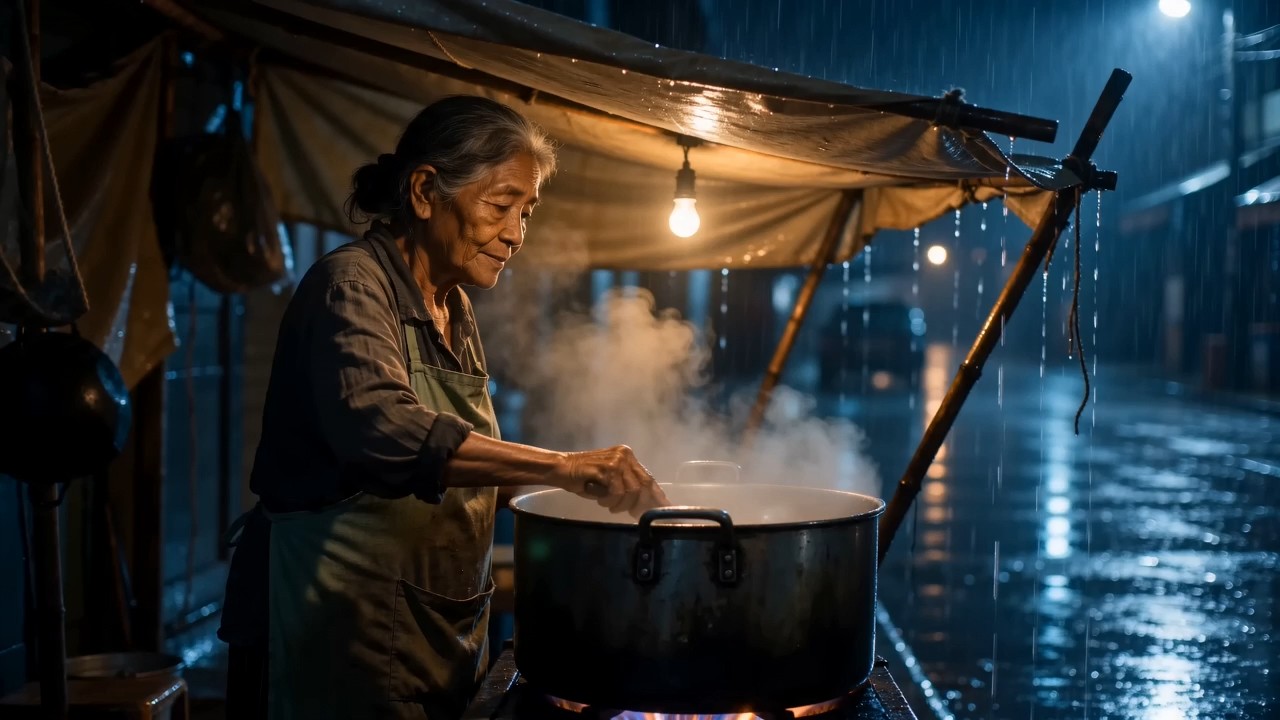
MAGI-2 generates video and audio inside a single backbone, covering dialogue with lip-sync, foley, ambient sound, and music. Its single-stream Transformer reads text, video, and audio tokens as one sequence, so motion and sound develop together. Describe both what the camera sees and what the room sounds like, then listen for timing between the two. Concrete cues, like a door closing or rain on glass, give the audio something specific to follow.
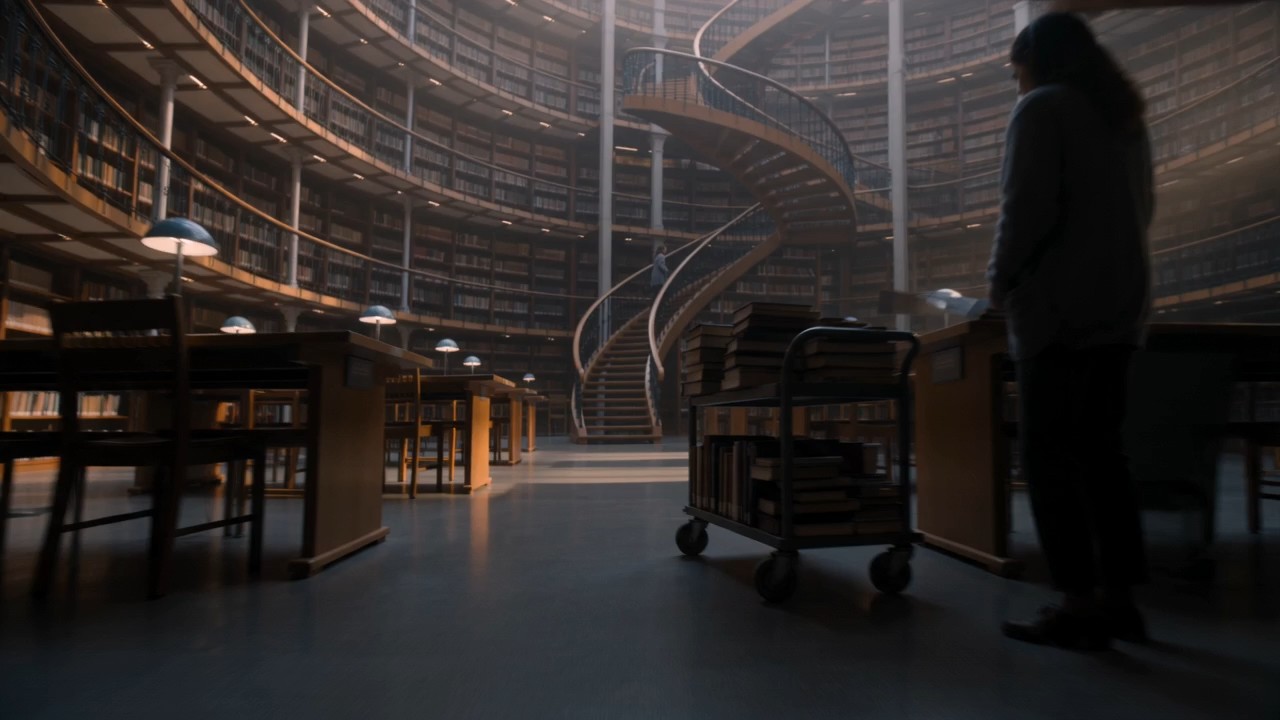
30-Second 1080p Scenes with MAGI-2
MAGI-2 can generate up to 30 seconds of 1080p video at 25 fps and supports six aspect ratios. A dedicated latent upscaler lifts base-model output to full resolution while reusing your reference images to improve small-face identity and text legibility. Use the longer runtime for a continuous take, a slow reveal, or a scene that needs room to develop. Pick the aspect ratio that matches where the clip will be shown before you start.
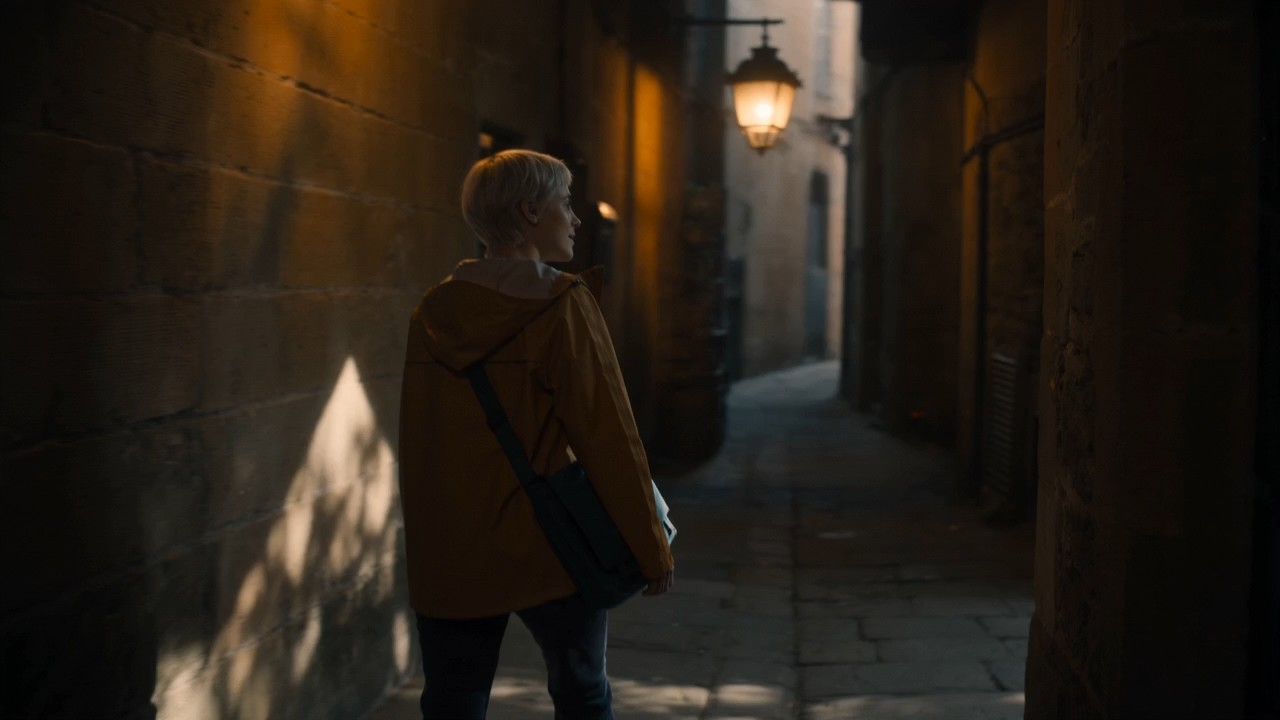
Omni-Reference Control in MAGI-2
With omni-reference, MAGI-2 can combine up to 20 references in one request: up to 10 images, 5 videos, and 5 audio clips. Images can lock a character, wardrobe, or location, and video and audio clips can join them in the same request. Give each file a clear job so MAGI-2 knows which detail to preserve. Start with the one or two references that matter most, then add others only if the result needs them.
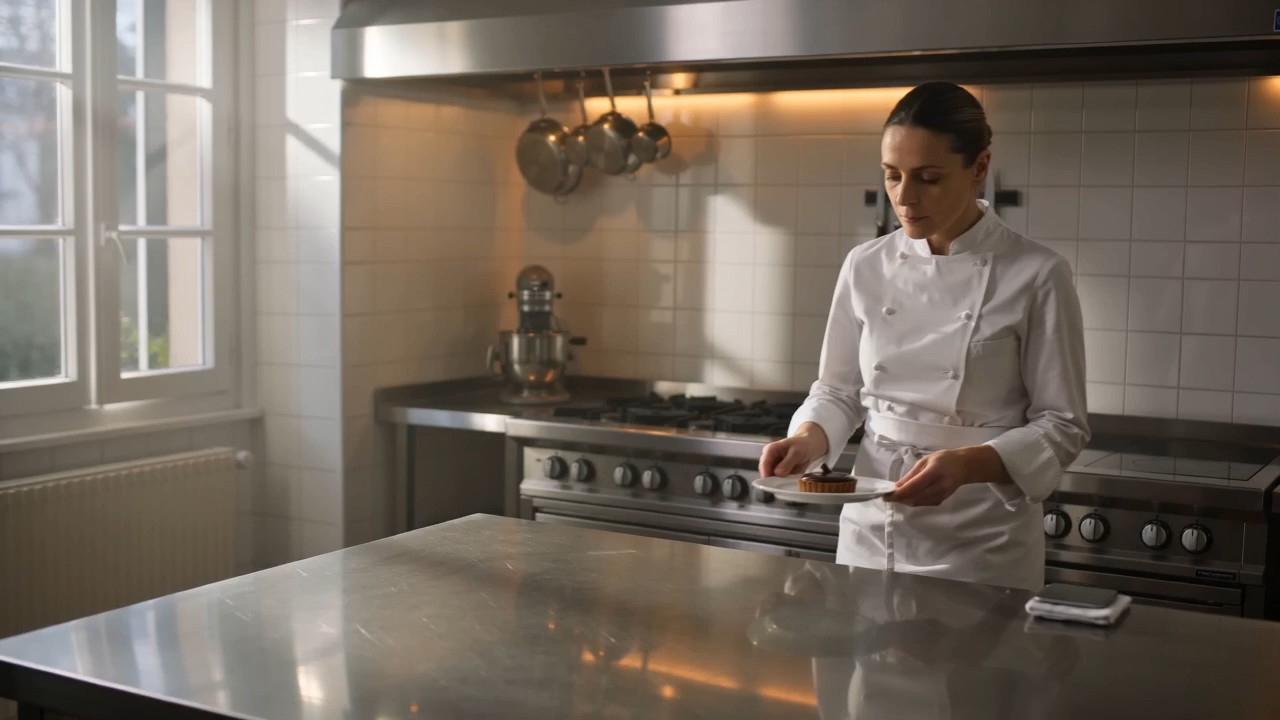
Timeline, Shot Cuts, and Editing with MAGI-2
MAGI-2 offers precision timeline and shot-cut control, so you can decide when a scene changes instead of leaving every cut to chance. It also supports targeted editing on existing video. Plan the shot order first, note the moment each cut should land, and keep edits narrow so the parts of the clip you like stay intact. Treat the timeline like a shot list, with one clear purpose for each cut.
Where MAGI-2 Fits Your Work
Use MAGI-2 when a scene needs picture, voice, and pacing to work together. These use cases show where the model's strengths line up with common creative goals. Each one pairs a strength with a practical task.

MAGI-2 for Short Films and Story Beats
Give MAGI-2 a small story with a visible turning point. A traveler reaches an empty platform as a distant light appears in the fog. Thirty seconds can hold an opening, an action, and a change of mood. Plan each beat on the timeline, then check that the sequence reads clearly when the sound and picture play together. Short scenes with one clear change are easier to judge than crowded ones.

MAGI-2 for Dialogue and Lip-Sync Scenes
MAGI-2 generates speech with lip-sync in the same pass as the picture, which suits conversation-driven scenes. Write short lines, name who speaks, and describe the room's sound around them. Review mouth movement and timing closely, and use a reference clip or image when a speaker's face needs to stay consistent. Keep each line brief enough to deliver in a few seconds, since dense speech can crowd a shot.

MAGI-2 for Product and Brand Motion
Explore a product reveal with MAGI-2 before committing to a larger production. Supply reference images so the shape, material, and color stay recognizable, then describe light, camera path, and a quiet sound bed. MAGI-2 gives you moving drafts to compare, which helps teams decide on a direction sooner. Teams can circulate the drafts internally, gather comments on motion and mood, and decide what deserves a polished final version.

MAGI-2 for Character-Consistent Series
Recurring characters need stable faces, outfits, and settings. With MAGI-2, you can supply image references for each character and location, then reuse them across scenes. Keep one reference set per episode, describe only what changes, and compare clips side by side to confirm the look holds from one scene to the next. Consistency checks matter most when a character turns away from the camera or enters new lighting.
MAGI-2 Ideas for Your Next Project
Looking for a starting point? These MAGI-2 project ideas show how different creators might plan a scene, a reference set, and a sound design before they generate their first clip.
I used MAGI-2 to rough out a 30-second opening for a short I'm developing. Getting footsteps, rain, and a music cue in the same pass as the picture saved me a round of temp audio. The cuts landed close to where I marked them, which I did not expect. It has become my way of pitching a scene to my producer before we shoot a single frame.
We needed a first look at a product reveal before a client call. I gave MAGI-2 three reference photos of the bottle, described the light and a quiet water sound, and had a draft we could actually talk through. MAGI-2 kept the shape consistent through the shot, and the client could react to something moving instead of a storyboard. I will use it again on the next launch.
Lip-sync was the first thing I tested in MAGI-2. I wrote two short lines for a rooftop conversation, and the speech matched the mouth movement closely enough for me to judge the rhythm of the scene. I trimmed a few words, ran it again, and the pause finally felt right. For hearing dialogue instead of just reading it, MAGI-2 is a quick way.
I built a trailer mood piece from my concept art. Marking three cuts on the timeline gave me the pacing I had sketched on paper, and the music came out alongside the visuals. Fast action still needs patience, so I kept those moments simple. As a pre-production tool for a small team, MAGI-2 has earned a place in our workflow.
Our team uses MAGI-2 for early concept passes. Character references keep the lead looking the same from one scene to the next, and the 1080p output is clean enough to show internally without apologizing for it. We still plan a few retakes with MAGI-2, but we reach a direction much sooner than we did with storyboards alone. That has changed how we kick off every project.
I tried a targeted edit on a clip I already liked, and MAGI-2 changed what I asked for while leaving the rest of the shot alone. That saved me from regenerating the whole thing. With the longer runtime, I get complete scenes to cut with, instead of a handful of disconnected seconds. It is the first thing I open now when a client asks for a change.
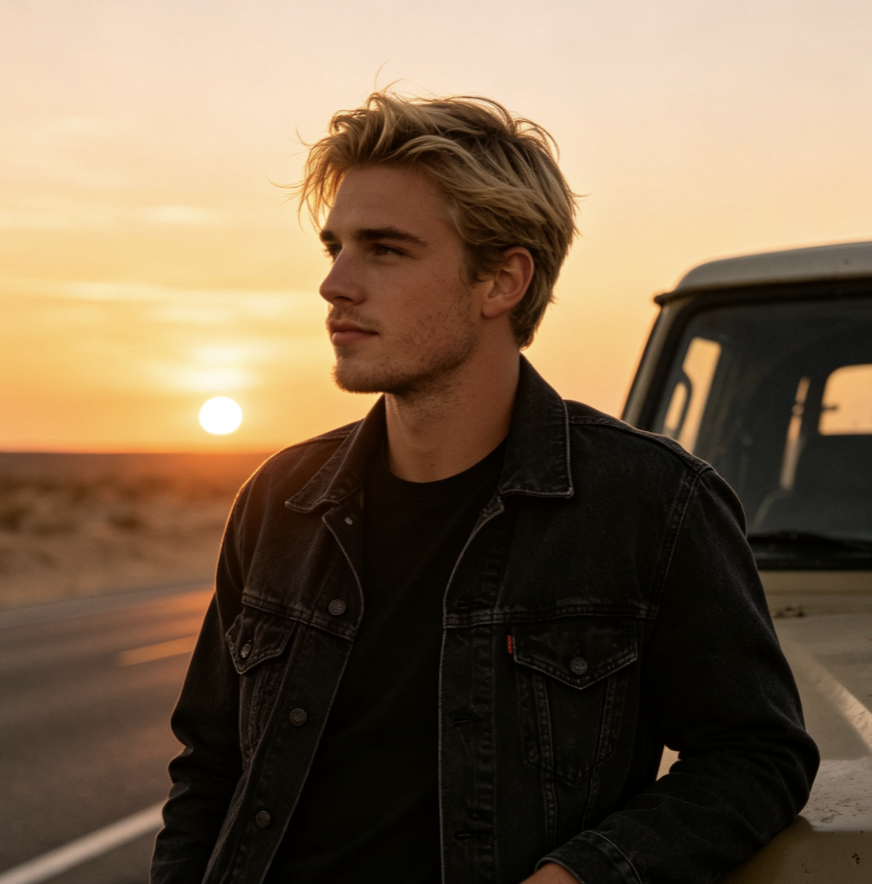



FAQs About MAGI-2
Find practical answers about MAGI-2 capabilities, audio, references, the Preview release, open-source status, and limitations. Each answer is based on information published by Sand.ai for the model. Check Sand.ai for the latest updates.
MAGI-2 is Sand.ai's flagship video generation model, announced on November 24, 2026. It is a 480B-parameter model with about 28B active parameters, and it generates video and audio together. It produces up to 30 seconds of 1080p, 25 fps content, supports omni-reference input, and offers timeline control and video editing. The release builds on Sand.ai's earlier Preview, and it is positioned as the company's full-scale model.
Yes. MAGI-2 is a native audio-video model, so it creates dialogue with lip-sync, foley, ambient sound, and music in the same pass as the picture. Describe the sounds you want next to the action, then review timing with headphones. Sound and image come from one backbone, so they are planned together rather than added afterward. Complex soundscapes are still an area where the team sees room to improve.
MAGI-2 supports omni-reference across images, video, and audio. A native request can include up to 20 media items: up to 10 images, 5 videos, and 5 audio clips. Reference images, for example, can lock a character, wardrobe, or location. Explain what each file should add, and keep the reference set focused. Fewer references, each with a clear role, usually produce cleaner results.
MAGI-2 Preview, released in August 2026, has about 114B total and 6B active parameters and makes fixed 10-second clips. MAGI-2 scales the base model more than four times and generates up to 30 seconds, with omni-reference, timeline control, and editing support plus targeted post-training. On Artificial Analysis Video Arena v2.1, Sand.ai reports a 151.8-point gain in four-task average Elo over the Preview. The flagship is larger, while the Preview remains the one you can download and study.
Not yet. Sand.ai says it will open-source MAGI-2 and publish a detailed technical report soon, but it has not given a date. MAGI-2 Preview is already open: its code is on GitHub and its weights are on Hugging Face under Apache 2.0. Official inference for the Preview expects eight NVIDIA Hopper GPUs. Check the license and release notes again when the full weights arrive, because terms may differ.
Sand.ai notes that extreme high-speed motion can occasionally cause trajectory or continuity artifacts, and that medium and wide 2D animation shots can look overly smooth. Complex soundscapes also have room for richer layering. Review every clip closely, and plan retakes for fast action or crowded audio scenes. None of these limits rule out useful work, but they do shape how much you can expect from a first attempt.
Create Your Next Video with MAGI-2
Choose a scene you want to see and hear, then give MAGI-2 a clear prompt, a few focused references, and a timeline. Review each take carefully, and refine it until the result matches your idea.
