
More AI Image Generators
Explore our collection of specialized AI image generators designed for different creative needs and styles












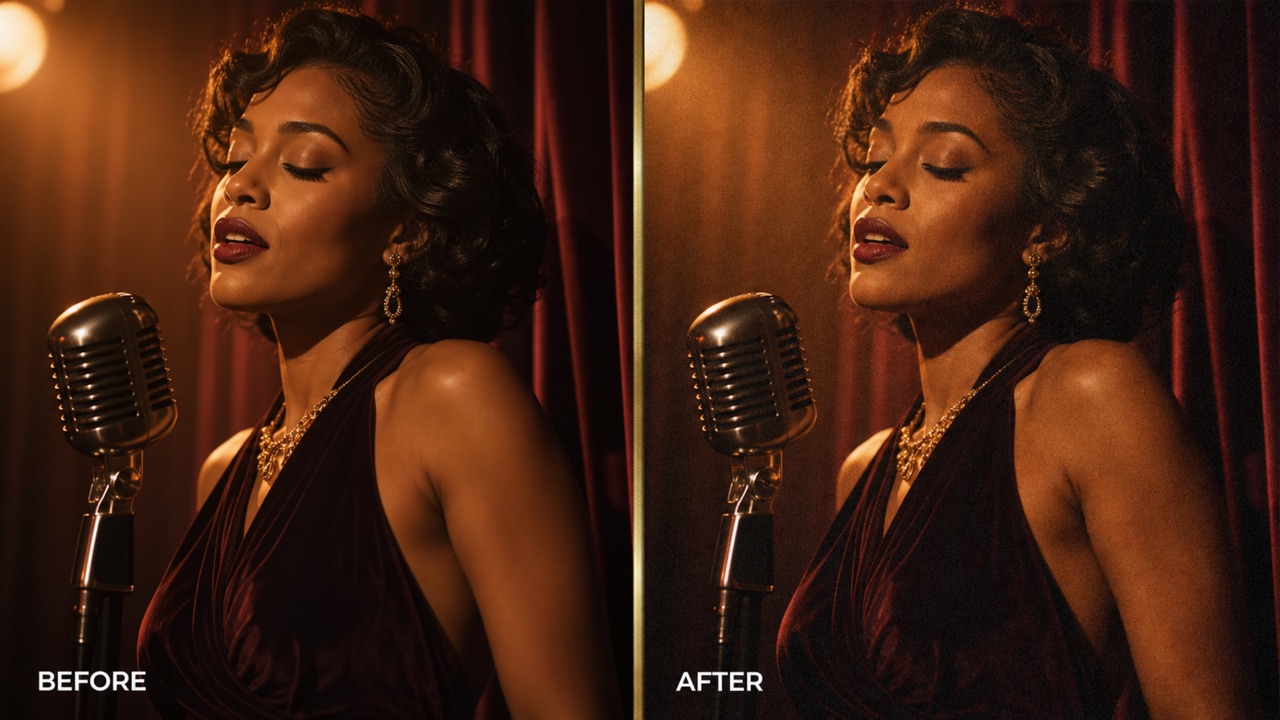
Add Noise to Image for Rich, Textured Photos
Upload one photo and add noise to image online for a tactile film grain, digital texture, or softly weathered finish in seconds.
Use Pixomi to add noise to image files while keeping the subject, colors, lighting, and composition recognizable. Choose a subtle or expressive texture, generate the edit online, and download a polished result without complicated software.
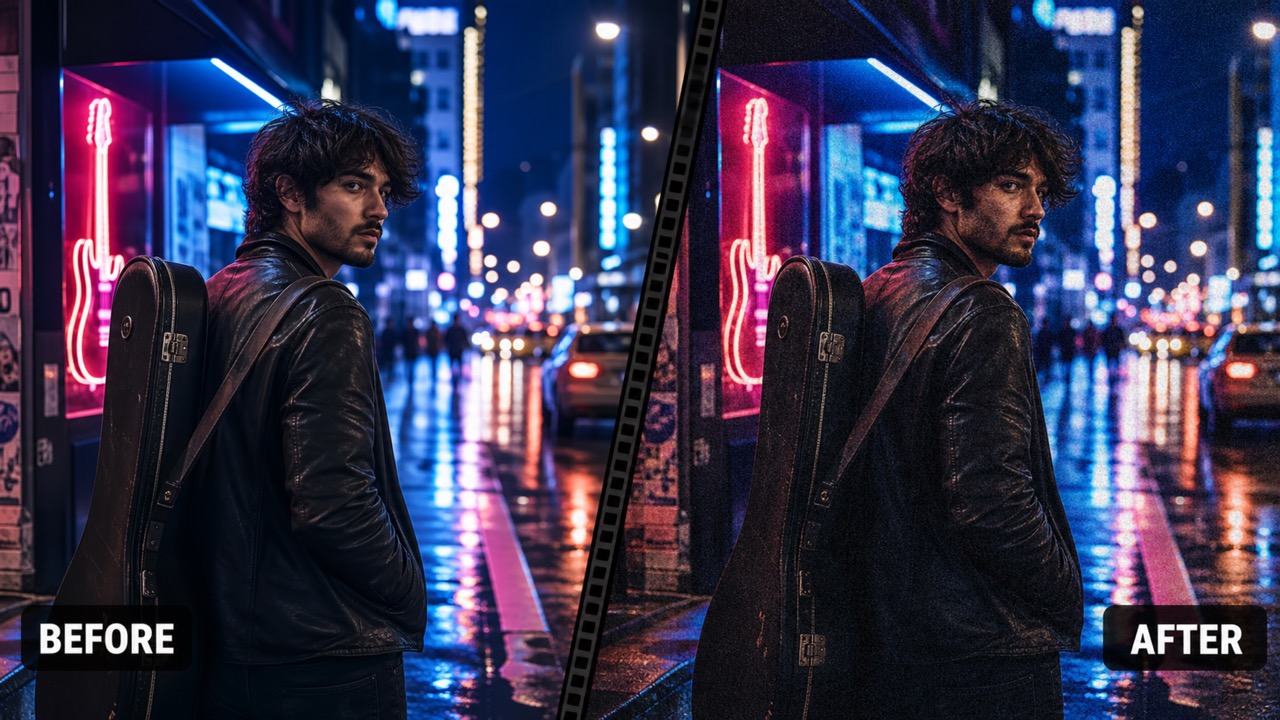
How to Add Noise to Image Online
The workflow makes it easy to add noise to image content in four steps: upload, describe the texture, generate, and download. No manual pixel painting or advanced layer controls are required.

Upload One Image
Choose a portrait, landscape, product photo, poster, or digital artwork. To add noise to image files cleanly, start with a clear upload that shows the detail and color you want to preserve.

Describe Your Noise Style
Enter a short prompt for fine film grain, colorful digital noise, monochrome speckles, gritty texture, or gentle vintage character. This tells the tool how strongly to add noise to image areas.

Generate the Texture
Choose the output size and click generate. Pixomi will add noise to image pixels while protecting the essential subject, framing, and visual balance of the uploaded photo.

Review and Download
Compare the edited result with the original, confirm that the texture suits your idea, and download it. You can add noise to image projects for social, print, design, or personal use.
Best AI Image Tools for Creative Projects
Explore creative tools for image, learn tips and tricks, and see how AI can be your assistant in turning concepts into finished projects.

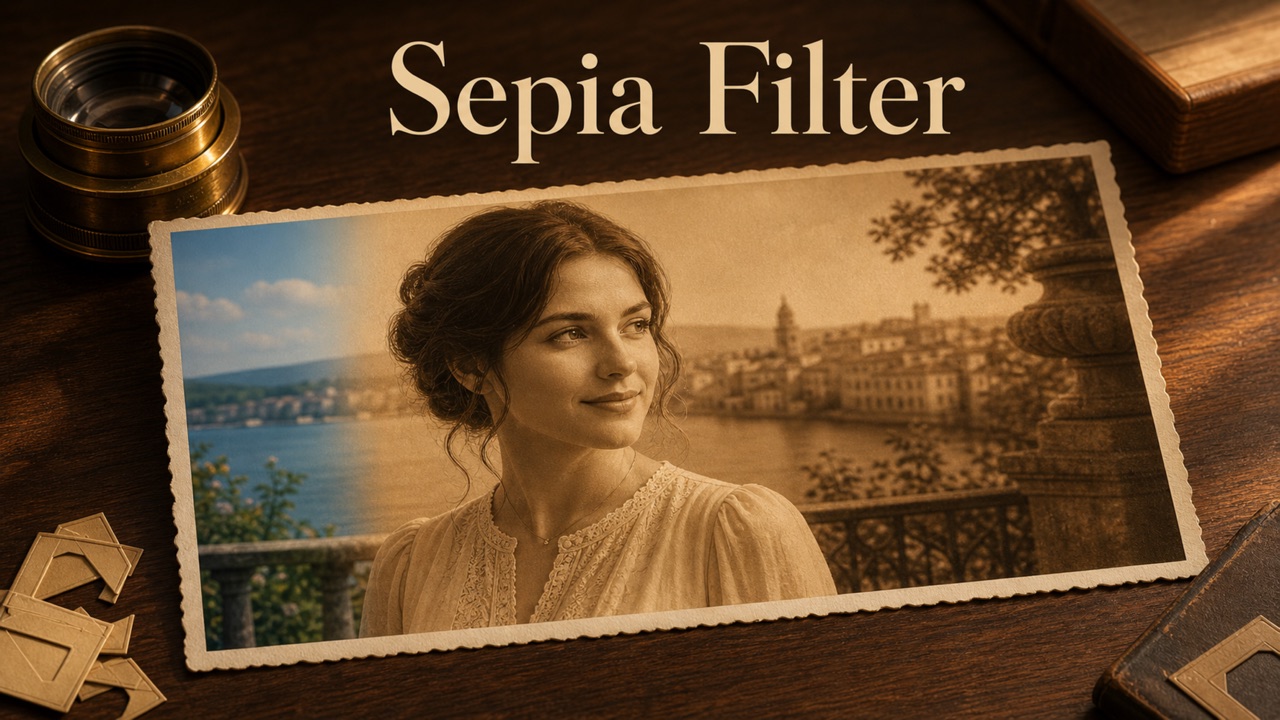



Add Noise to Image with Creative Control
Pixomi helps you add noise to image files with natural grain, adjustable character, and reliable subject preservation. You can add noise to image artwork for subtle cohesion or bold atmosphere, then export a result ready for real creative work.
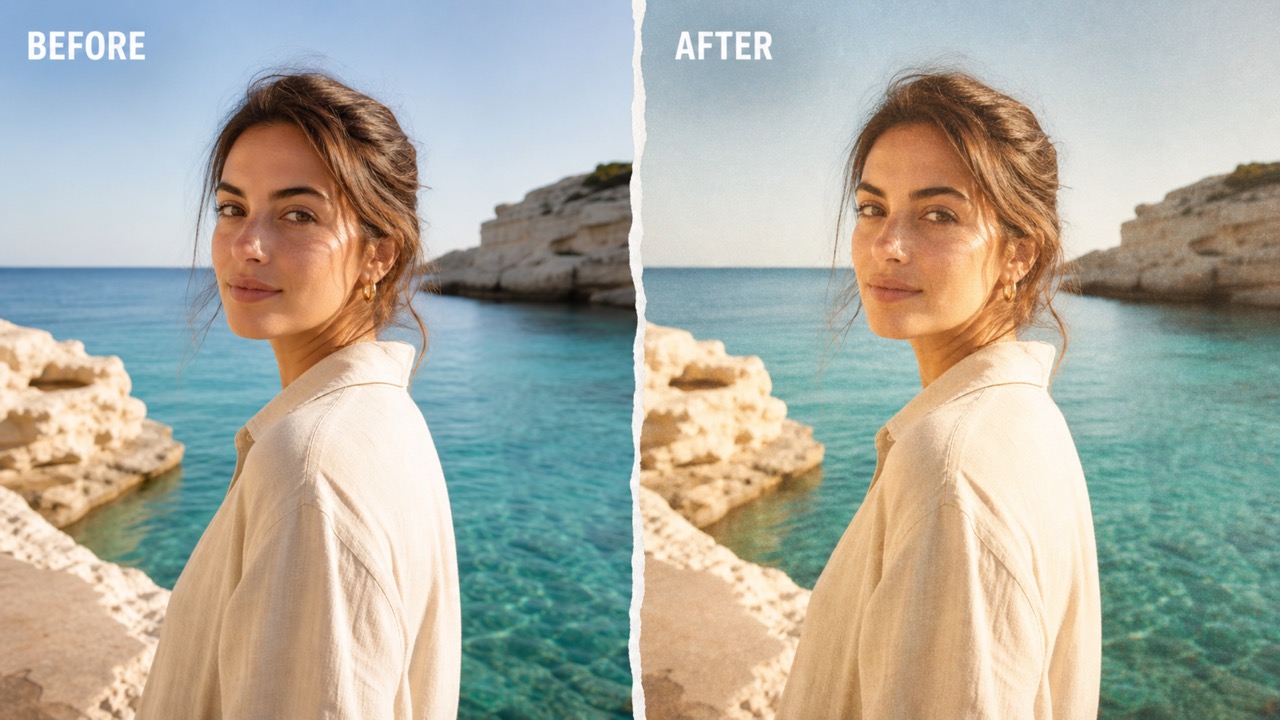
Create Natural Film Grain
- Add noise to image portraits and street photos with fine, organic grain that feels inspired by analog film.
- The tool can add noise to image shadows and midtones without hiding faces, fabric, architecture, or important edges.
- Use a prompt to request delicate 35mm grain, high-ISO texture, or a stronger documentary finish.
- When you add noise to image files carefully, clean digital photos gain warmth and tactile depth instead of looking damaged.
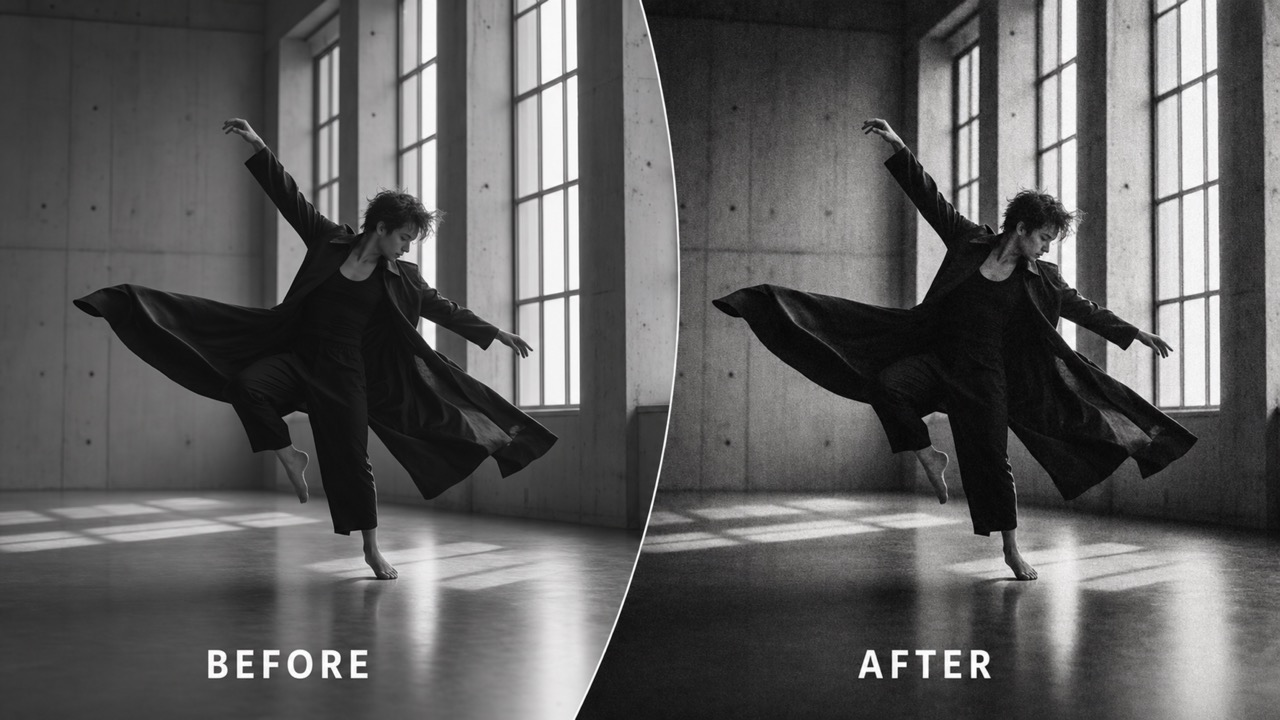
Control the Strength and Character
- Add noise to image files with a prompt that describes intensity, scale, color, and mood.
- Ask the editor to add noise to image highlights subtly, spread monochrome speckles evenly, or create bold RGB artifacts for experimental artwork.
- A restrained setting can soften an overly perfect render, while a dramatic setting can create a gritty visual identity.
- You decide how to add noise to image content without navigating technical filter panels.

Keep the Original Scene Recognizable
- The editor is designed to add noise to image surfaces while preserving the main subject, crop, lighting direction, palette, and composition.
- Add noise to image backgrounds without replacing people, products, text, or scenery with unrelated content.
- Fine texture can reduce the sterile look of generated or heavily retouched visuals while keeping their meaning clear.
- Use this focused workflow whenever you want to add noise to image files rather than rebuild the entire scene.
Prepare Textured Visuals for Any Channel
- Add noise to image assets for album covers, posters, social posts, editorial layouts, product stories, game art, or personal photos.
- Choose an output size that fits your next layout, then add noise to image content before downloading the finished visual.
- Consistent grain can unite a campaign or collection that mixes photos, renders, and illustrations.
- The online process helps you add noise to image projects quickly, even when you do not use desktop design software.
Where to Add Noise to Image Projects
Creators add noise to image files for photography, publishing, music, fashion, social media, games, and experimental design. Whether the goal is quiet film grain or obvious digital texture, the effect can turn a clean upload into a more expressive visual.

Film-Inspired Portraits
Add noise to image portraits to introduce analog warmth, soften an overly polished finish, and give skin, clothing, and backgrounds a more tactile photographic character.

Posters and Album Covers
Designers can add noise to image compositions for posters, music artwork, book covers, and event graphics where grain supports a raw, cinematic, or independent visual identity.

Social and Campaign Visuals
Add noise to image posts, story backgrounds, announcements, and campaign teasers to build a consistent texture that helps a series feel intentional and recognizable.

Product and Fashion Stories
Brands can add noise to image scenes for editorial product stories, lookbooks, and launch concepts, creating atmosphere while keeping the merchandise and styling easy to see.

Game and Concept Art
Artists can add noise to image renders to reduce sterile gradients, suggest aged screens or rough environments, and make digital concept work feel more grounded.

Experimental Digital Texture
Add noise to image artwork with colored speckles, glitch-like RGB grain, or uneven texture when your collage, zine, or abstract composition needs visual tension.
Why Creators Add Noise to Image Files
Photographers, artists, designers, and marketers add noise to image projects when clean pixels need more atmosphere. Their work shows how grain can support mood, consistency, and storytelling without changing the central subject.
I add noise to image portraits when a digital file feels too perfect. The grain gives skin and window light a warmer, more photographic quality without pulling attention away from the person.
For game mockups, I add noise to image backgrounds to break up smooth gradients and create a worn-screen mood. The result makes early environment concepts feel more complete.
We add noise to image campaigns when product photos need a consistent editorial texture. It helps separate limited collections from our cleaner everyday catalog style.
I add noise to image artwork for album covers because subtle grain helps photography and typography sit together. The prompt control makes it easy to test restrained and gritty directions.
Our team can add noise to image posts without opening a complex editor. A repeated grain treatment gives a month of social visuals one coherent campaign voice.
I add noise to image illustrations before placing them into editorial layouts. The added texture takes away the plastic digital finish while preserving the original shapes and palette.




Add Noise to Image FAQ
Learn how to add noise to image files, guide the intensity and grain character, preserve essential details, and prepare the result for photography, design, social media, or other creative projects.
To add noise to image content means introducing controlled random texture, often as monochrome grain, colored speckles, or digital artifacts. The effect can mimic film, soften perfect gradients, or create a deliberately gritty style.
Upload one picture, describe the texture and intensity you want, choose an output size, and click generate. Pixomi will add noise to image pixels and return an edited version for review and download.
Yes. You can ask Pixomi to add noise to image files with fine film grain, visible high-ISO texture, monochrome speckles, colorful RGB noise, or another clearly described finish.
The focused edit is intended to add noise to image surfaces while retaining the main subject, framing, colors, and lighting. Review every result to confirm the chosen intensity keeps important detail visible.
Portraits, street scenes, posters, renders, illustrations, product photos, and social graphics can all work well. Start with a clear source when you add noise to image projects that contain small details or text.
You may prepare personal and professional concepts with the editor, but final use depends on your rights to the source image and any applicable platform or project terms. Always review those requirements before distribution.
Add Texture to Your Photo Today
Upload one picture, describe the grain you want, and add noise to image content online. Generate a textured result that keeps the original scene recognizable, then download it for your next creative idea.
