
More AI Image Generators
Explore our collection of specialized AI image generators designed for different creative needs and styles












Remove Glare from Photo: Clear Reflections Naturally
Remove Glare from Photo while keeping the image believable
A bright reflection can hide the eyes behind glasses, flatten the label on a glossy product, or wash out a favorite travel photo. Remove Glare from Photo with an AI editor designed for focused correction instead of a dull, whole-image darkening effect. Upload a portrait, product shot, window photo, or scanned print and guide the edit toward cleaner highlights, visible details, and balanced light. The simple browser workflow helps beginners Remove Glare from Photo without learning masks, layers, or manual retouching. From ring-light circles to sun flare and flash hotspots, you can create a cleaner result while preserving the character of the original scene.
How to Remove Glare from Photo in Three Simple Steps
For the most natural result, begin with the highest-resolution original you have and describe the unwanted reflection precisely.

1. Upload the Original Photo
Upload a high-quality original image (JPG, PNG) with identifiable glare. Avoid compressed screenshots. A clean file gives the AI Glare Remover better texture and lighting context to work with.

2. Describe Where to Remove Glare from Photo
Specify what to change and what to keep. For example: reduce the ring-light reflection on the lenses, but preserve the eyes, frames, and skin texture. This directs the AI Glare Remover accurately without altering the rest of the image.

3. Review the Remove Glare from Photo Result
Inspect edges, text, and eyes. If the correction is too strong, adjust your prompt to retain natural highlights. Once balanced, download your image. The goal is to remove distractions while keeping useful light.
Best AI Image Tools for Creative Projects
Explore creative tools for image, learn tips and tricks, and see how AI can be your assistant in turning concepts into finished projects.




Remove Glare from Photo Without Making It Look Flat
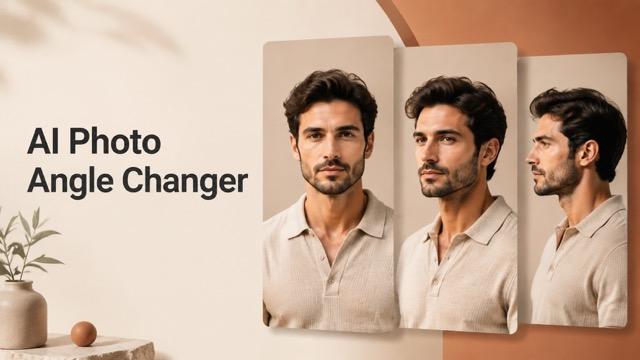
This workflow helps you Remove Glare from Photo selectively, using the surrounding image as context. It aims to reduce visual obstruction while retaining shadows, contours, catchlights, color, and material texture that make a photograph feel real.
Remove Glare from Photo on Eyeglasses
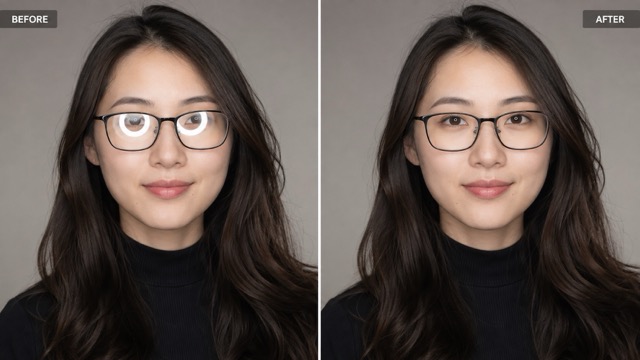
Ring lights, screens, and lamps often reflect on prescription lenses, hiding eyes and weakening eye contact in headshots. Use the AI Glare Remover to Remove Glare from Photo while keeping frames, eyelashes, and iris details consistent. A restrained edit is key: eliminate the dominant reflection but keep subtle, realistic lens highlights so the glasses don't look artificial. Zoom in to check that both eyes point naturally, the frames are symmetrical, and the surrounding skin texture remains intact before saving.
Remove Glare from Photo on Glossy Products
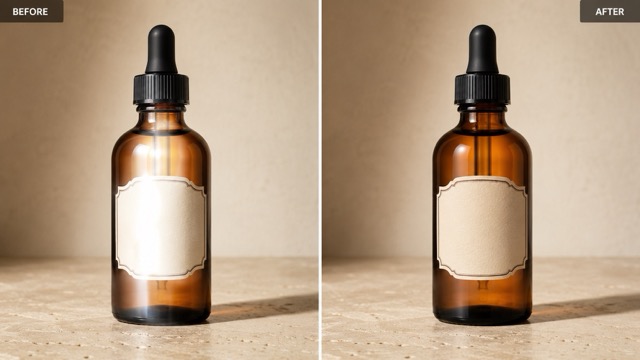
Glossy surfaces like bottles, watches, and packaging can bounce flash back to the camera, creating white spots that hide labels or textures. Remove Glare from Photo by instructing the AI to protect printed wording, brand colors, and material finish. The AI Glare Remover reduces harsh highlights without making polished metal look matte or inventing new text. For e-commerce, use prompts like 'reduce the central flash hotspot, restore the visible label, and retain soft edge reflections.' Always compare facts against the original product before publishing.
Remove Glare from Photo Through Windows
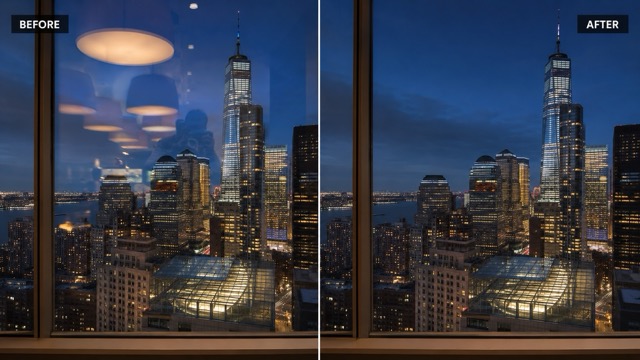
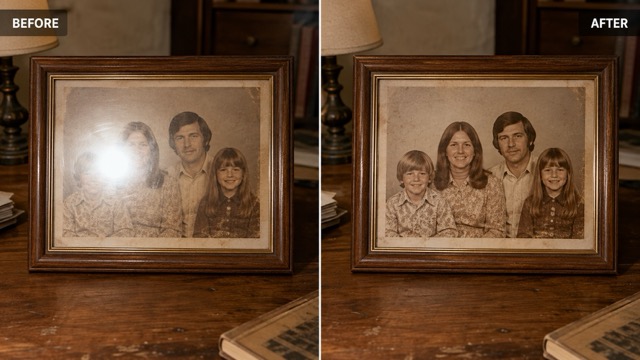
Shooting through shop windows, museum glass, or picture frames often captures unwanted room reflections or the photographer. The AI Glare Remover helps Remove Glare from Photo by reducing these layered reflections. Describe what to remove and what to keep—for instance, preserve faces and paper grain in a framed photo, or retain the skyline and evening colors in a cityscape. Since reflections overlap complex details, a gradual correction looks most credible. Review glass edges and ensure architectural lines haven't warped.
Remove Glare from Photo in Outdoor Light
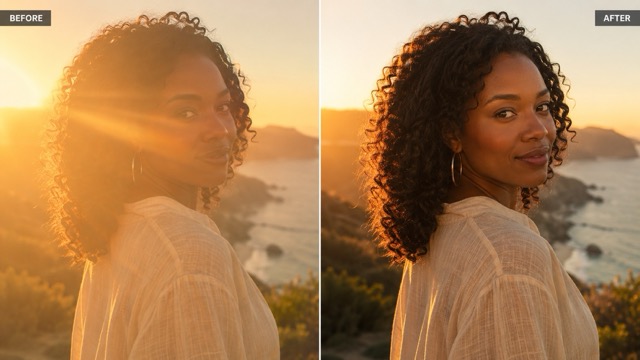
Outdoor backlight and direct flash can create haze, flares, or shiny skin patches. To Remove Glare from Photo naturally, instruct the AI Glare Remover to maintain the atmosphere. A good edit reduces the obstruction while keeping the original light direction believable. For a sunset portrait, ask to reduce facial flare but keep the golden rim light. For event photos, soften forehead highlights without altering skin texture. Process large glares in stages and compare against the original colors to rescue vacation, wedding, or concert photos while preserving their authentic feel.
Where Remove Glare from Photo Makes the Biggest Difference
The need to Remove Glare from Photo appears whenever light reflects more strongly than the subject. The same editing principle serves personal memories, professional portraits, digital archives, online shops, property photography, and social content. Start with the real purpose of the image: clearer eyes, readable packaging, visible scenery, or a cleaner print. Then use the AI Glare Remover to correct the obstacle without erasing the lighting story.

Remove Glare from Photo in Portraits
A strong lens reflection can make an otherwise excellent expression feel disconnected. Remove Glare from Photo to restore visible eyes in business portraits, school pictures, family groups, dating profiles, and creator thumbnails. Keep skin texture, glasses frames, eye direction, and catchlights consistent. In a group shot, ask the AI Glare Remover to correct only the affected person so everyone else stays unchanged. This focused workflow can save a meaningful frame when repeating the moment is impossible.
Remove Glare from Photo for Product Listings
Shoppers judge surfaces, colors, and labels from the image in front of them. Remove Glare from Photo when flash or studio lights hide those details on cosmetics, jewelry, electronics, bottles, and packaged goods. An AI Glare Remover can support cleaner marketplace images, advertisements, and social posts, but every corrected word, logo, and product feature should be checked against the real item before publication.

Remove Glare from Photo in Travel Images
Windows and windshields often add reflections that compete with a city view, landscape, building interior, or car cabin. Use the AI Glare Remover to Remove Glare from Photo while preserving straight lines, scenery, surface contours, and atmospheric color. Name the reflected lamp, person, dashboard, or sun streak you want reduced. A precise request produces a more coherent image than a broad command to remove every highlight.

Remove Glare from Photo on Old Prints
A quick phone capture of a glossy print, framed artwork, certificate, or album page may contain a bright flash patch. Remove Glare from Photo to make the underlying image easier to view and share. The AI Glare Remover can reduce the obstruction, but it should not be treated as a source of missing historical facts. Compare faces, handwriting, dates, signatures, and artwork with the original, especially when the material has archival, legal, or financial significance.
How Remove Glare from Photo Fits Real Creative Workflows
Different images require different levels of correction. These perspectives show how creators Remove Glare from Photo thoughtfully with an AI Glare Remover: identify the reflection, preserve the subject, compare before and after, and stop when the light looks natural.
For portrait delivery, I need visible eyes without making the lenses look unnaturally empty. I use Remove Glare from Photo with a precise instruction to soften ring-light circles and preserve the frames, pupils, and catchlights. The AI Glare Remover gives me a focused starting point, and I still inspect every face at full size before exporting.
Glossy jars are difficult to photograph in a small home studio. When one flash hotspot covers part of a label, Remove Glare from Photo helps me test a cleaner version without flattening the packaging. I verify all wording against the original product, but the AI Glare Remover makes the visual cleanup much more approachable.
My best train-window photo also captured bright carriage lights. I asked to Remove Glare from Photo only across the sky and buildings while keeping the evening color. The AI Glare Remover reduced the distraction, and a gentle correction preserved the feeling of actually shooting through glass.
Family albums are full of glossy prints that catch a phone flash. I use Remove Glare from Photo to create easier-to-share copies while keeping the original scan as the archive. The AI Glare Remover is most useful when the reflection is limited and surrounding details are still visible.
A strong outdoor flare can hide makeup, clothing, and expression. I use Remove Glare from Photo with language that preserves golden-hour warmth instead of neutralizing the scene. The AI Glare Remover works best for my content when I request a subtle balance and compare the result beside the original.




Remove Glare from Photo FAQ
Learn when to Remove Glare from Photo, what an AI Glare Remover can correct, how to prepare a useful source, and how to judge whether the finished lighting looks authentic.
Upload a clear original image, pinpoint the reflection, and list details to keep. For example, ask the AI to 'reduce ring-light reflection on glasses but preserve eyes and skin texture.' Generate, review, and refine your prompt if needed to ensure the rest of the image stays untouched.
It depends. If some texture or color remains, the AI can rebuild the area accurately. If the glare is pure white and has completely destroyed the original pixels, the AI will use context to generate a realistic fill. Always verify important text, faces, or documents after editing.
Yes. Ask the AI Glare Remover to reduce ring-lights, window reflections, or flash highlights while keeping the frames and eye direction stable. For the most natural look, retain a subtle highlight rather than making the lenses perfectly matte. This works best on sharp, well-lit faces.
Targeted edits shouldn't, but AI generation can sometimes affect nearby areas. To prevent this, explicitly instruct the AI to 'preserve original colors, skin tone, and ambient light.' Always compare the final image to the original and refine your prompt if the color balance shifts.
Structure your prompt in three parts: name the glare, locate it, and list protected details. Example: 'Reduce the harsh flash hotspot on the center of the bottle; preserve the printed label, transparent material, and background colors.' Specificity prevents unwanted changes.
Sharp, high-resolution photos with localized glare work best because they provide plenty of surrounding context. While you can reduce broad sun flares or haze, severe blur, heavy compression, or massive pure-white hotspots are harder for the AI to reconstruct accurately.
Remove Glare from Photo and Bring the Real Subject Back
Do not let one reflection hide a clear expression, an important product detail, or a scene you cannot photograph again. Upload the best source you have, describe the unwanted light, and use the AI Glare Remover to create a cleaner, more balanced version. Remove Glare from Photo with restraint, preserve the highlights that make the scene dimensional, and review every important detail before you share or publish the result.
