
More AI Image Generators
Explore our collection of specialized AI image generators designed for different creative needs and styles
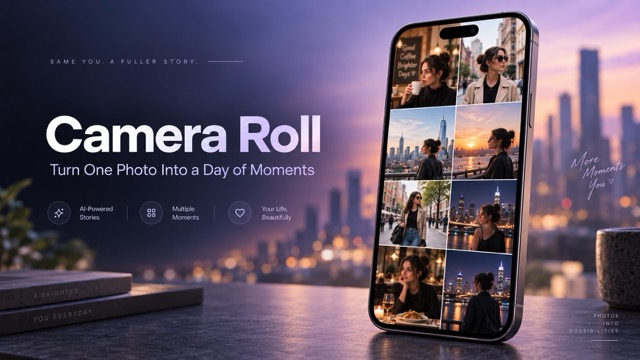
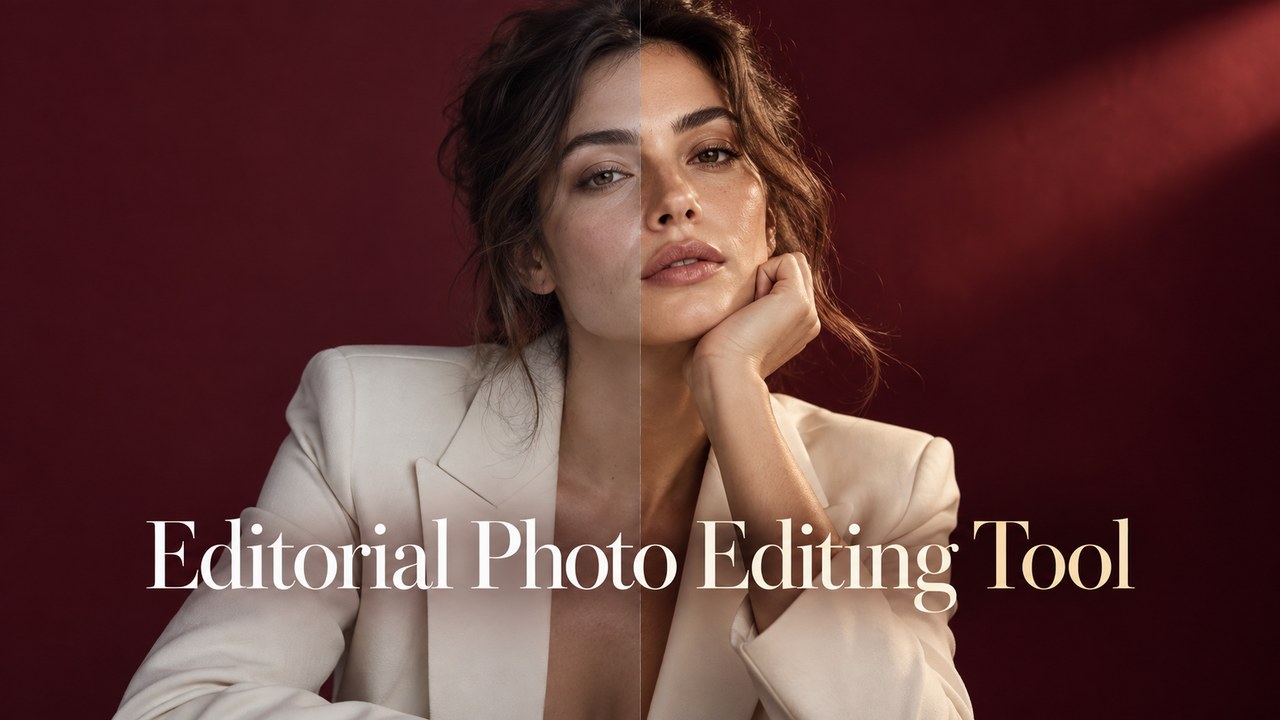
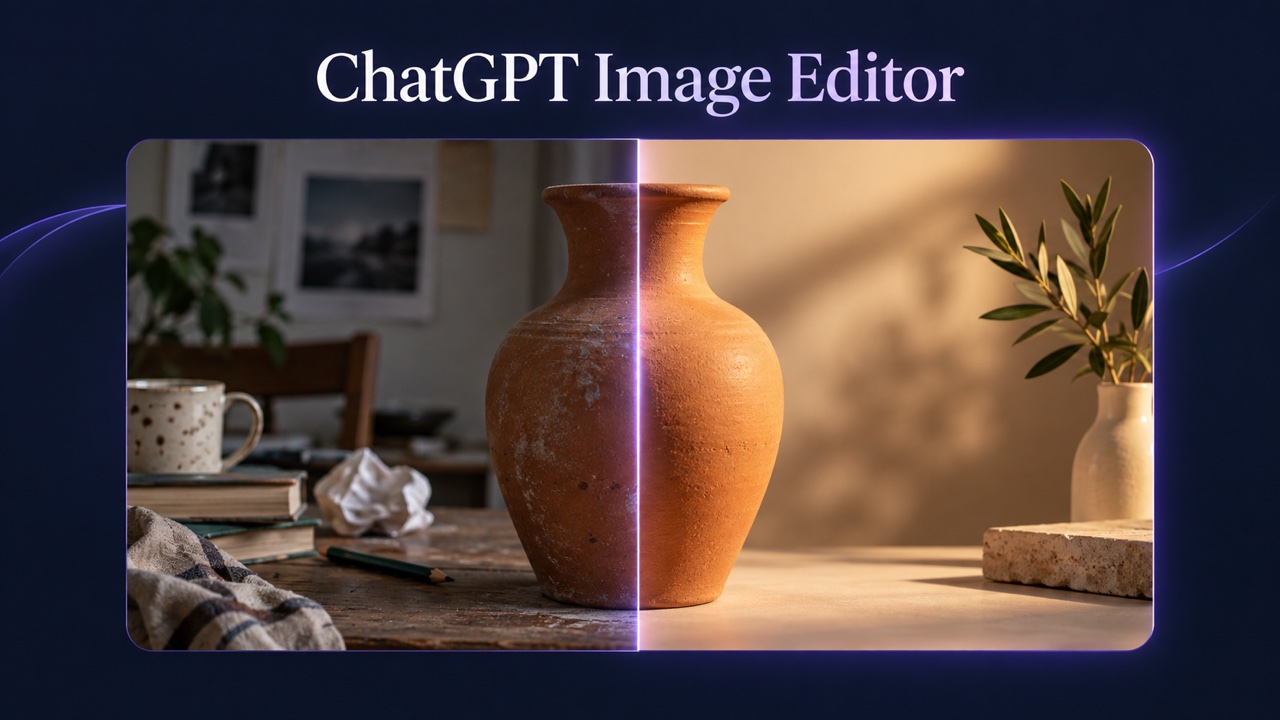
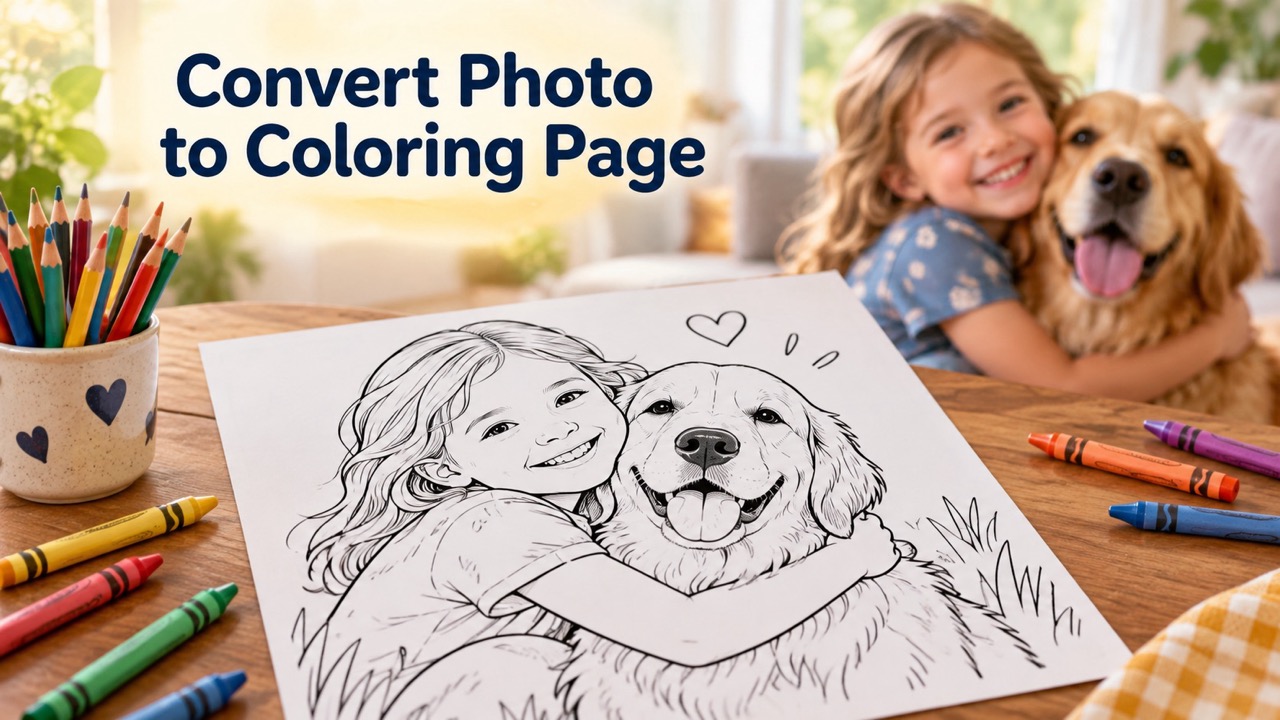
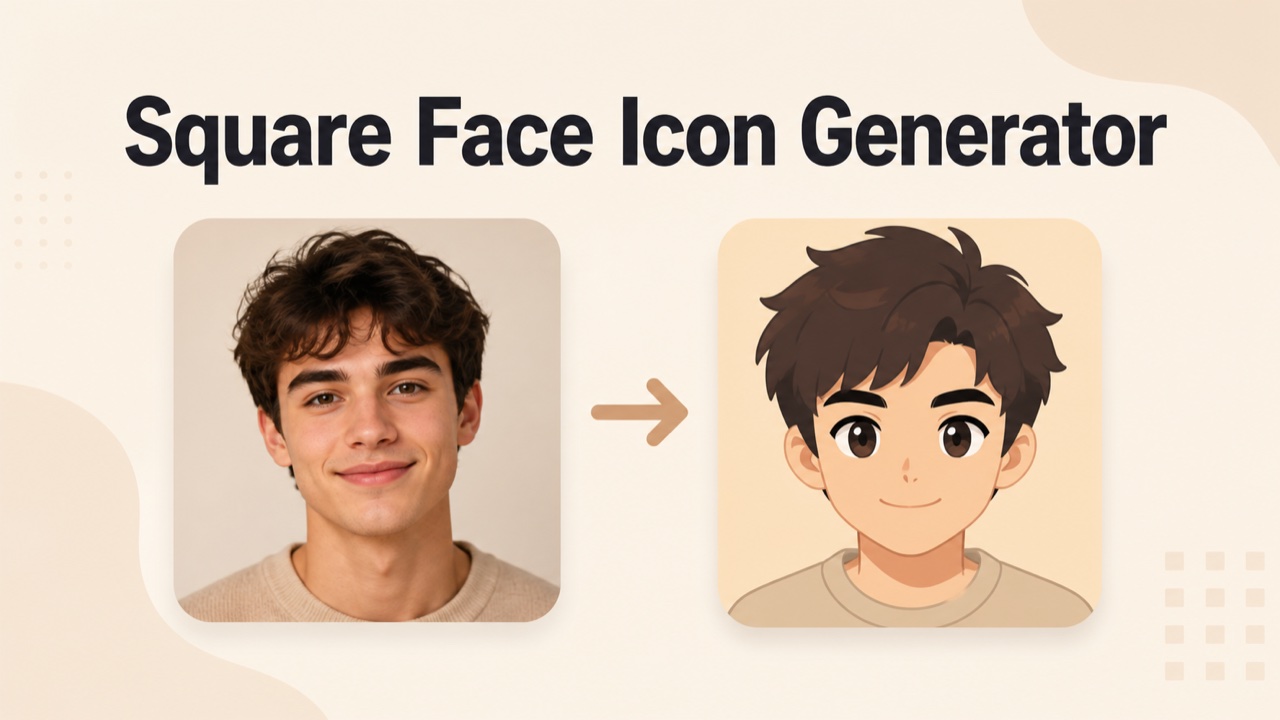

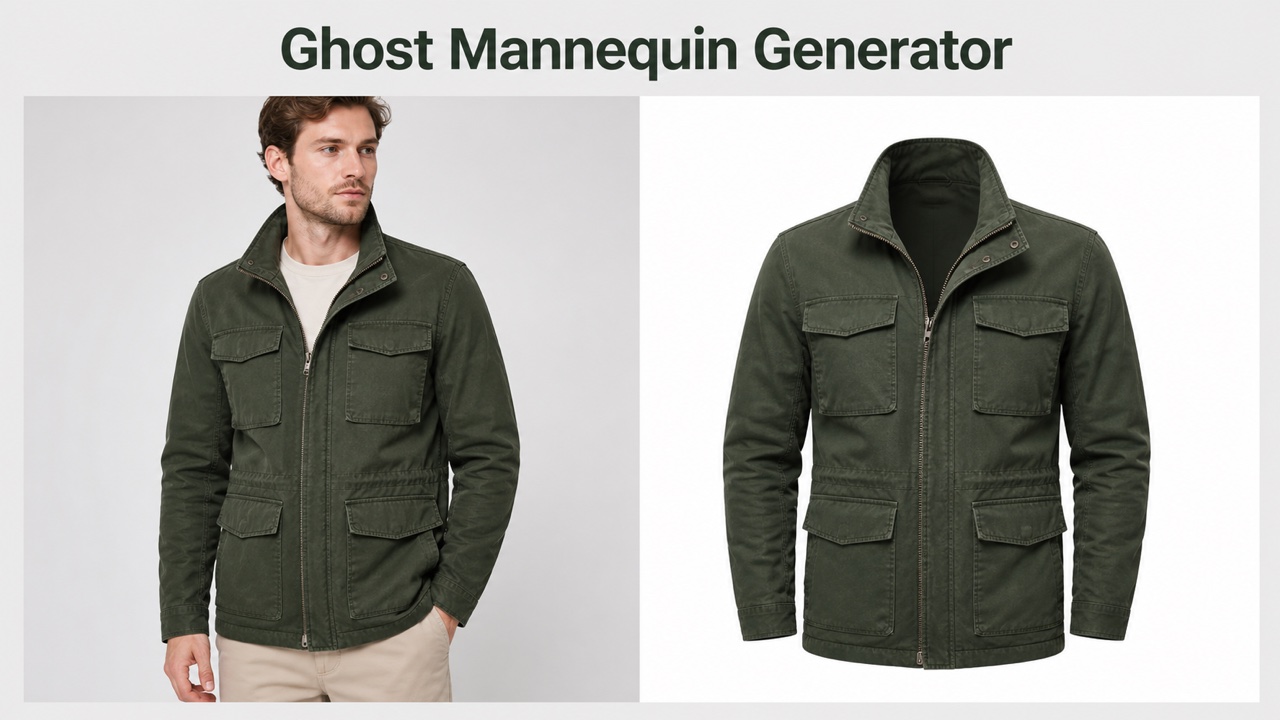
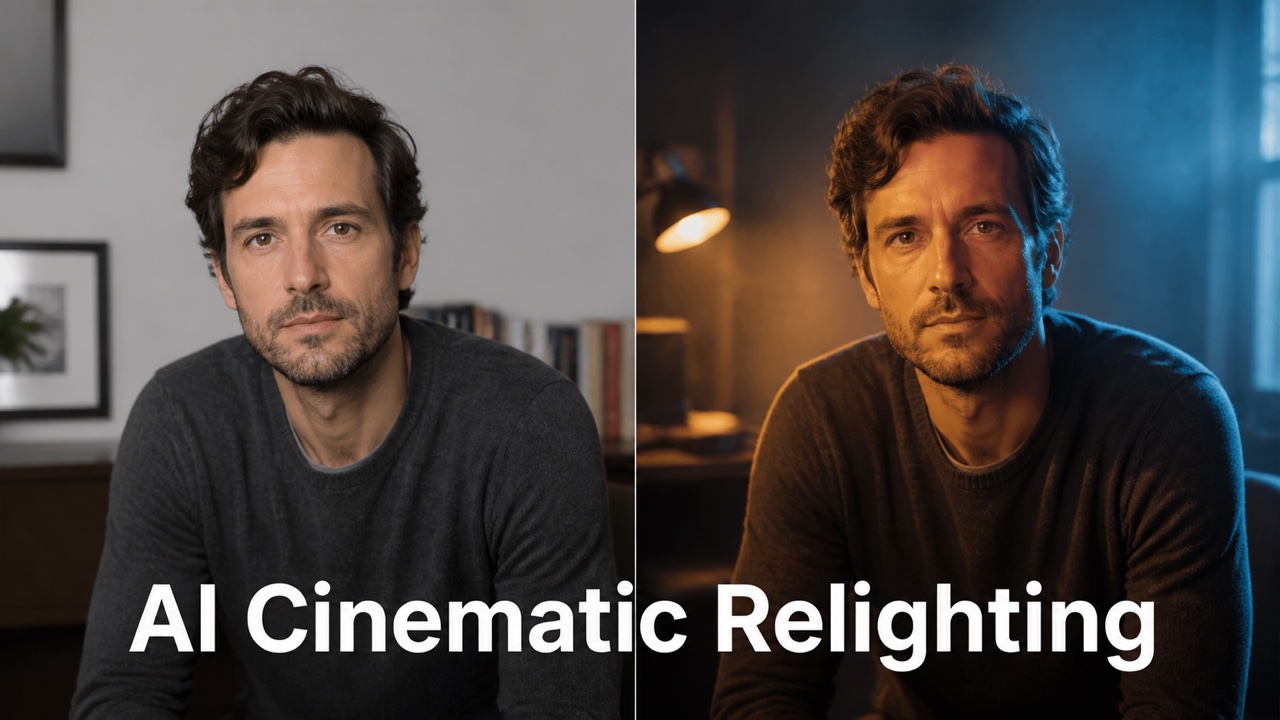
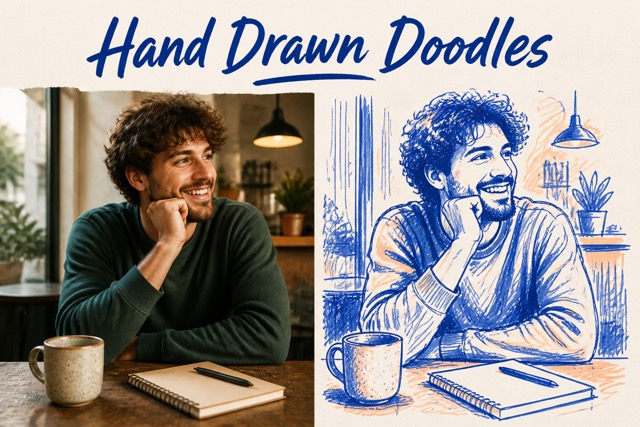

Qwen Image 2.1: Turn Your Brief into a Visual
Explore Qwen Image 2.1 online for expressive scenes, purposeful layouts, and prompt-led image editing.
Bring a clear idea to Qwen Image 2.1 and shape it into something you can see. Use this AI image generator to explore a composition, refine your direction, and create a visual that communicates your story.
How to Create with Qwen Image 2.1
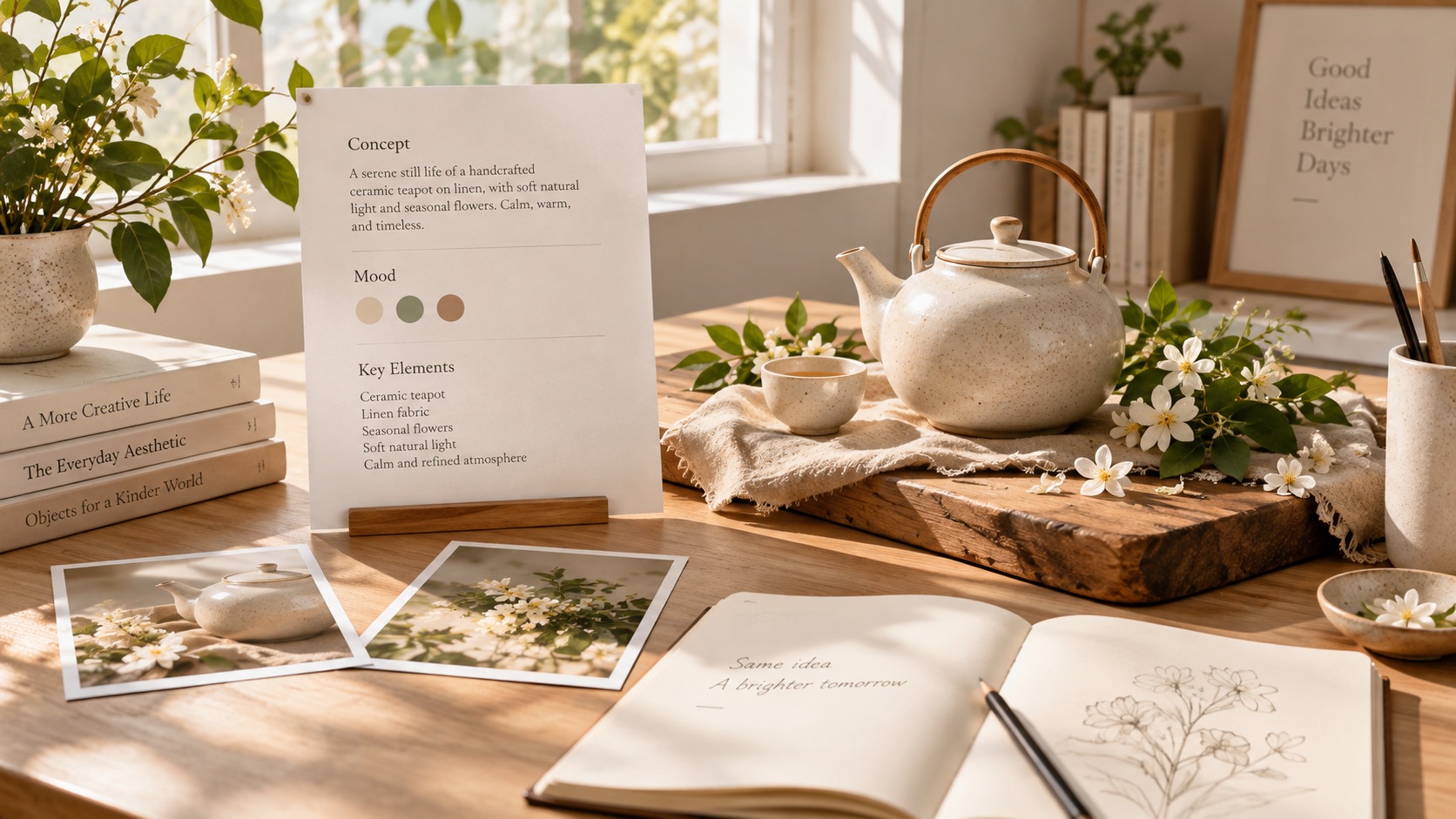
A useful Qwen Image 2.1 workflow starts with one concrete outcome. Decide what viewers should notice, describe the scene, and review the first result before changing your brief. This AI image generator is easier to direct when your instructions separate the subject, setting, and finishing details. Keep a copy of a successful prompt so the next experiment starts from a clear reference point.

Write a Visual Brief
Start Qwen Image 2.1 with the subject, action, and setting, then add lighting and mood. For example, describe a ceramic teapot on a linen table beside a rainy window, with warm reflections and a calm editorial composition. Tell the AI image generator where to leave breathing room. If your Qwen Image 2.1 idea includes words, put the exact wording in quotation marks and specify its placement. Avoid asking for several conflicting styles in the same sentence.

Choose Creation or Editing
Use Qwen Image 2.1 to begin from a written idea, or select an available image input when you want to revise an existing picture. In an edit, identify what should change and what should remain recognizable. Give the AI image generator a focused instruction, such as replacing a studio backdrop while preserving the object and its label. Follow the upload controls shown in the workspace; keep the Qwen Image 2.1 brief aligned with your selected mode.

Review, Refine, and Save
Inspect your Qwen Image 2.1 result for composition, spelling, edges, and subject details. Change one meaningful instruction at a time so you can judge which revision helped. An AI image generator can offer a fresh interpretation, but your review determines whether it suits the project. Once the Qwen Image 2.1 result communicates the intended idea, save the image using the available download controls and retain the prompt alongside your chosen version.
Best AI Image Tools for Creative Projects
Explore creative tools for image, learn tips and tricks, and see how AI can be your assistant in turning concepts into finished projects.
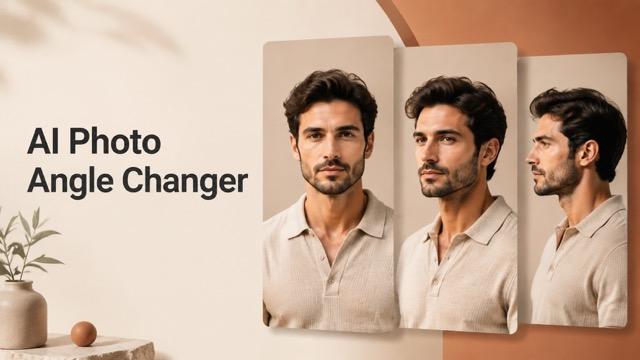


Give Qwen Image 2.1 a Clear Creative Direction
Make Qwen Image 2.1 part of a deliberate creative process. The examples below turn broad requests into decisions about message, atmosphere, and continuity. Use the AI image generator to test those decisions visually, then refine the strongest direction. A useful Qwen Image 2.1 prompt explains what the image must communicate before listing decorative details.

Build a Scene That Tells Your Story
A good scene gives the viewer a reason to look. With Qwen Image 2.1, describe a moment instead of a disconnected list of objects: a florist opening a shop at sunrise, loose petals on the counter, and warm light reaching the doorway. This gives the AI image generator a relationship between the subject and its surroundings. Use Qwen Image 2.1 to explore whether the scene should feel welcoming, mysterious, playful, or quiet. Name the detail that carries the story and ask for less visual competition around it. Compare the result against your original intention: can someone understand the moment without reading a caption? Refine the setting or expression before adding more decoration. Qwen Image 2.1 works best as a creative conversation with a specific destination.
Plan Text as Part of the Composition
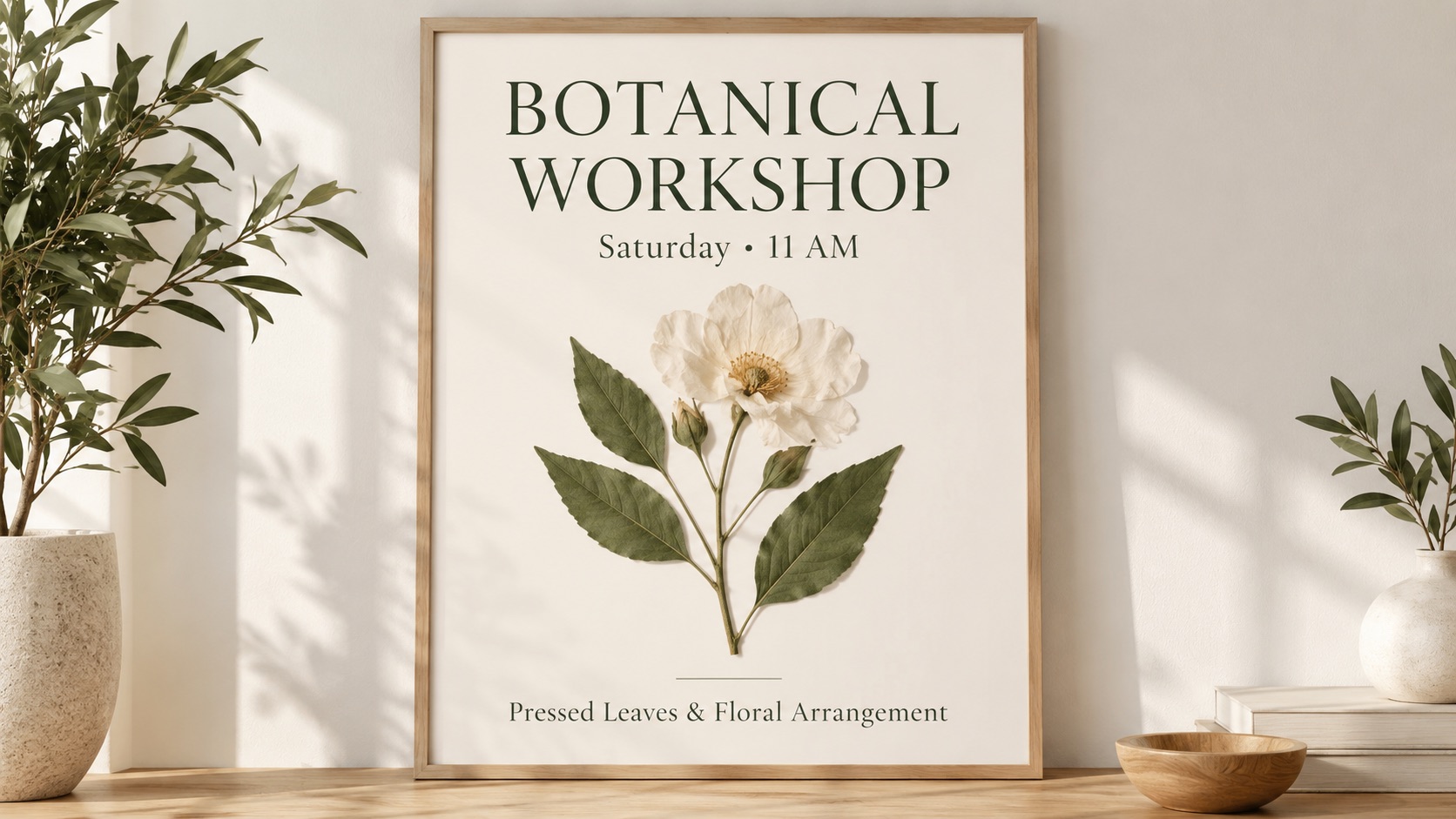
For a poster or invitation, the words need a place in the picture. Give Qwen Image 2.1 the exact headline, its approximate position, and the visual hierarchy you want. Describe a short title above a single focal image, with open space around any supporting line. The AI image generator can explore typography as part of the concept, while your final check catches spelling or layout issues. Test Qwen Image 2.1 with a concise phrase before attempting a crowded design. If the message is hard to read, simplify the background or reduce the amount of text. Keep a separate copy of every required word for comparison. A focused Qwen Image 2.1 text rendering brief makes the communication goal easier to judge.
Change the Setting, Keep the Subject Central
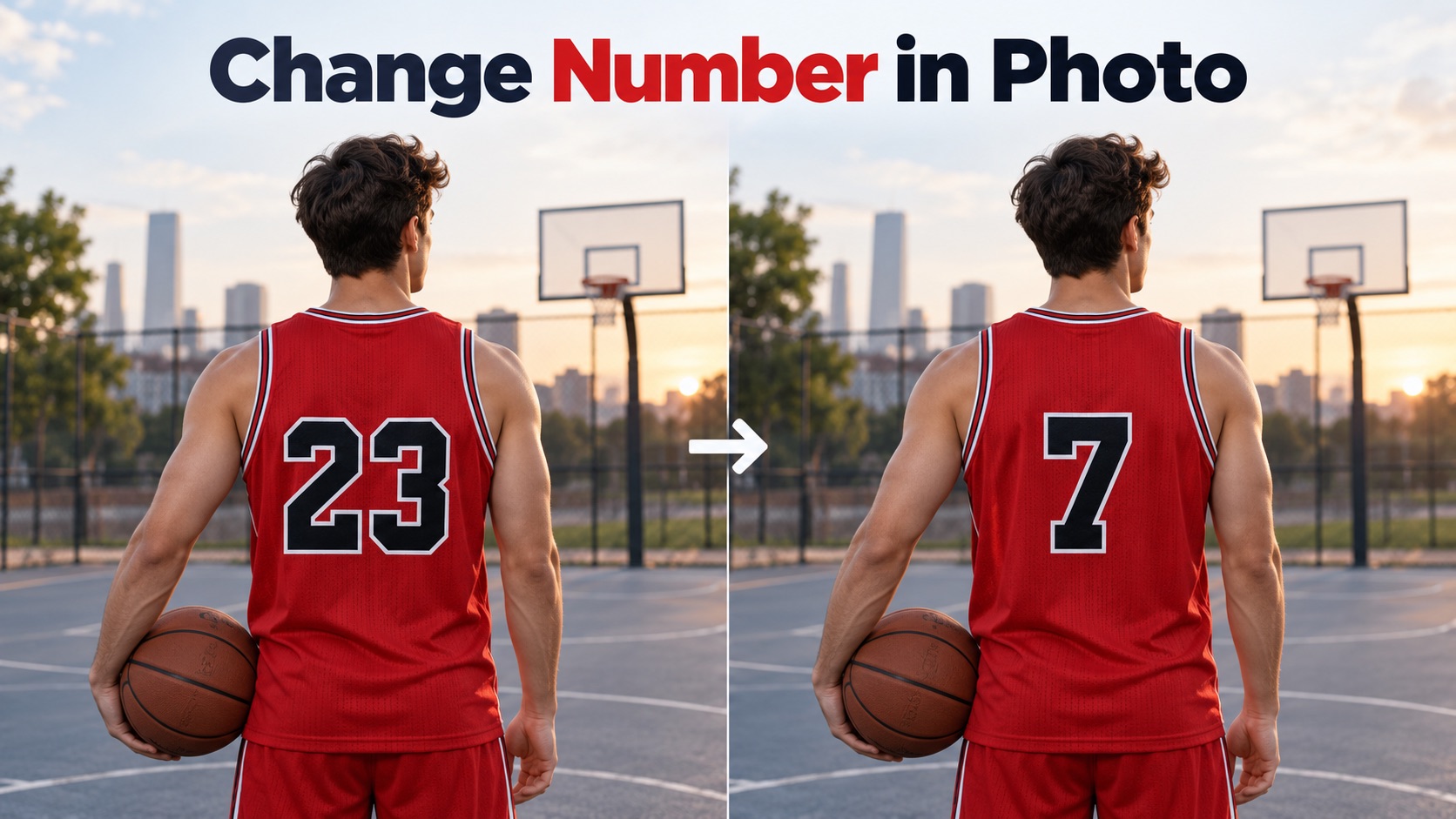
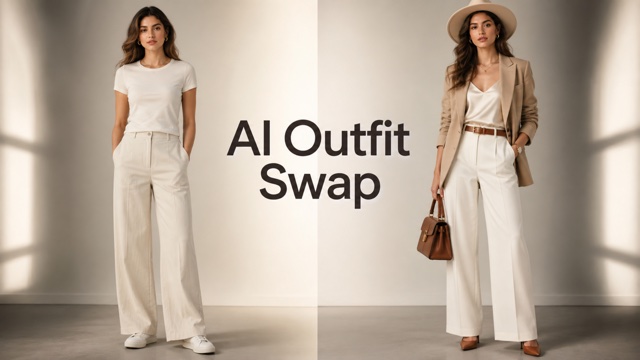
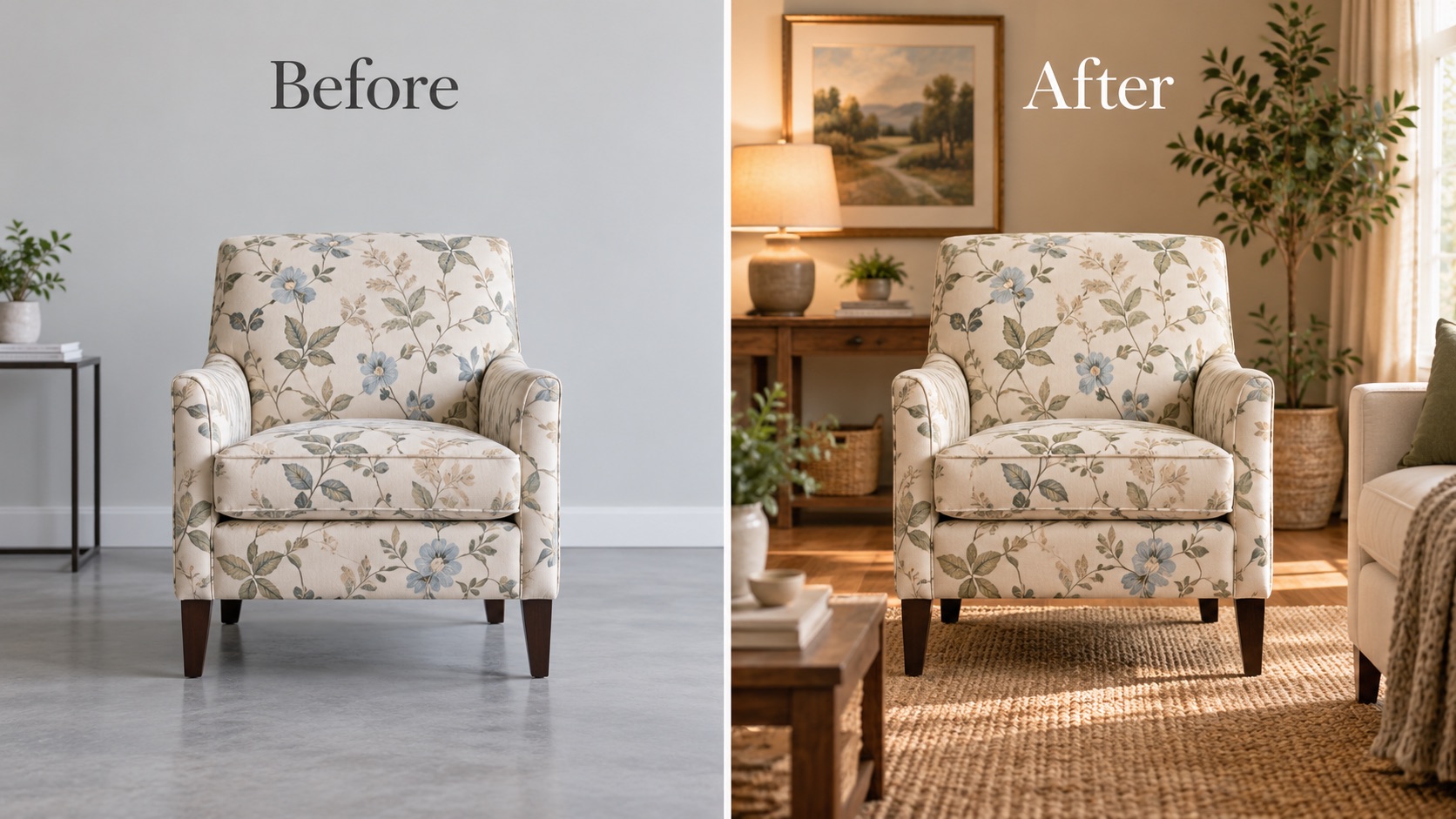
When revising a picture, describe the change as precisely as the details you want to retain. A Qwen Image 2.1 image editing brief might request a warmer room while preserving the chair silhouette, upholstery pattern, and camera angle. Give the AI image generator an explicit priority so a new background does not overwhelm the original object. Use Qwen Image 2.1 to compare a restrained change with a more expressive direction, then inspect the parts that matter to you. Look closely at edges, labels, facial details, and reflections. Preservation is a goal to check, rather than a result to assume. With a focused Qwen Image 2.1 request, feedback becomes actionable: identify the changed detail and explain how the next version should correct it.
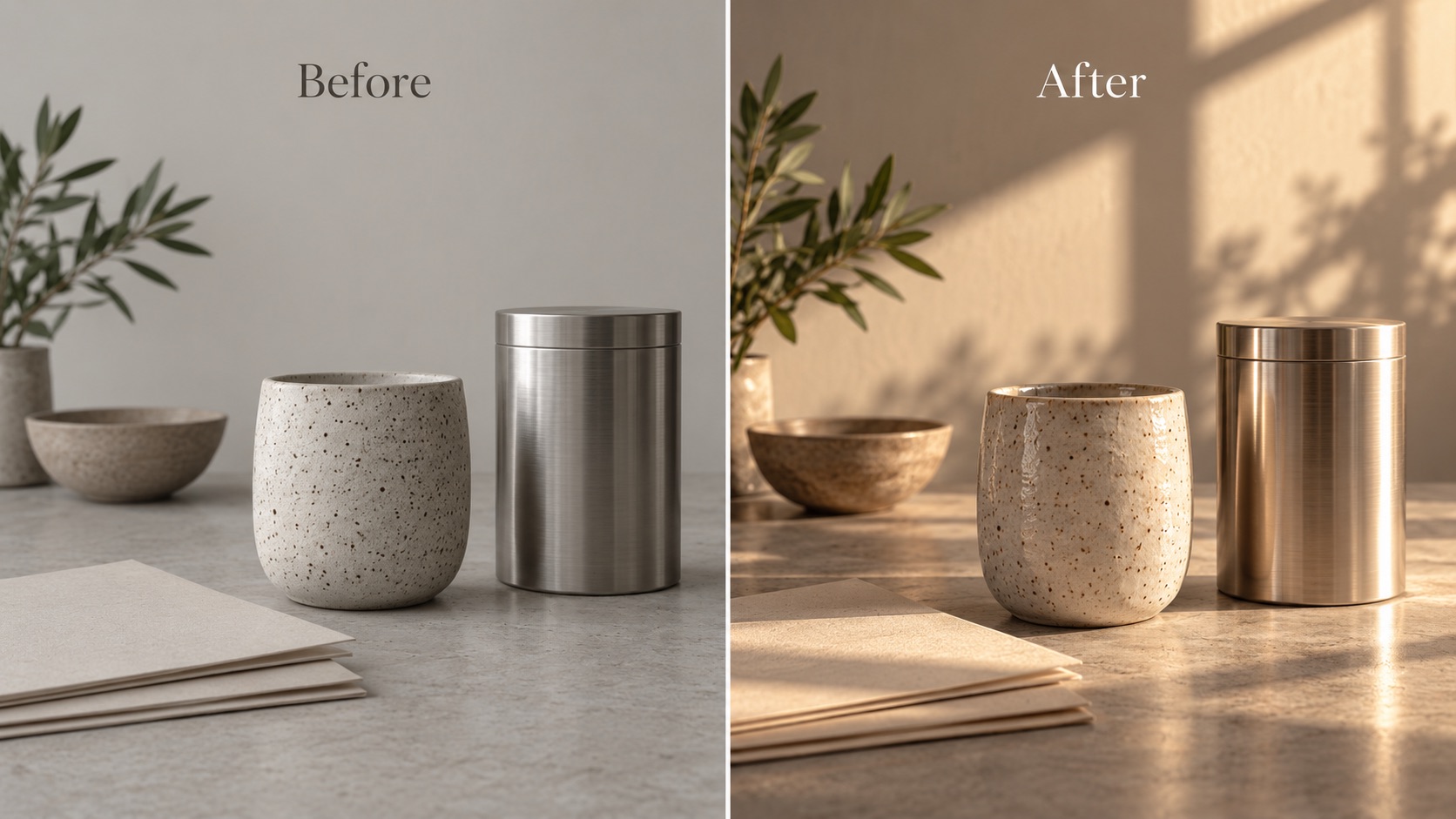
Explore Material, Light, and Mood
Small visual decisions can change the entire feeling of an image. Ask Qwen Image 2.1 for soft window light across a glazed ceramic surface, crisp shadows on folded paper, or gentle highlights on brushed metal. The AI image generator has a clearer target when you describe the visible effect instead of using only words like beautiful or premium. Keep the subject and composition stable while exploring those details with Qwen Image 2.1. Compare whether the material reads convincingly, whether the light has a consistent direction, and whether the mood supports your message. Remove instructions that pull against each other. A Qwen Image 2.1 experiment becomes more useful when you can explain exactly why one version feels closer to the image you imagined.
What Will You Make with Qwen Image 2.1?
Start with the purpose of the picture, then adapt Qwen Image 2.1 to your audience. These practical directions help turn a blank prompt into a brief you can evaluate. Use the AI image generator for exploration, and keep the final choice tied to the message, subject, and context of your project.

Product Story Concepts
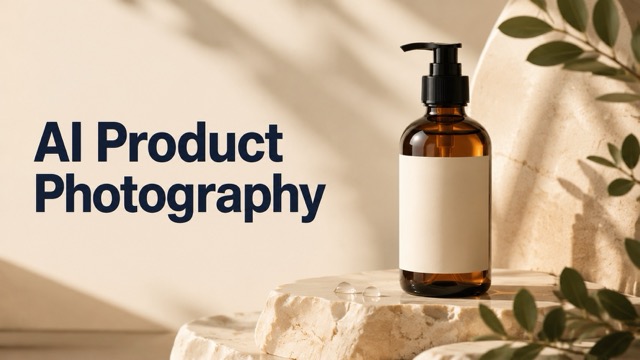
Use Qwen Image 2.1 to explore how a product might feel in a carefully chosen setting. A handmade cup could sit beside a sketchbook; a lamp could illuminate a quiet reading corner. Tell the AI image generator which object should dominate and which props are only supporting details. With Qwen Image 2.1, compare warm lifestyle scenes against simpler studio concepts before selecting an art direction. If you are editing a product reference, inspect identifying features and any text carefully. Treat the image as a concept until you have checked that its details accurately represent what you intend to show.

Posters and Event Ideas
Give Qwen Image 2.1 a short headline, an occasion, and a visual mood to explore invitation or poster concepts. A botanical workshop might use pressed leaves and generous blank space; a music night might call for bold shapes and dramatic contrast. Direct the AI image generator toward one message instead of several competing announcements. Review your Qwen Image 2.1 composition at a glance: does the headline stand out, and does the image match the event? Check dates and spelling separately. Add dense practical information in your finishing workflow when a simpler generated composition communicates the idea more clearly.

Characters and Story Worlds
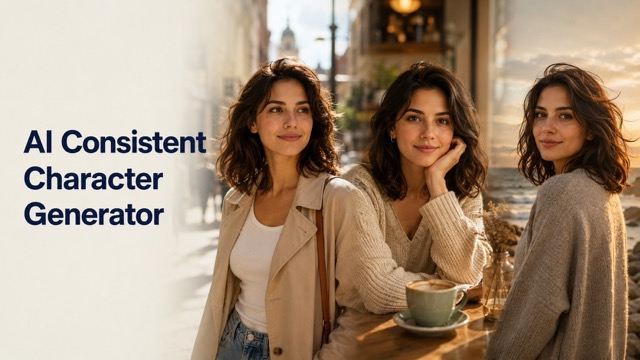
Explore a character in a believable moment with Qwen Image 2.1: a curious explorer studying a map, a tiny gardener tending oversized flowers, or a traveler watching a distant city. Give the AI image generator recurring visual anchors such as clothing, distinctive props, and a defined color palette. For a sequence, keep those details in your prompt notes and compare each result for continuity. Qwen Image 2.1 can help you investigate a story direction without requiring every decision at the beginning. Choose the version whose pose and environment support the narrative, then refine the details that make the character recognizable.

Editorial and Learning Visuals
Use Qwen Image 2.1 to explore a conceptual illustration for an article, presentation, or classroom discussion. Describe the idea through a concrete scene, such as seedlings at different growth stages or a desk arranged around a creative project. Tell the AI image generator what viewers should understand first. A Qwen Image 2.1 visual can support an explanation, but factual labels and relationships need your review. Keep diagrams simple, compare the result with your source material, and correct misleading details before sharing. Prefer a clear visual metaphor when literal precision would require a carefully authored technical drawing.
Creative Perspectives on Qwen Image 2.1
The following fictional scenarios illustrate how different creators might approach Qwen Image 2.1; they are not verified customer reviews. Each perspective connects the AI image generator to a specific creative decision. Use these Qwen Image 2.1 examples to think about what you would test, preserve, or simplify in your own workflow.
For an article concept, I would start Qwen Image 2.1 with one visual metaphor and a restrained palette. The AI image generator would help me compare a literal scene with a more imaginative interpretation. I would choose the Qwen Image 2.1 direction that explains the subject most clearly, then inspect the details before developing the final illustration.
My Qwen Image 2.1 brief would identify the product details that must remain recognizable before describing a new setting. I would use the AI image generator to explore mood and prop placement. A promising Qwen Image 2.1 concept would still need a close comparison with the reference, especially around the silhouette, label, and material finish.
I would give Qwen Image 2.1 a short event headline and a simple hierarchy. That would let the AI image generator explore the relationship between the words and the artwork. Before accepting a Qwen Image 2.1 design, I would read every letter, check the date, and make sure the atmosphere fits the people attending.
I would use Qwen Image 2.1 to test the mood of a story location before drawing a longer sequence. My AI image generator prompt would retain the same clothing and signature prop across experiments. Comparing Qwen Image 2.1 results would help me identify which lighting and setting make the character feel most at home.


Qwen Image 2.1 Questions, Answered
Find practical guidance for your first Qwen Image 2.1 project, from writing a useful prompt to checking the result. Keep the AI image generator focused on a clear creative goal.
You can explore scenes, poster concepts, product settings, and illustrations from a written brief. Qwen Image 2.1 is most useful when you specify the subject, composition, and intended message, then review the result against those requirements.
Describe the subject, action, setting, and light, then add any exact text or preservation requirements. Keep your Qwen Image 2.1 prompt coherent, and change one important instruction at a time when comparing different results.
Use the available image input to supply a reference and describe the change you want. For Qwen Image 2.1 editing, name the details to preserve and inspect the result carefully, especially faces, product labels, and edges.
Check the credits and access options displayed in your account before generating. Qwen Image 2.1 availability and generation costs depend on the service settings, so do not assume that every output or option is unlimited.
No image generation workflow guarantees perfect spelling or layout in every result. Give Qwen Image 2.1 short, exact text in quotation marks, explain its placement, and proofread all visible words before using the finished image.
Compare it with your brief for subject accuracy, composition, spelling, and unwanted changes. Review the Qwen Image 2.1 image at full size, then simplify or clarify the next instruction when an important detail misses your intended direction.
Bring Your Next Idea to Qwen Image 2.1
Choose one scene, one message, or one focused edit and give Qwen Image 2.1 a clear starting point. Use the AI image generator to explore the direction, compare the result with your brief, and refine the details that matter. Your next visual begins with a specific idea and a thoughtful first prompt.
