
Image Splitter for Grids, Free Guides, and Custom CutsImage Splitter
Choose the cutting method that matches your image instead of forcing every source into the same grid.
Image Splitter combines regular grid cutting, movable straight guide lines, and custom mesh control in one workflow. Use Image Splitter Online Free to Split Image Into Parts, check every slice visually, and download the results individually or together. Image Splitter keeps each cutting method in one clear workspace.
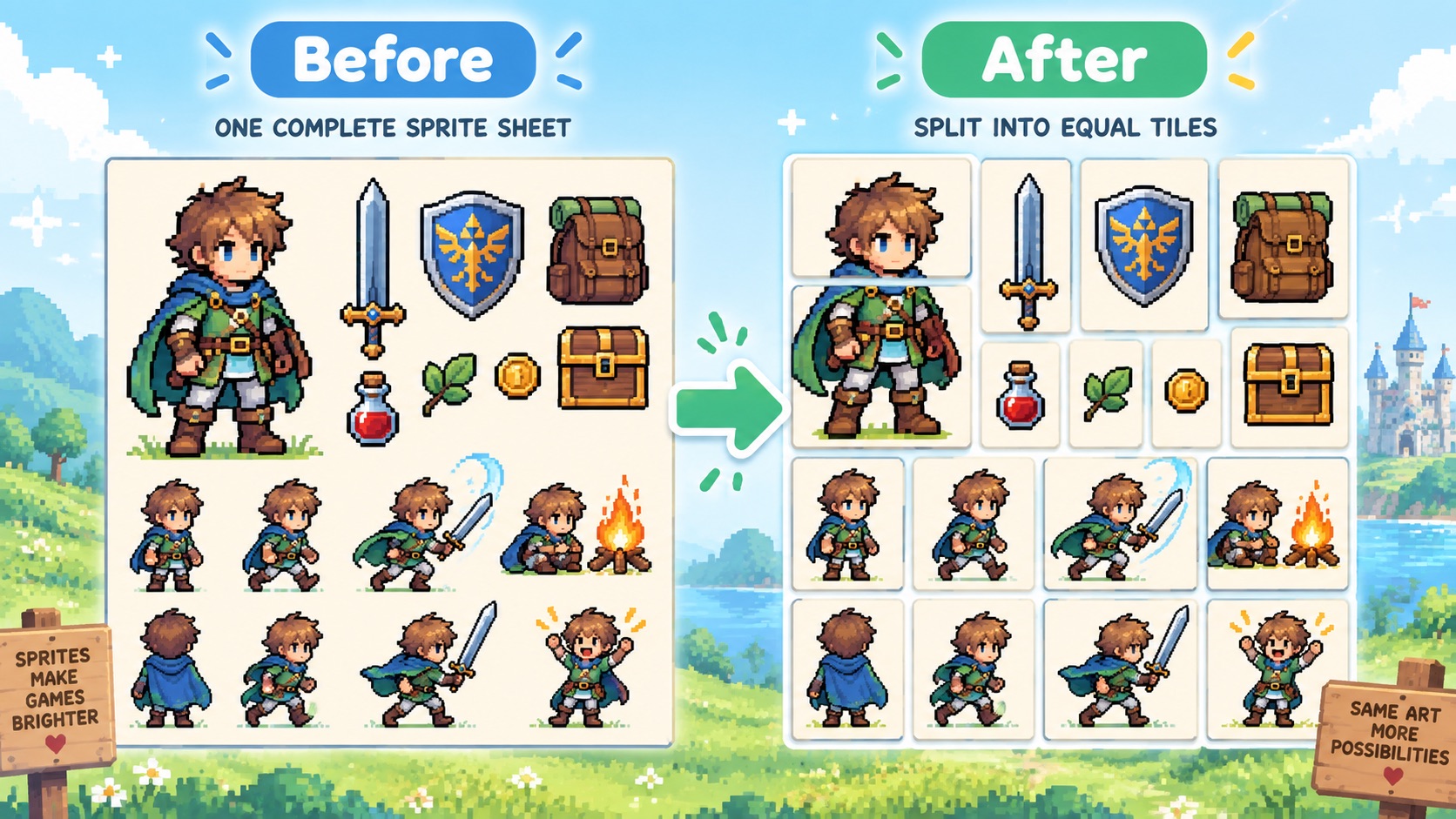
Image Splitter
Drag and drop image or Click to select image
PNG, JPG, or WebP (Max 10MB)
Or Select from
More AI Image Generators
Explore our collection of specialized AI image generators designed for different creative needs and styles

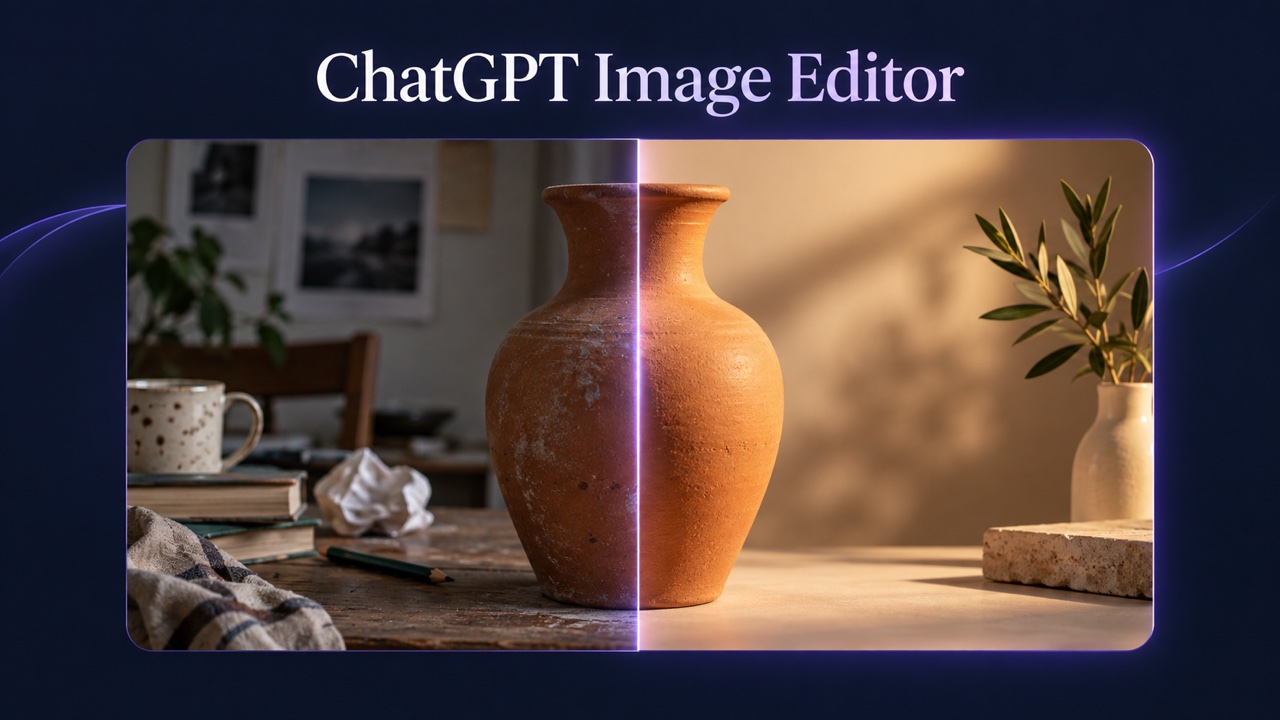
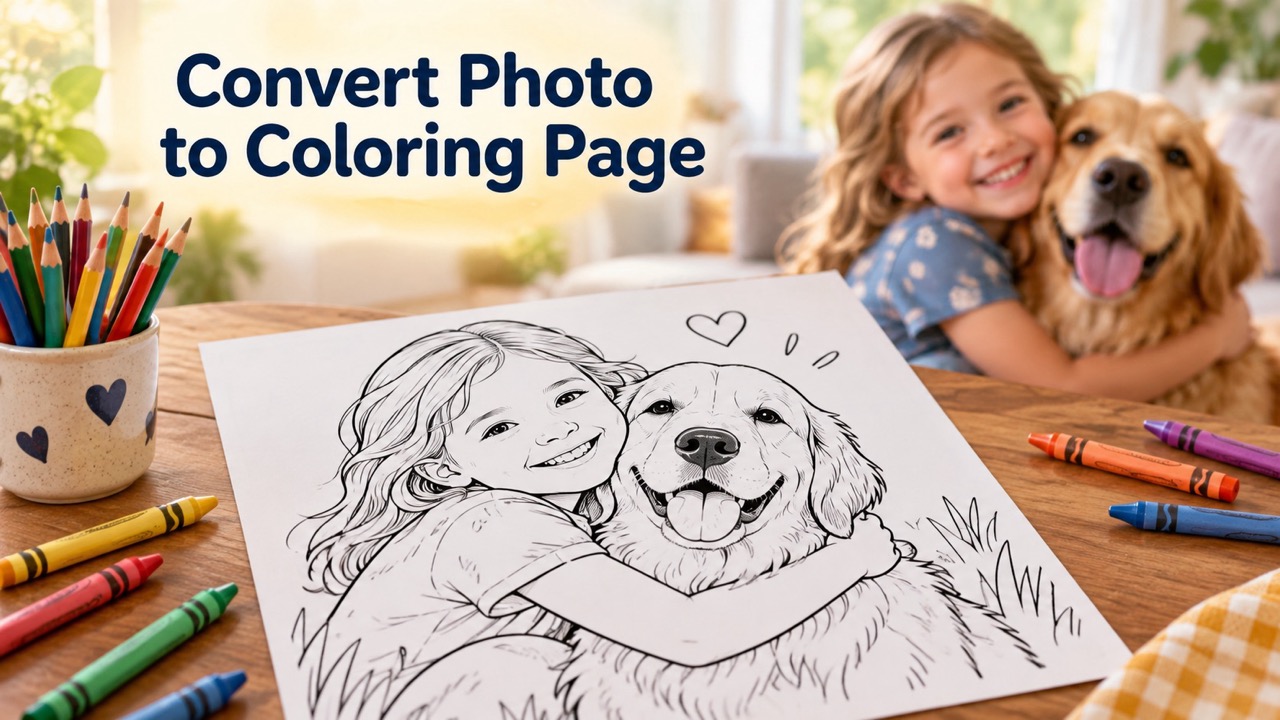
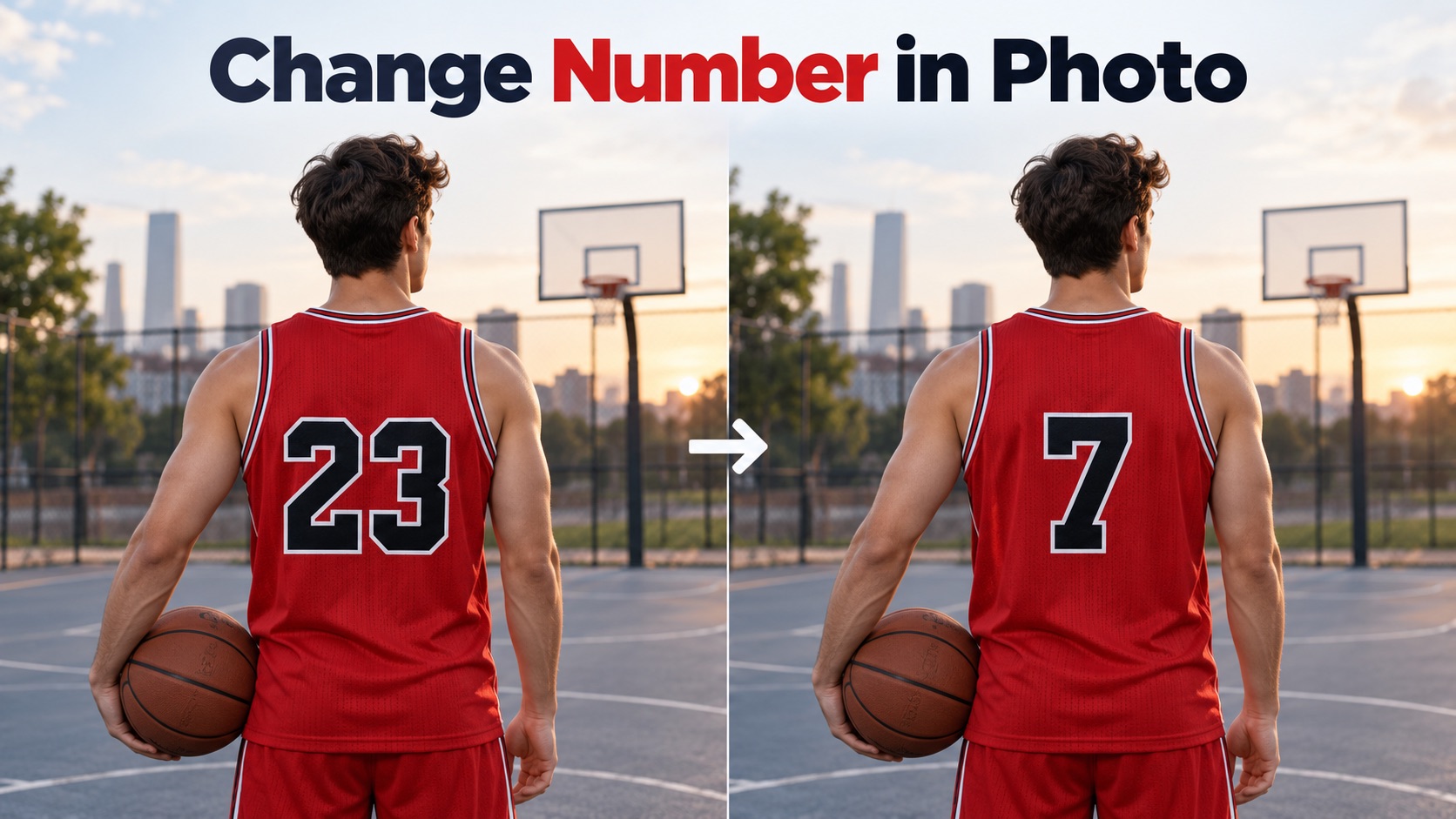
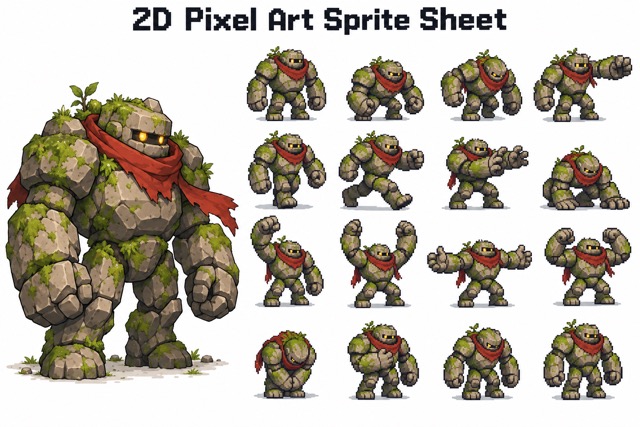






Image Splitter: Split Any Picture Into Clean, Custom Pieces
Turn one picture into separate grid tiles, flexible strips, or custom-shaped pieces with precise visual control.
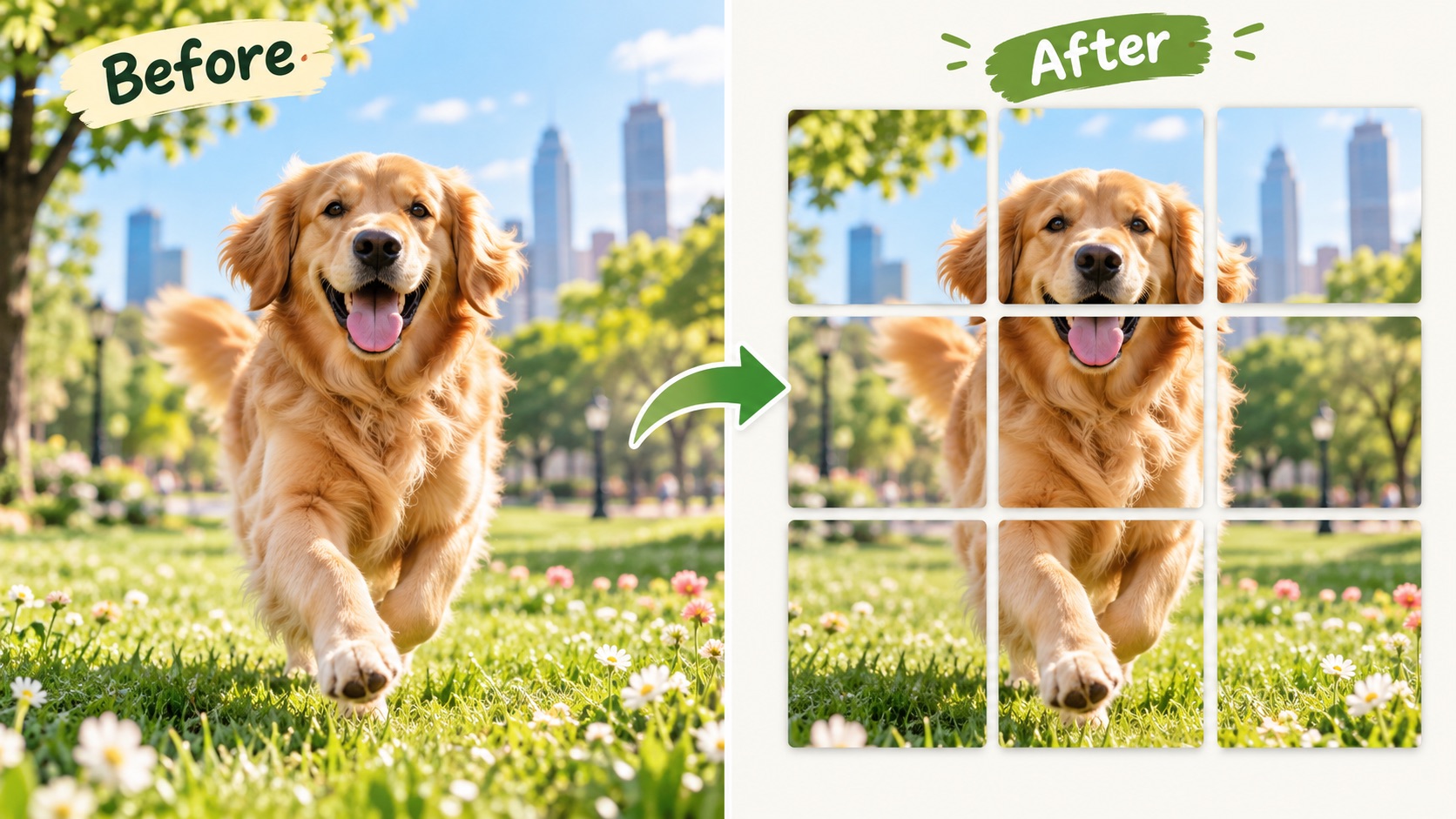
Image Splitter lets you divide one picture with three cutting methods. Use Image Grid Splitter for even rows and columns, Image Slicer guide lines for flexible straight cuts, or Custom Image Splitter points for irregular pieces. Preview every slice before saving, then download individual results, all files, or a ZIP.
How to Use Image Splitter in 3 Steps
Image Splitter follows the workflow shown in the editor: upload a source, choose how the cuts should be arranged, then cut and save. Whether you use Image Grid Splitter, free guide lines, or Custom Image Splitter, the canvas keeps the split visible before you confirm it.

Upload the Image You Want to Split
Start Image Splitter by uploading a source picture in the Controls panel. The image appears on the canvas so you can see each cut before saving. This first step keeps Split Image Into Multiple Images simple: choose one source, confirm the full picture is visible, and then decide how you want Image Slicer to divide it. This workflow works best when the source already contains the full area you intend to divide, so check the edges before moving on to the cutting controls.

Choose Uniform, Free, or Custom Cutting
Select a mode in Image Splitter. Uniform uses presets or your own Columns and Rows for Split Image Into Grid. Free lets you add vertical or horizontal guide lines and place cuts where needed. Custom lets you drag grid points while the corners stay fixed, making Custom Image Splitter useful for irregular layouts. You can also reset lines or the mesh whenever you want to start over.

Cut, Save, and Download Your Slices
When the layout looks right, click Cut and save. Image Splitter creates a slice preview below the canvas so you can check each result. Image Slicer lets you download one piece, use Download all for every slice, or choose Download ZIP for one package. The process completes Split Image Into Parts without forcing you to crop the same source again and again.
Best AI Image Tools for Creative Projects
Explore creative tools for image, learn tips and tricks, and see how AI can be your assistant in turning concepts into finished projects.




More Control Over How One Image Becomes Many
Image Splitter is designed around the cut itself, not generic editing extras. Use Image Grid Splitter for equal cells, Image Slicer for movable straight cuts, or Custom Image Splitter for a mesh you can reshape. Each mode solves a different splitting problem without forcing you into one fixed layout.
Build Even Grids with Image Grid Splitter
Image Splitter makes repeated equal crops much faster. Choose Uniform mode, select a preset such as 3x3, 4x4, 4x6, 4x7, or 5x5, or set your own Columns and Rows. Image Grid Splitter then maps the full picture into consistent cells at once. This is useful when you need to Split Image Into Grid for social layouts, reference sheets, printable tiles, puzzle assets, or content that must line up in a planned sequence. Instead of measuring every crop separately, Image Slicer keeps the boundaries visible across the whole source. Image Grid Splitter is also useful when every exported piece should follow the same visual rhythm. The full structure stays visible at once, making alignment easier to judge before any slice is confirmed.
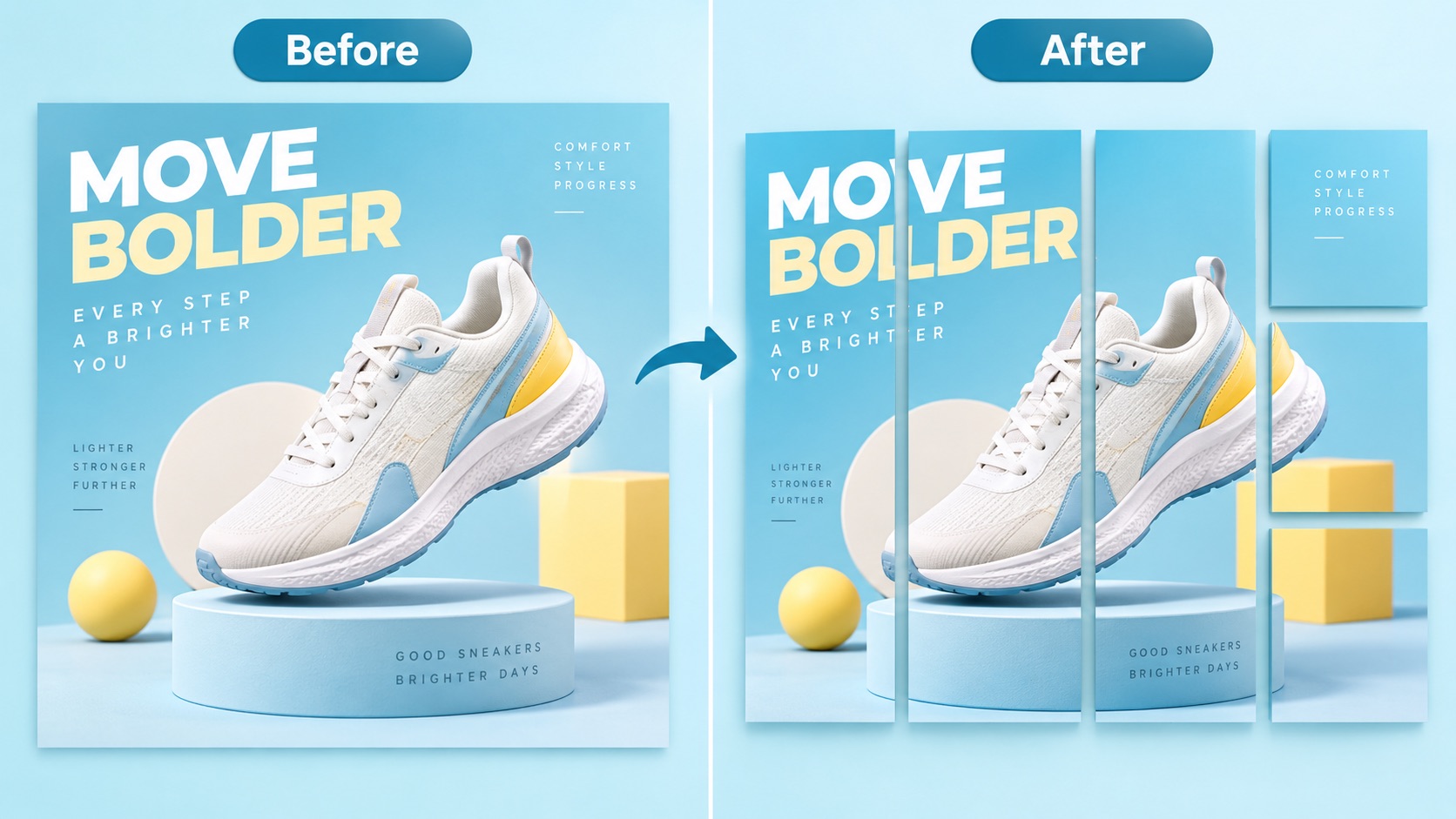
Place Straight Cuts Exactly Where the Content Changes
Not every picture fits equal cells. Image Splitter Free mode lets you add vertical and horizontal guide lines, then position them around subjects, panels, labels, artwork, or other meaningful boundaries. Image Slicer is especially helpful when one section needs more space than another but every cut should remain straight. Use Image Splitter to Split Image Into Parts while preserving the composition of each section. For posters, comic panels, product boards, or mixed-width layouts, Image Grid Splitter would force equal cells; free guides give you direct control over where each slice begins and ends. The guides stay visible across the canvas, so you can compare neighboring sections and avoid cutting through text, faces, icons, or other details you want to preserve.
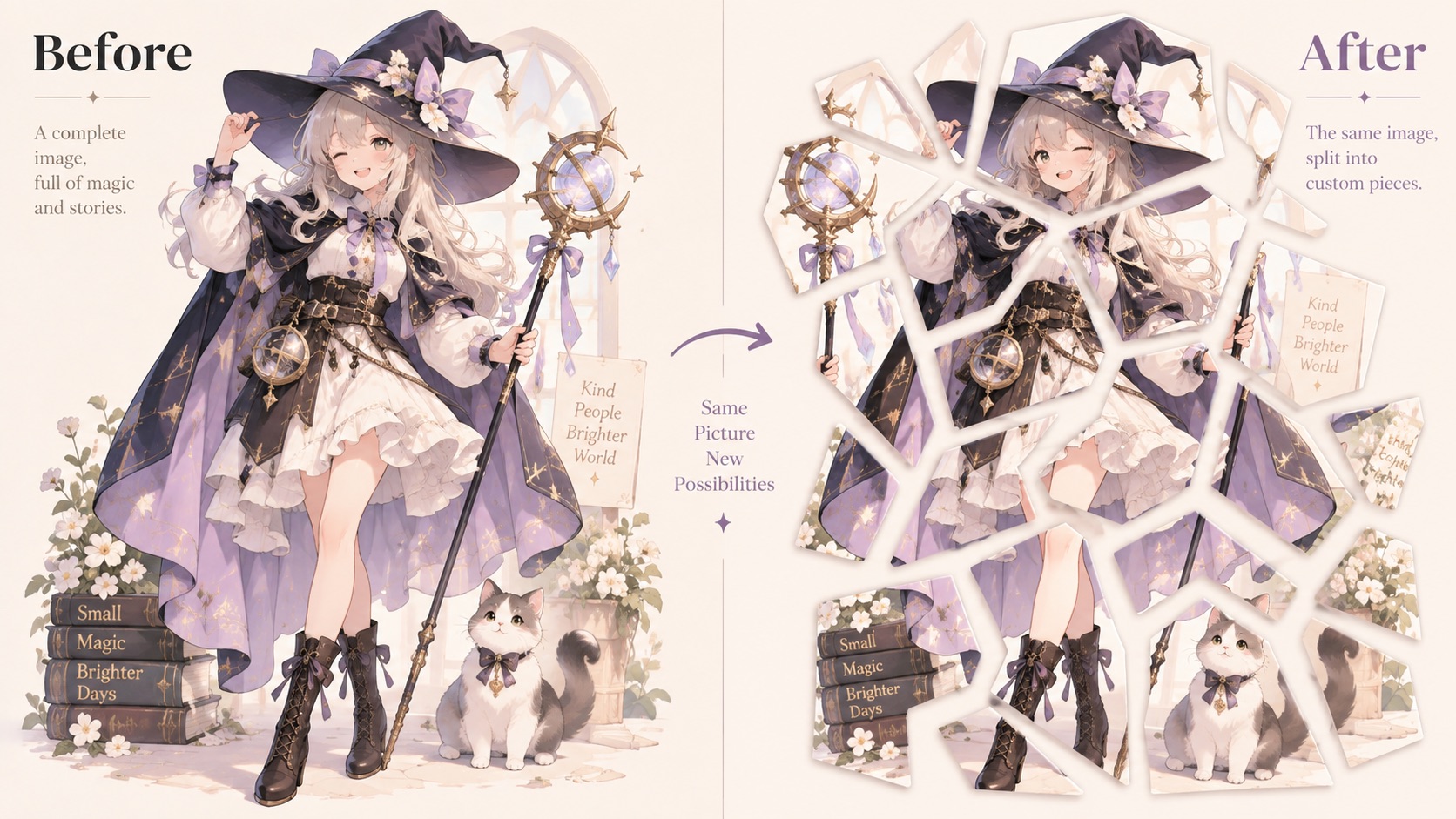
Create Irregular Slices with a Draggable Custom Mesh
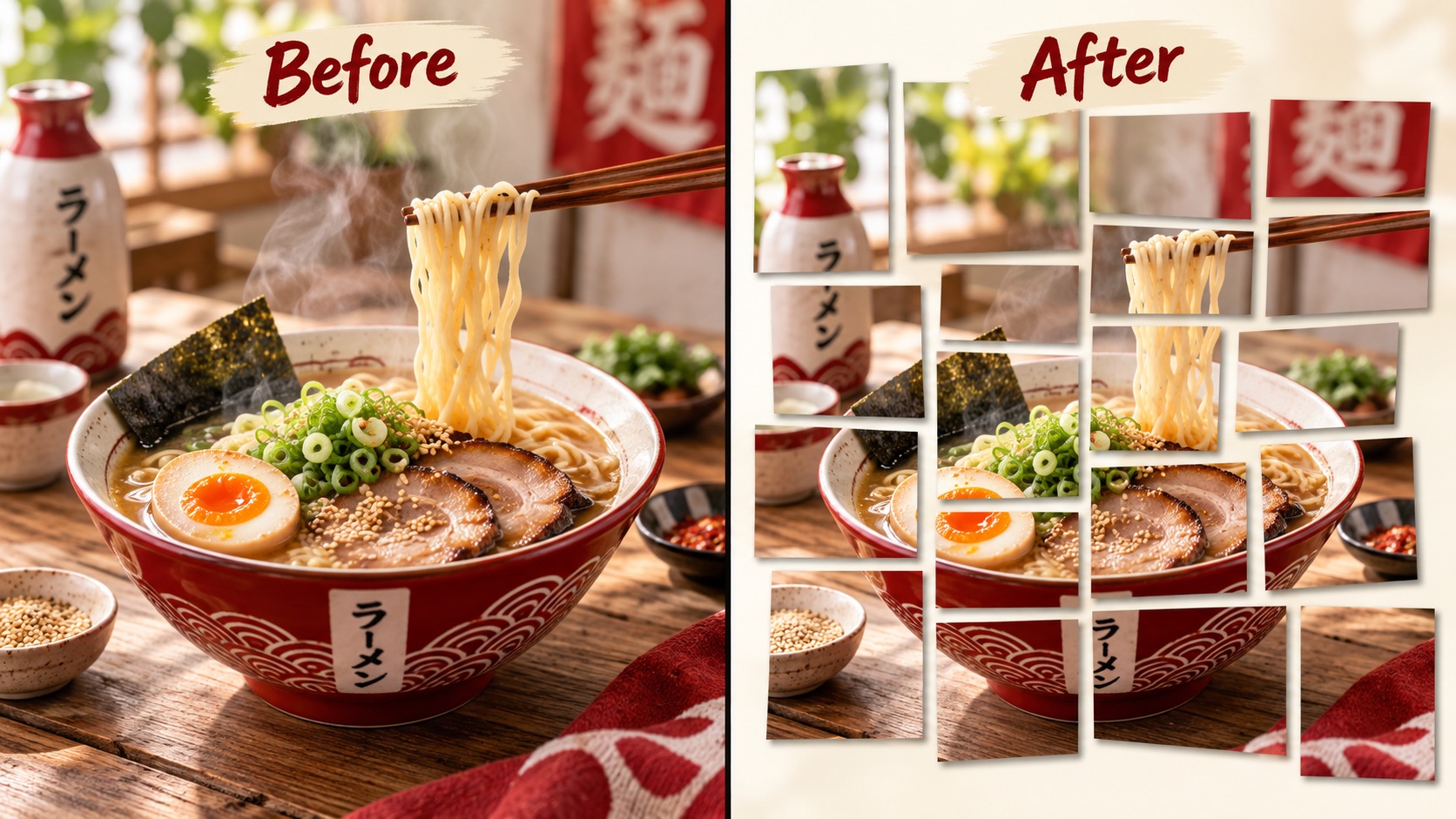
Custom Image Splitter goes beyond straight row-and-column divisions. In Custom mode, drag interior grid points to reshape the slices while the outer corners remain fixed. Image Splitter lets you see the mesh over the source, so each adjustment shows how neighboring pieces will change before you save. This is useful for creative collages, game assets, geometric artwork, asymmetrical layouts, and compositions where standard Image Grid Splitter cells feel too rigid. When you need to Split Image Into Multiple Images with intentionally uneven shapes, Image Slicer gives you a visual way to form those pieces. That makes custom cuts easier to plan because every point remains visible on the same canvas.
Who Can Use Image Splitter?
Image Splitter supports everyday grid cutting as well as more specialized layouts. Image Grid Splitter is useful for regular tile sets, Image Slicer handles flexible straight boundaries, and Custom Image Splitter helps when the source needs a more expressive cut pattern. The three modes adapt to both simple and irregular source layouts.

Social Grid and Carousel Creators
Image Splitter helps creators prepare one visual as a sequence of separate tiles. Use Image Grid Splitter when every tile should be equal, then Split Image Into Grid before arranging the pieces in order. Image Slicer can also create wider or narrower sections when a design needs different emphasis. For planned multi-post layouts, Image Splitter Online Free keeps the full composition visible while you decide where each piece should end. This is especially useful when one source needs to become a coordinated series rather than unrelated crops.

Game Artists and Asset Designers
Sprite sheets, concept boards, texture collections, and pixel-art references often need to become individual files. Image Splitter can Split Image Into Multiple Images from one source instead of requiring repeated crop actions. Image Grid Splitter works well for evenly arranged assets, while Custom Image Splitter can shape more unusual regions. Image Slicer also helps separate rows or columns with different spacing, making Image Splitter useful during asset preparation. Image Grid Splitter is especially practical for sheets built from repeated cells, while Free mode gives you another path when asset spacing is inconsistent.

Designers Working with Posters and Visual Boards
Large visual boards often contain sections that need to be reused separately. Image Splitter can Split Image Into Parts around illustrations, typography blocks, diagrams, or layout zones. Use free guide lines when the sections are unequal, or Image Grid Splitter when the board follows a regular structure. Custom Image Splitter is useful when the desired pieces are intentionally skewed or geometric. Image Slicer makes those boundaries easier to judge before any files are saved. This also makes it easier to prepare only the sections you actually need rather than exporting a full board and cropping it again elsewhere.

Teachers, Researchers, and Reference Collectors
A single scan, chart sheet, storyboard, or visual reference can contain several items worth saving separately. Image Splitter helps Split Image Into Multiple Images so each section can be reused in notes, slides, exercises, or archives. Image Grid Splitter handles consistent panels, while Image Slicer free guides work better for uneven sections. With Image Splitter Online Free, users can inspect the cuts first and avoid duplicating the same manual crop task across many pieces. The source and slice plan stay together during the process.
What Users Say About Image Splitter
Users choose Image Splitter when they need faster repeatable cuts, visible boundaries, and more than one way to divide a picture. From Image Grid Splitter layouts to Custom Image Splitter meshes, each mode gives Image Slicer a practical role in real workflows. Image Splitter keeps the cut plan visible before the final save, so the process remains easy to understand.
I use Image Splitter for multi-panel artwork that needs to become separate files. Image Grid Splitter handles the even layouts quickly, and Free mode is great when one panel is wider than the others. Being able to preview the slices before I save them makes Image Slicer much easier than repeating crops by hand. Image Splitter has become my go-to choice for this task.
Image Splitter has been useful for cutting sprite references and asset sheets. I can Split Image Into Grid when the layout is regular, then switch to Custom Image Splitter for pieces that do not fit clean rectangles. Image Slicer gives me much more control over how I prepare source images for later work. Image Splitter saves me from making the same crop repeatedly.
I needed to Split Image Into Parts from a large presentation board without opening a full editor. Image Splitter Online Free let me add straight guides exactly around each section, check the slice previews, and download everything together. Image Splitter turned a repetitive task into one clear workflow, and Image Slicer made the cut positions easy to review.
Custom Image Splitter is the part I use most. I can drag the mesh points and build irregular pieces for geometric compositions while keeping the outside corners fixed. Image Splitter shows the shapes before saving, and Image Slicer gives me separate files afterward. It is much more flexible than relying only on a standard Image Grid Splitter, and Image Splitter makes experimentation much easier.




Image Splitter FAQ
Find quick answers about grids, guide lines, custom mesh controls, saving slices, and choosing the right Image Splitter mode for your source image.
Upload a source image, choose Uniform, Free, or Custom mode, adjust the grid or guides, then click Cut and save. Image Splitter previews the resulting slices before download.
Use Uniform mode in Image Splitter, choose a preset or set Columns and Rows, then confirm the cuts. Image Grid Splitter will create equal cells across the source.
Yes. Free mode in Image Slicer lets you add vertical and horizontal guide lines so unequal rectangular sections can be created exactly where you place the cuts.
Custom Image Splitter lets you drag interior grid points to reshape neighboring slices while the canvas corners stay fixed. Image Splitter also provides Reset mesh if you want to return to the starting layout.
After Image Splitter creates the slices, you can download an individual piece, download all results, or package them together with Download ZIP.
Use Image Grid Splitter for equal rows and columns, Image Slicer Free mode for movable straight guide lines, and Custom Image Splitter when you need irregular mesh-shaped pieces. Image Splitter lets you switch to the mode that fits the source.
Split One Image Exactly the Way You Need
Use Image Splitter to turn one source into organized pieces with equal grids, flexible guide lines, or a custom mesh. Choose Image Grid Splitter, Image Slicer, or Custom Image Splitter controls, then let Image Splitter cut, preview, and prepare the slices you need.
