
More AI Image Generators
Explore our collection of specialized AI image generators designed for different creative needs and styles


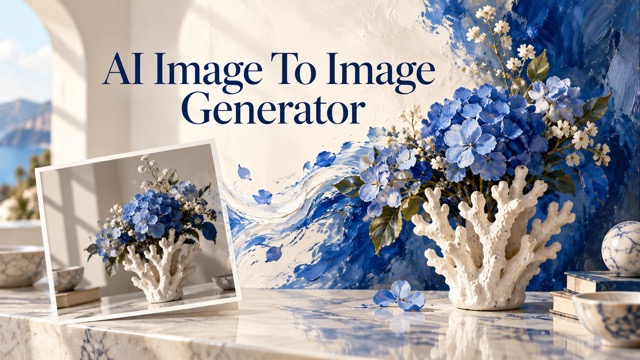

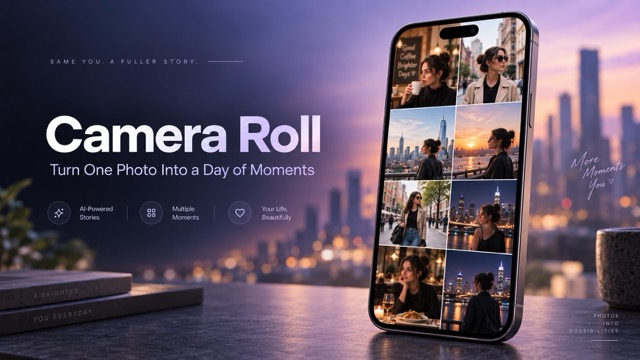
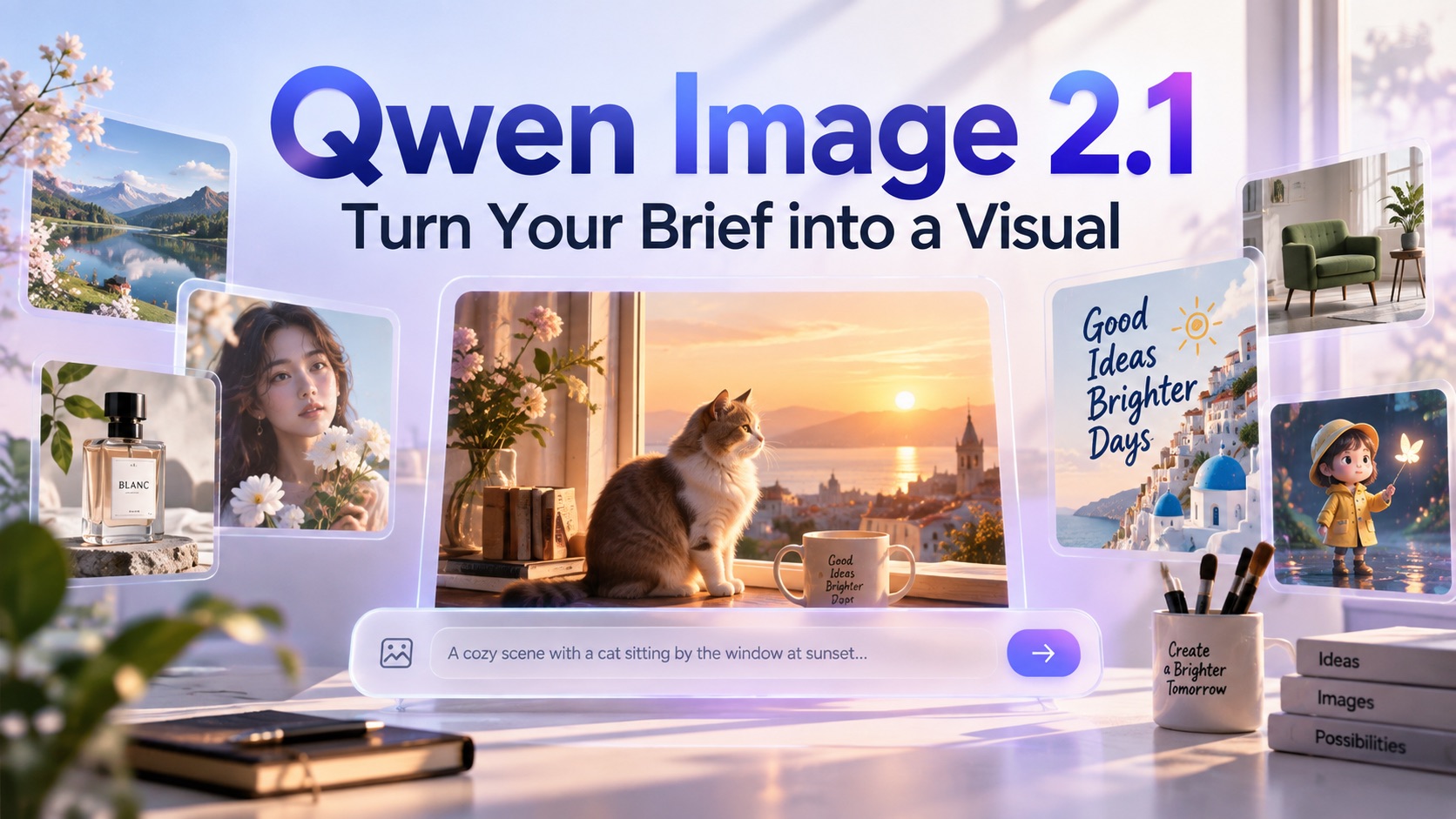
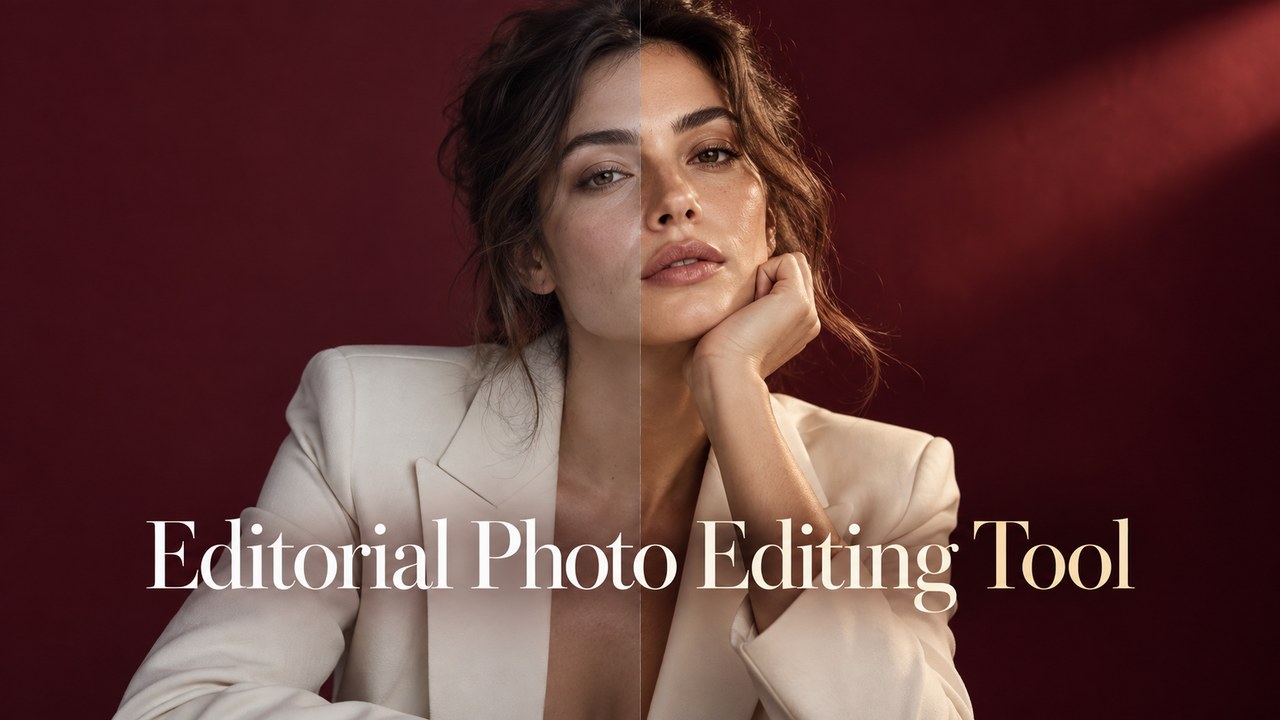




Seedream 5 Flash: Give Your Next Image a Clear Direction
A creative brief for text-to-image generation and reference-image editing.
Review draft: Seedream 5 Flash availability on Pixomi is awaiting confirmation. Turn a product idea, portrait brief, or illustrated scene into a direction you can explore. Start with a written description, or use a reference image to explain the changes you want. Build your brief around the subject, setting, and visual treatment, then review each result against the details that matter to your project.

How to Plan a Seedream 5 Flash Image
Choose a starting point, describe the result, and make each revision specific. A focused brief gives you a useful basis for comparing the image with your original idea.

Choose a Prompt or Reference
For a new scene, begin with a text description of the main subject and its surroundings. For an edit, prepare a clear source image that shows the person, product, or composition you want to work from. Check the model options available in your workspace before generating; access and input settings can differ between providers.

Describe What Should Change
State the subject first, then explain the setting, framing, materials, and lighting. When working from a reference, distinguish the elements to retain from those to change. “Keep the blue glass bottle and silver cap; replace the background with pale stone and soft daylight” is easier to assess than “make this better.”

Inspect and Refine the Result
Compare the result with your brief. Check the subject’s shape, small details, and visual balance. For a reference edit, look for changes you did not request. Refine the most important issue with a focused instruction rather than adding several unrelated changes at once.
Best AI Image Tools for Creative Projects
Explore creative tools for image, learn tips and tricks, and see how AI can be your assistant in turning concepts into finished projects.
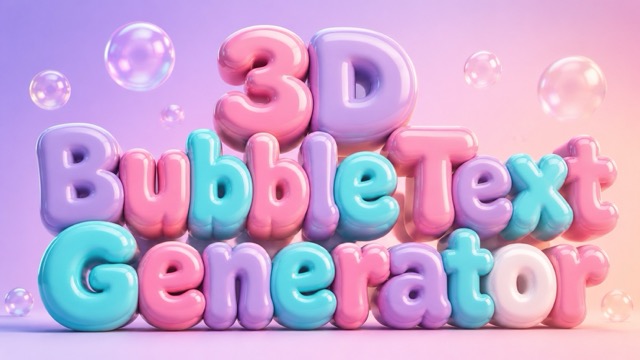
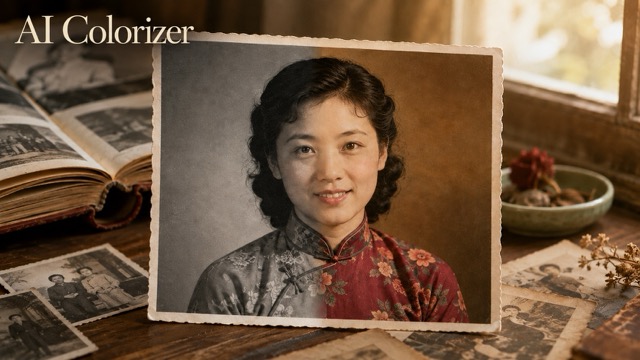
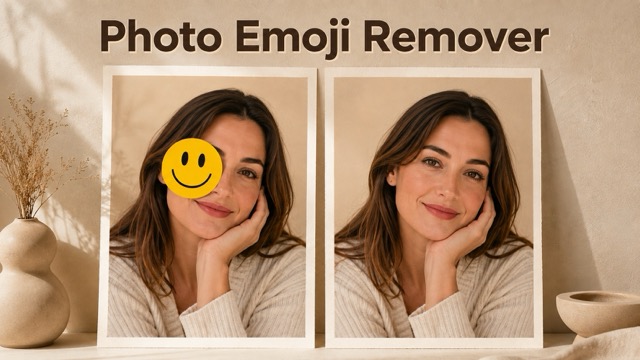




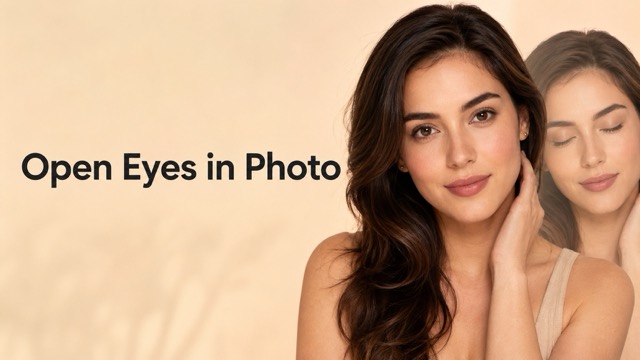
Features of Seedream 5 Flash
Use these approaches to plan generation and editing tasks. Confirm the selected model’s available controls before applying a brief in your workspace.

Create a Scene from Text
A written brief can establish an image before you have a source photo. Describe the central subject, its relationship to the environment, and the visual purpose. A perfume bottle on pale stone needs a different composition from a village beside a lake or a portrait in a greenhouse.
Add details that affect the result: the bottle’s material, the direction of light, the camera distance, and the space around the subject. Avoid relying on a long list of quality adjectives. A concrete scene gives you something meaningful to evaluate and refine.

Direct an Edit with a Reference
A reference image provides a starting point for a transformation. Explain which elements should remain recognizable and which should change. For a product, name the shape, material, and distinctive features. For a portrait, separate the person from the surroundings you want to adjust.
Keep the first request narrow when fidelity matters. Changing a background is easier to review than changing the background, clothing, pose, and lighting together. Compare the result with the source before treating it as a finished asset. Reference editing is a creative process, not a guarantee that every detail will remain identical.

Explore Lighting and Artistic Direction
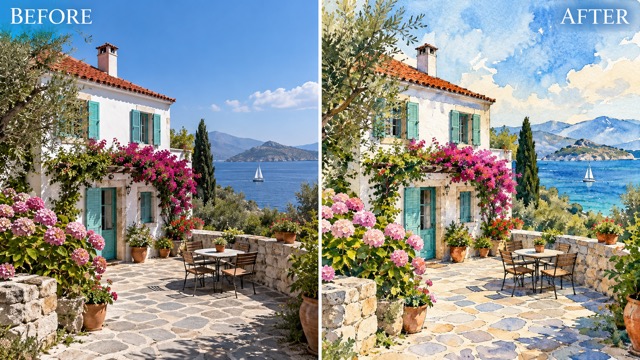
Use your prompt to define a visual treatment: soft window light, restrained studio photography, expressive gouache, or a warm architectural interior. Describe the mood through observable details such as shadow softness, surface texture, and color relationships.
Keep the central subject description stable when comparing different directions. That makes it easier to judge whether a treatment serves the brief. Separate generations may still vary in composition or subject details, so assess each image rather than assuming that a shared prompt produces an identical scene.
Compose for the Intended Layout
Plan where the image will appear before describing the frame. A product card may need a clear central object; an editorial cover may need breathing room; an interior concept may benefit from a wider environmental view.
Mention the space you want around the subject and the details that should remain visible. Choose from the output settings actually offered by your provider. After generation, review the image at its intended display size. Add precise typography and final layout elements in your design tool when their placement must be exact.
Use Cases of Seedream 5 Flash
Build a brief around the job the image needs to do. These scenarios are starting points for concept development, not promises of a particular output.
Product and Campaign Concepts
Use a product reference to plan a seasonal setting, a cleaner tabletop scene, or a different mood for a campaign. Describe the object separately from its surroundings so the intended change is clear. Review the result for accurate proportions, materials, and recognizable features before presenting it as a product image.
Editorial and Social Imagery
Plan a supporting image for an article, announcement, or social post. Describe the idea, intended mood, and composition. Leave room for headings you will add later. For portrait work, inspect facial details and the relationship between the person and the setting before selecting a result for your layout.
Illustration and Story Settings
Develop a visual direction for a story, mood board, or illustrated scene. Specify the medium, perspective, palette, and important objects. A gouache village beside a lake should have a different treatment from a photographic rainforest close-up. Use the brief to compare meaningful creative choices rather than collecting unrelated images.

Interior and Design Presentations
Describe a room’s materials, furniture, lighting, and focal point to explore an interior concept. Use the result to discuss atmosphere and art direction. Check spatial relationships and object details before including the image in a presentation. Treat generated interiors as visual concepts rather than technical drawings or accurate construction plans.
Example Creator Feedback of Seedream 5 Flash
Illustrative feedback with fictional names and roles. These examples are not verified customer testimonials.
Example testimonial: A focused product brief helps me compare visual directions while keeping the source photo available for checking the important details.
Example testimonial: Describing the framing and background gives me a clearer starting point for an editorial image than asking for something vaguely cinematic.
Example testimonial: Naming the medium and palette helps me explore a consistent artistic direction before I choose which composition to develop.
Example testimonial: Planning open space around the subject makes it easier to think about the headline and crop before I finish a social layout.
Example testimonial: A specific room brief gives our review conversation a visual starting point. I still check the spatial details before presenting the concept.




Seedream 5 Flash FAQ
Plan your inputs, write a focused prompt, and check the model options available in your workspace.
This draft introduces a prompt-led approach to image creation and reference editing. It explains how to prepare a brief, direct changes, and evaluate a result. Pixomi’s specific Flash access and settings still need confirmation before this page can describe the model as available on the platform.
A reference is useful when the task starts from a particular image, person, product, or composition. A new scene can instead begin with a written description in a text-to-image workflow. Check the selected model’s supported input options. For edits, use a clear source and explain what should stay and what should change.
Start with the subject and scene, then add framing, materials, and lighting. For an edit, include explicit preservation instructions. For example: “Keep the blue glass bottle and silver cap. Place it on pale travertine with soft window light and open space to the right. Add no text or logos.” Review the output against those instructions.
Compare the versions available in your workspace using the same brief and the details that matter to your project. Look at composition, reference fidelity, and the usability of the result. Check current usage costs and settings separately. A version name alone does not establish a provider’s pricing, turnaround time, or output options.
Use the settings shown for the selected model in your account. Providers can expose different controls, and Pixomi’s Flash-specific resolution and reference limits have not been confirmed for this draft. Check the displayed options before generating rather than relying on another platform’s specifications.
Check small details, unwanted additions, subject proportions, and any lettering. For a reference edit, compare the result with the original. Review factual content in educational images and product accuracy in commercial material. Select the result that best fits the brief, then finish precise layout work in your usual design process.
Start with Seedream 5 Flash Now
Describe the image you need, identify the details that matter, and make your next revision specific. Explore the available image tools in Pixomi and check the model selection before starting a run.
