
More AI Image Generators
Explore our collection of specialized AI image generators designed for different creative needs and styles







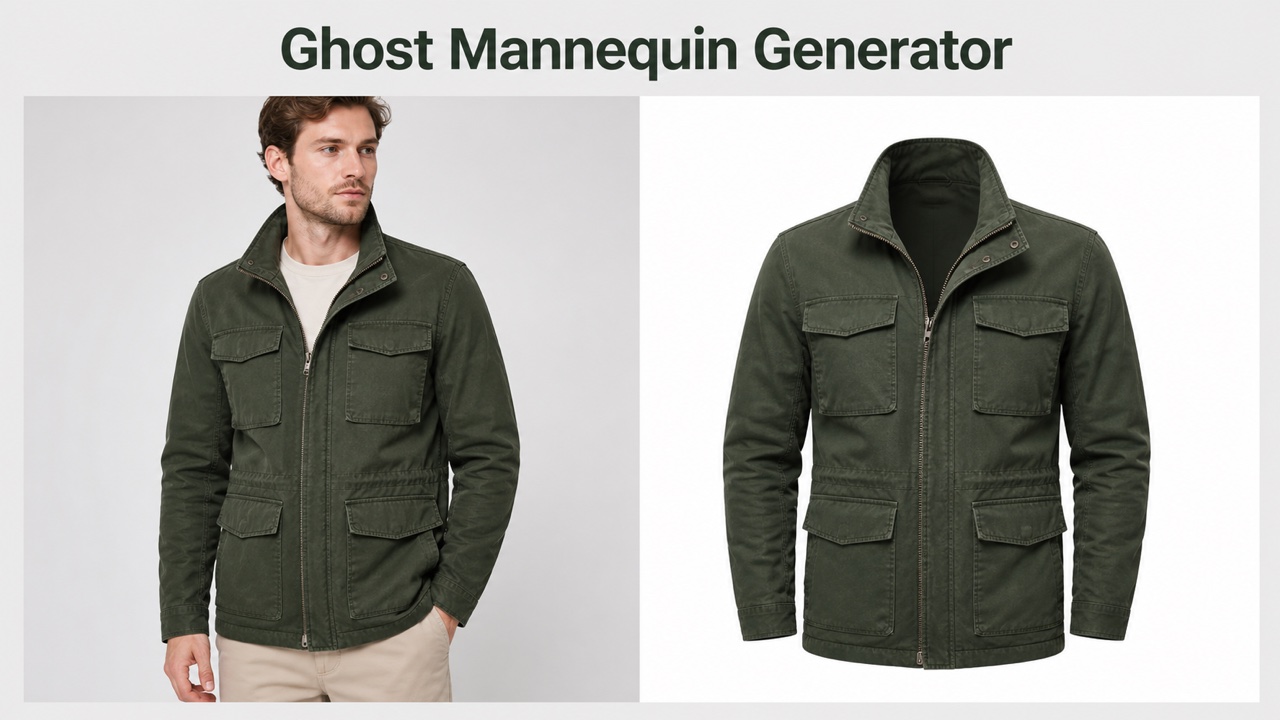


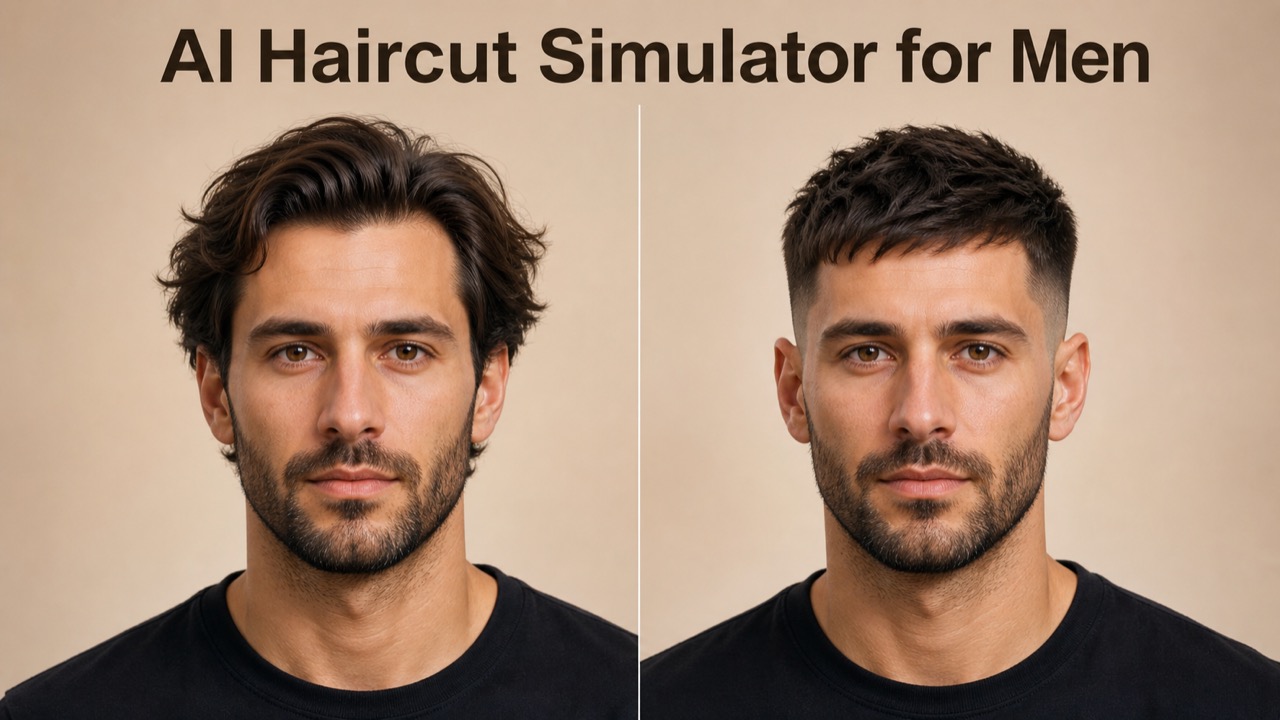
FLUX 3 Klein Image Creation For Your Next Idea
Create Original Scenes And Guide Thoughtful Photo Edits
Create a FLUX 3 Klein image from a written idea, refine an existing photo, or bring several references into one visual direction. This FLUX 3 image generator supports product concepts, editorial scenes, and personal artwork through text and image inputs. Start with a clear subject, describe the setting, and shape your FLUX 3 Klein image around the result you want to achieve.

How To Create A FLUX 3 Klein Image
A useful FLUX 3 Klein image starts with a clear brief. Follow these four steps to move from an initial idea to a result you can evaluate. The FLUX 3 image generator works with written prompts and uploaded images.

Describe Your Subject And Setting
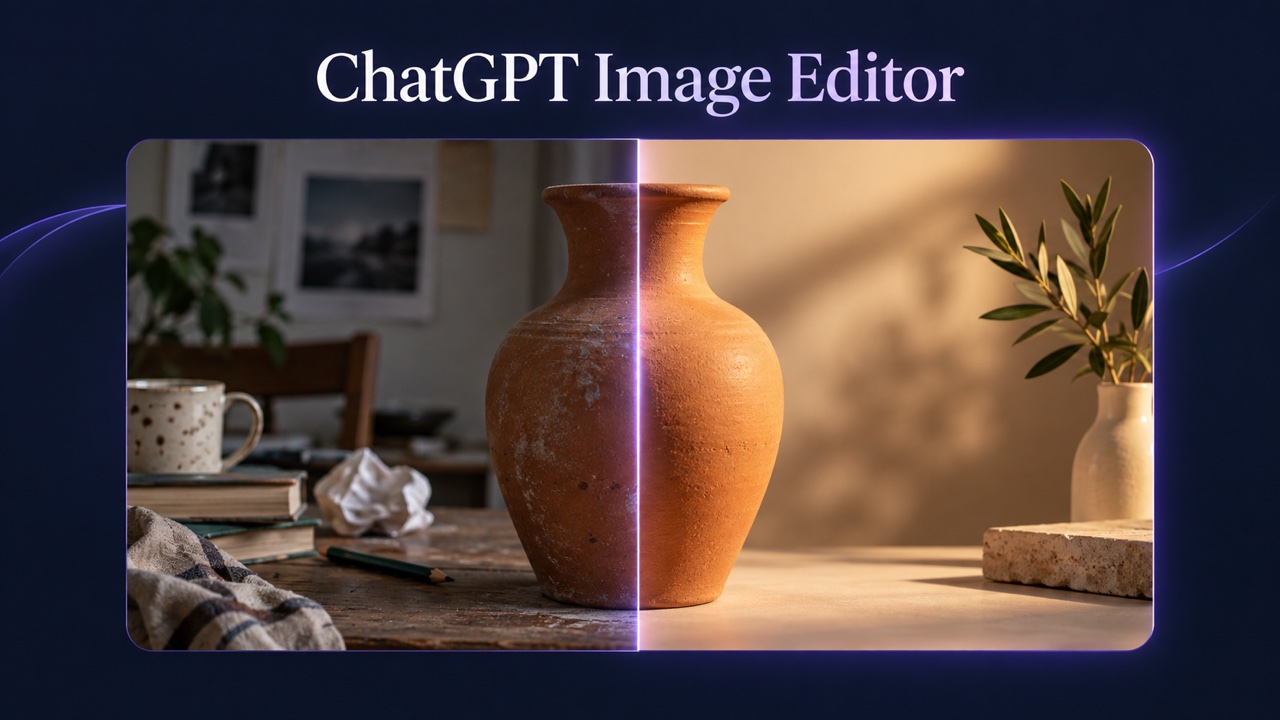
Begin your FLUX 3 Klein image prompt with the main subject, then describe the environment, camera angle, and lighting. Give the FLUX 3 image generator a concrete direction, such as a ceramic vase on a stone table beside a sunlit window. Explain the purpose of the picture so that composition and detail support the same idea.

Add References With A Clear Purpose
Upload up to ten images when your FLUX 3 Klein image needs visual guidance. Explain which reference supplies the subject, setting, or style, and identify details to retain. The FLUX 3 image generator can use these references alongside your instructions. A focused FLUX 3 Klein image brief avoids conflicting directions, such as asking one reference to define both an unchanged background and a completely new location.
Generate Your First Version
Choose the available settings, review your prompt, and generate a FLUX 3 Klein image. Begin with one coherent scene so that the result is easy to assess. In the FLUX 3 image generator, check the current credit requirement before submitting. Review the subject, framing, and lighting first, then inspect smaller details such as lettering, seams, or reflections.

Refine The Most Important Detail
Improve your FLUX 3 Klein image by changing one decision at a time. Ask the FLUX 3 image generator for a warmer palette, a simpler background, or a different crop while describing what should remain consistent. Compare the new FLUX 3 Klein image with your original brief. Keep the FLUX 3 image generator instructions focused, and inspect the finished result before using it in your project.
Best AI Image Tools for Creative Projects
Explore creative tools for image, learn tips and tricks, and see how AI can be your assistant in turning concepts into finished projects.
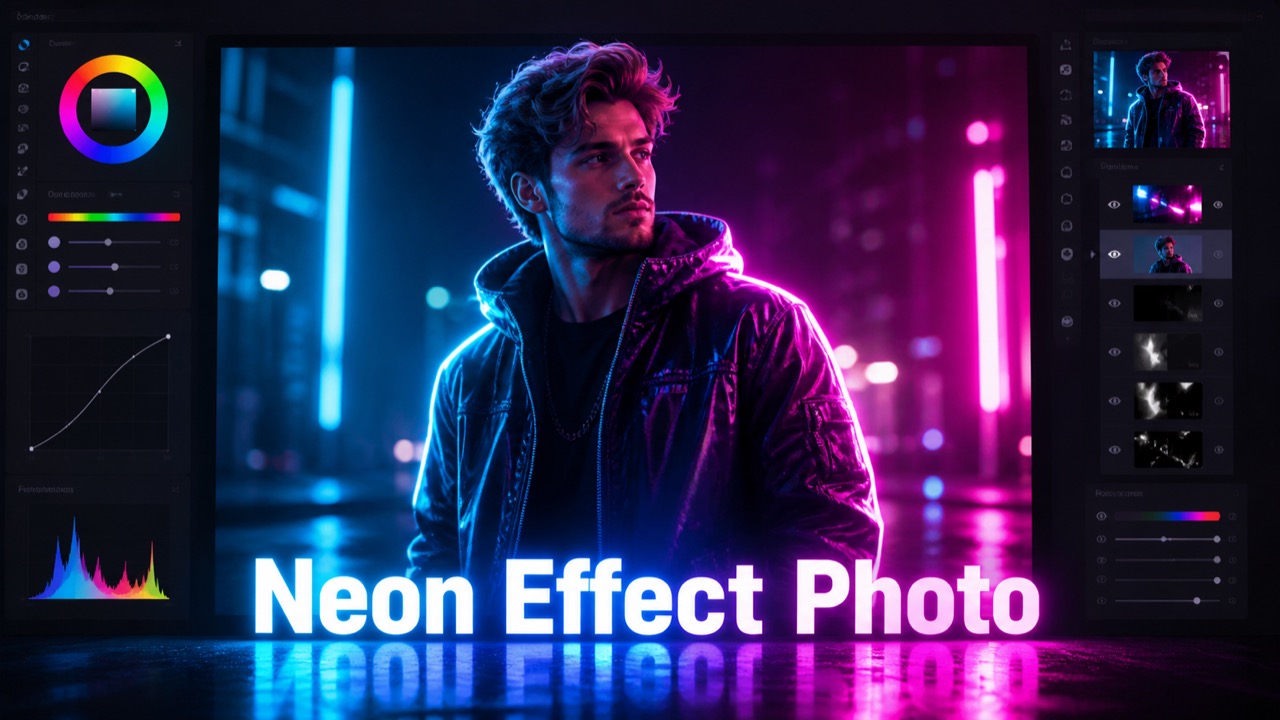
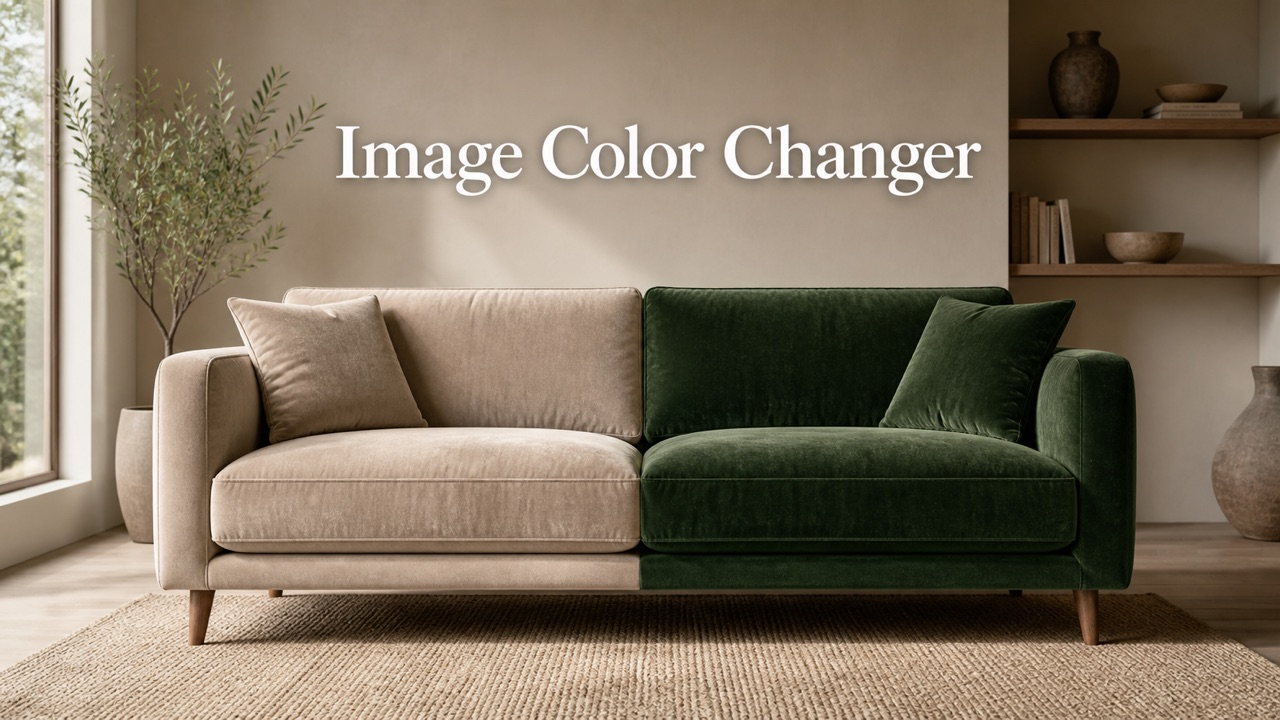
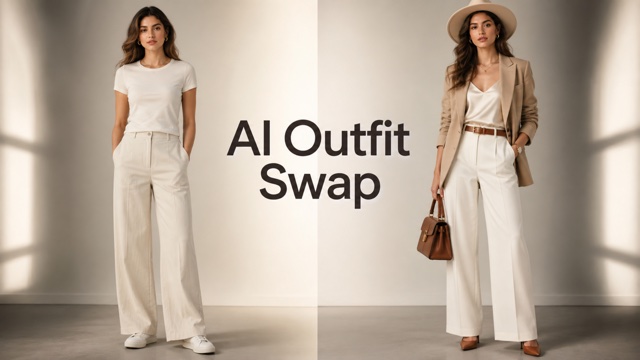




Explore FLUX 3 Klein Image Capabilities
Use FLUX 3 Klein image creation to explore new scenes, focused edits, reference combinations, and changes in atmosphere. These examples illustrate creative directions for the FLUX 3 image generator. The artwork is conceptual illustration, not verified output from this model.
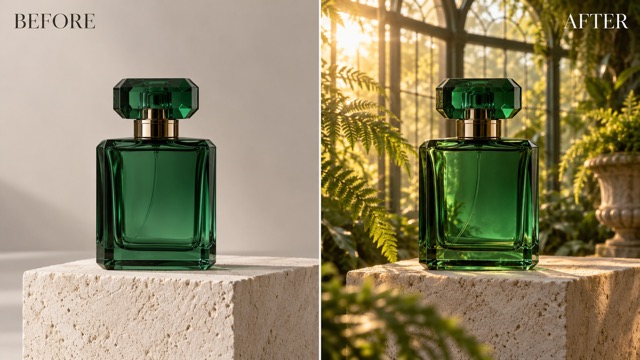
Build A FLUX 3 Klein Image From Your Brief
Turn an abstract theme into a concrete FLUX 3 Klein image by defining subject, materials, light, and location. A perfume bottle can become the focal point of a lush greenhouse scene with believable reflections and contact shadows. Use the FLUX 3 image generator to explore that setting, then compare the result with your intended mood. Specify whether the composition needs open space for a headline or a close view of the product. Clear priorities help the FLUX 3 image generator brief stay coherent.
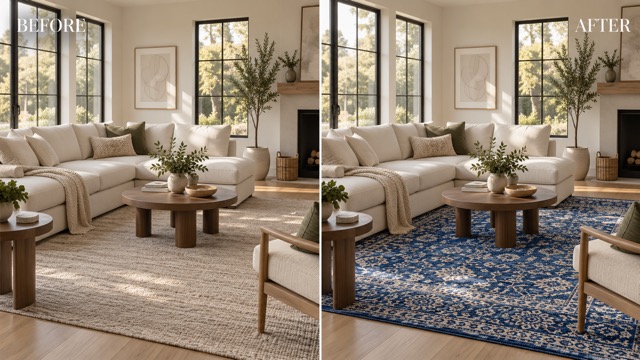
Refine A FLUX 3 Klein Image With Focused Edits
Describe a specific change to guide your FLUX 3 Klein image edit. For an interior, replace a neutral rug with a blue patterned rug while asking to retain the furniture arrangement and window light. The FLUX 3 image generator accepts an uploaded image and a written instruction, giving you a starting point for controlled revisions. Name the target clearly and review nearby details afterward. Use the FLUX 3 image generator to compare design choices without assuming that every untouched detail will remain identical.

Guide A FLUX 3 Klein Image With References
Build a FLUX 3 Klein image around recognizable features from your source material. For example, use a backpack reference to describe its orange fabric, pockets, and straps while requesting an alpine setting. The FLUX 3 image generator supports up to ten reference images on this page. Give each one a distinct role rather than uploading near duplicates without explanation. After generation, check proportions, buckles, and contact shadows. A good FLUX 3 image generator brief separates the subject you want to retain from the environment you want to change.
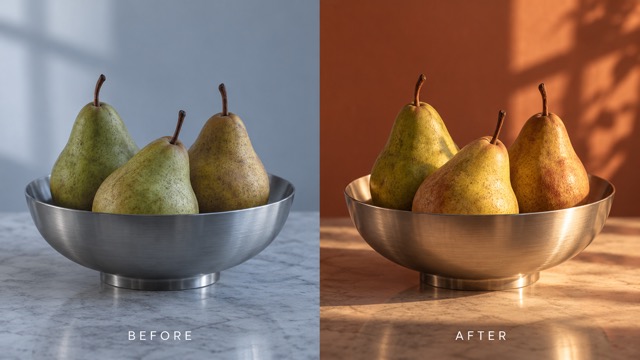
Shape A FLUX 3 Klein Image Through Light
Compare the atmosphere of a FLUX 3 Klein image under cool window light and warm afternoon sun. Describe the direction of light, the background color, and the surface beneath your subject. The FLUX 3 image generator can help you explore these choices through successive prompts. Keep the arrangement recognizable so that the change in mood is easy to judge. Look for consistent shadow directions, believable reflections, and enough contrast to make the subject stand out.
Put FLUX 3 Klein Image Creation To Work
Choose a practical purpose for each FLUX 3 Klein image, from a campaign concept to an illustrated story. The FLUX 3 image generator gives you a way to explore alternatives before selecting a direction.
FLUX 3 Klein Image Concepts For Products
Develop a FLUX 3 Klein image around a product, audience, and campaign mood. Explore surfaces, backgrounds, and lighting with the FLUX 3 image generator, then compare the options against your brief. Check logos, packaging details, and material appearance before treating an image as a finished product visual.
FLUX 3 Klein Image Ideas For Editorial Work
Translate an article theme into a scene or visual metaphor. Use the FLUX 3 image generator to explore compositions with space for a headline, then choose a version that reads clearly at its intended size. A simple subject and deliberate palette can help the message remain easy to understand.
FLUX 3 Klein Image Exploration For Interiors
Use a FLUX 3 Klein image to discuss a room's palette, lighting, or decorative details. Ask the FLUX 3 image generator for a focused variation, such as a different rug or wall treatment. Review perspective and furniture placement so that the proposed change remains useful as a design concept.
FLUX 3 Klein Image Inspiration For Stories
Give an imagined place, character setting, or personal art idea a visible form. The FLUX 3 image generator can support early exploration of mood and composition. Keep a concise record of your preferred subjects, colors, and lighting so that later images follow a deliberate creative direction.
Creative Perspectives On FLUX 3 Klein Image Projects
The following fictional names and illustrative reactions describe possible creative workflows; they are not verified customer endorsements.
A clear brief makes each creative decision easier to discuss.
Separating subject, setting, and light gives my feedback a purpose.
Leaving room for a headline changes the composition in a useful way.
Real materials and believable light make a concept convincing.
Changing one palette or shadow at a time helps me develop an idea.
An image is easier to review when its audience and message are clear. I want every concept to have a useful place in the broader content plan.






FLUX 3 Klein Image FAQ
Find answers about FLUX 3 Klein image creation, the model selected on this page, and reference uploads. Use this guide to prepare your next FLUX 3 image generator project.
FLUX 3 Klein is a 5.6B parameter open weights model released by Black Forest Labs on October 15, 2026. It supports text-to-image generation, image editing, and generation with multiple references. A FLUX 3 Klein image can begin with a written scene description or uploaded visual guidance. This FLUX 3 image generator page brings text and image inputs together for exploring those workflows.
This page is configured to use FLUX 3 Klein for both text-to-image and image-to-image workflows. Your FLUX 3 Klein image project can start from a prompt or from uploaded reference images. The FLUX 3 image generator uses the model's reference limit of up to ten images. Choose the available settings and review the credit requirement displayed before submitting your request.
Yes. You can upload up to ten reference images for a FLUX 3 Klein image project on this page, or begin with one photo and describe an edit. Tell the FLUX 3 image generator what each reference contributes and which details should remain consistent. For example, one image can define a product while another suggests a setting. Review the output for unintended changes.
Black Forest Labs describes native 4K generation and bounding-box controls as FLUX 3 Klein image capabilities. The settings available in this FLUX 3 image generator determine which options you can use here. Check the controls shown before planning a workflow around a particular resolution or region selection. A capability in the official model release does not by itself confirm that the FLUX 3 image generator interface exposes it.
The artwork illustrates creative possibilities and has not been verified as output from FLUX 3 Klein. The names and reactions in the perspectives section are fictional examples, not verified customer endorsements. Use the FLUX 3 image generator with your own prompt to evaluate the result for your project. Check the details that matter to you, especially subject appearance, composition, and any text.
Check the current credit requirement and account options before generating a FLUX 3 Klein image. This page does not promise free or unlimited generation. Any trial credits depend on the platform's current offer. When using the FLUX 3 image generator, review the applicable platform terms for your intended use; the model's open weights release does not establish the pricing or usage terms of this hosted service.
Create Your Next FLUX 3 Klein Image
Bring one clear idea to the FLUX 3 image generator and develop a FLUX 3 Klein image around your subject, setting, and creative goal. Start with text, add references when useful, and review the details before deciding on your next edit. Use the FLUX 3 image generator to explore a direction you can build on.
