
More AI Image Generators
Explore our collection of specialized AI image generators designed for different creative needs and styles







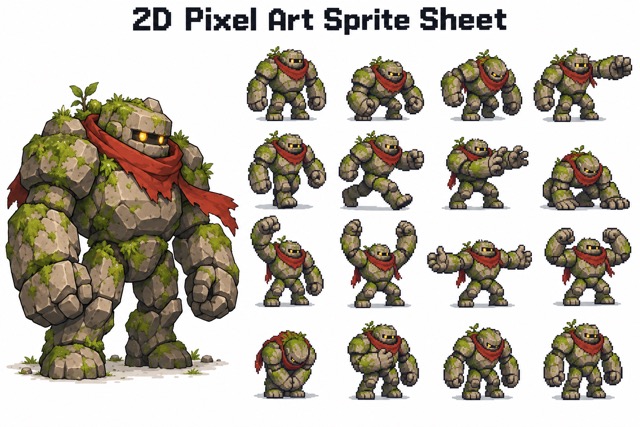
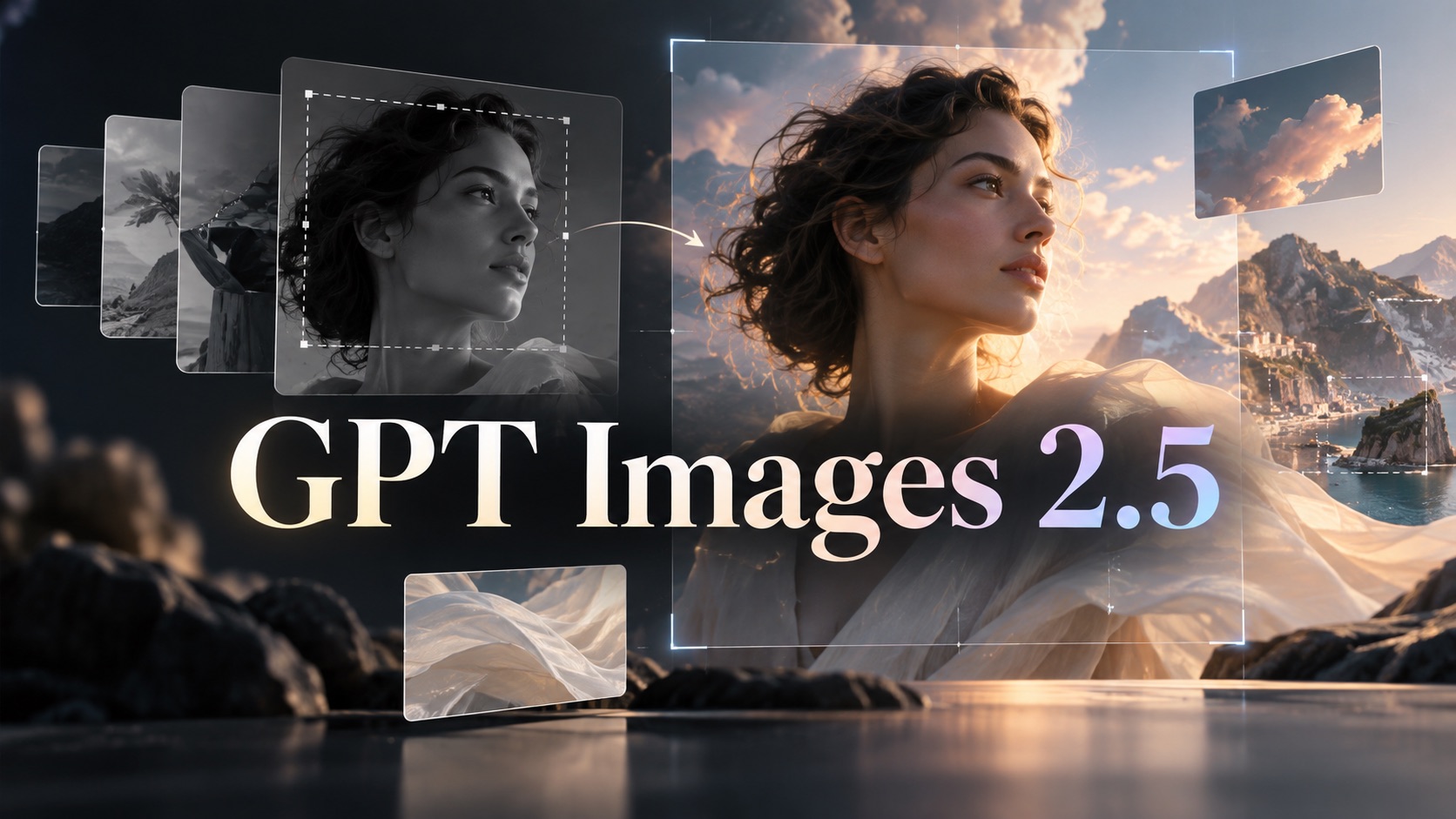
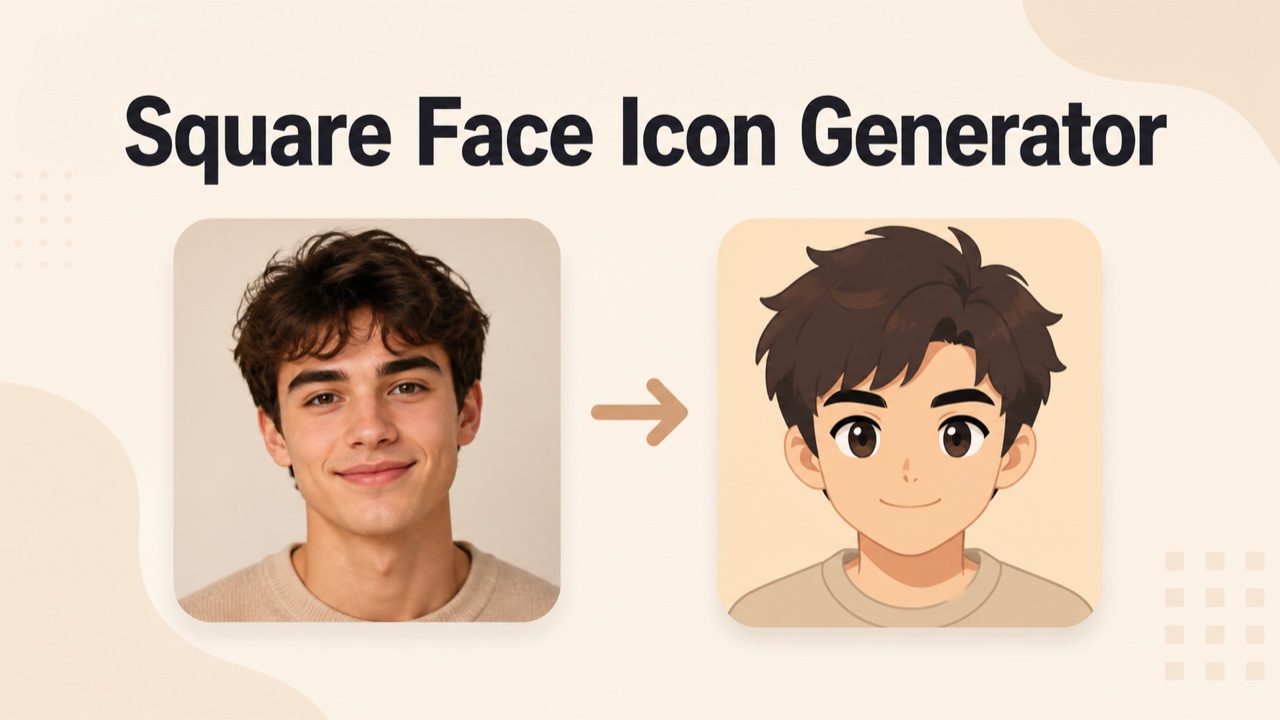

Seedream 5.5 AI Image Generator
Turn A Visual Idea Into A Finished Asset
Seedream 5.5 combines an AI image generator with an AI image editor. Develop a character, polish a campaign concept, or prepare transparent elements while keeping each revision connected to your original creative idea.
Build A Visual Direction With Seedream 5.5
Begin with a purpose rather than a pile of style words. Seedream 5.5 supports a workflow that moves from a written concept to references and focused revisions. Give the AI image generator a clear destination, then use the AI image editor to resolve the details you can actually see.

Choose A Starting Point For Seedream 5.5
Name the finished piece before describing its decoration: an illustrated announcement, a character asset, a fashion study, or a scene for a presentation. Tell Seedream 5.5 where the subject belongs and which parts need breathing room. An AI image generator has a more useful target when the composition serves a purpose.

Bring References Into Seedream 5.5
Use a reference when a particular silhouette, palette, pose, or material carries the idea. Explain its role instead of asking the model to copy every visible detail. Seedream 5.5 can interpret the relationship between your instruction and an image. The AI image editor then has a concrete source to work from. For consistent character designs, identify the proportions and distinctive accessories that should carry through the next version.

Direct A Revision With Seedream 5.5
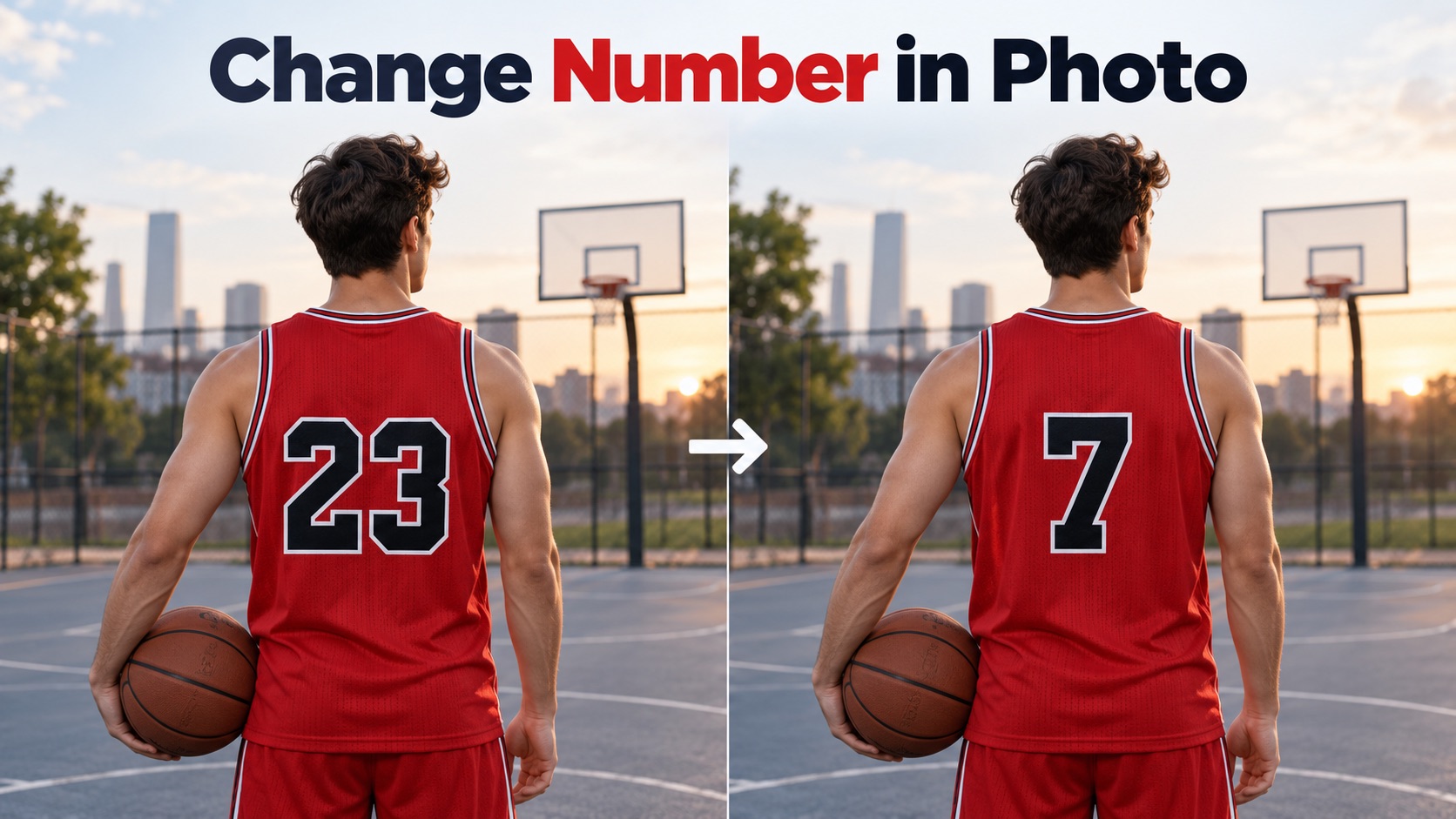
After the first image, decide which single change would make it more useful. Ask Seedream 5.5 to alter a sleeve color, move a prop, or adjust a surface finish while retaining the rest of the arrangement. To edit images with text, make the instruction specific enough to check visually. This gives the AI image editor a bounded task and makes your next creative decision much clearer.

Review Your Seedream 5.5 Asset
Look at Seedream 5.5 output at the size and against the background where you intend to use it. Check fine edges, small letters, shadows, and spacing before choosing your final version. Seedream 5.5 can help create transparent images, but inspect the exported alpha channel when transparency matters. Treat the AI image generator as the beginning of a design process that includes selection, review, and practical placement. Check readable text in images at the smallest size people will actually see.
Best AI Image Tools for Creative Projects
Explore creative tools for image, learn tips and tricks, and see how AI can be your assistant in turning concepts into finished projects.
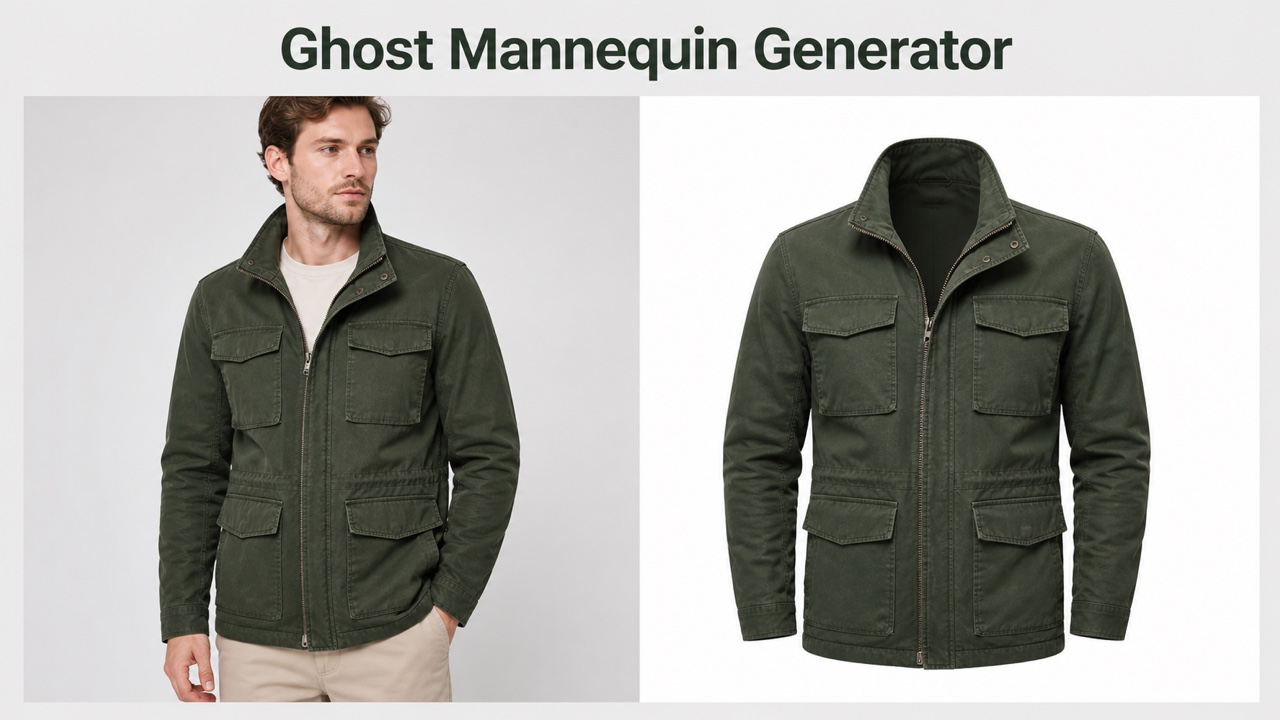

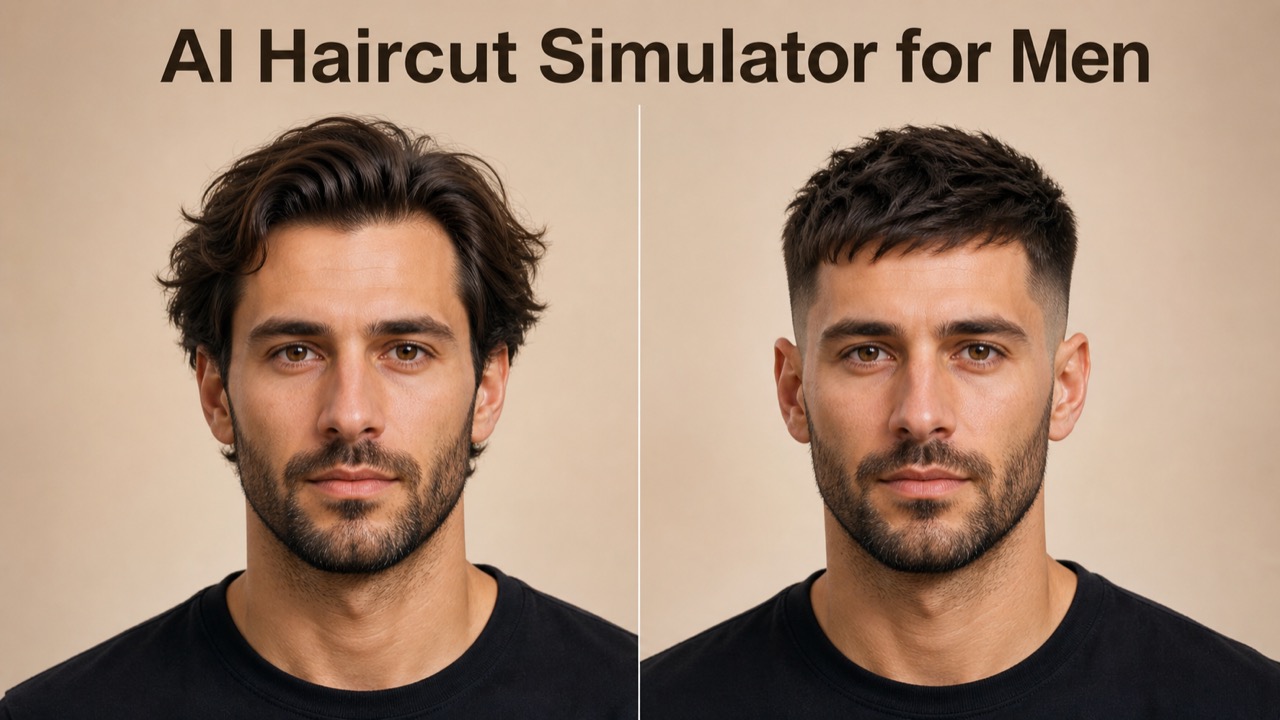
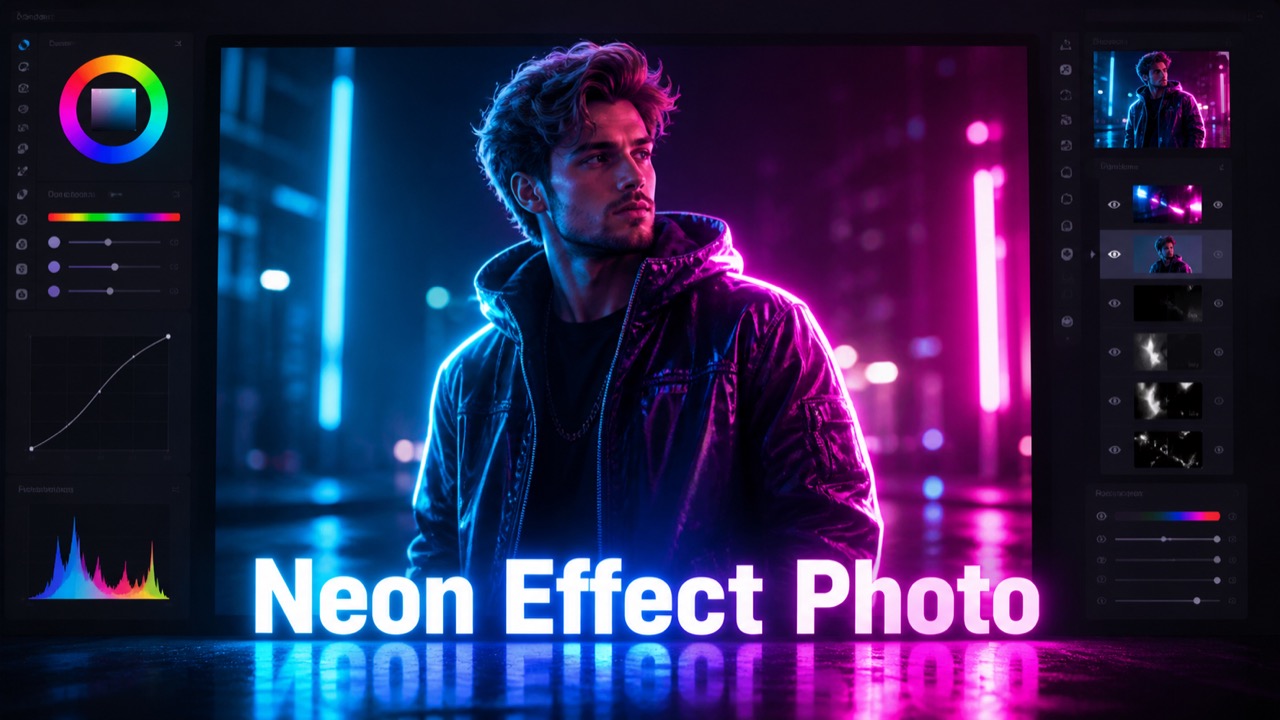

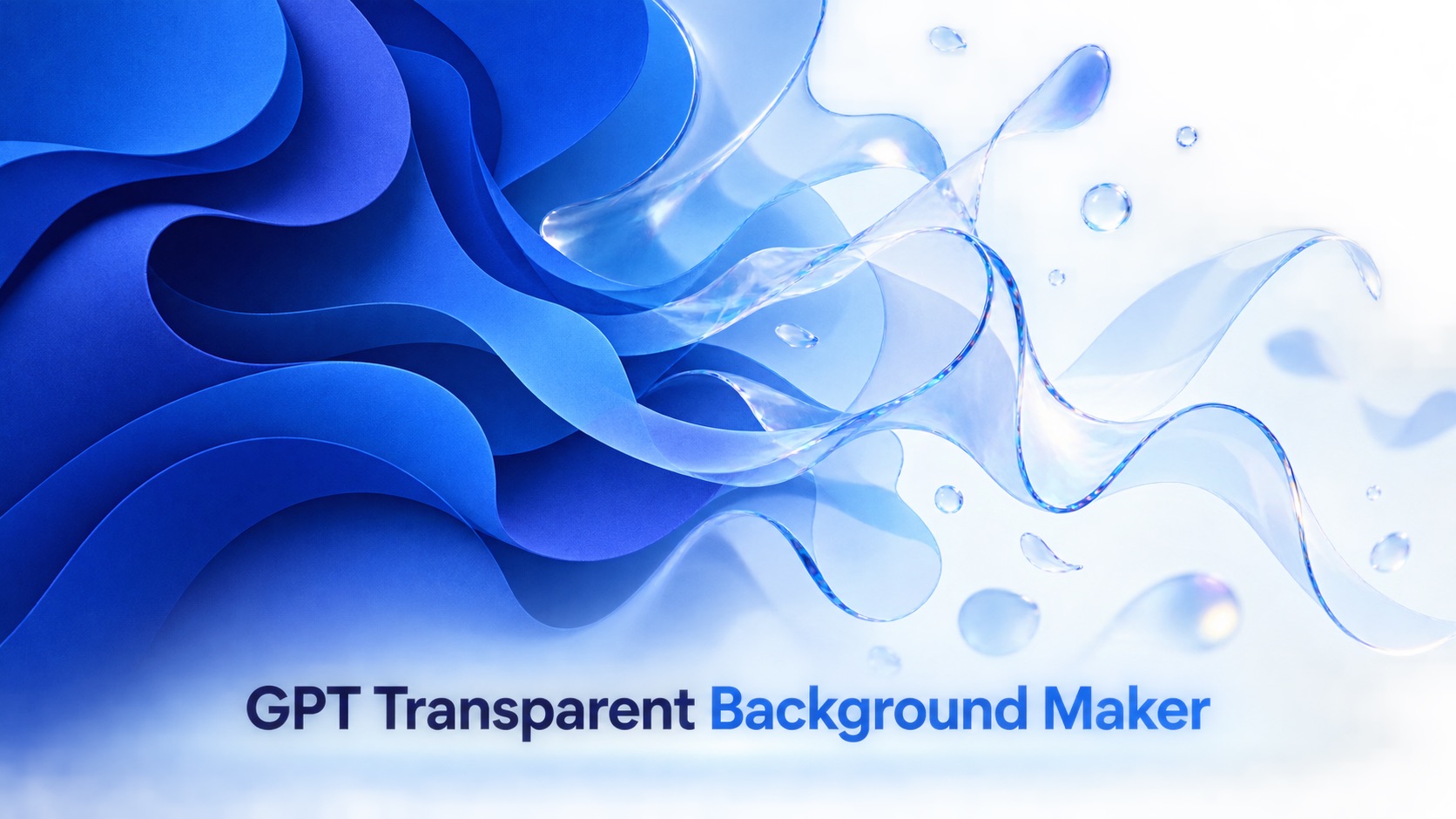




Three Ways To Develop A Stronger Image
Seedream 5.5 connects an initial concept with the small decisions that make an asset useful. Move between the AI image generator and the AI image editor as the project changes, giving each pass a distinct creative objective.
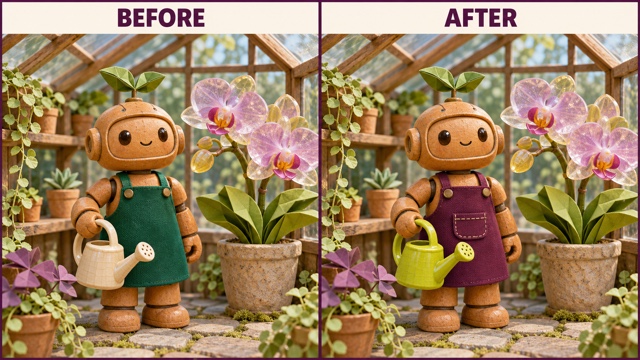
Refine A Detail With Seedream 5.5
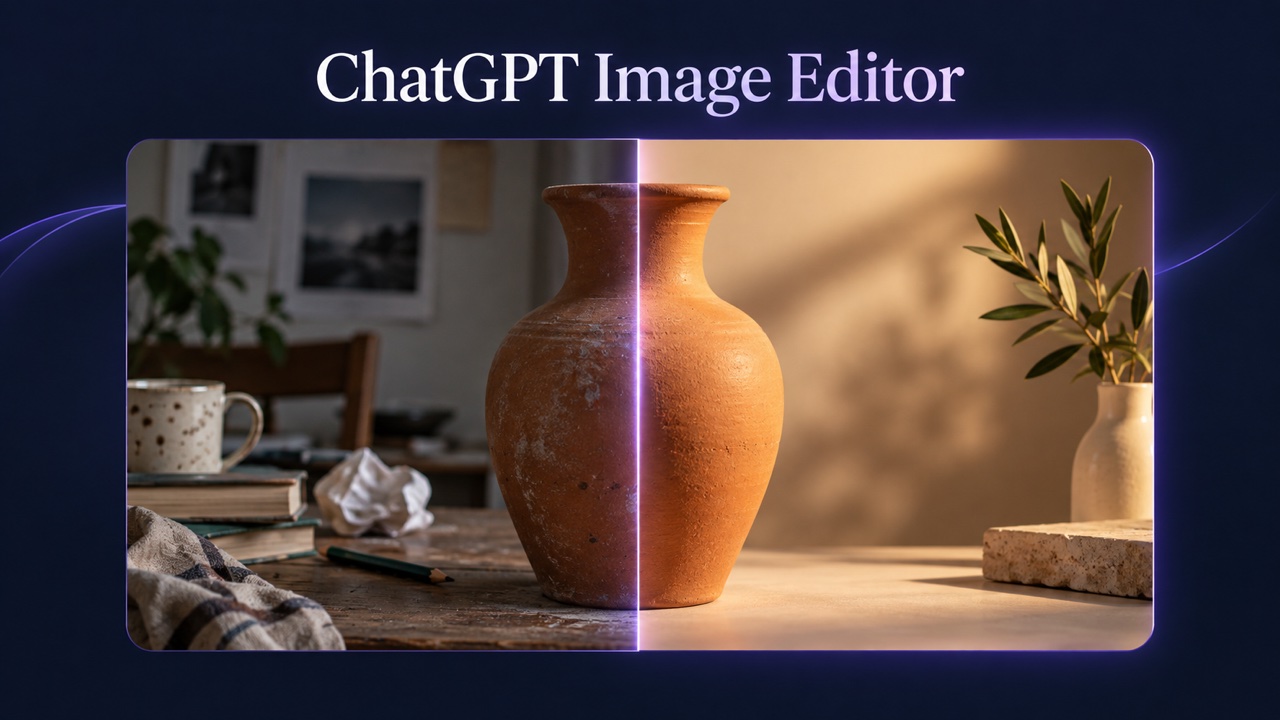
Seedream 5.5 is designed to preserve unedited regions while carrying out targeted revisions. That matters when a promising composition needs a better accessory, a different color, or a more suitable prop. Use Seedream 5.5 as an AI image editor to make specific choices about a subject and its surroundings.
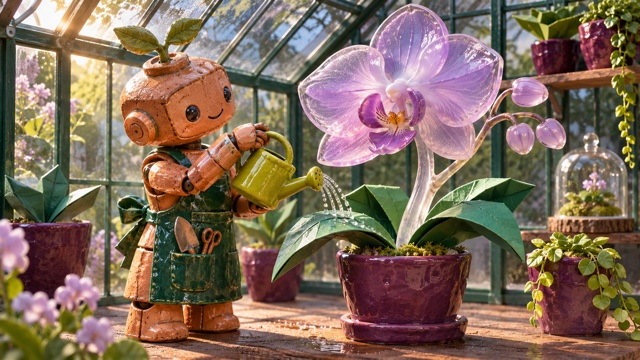
To edit images with text, describe the visible object first and then the requested change. For a ceramic robot character, an instruction might change an apron color while keeping the face, pose, planting table, and greenhouse structure in place. Seedream 5.5 emphasizes reduced detail loss and color drift across repeated edits. Examine those stable regions after each output, especially where shadows or objects touch.
Seedream 5.5 also supports the development of consistent character designs. Let the AI image generator establish the visual language, and let the AI image editor handle the refinement. Seedream 5.5 is most useful here when a revision answers a practical question: which outfit, prop, or color better fits the story?
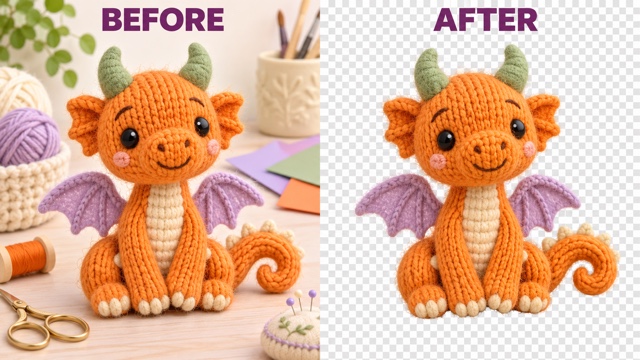
Create Transparent Assets With Seedream 5.5
Seedream 5.5 introduces native RGBA generation, including fully transparent areas and partial transparency. Seedream 5.5 lets a standalone subject remain separate from its eventual layout. A textured mascot, a decorative flower, or a translucent object can become an element you place beside copy, over a colored background, or inside a larger illustration. Use the AI image generator to define the object before worrying about the surrounding campaign.
When you create transparent images, describe the subject completely and leave space around its silhouette. State which surfaces should be translucent and which should stay opaque. Seedream 5.5 can render complex edges and transparent regions, according to its official examples.
The AI image editor can also help separate a subject from an existing reference. With Seedream 5.5, the creative opportunity is a collection of movable pieces rather than a finished background alone. You might create transparent images for a knitted creature, then place it into several layouts while keeping its texture and personality. This is useful for consistent character designs across invitations, announcements, presentation slides, and other coordinated creative work.
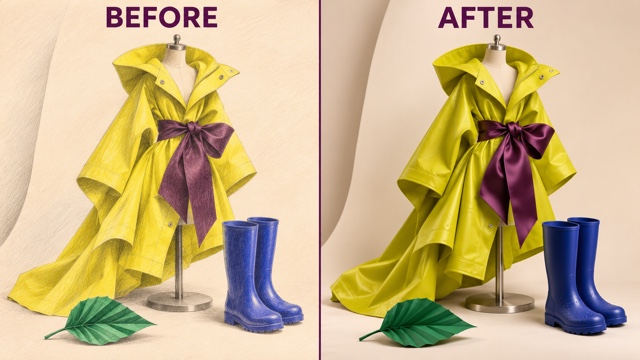
Explore Texture And Type With Seedream 5.5
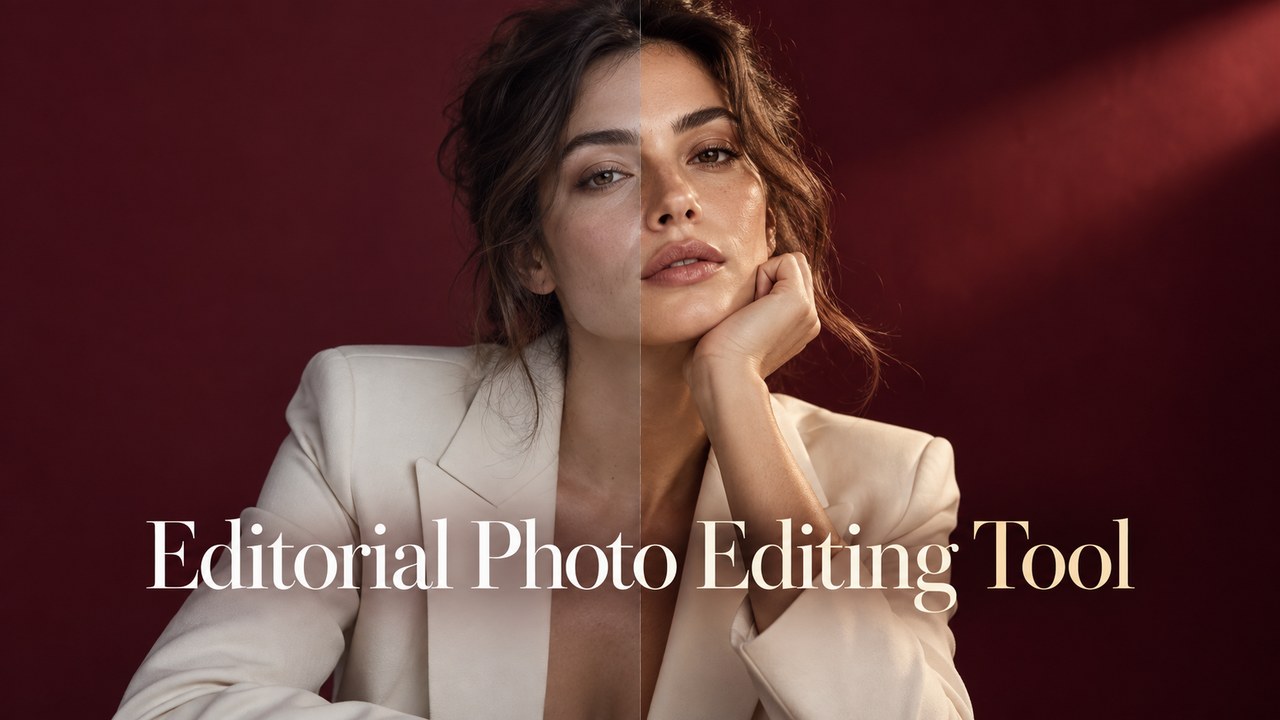
Seedream 5.5 places particular emphasis on natural lighting, material detail, skin texture, and clearer Chinese and English lettering. With Seedream 5.5, these qualities matter because viewers read an image through small cues: the weave of cloth, a soft highlight on ceramic, or the space around a headline. Ask the AI image generator for materials and illumination that belong together. A satin bow and a rubber boot should reflect light differently.
For realistic material textures, describe the surface itself: brushed metal, glazed clay, woven fabric, matte paper, or translucent resin. Seedream 5.5 can support more convincing visual studies when the brief explains how those surfaces meet the light. Use the AI image editor to adjust a finish or remove an overly glossy impression while retaining the arrangement.
For readable text in images, give the exact wording and establish the hierarchy before decorative effects. Seedream 5.5 improves compact text and complicated character shapes, according to the launch material. An AI image generator still benefits from clear line lengths and a deliberate layout. Seedream 5.5 can help develop the design, while the AI image editor provides a way to request a focused correction. Proofread the output rather than judging text only by its overall appearance.
Put Seedream 5.5 Into A Creative Project
Choose a use that benefits from a clear visual identity, reusable elements, or careful revisions. Seedream 5.5 can serve different creative roles without requiring every project to look alike. Use this AI image generator to establish the composition and this AI image editor to test its details.

Seedream 5.5 For Character Stories
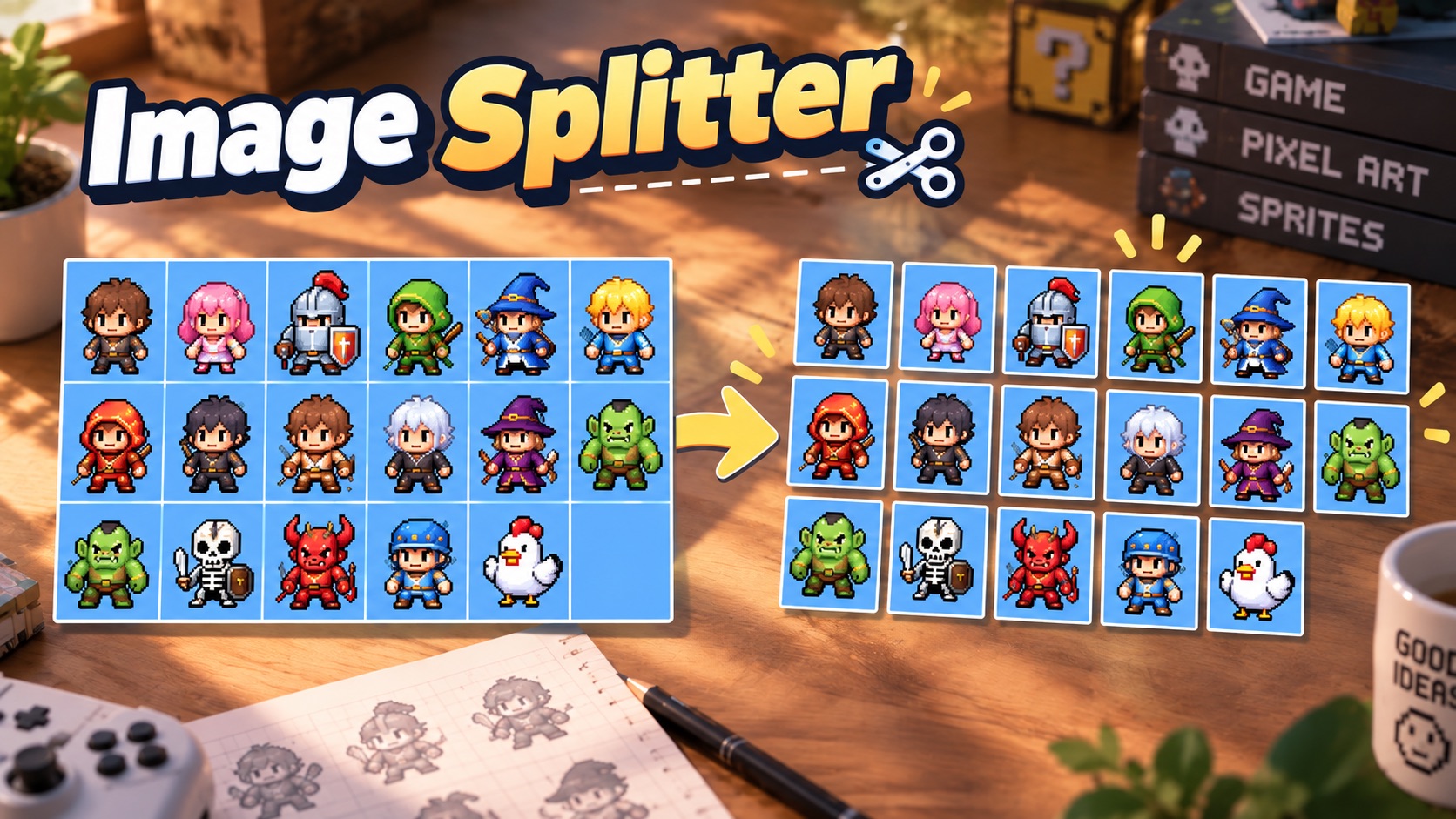
Develop a character around a few memorable traits: a rounded body, a handmade surface, an unusual accessory, and a distinct palette. Seedream 5.5 can help explore consistent character designs while you compare gestures or costume details. An AI image generator is useful for finding the initial personality; an AI image editor is useful when one detail needs to change.

Seedream 5.5 For Campaign Assets
A launch graphic may need one subject in a wide announcement, a square post, and a presentation cover. Seedream 5.5 can help create transparent images so the element can be arranged alongside different copy. Start with the object and its silhouette, then think about the space around it. Use the AI image generator for the initial asset and the AI image editor for a local correction. Build layouts with clear visual priority rather than filling every available corner.

Seedream 5.5 For Fashion Studies
Use a garment study to discuss finish, color, drape, and accessory relationships before deciding on a physical sample. Seedream 5.5 can explore realistic material textures in a deliberate still life or portrait concept. Give the AI image generator a precise fabric and lighting description, then use the AI image editor to compare a specific surface or trim. Keep the camera angle and basic arrangement steady so the differences remain easy to evaluate.

Seedream 5.5 For Information Graphics
A poster or educational image needs a clear path through the information. Seedream 5.5 can help explore readable text in images by combining a hierarchy of headings, short captions, and visual examples. Tell the AI image generator which message should be noticed first. Ask the AI image editor to correct a region when the structure works but a small part needs attention. Keep the wording concise and verify facts as well as spelling before sharing the final graphic.
Creative Perspectives On Seedream 5.5
The following fictional names and example opinions illustrate different design priorities; they are not verified customer reviews.
Seedream 5.5 interests me because I can develop the personality of a character through its materials and small details.
I like a workflow that lets me keep a strong arrangement while revising the one detail that still feels unresolved.
Reusable transparent elements give me room to arrange a visual around the message, rather than squeeze the message into a fixed background.
The most useful image is the one I can evaluate against the brief. Clear materials, lighting, and typography make that conversation easier.




Answers For Seedream 5.5 Creators
Understand the difference between starting an image, revising a reference, and preparing an asset for its next layout.
Seedream 5.5 is an image generation and editing model from ByteDance Seed. Its announced improvements center on stable multi-round editing, native RGBA output, realistic appearance, and stronger text rendering. As an AI image generator, it can interpret a written concept. As an AI image editor, it can use image context to guide a revision. The same project can benefit from both roles as the visual direction becomes more specific.
Begin with a prompt when the main idea has not yet been pictured. Bring a reference when a pose, subject, palette, or arrangement already exists and matters to the result. Seedream 5.5 supports generation and editing, so choose the starting point that supplies the clearest information. An AI image generator needs a well-defined scene; an AI image editor needs a clear description of what to preserve and change.
To edit images with text, name the object, state the adjustment, and identify the surrounding elements that should remain stable. Seedream 5.5 is designed for repeated revisions that reduce degradation of unedited areas.
Seedream 5.5 supports native RGBA generation with full and partial transparency, according to the official announcement. To create transparent images, explicitly request a transparent background and describe any translucent materials. An AI image generator can establish the isolated subject; an AI image editor can help revise an existing element. Review the saved alpha channel and fine edges before adding the asset to a different design.
For realistic material textures, specify the material and how light reaches it. For readable text in images, supply the wording and describe the order in which people should read it. Seedream 5.5 emphasizes both visual realism and text structure. Use the AI image generator for the overall direction and the AI image editor for a limited correction, then inspect the final output at its actual viewing size.
Consistent character designs begin with a reference and a clear list of defining features. Keep the body shape, facial proportions, texture, and distinctive accessories explicit in your direction for Seedream 5.5. Ask for a new gesture or setting while naming the features that should persist. An AI image generator can develop alternatives, while an AI image editor can help refine the selected design without abandoning its visual identity.
Start Your Seedream 5.5 AI Image Generator Project
Turn a written idea into something you can assess. Start with Seedream 5.5, choose a useful reference when needed, and make the next revision serve your design. Build the image, inspect the details, and keep the strongest direction.
