
More AI Image Generators
Explore our collection of specialized AI image generators designed for different creative needs and styles






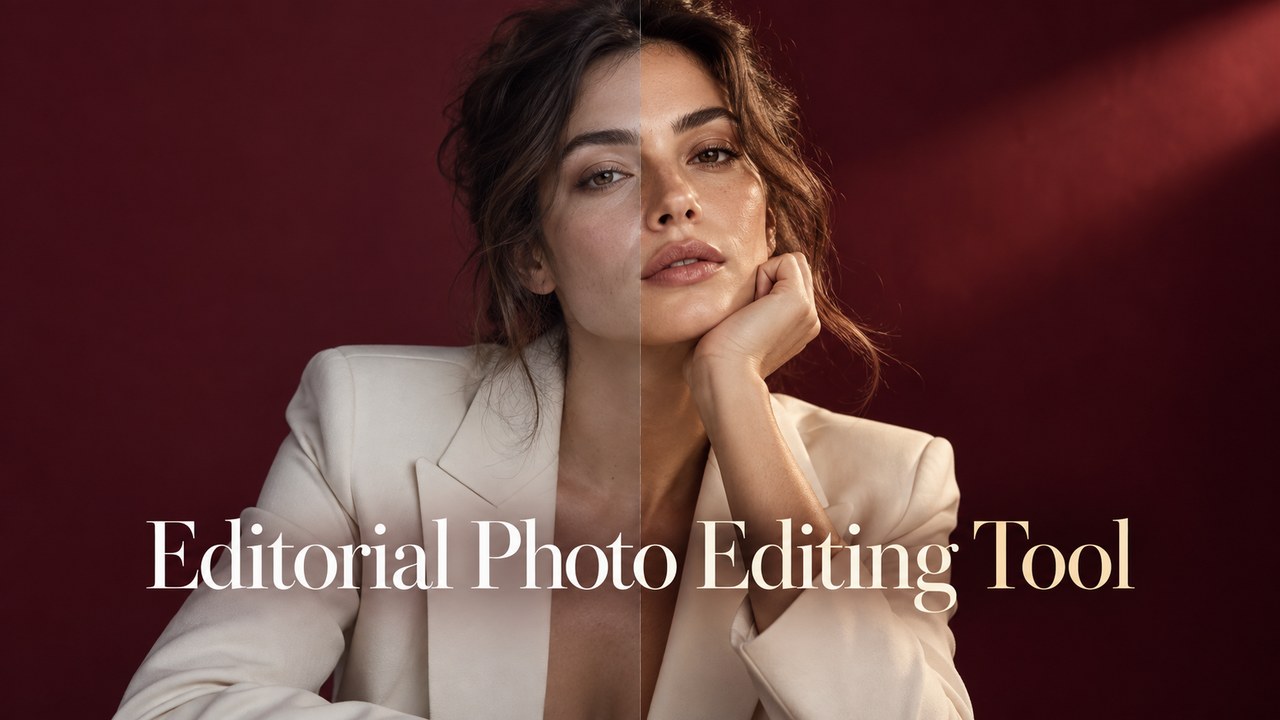
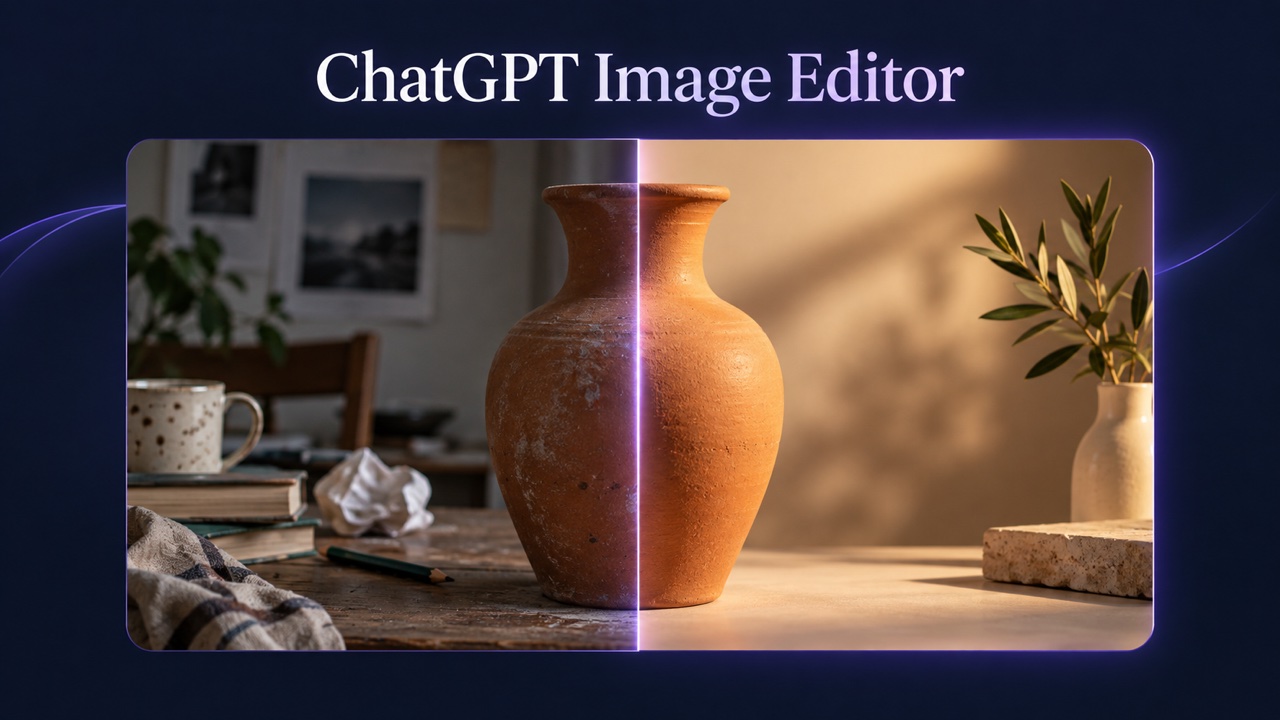
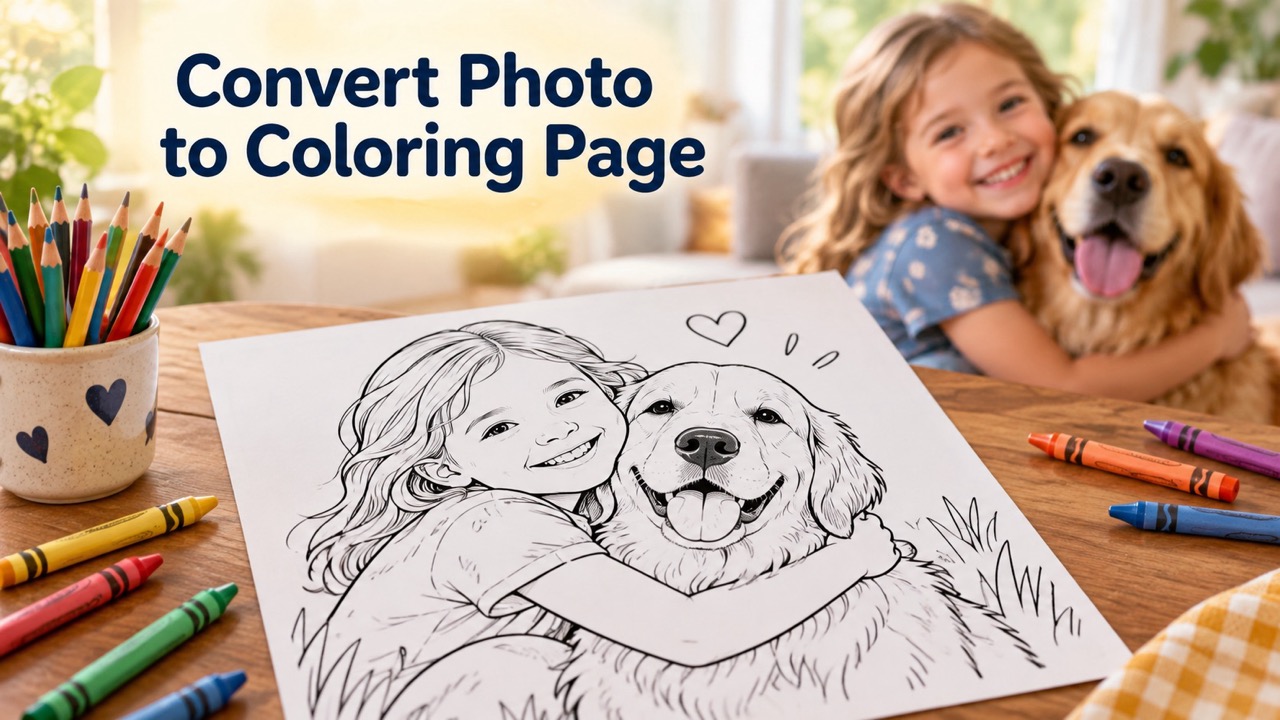
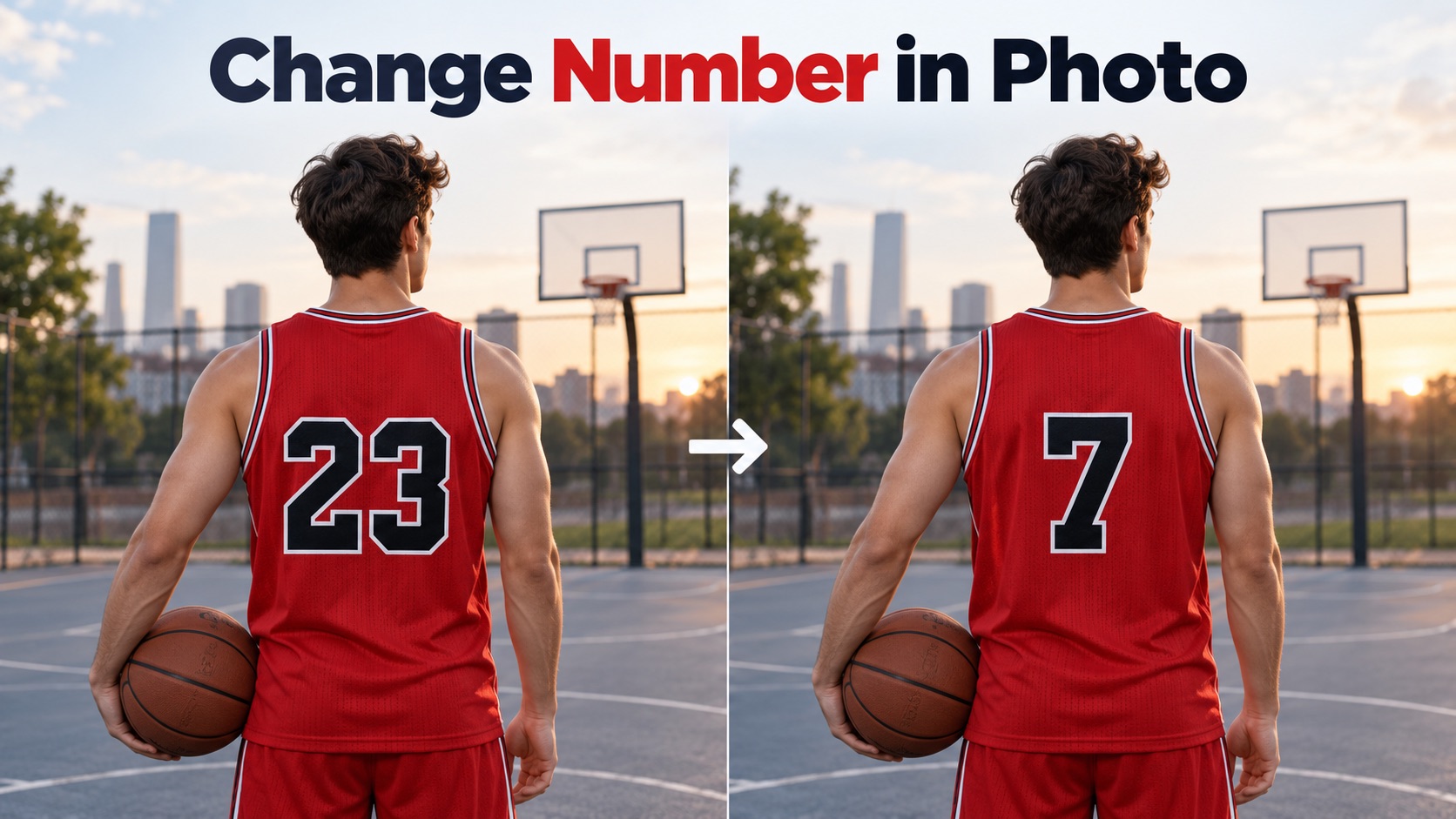
Kling Image 4
Direct The Details In One Image Or A Full Series
Kling Image 4 turns detailed prompts and visual references into images with natural lighting, expressive typography, and deliberate composition. Create a still in native 8K or give a sequence of images a shared visual direction.

How To Use The Kling Image 4 Generator
Set the input, describe what to make, and choose how Pixomi should generate the result. Start with the settings that fit your brief.

Choose Text Or Reference Images
Choose an input for Kling Image 4. Select Text to start from an idea. Under Reference Images, upload a file or pick one from Assets Library. Select Show All (10) for more slots, then give each reference an assignment, such as defining the subject or palette.

Write Your Prompt
Tell Kling Image 4 what belongs in the image. In Prompt, name the subject, setting, framing, and style. State what to preserve from any references and what to change. If the design includes text, enter the exact wording and specify where it goes.

Set The Mode And Output
On Pixomi, Kling Image 4 offers Standard for independent images and Series for a related set. Choose Auto or a frame under Aspect Ratio, set Resolution to 2K, 4K, or 8K, then set Number of Images. Series accepts 2 to 10 outputs.

Generate And Review The Result
Review Public Visibility and Required Credits before clicking Generate Image. Once Kling Image 4 returns the result, check it in My Images at the size you intend to use. To revise it, keep the instructions that worked and change one detail.
Best AI Image Tools for Creative Projects
Explore creative tools for image, learn tips and tricks, and see how AI can be your assistant in turning concepts into finished projects.



Why Create With Kling Image 4?
Choose this model when your brief calls for detailed realism, precise layout, or visual continuity across a set. Each capability gives you a way to shape the result.
Natural Light And Fine Detail In Native 8K
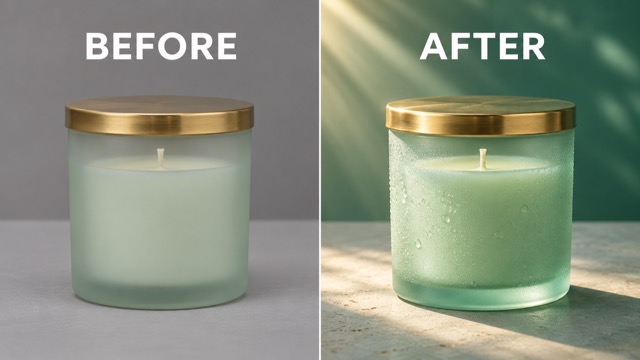
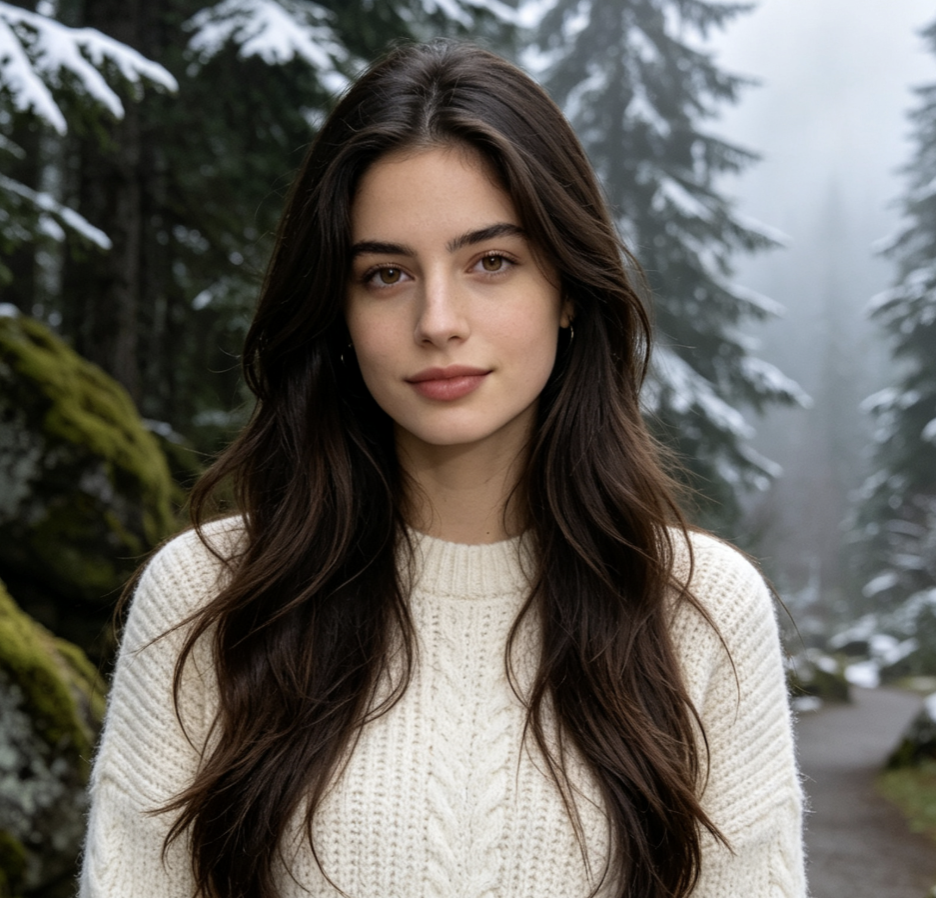
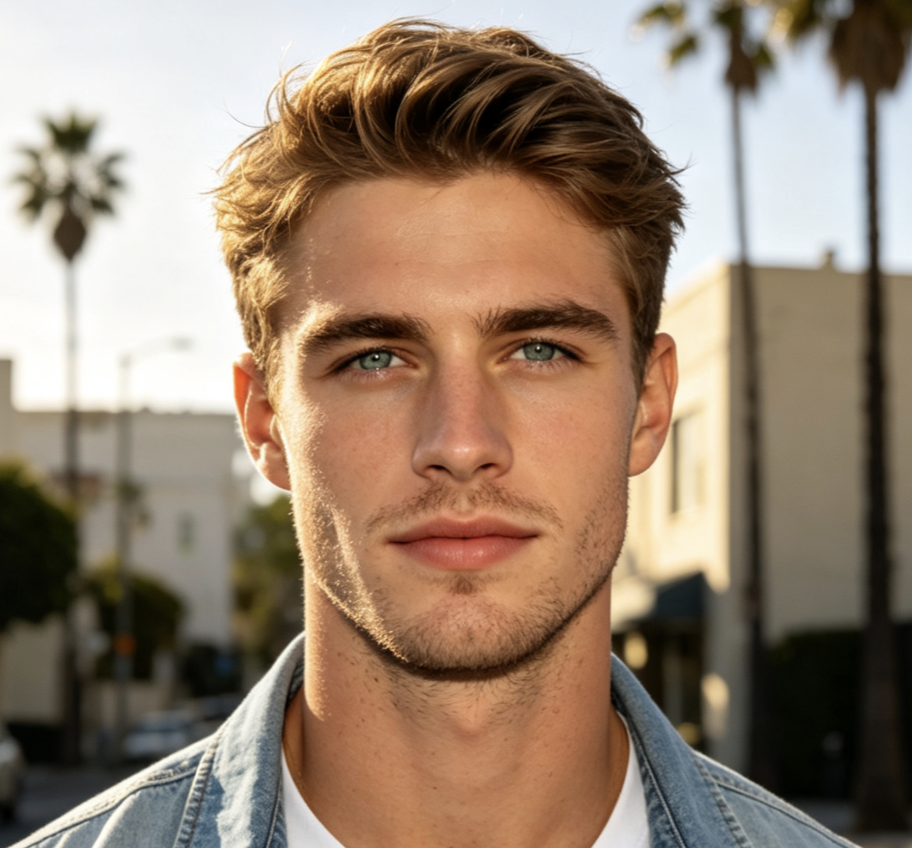
Kling Image 4 models how light moves across skin, glass, fabric, and metal, giving surfaces the look they would have in a photograph. Specify where the light comes from and which textures should be visible. A frosted jar can pick up a soft contact shadow, while a portrait can show individual strands of hair against a backlight. Native 8K gives Kling Image 4 room to capture fine detail in a tight crop or large display. At the draft stage, choose a lower resolution to judge the framing and light.
Place Text Where The Design Needs It
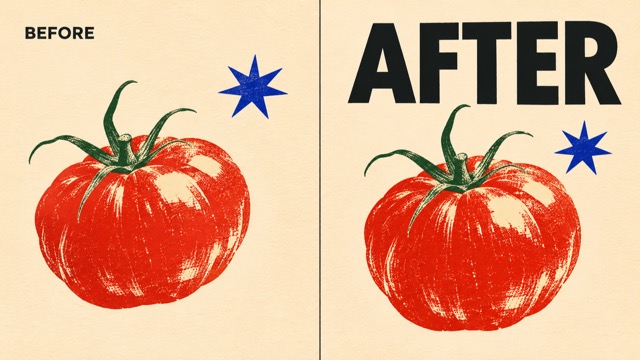
Use the prompt to specify the exact wording, position, and scale of each line. A headline can anchor an illustration, a label can sit on an object, and a smaller caption can add context. Kling AI documents support for up to 2,000 characters in a single Kling Image 4 output. Give the most important words the most space. For text that people will rely on, check names, figures, and punctuation at the intended size before using the image.

Guide The Image With Multiple References
Use a reference for visual details that are hard to put into words, such as a silhouette, a material texture, or a palette. The Kling Image 4 generator accepts multiple images alongside a prompt, so each can guide a different part of the result. For example, keep the bottle and cap from one image and the slate surface from another. In a character study, direct Kling Image 4 to retain the subject's outline while drawing on a separate reference for the costume.
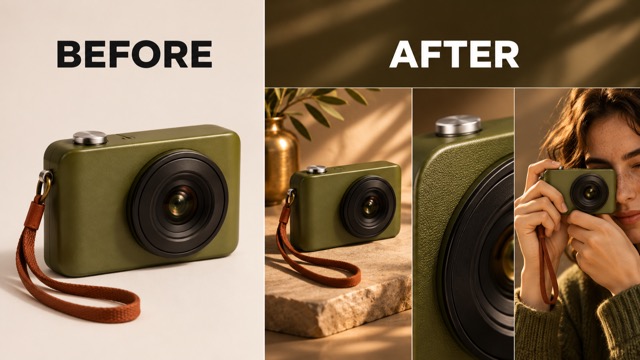
Direct A Set With One Creative Brief
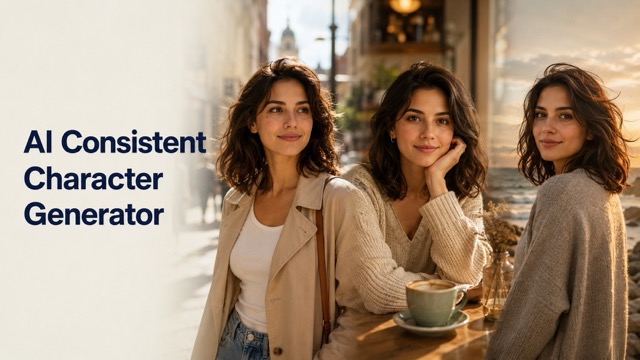
In Series mode, Kling Image 4 can generate up to 10 related images from one prompt. Give the set a common subject, art style, or time of day, then say what changes in each image. A camera study could show the whole object, a close view of its texture, and a person using it. For a storyboard, tell Kling Image 4 which details need to recur across locations. Keep each image centered on a distinct action or view so the set is easy to follow.
Where Kling Image 4 Fits Your Workflow
Pick the capability that solves your creative problem. Use the prompt to define what should stay consistent and what you want the model to explore.

Build Realistic Scenes And Portraits
Give Kling Image 4 a place and a point of view. Tell it how far the subject is from the camera and how light reaches the scene. A portrait in a doorway on a rainy evening calls for different reflections and contrast than a bright landscape with distant hills. For a wide frame, specify which objects belong near the left and right edges.

Explore Illustration And Visual Design
Test an illustration or design idea with Kling Image 4 by describing the palette, the style of the marks, and how the elements should be arranged. In a map or magazine cover, assign each part of the image a visual weight and say what the viewer should see first.

Iterate On Characters And Spaces
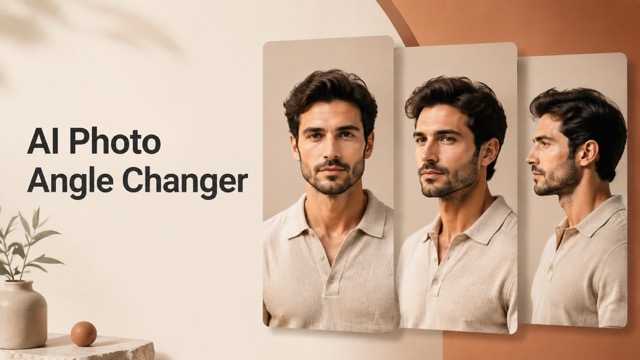
When you know which details should carry through, give Kling Image 4 a sketch or photo to work from. Keep a character's outline while exploring a different costume, or retain a room's layout while changing its materials. A focused instruction makes each revision easier to compare.

Plan Storyboards And Matching Visuals
Use the Series setting in Kling Image 4 when an idea is easier to judge across several frames. Give a story one action per image. For a design study, keep the viewpoint steady and name the elements you want to vary. That gives your comparisons a common baseline.
Six Prompts To Adapt For Kling Image 4
Add your own subject, references, and preferred style to these starting points.
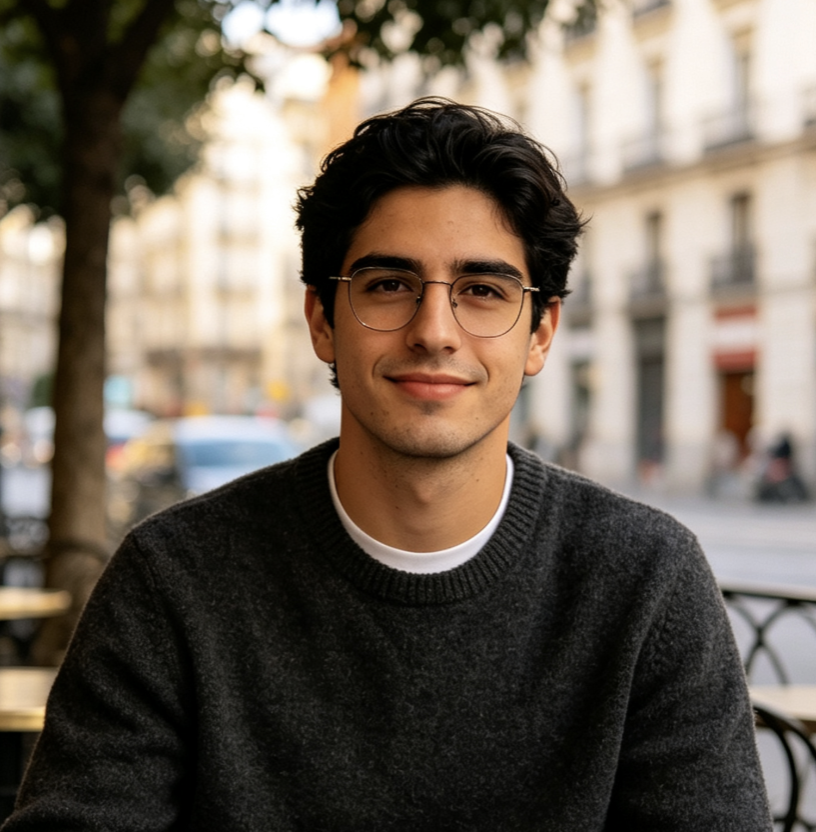
An architect by a tall studio window, cool reflected light on one cheek and soft shadows across the desk.
A coastal trail after rain, with slate water, pale clouds, and sharp detail in the grass closest to the camera.
A risograph illustration of a paper kite, with WIND STUDIES set in large dark type above the horizon.
Keep the silhouette from the first reference and use the matte textures and warm gray palette of the second.
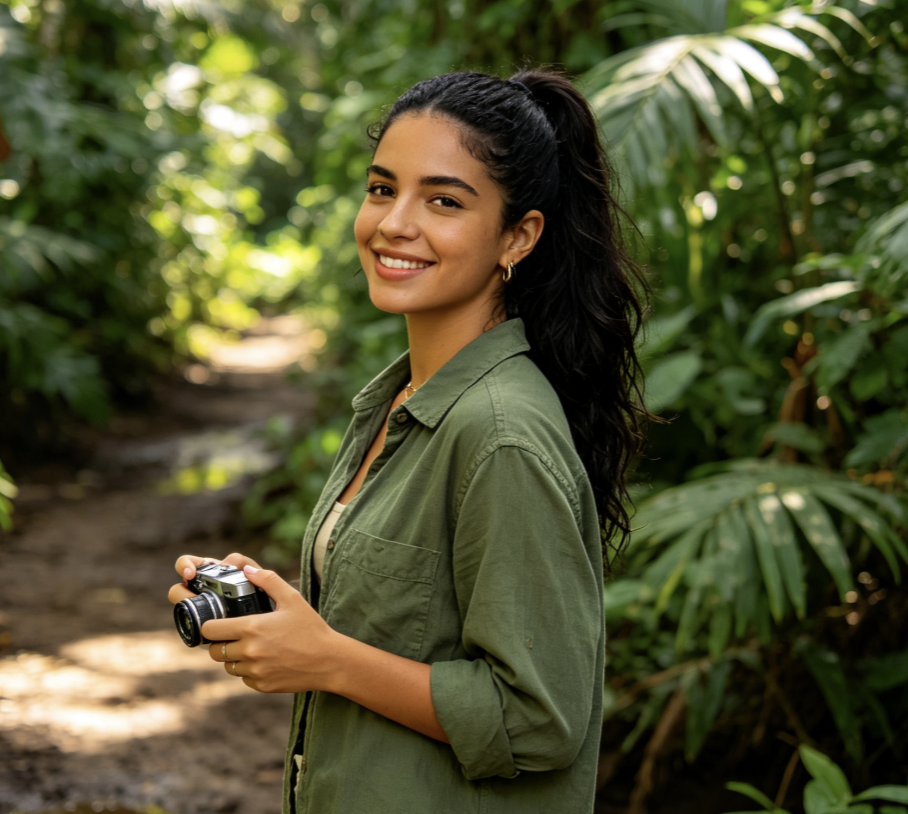
A traveling botanist with a folded field map, an olive canvas coat, and a sketchbook tucked under one arm.
Follow the same cyclist through a quiet street, a crowded market, and a tunnel, with consistent colors and framing.


Kling Image 4 FAQs
Find the right input and output settings for the image you want to create.
Kling Image 4.0 is Kling AI's advanced still image model. It interprets written instructions and visual references to create a standalone image or a related series. Its main strengths include realistic lighting and materials, more control over text placement, and high resolution generation up to native 8K.
Yes. Choose Text and start by describing the subject and its environment. Add framing, lighting, or style as the idea becomes clearer. The Kling Image 4 generator can also produce multiple independent images from the same prompt so you can compare different interpretations of the brief.
Select Reference Images, upload the image, and describe the edit in Prompt. State what to keep as well as what to change. For a lighting edit, ask Kling Image 4 to preserve the layout and subjects while moving the light source or changing the time of day.
In Kling Image 4, choose 2K to judge the overall direction or 4K to inspect more detail. Use 8K for a large display, a tighter crop, or close inspection of textures. Select the aspect ratio that fits the intended frame.
Give Kling Image 4 the exact copy and identify the role of each line. Describe where it goes, how large it should be, and how much space it needs. Check the output at the size your audience will see it, especially for names and numbers.
Standard makes independent images in Kling Image 4, which is useful for comparing alternatives. Series makes related images from one brief. Describe what connects the set and what should change in each image, such as a different camera angle or the next moment in a story.
Give Your Next Image A Clear Direction
Start with a prompt or bring a reference. Define the details that matter and create a single image or a connected series with Kling Image 4.
